This topic is in the 2019 archive. You can read it and like its posts here. It is read only.
Archive 2019Any thoughts on use of Topaz DeNoise AI?
p.3 #1Any thoughts on use of Topaz DeNoise AI?
lunar module wrote:
Can anyone explain how Clear AI differs from DeNoise AI? It's not obvious to me which of these options to use when. Is there a publicly stated difference in operation for each of these algorithms which would allow one to choose between them in advance, or is picking one over the other more a matter of trial and error?
Denoise AI replaces both Clear AI and Denoise (the non AI version) if my understanding of this web page from TopazLabs is correct (allows upgrade from those 2 SW to Denoise AI)
https://help.topazlabs.com/hc/en-us/articles/360026228372-Free-Upgrade-to-DeNoise-AI-for-DeNoise-and-AI-Clear-Owners
Nov 13, 2019 at 10:53 AM
p.3 #2Any thoughts on use of Topaz DeNoise AI?
dshao1 wrote:
Denoise AI replaces both Clear AI and Denoise (the non AI version) if my understanding of this web page from TopazLabs is correct (allows upgrade from those 2 SW to Denoise AI).
It's true that DeNoise AI replaced DeNoise, but Clear AI still exists. It has been incorporated into DeNoise AI. When you open the current version of DeNoise AI, you are given a choice in a drop down menu as to which algorithm you wish to use for noise reduction: DeNoise AI or Clear AI.
What I am asking is, how are they different? I can't find any information on the Topaz web site (or anywhere else) that describes how these algorithms work and how they are different from each other. Relative strengths and weaknesses. When one might be better to use than the other. That kind of thing.
In other words, is there a logic that I can apply in advance to make the choice or is it necessary to just try them both and see which does a better job?
Nov 13, 2019 at 11:08 AM
p.3 #3Any thoughts on use of Topaz DeNoise AI?
jon m wrote:
I don't use "classic", I just use the "new" version (which I think is either called "CC", or when you do "About", says Version 3). This version stores your photos in the Adobe cloud (not sure if that's possible in Classic, but I'd be more inclined to learn Classic if I could do that).
In the new version there's no way to add in an external editor.
Got it. Thx. Yes, the new version is just a photo manager, not an editor.
CC stands for "Creative Cloud", which is just the blanket term Adobe uses for all of their subscription based, delivered over the web products including both versions of Lightroom, Photoshop, Illustrator, etc.
I don't use the "new" version of LR for photo storage in the cloud, but the Classic Version of LR can be set up to sync photos with the "new" version automatically, which I assume means that they can be set up to work together so you can edit photos in the Classic version and store them via the "new" version without doing anything too complex. I don't have any experience with this and can't tell you how well it works and/or if it is easy to do or not. But if Adobe is smart, they will have made this interaction seamless. And I imagine that they are pretty smart. You might want to check it out.
If you have the Photo subscription for Creative Cloud, it includes Classic LR, "new" LR, and Photoshop, so you are already paying for Classic LR and you could try it out without incurring any additional expense. I think Classic LR is pretty hard to beat for basic cataloging and editing of images. I only use Photoshop if I'm trying to do something relatively fancy, which, in my case, is not very often. For image storage I use a local hard drive as my primary storage and for backup on the web I use SmugMug for edited, selected files and I use Google Drive synced to my local hard drive for generic cloud based backup storage.
Nov 13, 2019 at 11:24 AM
p.3 #4Any thoughts on use of Topaz DeNoise AI?
kdrk888 wrote:
Edit: I use C1, not LR. My workflow process is admittedly not the most efficient as I use C1, Denoise and Sharpen as separate, standalone, steps.How to you get the image back and forth between C1 and Denoise/Sharpen? Do you save the processed image from C1 as a tiff or something? and then open it in Denoise/Sharpen?Hi, Topaz recommends using their products first, so I use Denoise/Sharpen and then save as a DNG file for import into C1. (If I find the pictures processed through Denoise/Sharpen to be good enough for my needs, I will end my processing there.)
I use DNG vs. TIFF just because I also use SonyPixelShift2DNG on occasion and just like to keep my file formats the same when possible.Absolutely run it before you do post processing! I have done both ways, and it makes a noticeable difference when it's run first. I don't know the underlying reasons why, but I can tell a difference.Interesting. I am just starting to learn to use this app. Since the Denoise AI only supports png, tiff and jpeg, do you change the raw files to png first for the Denoise AI to work on, then send the denoised png back to LR or other program for further editing?
Been a lot of replies since this, just playing catch-up. So far, I'm only using it on JPG files as my starting point - I use it for my football game jpgs (not using the raw files here). So my workflow starts with a jpg, gets processed in Topaz and saved as jpg that gets further edited in C1. Mine is not the normal use case scenario, since I'm using it for cleaning up high ISO files shot at night time sporting events.
mike1812 wrote
dshao1 wrote
Minatureman13 wrote
dshao1 wrote
I’m definitely no expert at Post Processing, but I’ve been satisfied using both Denoise AI and Sharpen AI. I purchased both packages.Edit: I use C1, not LR. My workflow process is admittedly not the most efficient as I use C1, Denoise and Sharpen as separate, standalone, steps.
I use DNG vs. TIFF just because I also use SonyPixelShift2DNG on occasion and just like to keep my file formats the same when possible.
Been a lot of replies since this, just playing catch-up. So far, I'm only using it on JPG files as my starting point - I use it for my football game jpgs (not using the raw files here). So my workflow starts with a jpg, gets processed in Topaz and saved as jpg that gets further edited in C1. Mine is not the normal use case scenario, since I'm using it for cleaning up high ISO files shot at night time sporting events.
Nov 13, 2019 at 11:28 AM
p.3 #5Any thoughts on use of Topaz DeNoise AI?
MikeEvangelist wrote:
I'd like to know that too. The Topaz site seems to say that the Denoise AI is better/more advanced, but most of the time I find the results from AI Clear to be more pleasing. (I always check both for each image)
That has been my experience so far as well - I've preferred the results from AI Clear over Denoise AI. But that also may be dependent on the type of images and files I'm using - which has been very limited to high ISO (around 25,600, sometimes less) night time football games shot in jpg.
lunar module wrote
Can anyone explain how Clear AI differs from DeNoise AI? It's not obvious to me which of these options to use when. Is there a publicly stated difference in operation for each of these algorithms which would allow one to choose between them in advance, or is picking one over the other more a matter of trial and error?That has been my experience so far as well - I've preferred the results from AI Clear over Denoise AI. But that also may be dependent on the type of images and files I'm using - which has been very limited to high ISO (around 25,600, sometimes less) night time football games shot in jpg.
Nov 13, 2019 at 11:31 AM
p.3 #6Any thoughts on use of Topaz DeNoise AI?
mike1812 wrote:
Edit: I use C1, not LR. My workflow process is admittedly not the most efficient as I use C1, Denoise and Sharpen as separate, standalone, steps.How to you get the image back and forth between C1 and Denoise/Sharpen? Do you save the processed image from C1 as a tiff or something? and then open it in Denoise/Sharpen?Hi, Topaz recommends using their products first, so I use Denoise/Sharpen and then save as a DNG file for import into C1. (If I find the pictures processed through Denoise/Sharpen to be good enough for my needs, I will end my processing there.)
I use DNG vs. TIFF just because I also use SonyPixelShift2DNG on occasion and just like to keep my file formats the same when possible.Absolutely run it before you do post processing! I have done both ways, and it makes a noticeable difference when it's run first. I don't know the underlying reasons why, but I can tell a difference.
I don’t get this.
C1 is chosen by many for its excellent RAW conversion. So, running the Raw through Topaz first, then sending a dng or tif to C1 seems to prefer Topaz to C1 as a Raw converter and defeats one of the strong points of C1.
dshao1 wrote
Minatureman13 wrote
dshao1 wrote
I’m definitely no expert at Post Processing, but I’ve been satisfied using both Denoise AI and Sharpen AI. I purchased both packages.Edit: I use C1, not LR. My workflow process is admittedly not the most efficient as I use C1, Denoise and Sharpen as separate, standalone, steps.
I use DNG vs. TIFF just because I also use SonyPixelShift2DNG on occasion and just like to keep my file formats the same when possible.
I don’t get this.
C1 is chosen by many for its excellent RAW conversion. So, running the Raw through Topaz first, then sending a dng or tif to C1 seems to prefer Topaz to C1 as a Raw converter and defeats one of the strong points of C1.
Nov 13, 2019 at 11:50 AM
p.3 #7Any thoughts on use of Topaz DeNoise AI?
PhilthePhrame wrote:
Edit: I use C1, not LR. My workflow process is admittedly not the most efficient as I use C1, Denoise and Sharpen as separate, standalone, steps.How to you get the image back and forth between C1 and Denoise/Sharpen? Do you save the processed image from C1 as a tiff or something? and then open it in Denoise/Sharpen?Hi, Topaz recommends using their products first, so I use Denoise/Sharpen and then save as a DNG file for import into C1. (If I find the pictures processed through Denoise/Sharpen to be good enough for my needs, I will end my processing there.)
I use DNG vs. TIFF just because I also use SonyPixelShift2DNG on occasion and just like to keep my file formats the same when possible.Absolutely run it before you do post processing! I have done both ways, and it makes a noticeable difference when it's run first. I don't know the underlying reasons why, but I can tell a difference.I don’t get this.
C1 is chosen by many for its excellent RAW conversion. So, running the Raw through Topaz first, then sending a dng or tif to C1 seems to prefer Topaz to C1 as a Raw converter and defeats one of the strong points of C1.
I found this from Topaz' website:
"5.) When should I use DeNoise AI in my workflow?
For best results, you should used DeNoise AI at the very beginning of your editing process. We've found removing noise as a first step is not only beneficial for the workflow that comes after, but also because removing noise after most of the editing process is completed may deliver unexpected results as it tries to process the various edits adjustments in your image."
Not sure if it makes sense.
I just started to learn to use denoise AI two days ago. I played around with both denoise AI and AI Clear and in my opinion based on my very limited use, denoise AI provides more customization with the sliders, while AL Clear only gives you "low", "mid", and "high". AI Clear may be quicker in getting you decent results, denoise AI gives you more control/manipulation with the sliders but it may take longer to get the result you are happy with.
This is based on my experimenting for two days .
mike1812 wrote
dshao1 wrote
Minatureman13 wrote
dshao1 wrote
I’m definitely no expert at Post Processing, but I’ve been satisfied using both Denoise AI and Sharpen AI. I purchased both packages.Edit: I use C1, not LR. My workflow process is admittedly not the most efficient as I use C1, Denoise and Sharpen as separate, standalone, steps.
I use DNG vs. TIFF just because I also use SonyPixelShift2DNG on occasion and just like to keep my file formats the same when possible.
C1 is chosen by many for its excellent RAW conversion. So, running the Raw through Topaz first, then sending a dng or tif to C1 seems to prefer Topaz to C1 as a Raw converter and defeats one of the strong points of C1.
I found this from Topaz' website:
"5.) When should I use DeNoise AI in my workflow?
For best results, you should used DeNoise AI at the very beginning of your editing process. We've found removing noise as a first step is not only beneficial for the workflow that comes after, but also because removing noise after most of the editing process is completed may deliver unexpected results as it tries to process the various edits adjustments in your image."
Not sure if it makes sense.
I just started to learn to use denoise AI two days ago. I played around with both denoise AI and AI Clear and in my opinion based on my very limited use, denoise AI provides more customization with the sliders, while AL Clear only gives you "low", "mid", and "high". AI Clear may be quicker in getting you decent results, denoise AI gives you more control/manipulation with the sliders but it may take longer to get the result you are happy with.
This is based on my experimenting for two days
.Nov 13, 2019 at 12:06 PM
p.3 #8Any thoughts on use of Topaz DeNoise AI?
lunar module wrote:
dshao1 wrote
Denoise AI replaces both Clear AI and Denoise (the non AI version) if my understanding of this web page from TopazLabs is correct (allows upgrade from those 2 SW to Denoise AI).What I am asking is, how are they different? I can't find any information on the Topaz web site (or anywhere else) that describes how these algorithms work and how they are different from each other. Relative strengths and weaknesses. When one might be better...Show more →
I don’t quite understand all the details myself, but this is something I found on the TopazLab forums, written by one of their moderators: (it refers to AI Clear. I expect that to be the same as Clear AI?)
“...here is a summary of the current offerings in the AI space:
AI Clear - a Topaz Studio Pro Studio Adjustment that removes noise and sharpens detail in photos automatically.
DeNoise AI - a replacement for the DeNoise 6 standalone/plugin. DeNoise AI examines the whole image and determines the difference between detail and noise in that photo. For example if can differentiate grain from noise and then understanding the difference between noise and detail allows it to recover more detail.
Then the other AI products:
Sharpen AI - is a replacement for InFocus and rectifies things like soft focus, camera shake and enhances sharpness.
GigaPixel AI - is an application to enlarge images with the highest quality
JPEG to RAW AI - is just that, produces a DNG or TIF with enhanced detail and dynamic range.
Note I didn’t include AI Remix because as a Topaz Studio Adjustment that transform your image’s style to recreate contemporary and classic artistic styles it falls more into the category of other adjustments such as Impression and Glow as artistic effects.”
Here is a link to that thread if you’re interested: https://community.topazlabs.com/t/ai-clear-and-denoise-ai-differences/10328/8
Nov 13, 2019 at 01:34 PM
p.3 #9Any thoughts on use of Topaz DeNoise AI?
dshao1 wrote:
I don’t quite understand all the details myself, but this is something I found on the TopazLab forums, written by one of their moderators: (it refers to AI Clear. I expect that to be the same as Clear AI?)
“...here is a summary of the current offerings in the AI space:
AI Clear - a Topaz Studio Pro Studio Adjustment that removes noise and sharpens detail in photos automatically.
DeNoise AI - a replacement for the DeNoise 6 standalone/plugin. DeNoise AI examines the whole image and determines the difference between detail and noise in that photo. For example if can differentiate grain from...Show more →
Thanks. I can't say that I understand things any better, but it's a start.
Nov 13, 2019 at 01:53 PM
p.3 #10Any thoughts on use of Topaz DeNoise AI?
PhilthePhrame wrote:
Edit: I use C1, not LR. My workflow process is admittedly not the most efficient as I use C1, Denoise and Sharpen as separate, standalone, steps.How to you get the image back and forth between C1 and Denoise/Sharpen? Do you save the processed image from C1 as a tiff or something? and then open it in Denoise/Sharpen?Hi, Topaz recommends using their products first, so I use Denoise/Sharpen and then save as a DNG file for import into C1. (If I find the pictures processed through Denoise/Sharpen to be good enough for my needs, I will end my processing there.)
I use DNG vs. TIFF just because I also use SonyPixelShift2DNG on occasion and just like to keep my file formats the same when possible.Absolutely run it before you do post processing! I have done both ways, and it makes a noticeable difference when it's run first. I don't know the underlying reasons why, but I can tell a difference.I don’t get this.
C1 is chosen by many for its excellent RAW conversion. So, running the Raw through Topaz first, then sending a dng or tif to C1 seems to prefer Topaz to C1 as a Raw converter and defeats one of the strong points of C1.
I should go edit that post. I've since clarified that in MY case, I'm not using DeNoise on raw files, but on high-ISO (25,600) jpg files. Thus, it's no impact to my workflow. I agree that C1 is an exceptional raw processor and I would hate to lose that benefit by running Denoise first. But in my specific case, it's zero impact - jpg -> jpg -> jpg.
mike1812 wrote
dshao1 wrote
Minatureman13 wrote
dshao1 wrote
I’m definitely no expert at Post Processing, but I’ve been satisfied using both Denoise AI and Sharpen AI. I purchased both packages.Edit: I use C1, not LR. My workflow process is admittedly not the most efficient as I use C1, Denoise and Sharpen as separate, standalone, steps.
I use DNG vs. TIFF just because I also use SonyPixelShift2DNG on occasion and just like to keep my file formats the same when possible.
C1 is chosen by many for its excellent RAW conversion. So, running the Raw through Topaz first, then sending a dng or tif to C1 seems to prefer Topaz to C1 as a Raw converter and defeats one of the strong points of C1.
I should go edit that post. I've since clarified that in MY case, I'm not using DeNoise on raw files, but on high-ISO (25,600) jpg files. Thus, it's no impact to my workflow. I agree that C1 is an exceptional raw processor and I would hate to lose that benefit by running Denoise first. But in my specific case, it's zero impact - jpg -> jpg -> jpg.
Nov 13, 2019 at 03:01 PM
p.3 #11Any thoughts on use of Topaz DeNoise AI?
Using the Denoise Windows demo version and first doing noise reduction in Topaz Denoise on Sony raw files and then sending them to Capture One 12 (Sony) introduces some very bad color/contrast shifts on both the resultant dng or tiff files as seen by C1.
This does not happen when sending the same Denoise files to Lightroom.
Unless I'm doing something wrong or there is some limitation of the C1 Sony version the only way to get decent color results with C1 is to export the raws as tiffs and then load them into Denoise.
One big gripe about all the Topaz products is that they seem to accept no input at all from my Wacom tablet and I assume any other tablet. I mean you can not even activate the sign in box before the program starts. To do anything I have to plug a mouse in. These are the first programs ever that I have found that will not let you use your pen/tablet as basic input device.
gb.
Nov 13, 2019 at 05:32 PM
p.3 #12Any thoughts on use of Topaz DeNoise AI?
I do all my raw edits first in Capture One. I then export to Photoshop and open Topaz as a photoshop plug in. Sharpen works great even though I've already done all of my editing/raw conversions in Capture One.
Nov 13, 2019 at 05:52 PM
p.3 #13Any thoughts on use of Topaz DeNoise AI?
gbinoz wrote:
Using the Denoise Windows demo version and first doing noise reduction in Topaz Denoise on Sony raw files and then sending them to Capture One 12 (Sony) introduces some very bad color/contrast shifts on both the resultant dng or tiff files as seen by C1.
This does not happen when sending the same Denoise files to Lightroom.
Unless I'm doing something wrong or there is some limitation of the C1 Sony version the only way to get decent color results with C1 is to export the raws as tiffs and then load them into Denoise.
One big gripe about all the...Show more →
I export out to Denoise from Capture One 12 by right clicking on the image and selecting "edit with". I send it out as a TIFF file and when done I just hit apply or close the program and the TIFF opens back up in C1. No weird colors. It removes noise and sharpens the images nicely. This is on my Windows 10 PC. I have not tried using my Wacom. Mike
Nov 13, 2019 at 08:08 PM
p.3 #14Any thoughts on use of Topaz DeNoise AI?
gbinoz wrote:
Using the Denoise Windows demo version and first doing noise reduction in Topaz Denoise on Sony raw files and then sending them to Capture One 12 (Sony) introduces some very bad color/contrast shifts on both the resultant dng or tiff files as seen by C1.
With the licensed version of DenoiseAI (v1.3.2), I also see contrast and white-point shifts with .tiff files from DenoiseAI processed raw .ARW files prior to C1 processing. With .dng output, huge color temperature shifts occur so I''m sticking with 16bit .tiff files (for further C1 processing). Its less work to adjust exposure and contrast than color temperature (but using a color reference card might speed the process).
EDIT: I posted this before seeing Membler's post above. I've been using DenoiseAI all wrong on raw files ! Previously, when I use DenoiseAI on raw files (before C1 adjustments), I open DenoiseAI as a standalone program to open the file. But when I tried the method Membler mentions (right-click inside C1 and select "Edit with", then run DenoiseAI), *** NO contrast or white-point shifts occur in the resulting .tiff file *** WEIRD***. Interestingly, using the "Edit with" option, one cannot save as .dng (only jpg, tiff or psd).
However, I am only processing with DenoiseAI first on high ISO raw files (> 8000) but sometimes with > 6400 files. With lower ISO files, the difference between using (i) DenoiseAI on raw files vs (ii) running DenoiseAI on a C1-generated .jpg file is smaller. The latter method is also faster. For some files, ClearAI helps too (in any order).
Nov 13, 2019 at 08:21 PM
p.3 #15Any thoughts on use of Topaz DeNoise AI?
Membler wrote:
This does not happen when sending the same Denoise files to Lightroom.
Unless I'm doing something wrong or there is some limitation of the C1 Sony version the only way to get decent color results with C1 is to export the raws as tiffs and then load them into Denoise.
One big gripe about all the Topaz products is that they seem to accept no input at all from my Wacom tablet and I assume any other tablet. I mean you can not even activate the sign in box before the program starts. To do anything I have to plug a mouse in. These are the first programs ever that I have found that will not let you use your pen/tablet as basic input device.
gb.I export out to Denoise from Capture One 12 by right clicking on the image and selecting "edit with". I send it out as a TIFF file and when done I just hit apply or close the program and the TIFF opens back up in C1. No weird colors. It removes noise and sharpens the images nicely. This is on my Windows 10 PC. I have not tried using my Wacom. Mike
Yes that's a more efficient way of doing it.
Still I'd rather have a raw file to edit further, back in C1, without an uncorrectable (?) color cast.
gb.
gbinoz wrote
Using the Denoise Windows demo version and first doing noise reduction in Topaz Denoise on Sony raw files and then sending them to Capture One 12 (Sony) introduces some very bad color/contrast shifts on both the resultant dng or tiff files as seen by C1.This does not happen when sending the same Denoise files to Lightroom.
Unless I'm doing something wrong or there is some limitation of the C1 Sony version the only way to get decent color results with C1 is to export the raws as tiffs and then load them into Denoise.
One big gripe about all the Topaz products is that they seem to accept no input at all from my Wacom tablet and I assume any other tablet. I mean you can not even activate the sign in box before the program starts. To do anything I have to plug a mouse in. These are the first programs ever that I have found that will not let you use your pen/tablet as basic input device.
gb.
Yes that's a more efficient way of doing it.
Still I'd rather have a raw file to edit further, back in C1, without an uncorrectable (?) color cast.
gb.
Nov 13, 2019 at 11:34 PM
p.3 #16Any thoughts on use of Topaz DeNoise AI?
I tried DeNoise on these images on my Mac this morning and it turned the blues to a more purple color? These were run through DeNoise on my PC and the colors came out perfect. I really likr the sharpening DeNoise brings out.
Mike

A9 and 100-400GM
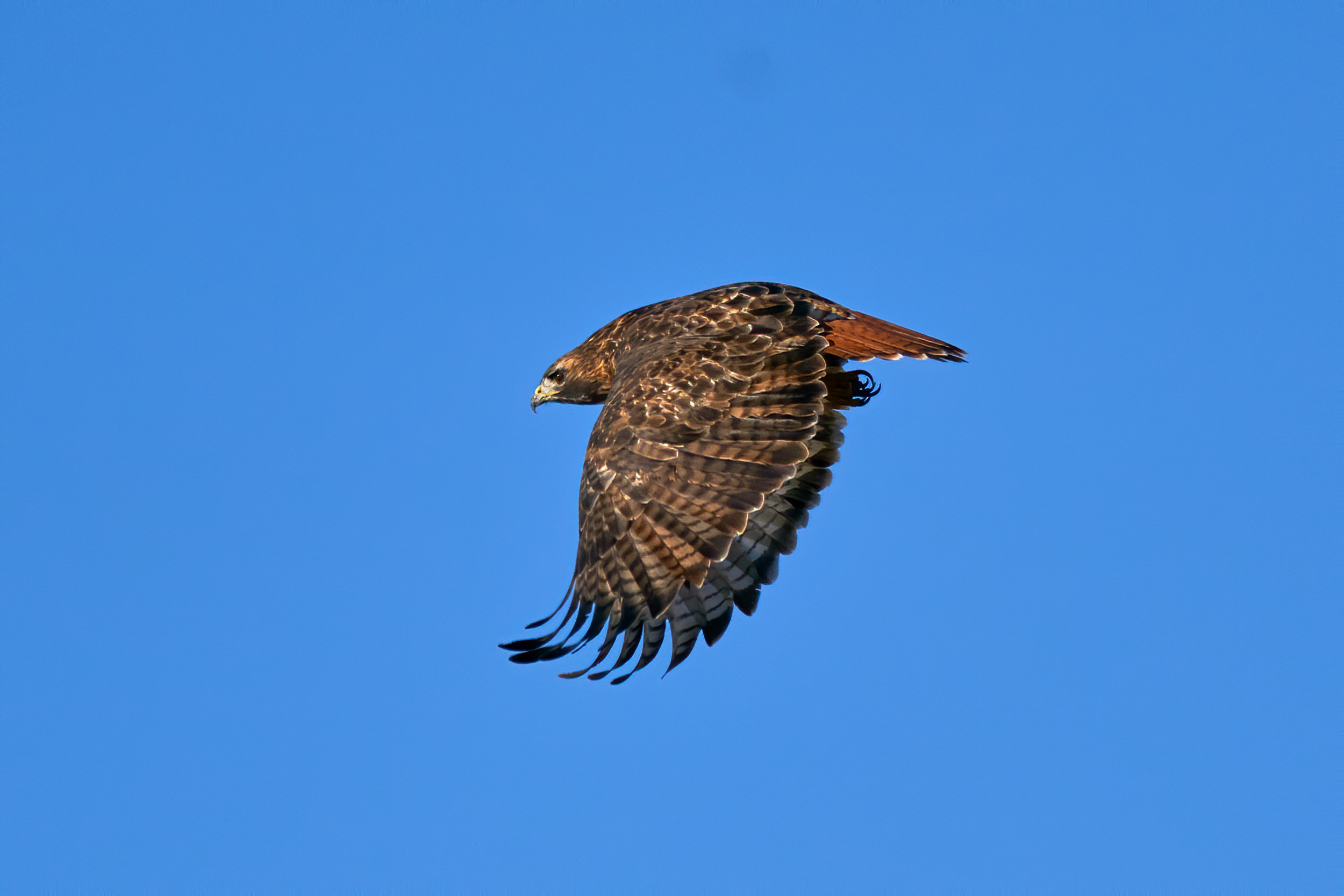
A9 & 100-400GM
Mike
A9 and 100-400GM
A9 & 100-400GM
Nov 14, 2019 at 02:21 PM
p.3 #17Any thoughts on use of Topaz DeNoise AI?
On the Mac, it doesn’t change color of you use it as a photoshop plug in vs as a stand-alone application.
Nov 14, 2019 at 06:44 PM
p.3 #18Any thoughts on use of Topaz DeNoise AI?
Although I like AI denoise quite a lot, I do find photolabs 3 PRIME nose reduction to be even better
Nov 14, 2019 at 10:17 PM
p.3 #19Any thoughts on use of Topaz DeNoise AI?
httivals wrote:
On the Mac, it doesn’t change color of you use it as a photoshop plug in vs as a stand-alone application.
I dropped my Adobe subscription some time ago. Capture One 12 is my main editor and it works fine with it.
Mike
On the Mac, it doesn’t change color of you use it as a photoshop plug in vs as a stand-alone application.
I dropped my Adobe subscription some time ago. Capture One 12 is my main editor and it works fine with it.
Mike
Nov 15, 2019 at 07:02 AM
p.3 #20Any thoughts on use of Topaz DeNoise AI?
Works great. Takes way too long though. One image takes like 4 minutes to process. And thats with no other applications running.
Jan 26, 2020 at 02:31 PM