Overview
The macOS workflow companion for your camera
Importing straight from the camera via USB, Wi‑Fi or card reader dumps everything into your Lightroom catalog or custom destination for your files. FM Studio lets you see what’s on the source, edit image metadata (EXIF), filter what's displayed in the grid, download only what you want, then optionally hand off to Lightroom Classic via included plug-in.
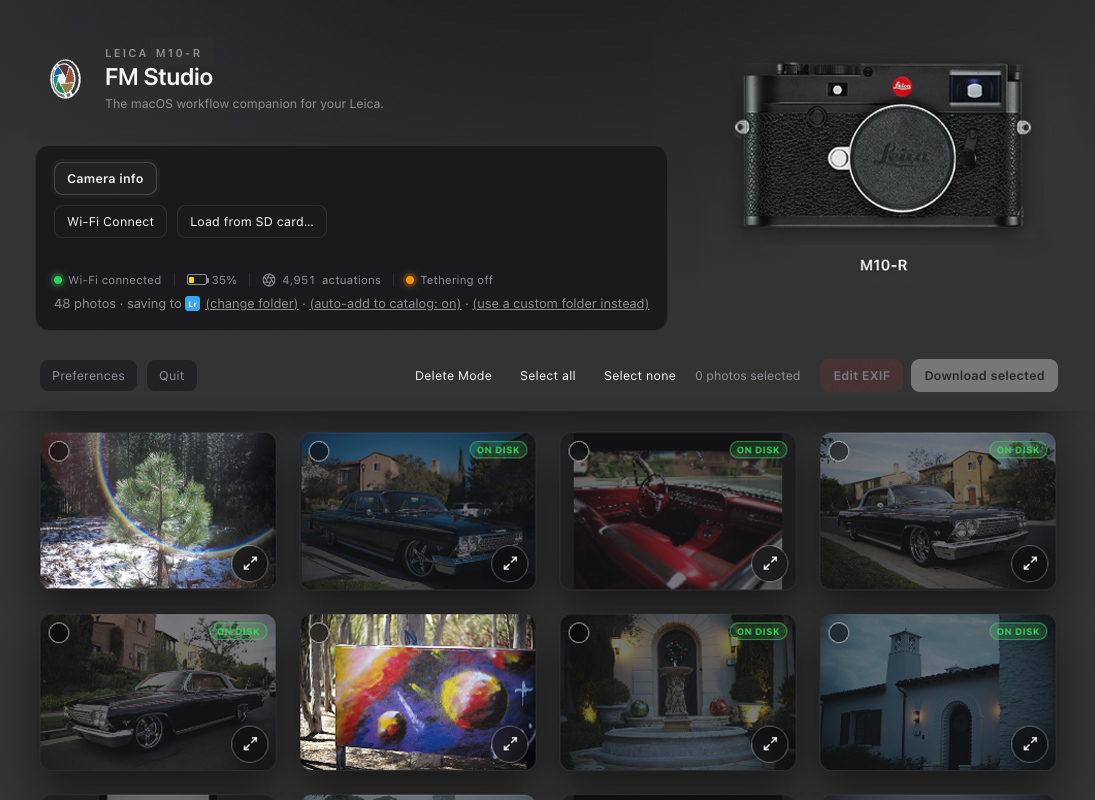
Fast thumbnails, clear badges, and filters so you can decide what leaves the camera.
Why FM Studio
What you get that a straight import doesn’t
These benefits apply whenever FM Studio can see your files via USB Mass Storage or PTP, SD card, or Wi‑Fi:
Edit metadata (EXIF) before import
Correct camera or lens name, focal length, ISO, aperture and other EXIF fields before files land in a custom folder or Lightroom, so the catalog starts clean. Especially useful with manual lenses that don’t report lens data automatically.
Browse RAW and JPEG on the source
Contact sheet from the card or camera, large previews, EXIF detail, and a map when geotags are present, without importing first.
Delete after a confirmed download
Once files are safely on the Mac, remove an image or a group of images from the camera to free card space.
Safe format when you’re done
Format the card or cards from inside your camera after downloads are confirmed, useful on dual-slot and internal-memory bodies that expose formatting over the link.
Badges and a clear grid
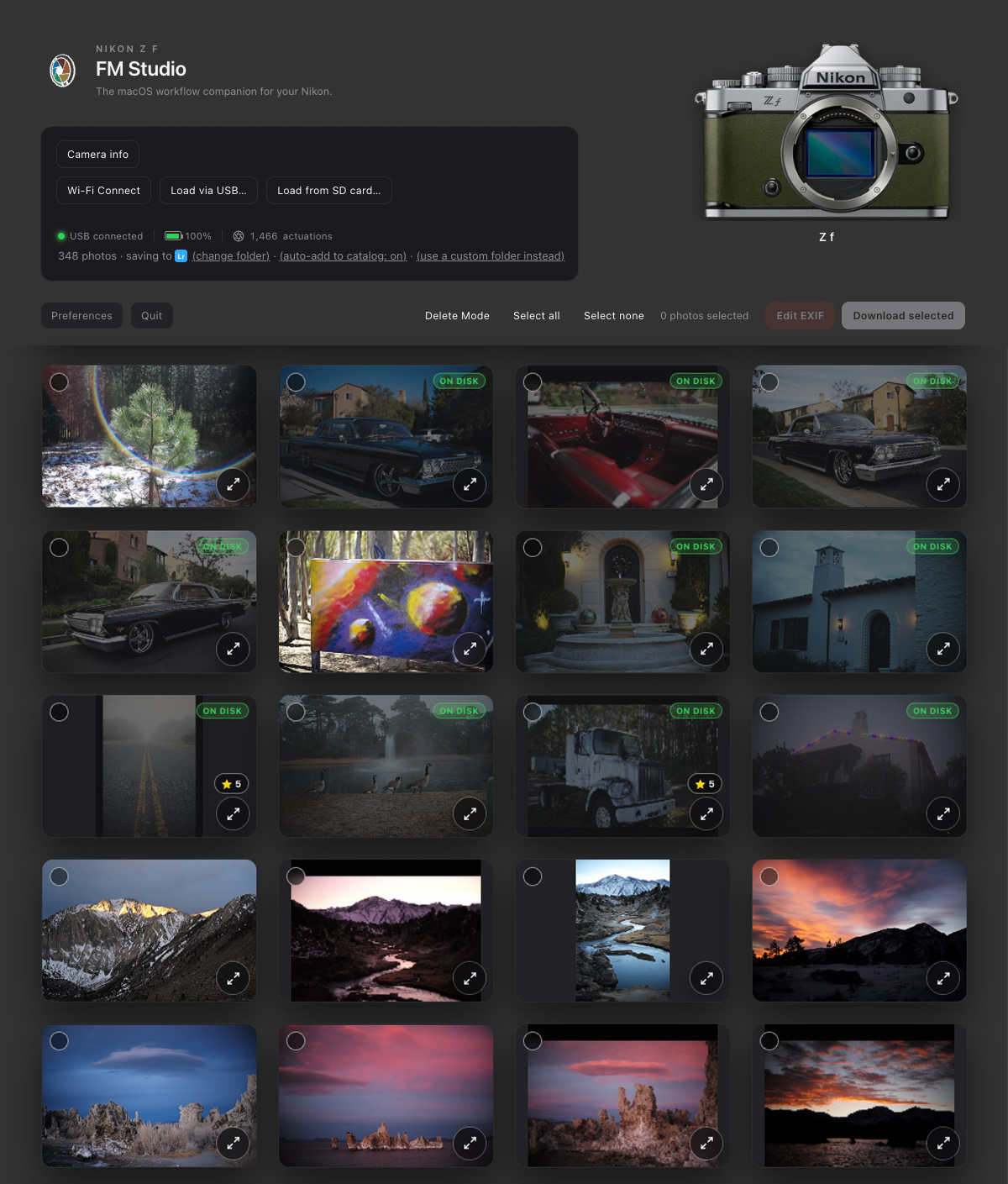
See RAW, JPEG, RAW+JPEG pairs, Burst-mode files, on-camera vs already on disk, Content Credentials, and metadata-edited status at a glance.
Filter before you transfer
Narrow by camera model, lens, file type (RAW / JPEG / HEIC / both), download status (not yet downloaded or already on disk), or set a minimum star rating to see only your best shots.
Rate it just like Lightroom
The same 1–5 star rating you already use in Lightroom — click a star in the lightbox, or press 0–5 on your keyboard. Every rating is synced with Lightroom automatically, in both directions, so a photo you rate in FM Studio shows the same stars in Lightroom, and vice versa.
You choose the destination
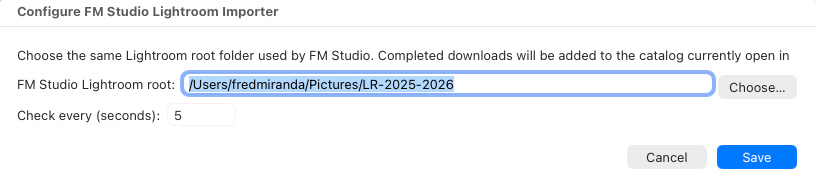
Download to a plain folder you control, ready for Lightroom, Capture One, Photo Mechanic, or any other software you edit in. Skip files already on disk. For Lightroom Classic, an optional folder-watcher plug-in is included: it can match Lightroom’s folder layout and auto-import your downloads into the catalog.
Works with your iPhone too
Connect an iPhone or iPad over USB the same way Apple’s own Image Capture does, and review, filter, and download its camera roll before anything imports — full support for Apple ProRAW DNG and HEIC photos included.
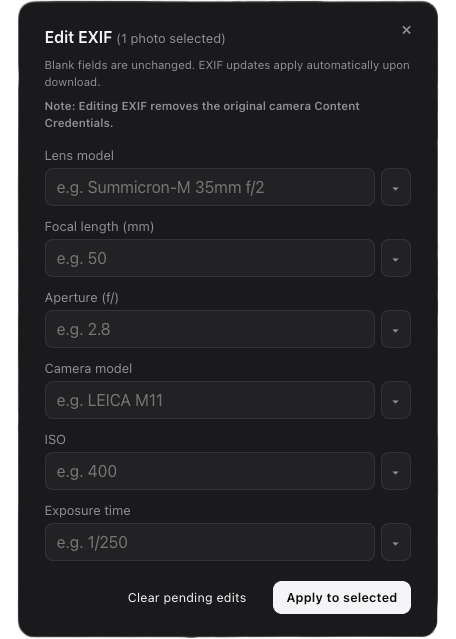
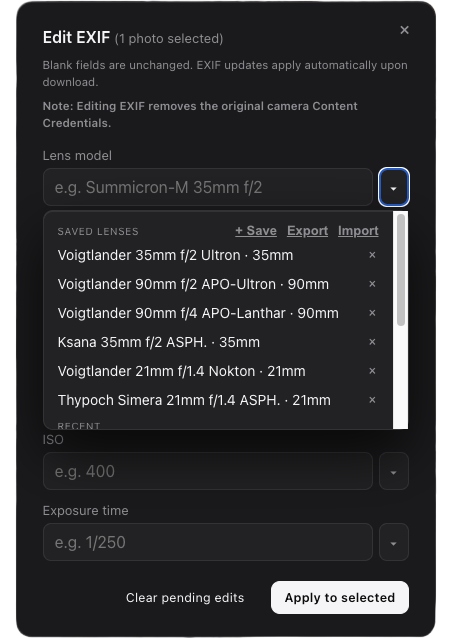
Fix naming and lens data at the source, not after a thousand files are already in the catalog.
Dark, Light, or Auto appearance
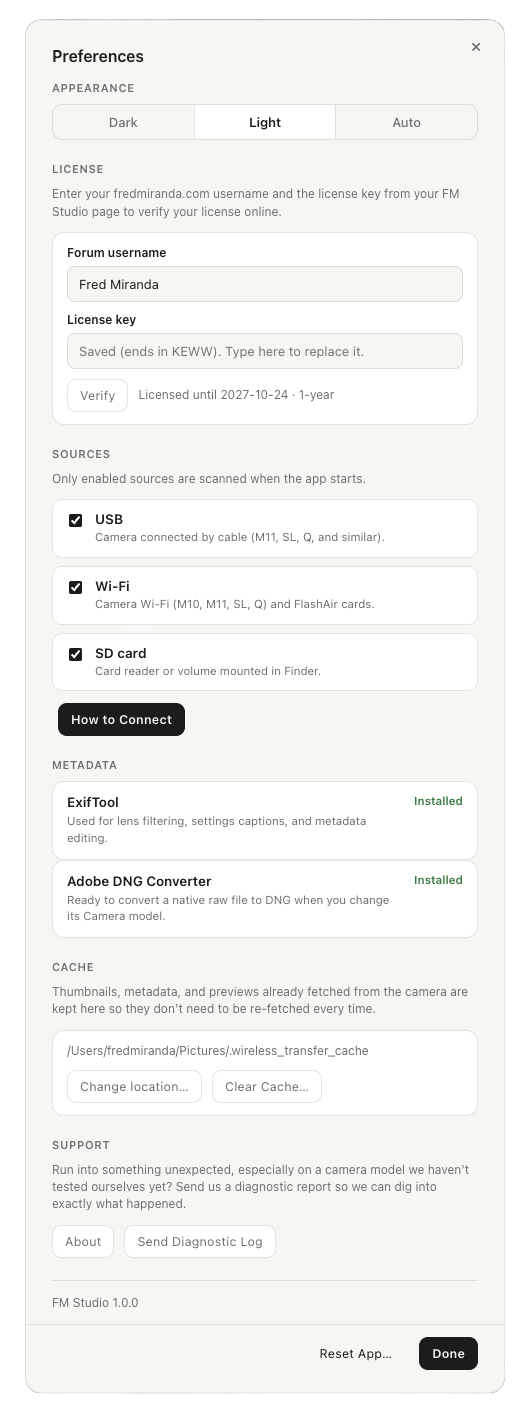
Choose Dark or Light, or set it to Auto and FM Studio follows your Mac’s display setting, switching with it automatically.
Connect
Wi‑Fi for Leica M10/M11 series. USB and SD for almost all camera brands
FM Studio often detects the source automatically when the Mac sees a volume or a USB camera. Set the camera’s USB mode (Mass Storage) first; use Load via USB, from SD card or Wi‑Fi to switch sources from within the app.
Leica M · Wi‑Fi
M11 series: Bluetooth pairing once on this Mac, then the camera’s Wi‑Fi network can join automatically.
M10 series: Menu → Leica FOTOS for the password, then join from the Mac Wi‑Fi menu.
M11 bodies also work over USB PTP if you prefer.
USB · PTP (live camera link)
Verified for the Leica M11 series only. Enables tethering, camera info, and battery level.
USB · Mass Storage
Mass Storage Mode (menu may show as Upload, PC Connect, or Storage): works with most USB-equipped cameras, including Leica, Nikon, Sony, Canon, Fujifilm, Panasonic, OM System, and Hasselblad.
Disk in Finder → FM Studio treats it like an SD volume. Best for fast bulk download.
Files only: no live battery, tether, or camera info.
SD card / card reader
Insert the card in a reader. FM Studio can detect the volume and show the grid, using the same review, filter, and download tools. Files only; no live camera status.
FlashAir
Optional wireless path using a FlashAir “Wi‑Fi” card in the camera or a reader, useful when you want Wi‑Fi without the camera’s own network.
iPhone & iPad
Plug in with a data cable, unlock it, and tap Trust This Computer if asked — FM Studio connects the same way Apple’s own Image Capture does. Full support for Apple ProRAW DNG and HEIC photos, from the thumbnail up through the largest preview. No tethering, live camera info, or Format — those stay a Leica-camera feature.
Tip: Prefer Mass Storage or a card reader for the fastest bulk copy. Camera info, battery, and tethering require Wi‑Fi or USB PTP, not Mass Storage alone.
Features
From first glance to a clean handoff
Built for speed on the contact sheet and safety on the card.
Review without importing
- Grid of what’s still on the camera or card, with sharp thumbs and large previews
- Full shooting EXIF and geotagging when available, with a one-click Map link to see exactly where a shot was taken
- Select with click, drag, or shift-click ranges, then filter by camera model, lens, file type, download status, or minimum star rating
- Rate 1–5 stars from the lightbox — just like Lightroom — and it syncs with Lightroom automatically in both directions
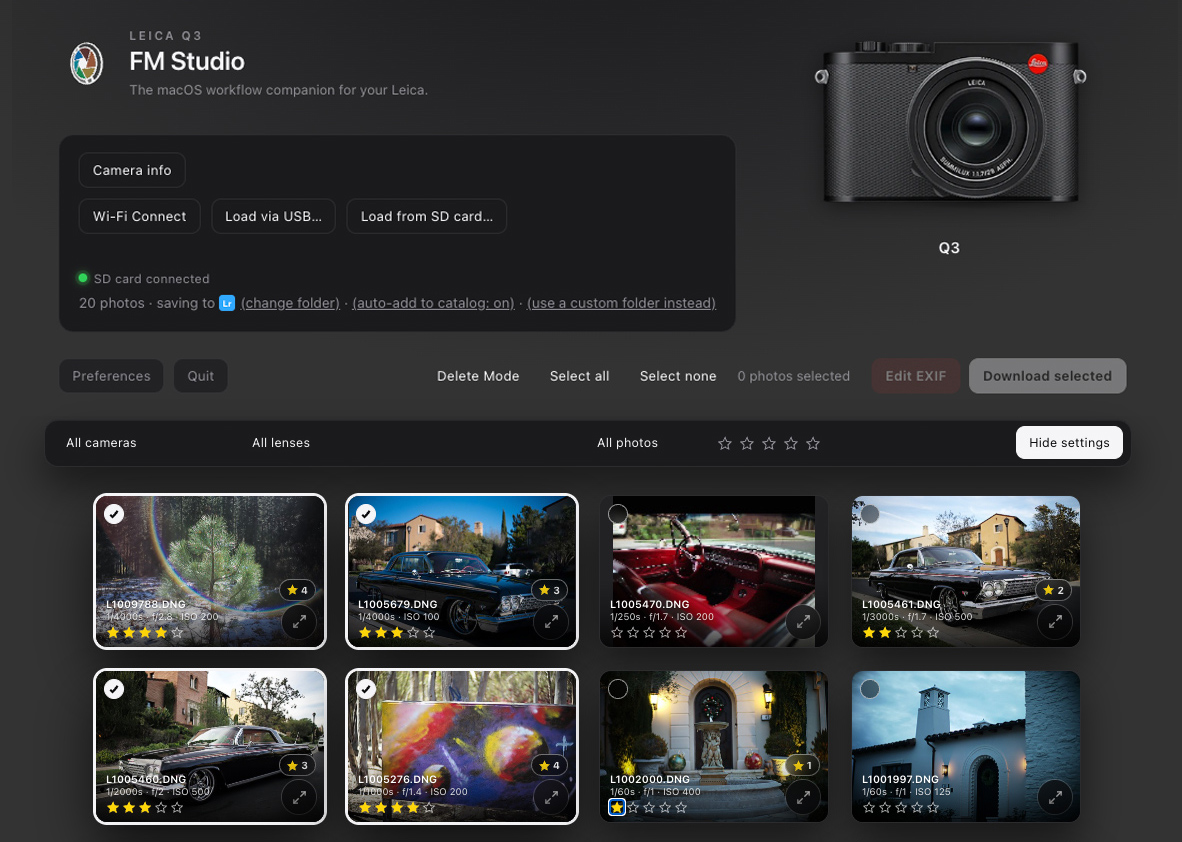
Rate your photos in FM Studio and the ratings carry over to Lightroom.
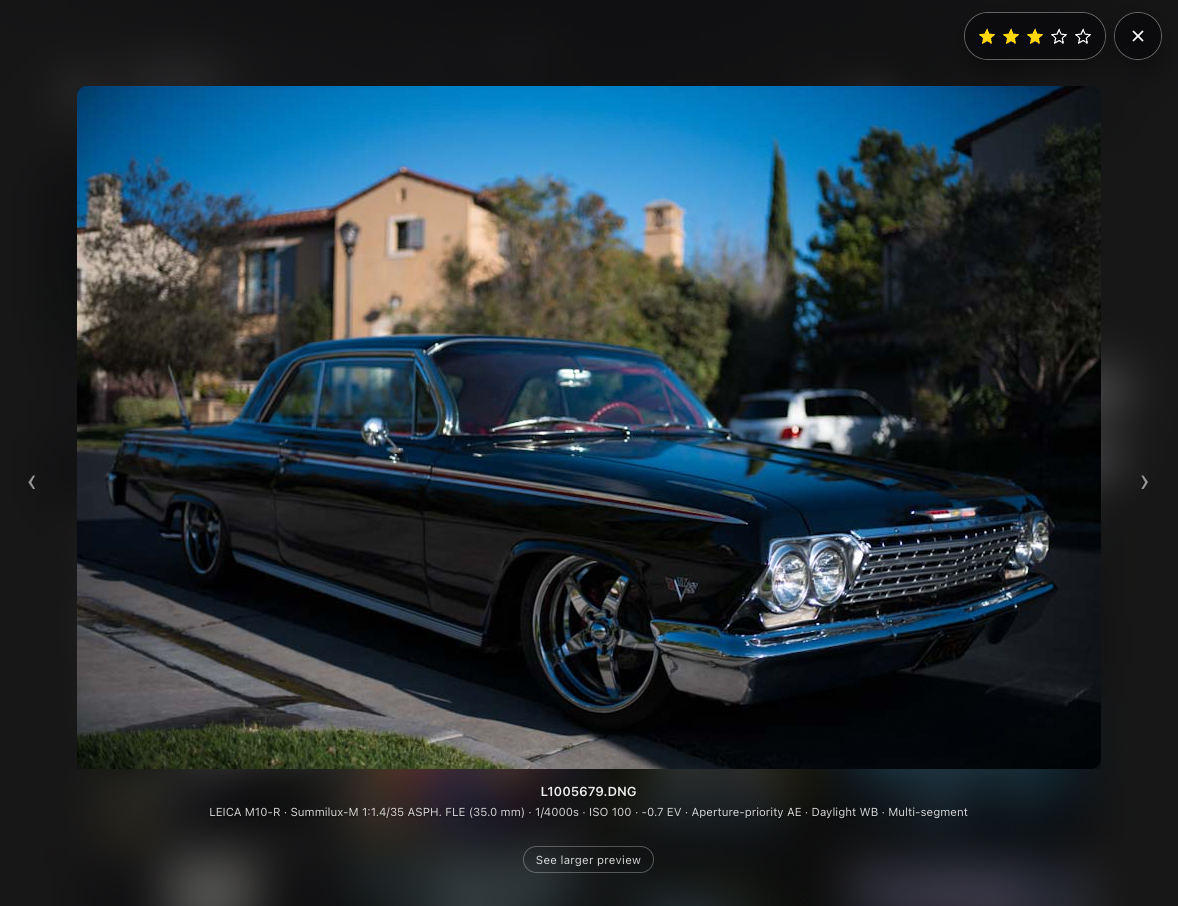
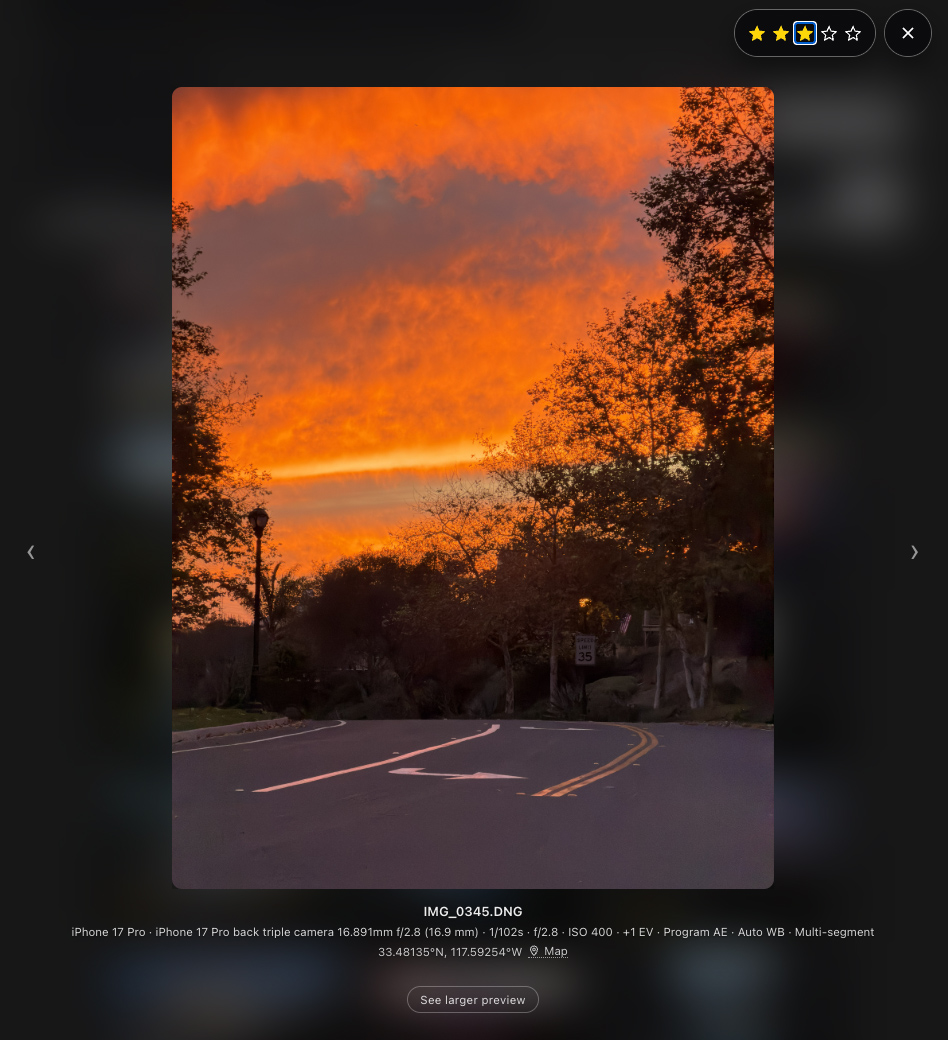
Inspect full previews and metadata before anything is copied.
Transfer on your terms
- Download selection with progress (Pause, stop if needed)
- Skip files already on disk
- Delete from the camera after a successful download (when supported)
- Safe format after all files are confirmed local
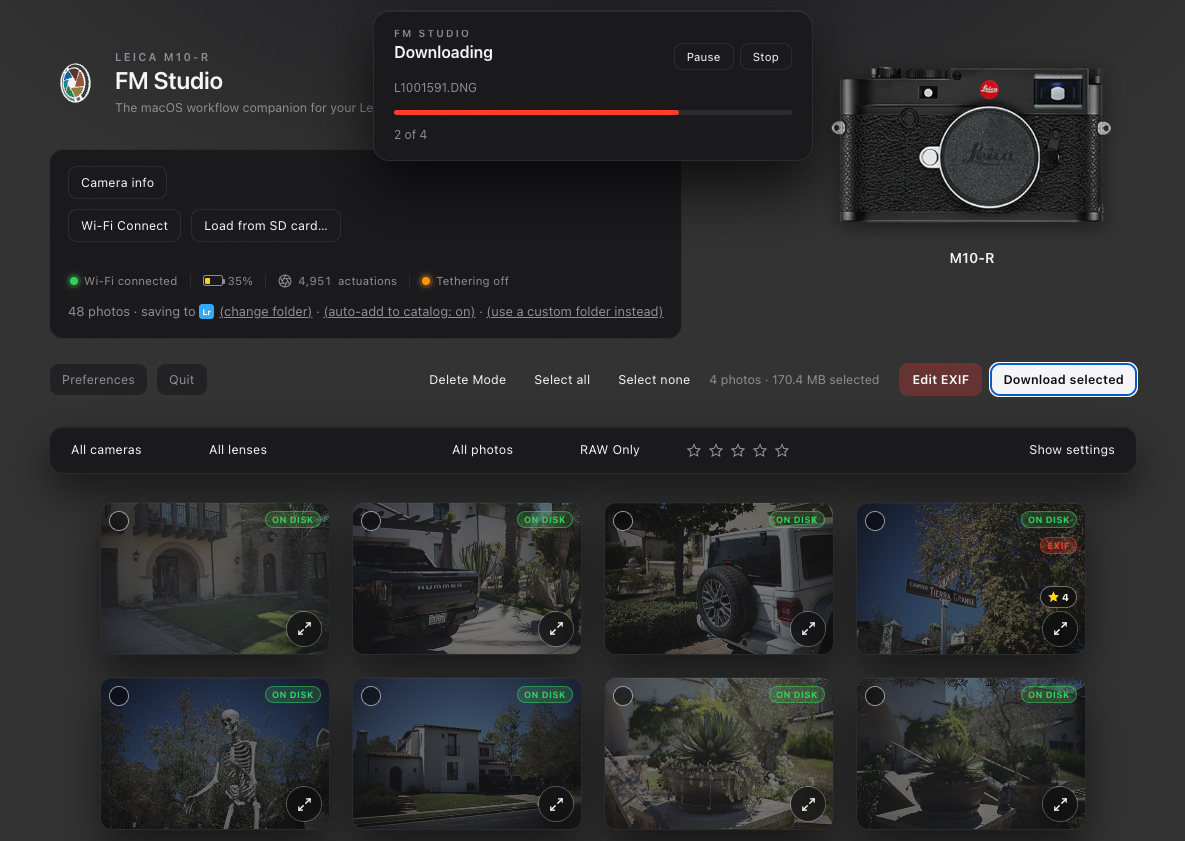
Download images, see what's already "on disk", all from one screen.
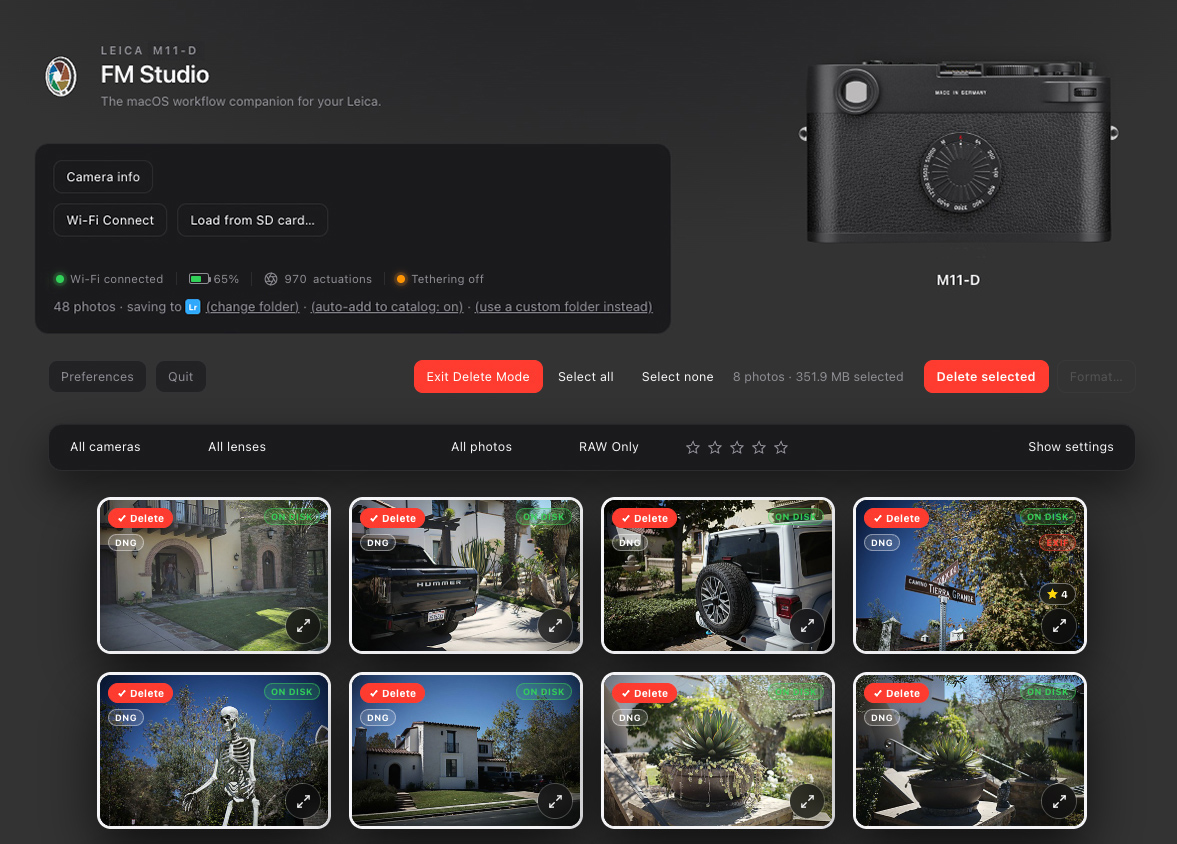
Delete selected camera images. Once transferred, you may also format your SD cards or internal memory.
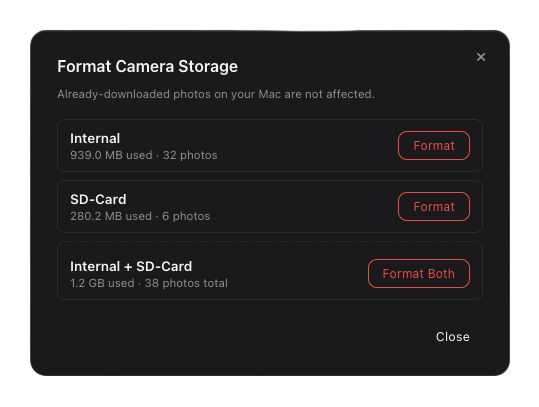
Choose SD card or internal memory when you format.
Shutter count
See the true shutter count of your Leica M10 and M11
FM Studio reads the number of shutter actuations the camera itself has recorded, straight from the body. It is not estimated from file numbers or from the photos on the card, so it stays accurate through card swaps, formats, and deleted files.
Leica M10 series
M10, M10-P, M10-R, M10-D, and M10 Monochrom. Connect over Wi‑Fi, open Camera info, and the Actuations row shows the camera’s own count.
Leica M11 series
Connect over USB in PTP mode, open Camera info, and the Actuations row shows the camera’s own count of actual shots.
Read only, nothing to set up
FM Studio only reads the number. Nothing is changed on the camera, and there is nothing extra to install.
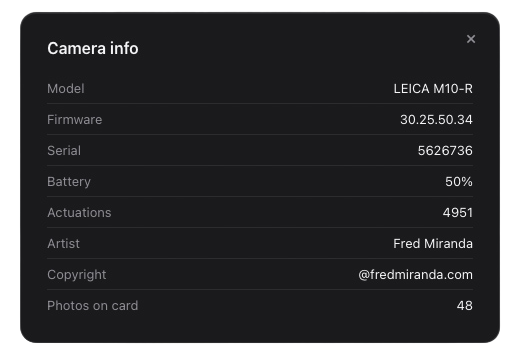
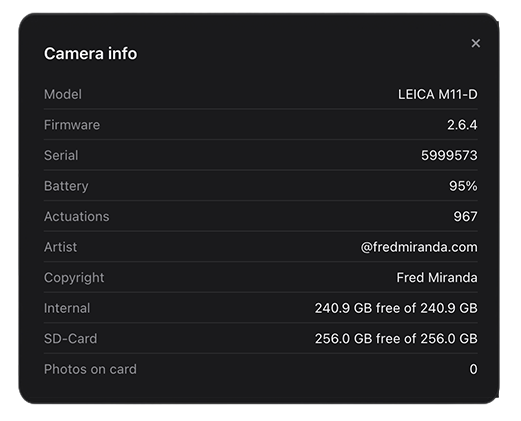
Click Camera info to see model, firmware, battery, storage, and the true number of shots the camera has taken.
Live camera link
Tethering and status on supported bodies
When the connection is Wi‑Fi (Leica M10 and M11 series) or USB PTP (Leica M11 series only), FM Studio can show live camera information and, on tested bodies, pull new frames as you shoot.
Tethering
New shots can appear in the grid while you work, verified on Leica M10/M11 Wi‑Fi and Leica M11 series USB PTP setups.
Camera information
Model, serial, firmware, and related body details when the camera reports them over the live link.
Battery and counts
Battery level and picture counts on the card; true shutter actuations on Leica M10 and M11 series bodies (see Shutter count above), and the body's own count where it provides one (e.g. Nikon Zf).
Lightroom
Does not replace Lightroom
FM Studio is the review and transfer step. Develop and catalog stay in the tools you already use.
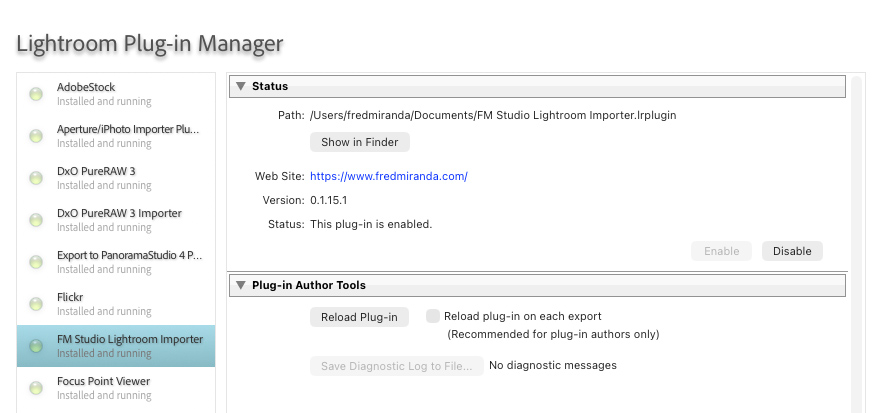
Every download lands in a plain folder on your Mac, so it works with Capture One, Photo Mechanic, darktable, or whatever you use next. The plug-in below is for Lightroom Classic users who want that folder watched automatically.
Star ratings sync both ways, automatically
- Rate 1–5 stars in FM Studio — from the lightbox, or with the 0–5 number keys, exactly like Lightroom’s own shortcuts — and it’s written straight into the file’s metadata
- Already imported into Lightroom? The new rating shows up there too, no re-import needed
- It runs the other way as well: change a rating in Lightroom, and FM Studio picks it up
- This happens automatically for every photo, whether or not you install the plug-in below
Optional Classic plug-in
- Included with every license, at no extra fee
- Watches your download folder and can import new files automatically into Lightroom Classic
- Install only if you want automatic catalog import. You can always sync your current folder when not installing the plugin.
Compatibility
Cameras and connection options
Browse and download work with cameras that the Mac sees as a disk (Mass Storage / SD) or as a USB stills camera (PTP/MTP). Live status and tethering need Wi‑Fi or USB PTP on bodies that support a live link in FM Studio.
Swipe sideways on small screens →
| Camera | Wi‑Fi | USB | SD / card reader | Tethering |
|---|---|---|---|---|
| Leica M11 series | Yes, Bluetooth + Wi‑Fi | Yes, PTP | Yes | Yes, USB PTP or Wi‑Fi |
| Leica M10 series | Yes, manual | No | Yes | Yes, Wi‑Fi |
| Leica SL series / Q3, Nikon, Sony, Canon, Fujifilm, Panasonic, OM System, Hasselblad, and others | No | Mass Storage and/or PTP/MTP | Yes | No |
| iPhone / iPad | No | Yes, same link Image Capture uses | Yes, if copied to a card | No |
Camera info, battery, and tethering require Wi‑Fi or USB PTP. Mass Storage / SD = browse and download only. USB PTP live features are verified in FM Studio for the Leica M11 series only; other brands may support file transfer over USB (Mass Storage or PTP/MTP) without full live status.
RAW names you’ll see
Cameras use different RAW extensions, for example NEF (Nikon), ARW (Sony), CR2/CR3/CRW (Canon), RAF (Fujifilm), DNG (Leica, iPhone/iPad ProRAW, and others), RW2 (Panasonic), ORF (OM System), 3FR/FFF (Hasselblad). FM Studio is built to list and download the files your connection exposes; it is not a full RAW developer.
Apple’s HEIC and Fujifilm’s HIF are finished photos rather than RAW files, so they sit on the JPEG side of the RAW/JPEG filter — but they still get full thumbnails and large previews in FM Studio, no separate app needed.
FAQ
Questions, answered
A few things people usually ask before buying.
Is FM Studio only for Leica?
Not at all. While FM Studio originally grew out of deep Leica M development, it is built to work seamlessly with virtually any camera brand that mounts as a volume or drive on your Mac.
- Universal Compatibility: Works with Nikon, Sony, Canon, Fujifilm, Panasonic, OM System, Hasselblad, and Leica (SL, Q, D‑Lux) bodies. Simply set your camera’s USB mode to Mass Storage (listed in menus as “Upload”, “PC Connect”, “Storage”, etc.). Your iPhone or iPad works too, connecting over USB the same way Apple’s own Image Capture does — no camera menu setting needed, just an unlocked device.
- Batch Metadata & Uncoded Lenses: All supported camera brands gain full access to FM Studio’s metadata tools, allowing you to easily add lens names, camera profiles, and EXIF tags to your images prior to download (especially useful when shooting M-mount glass without 6-bit coding or manual lenses).
- Leica Bonuses: Leica M10 and M11 models gain direct wireless Wi‑Fi transfers, while the Leica M11 series additionally supports a live USB PTP connection.
Does FM Studio work with my iPhone or iPad?
Yes. Plug it in over USB, unlock it, and tap Trust This Computer if asked — FM Studio connects the same way Apple’s own Image Capture does, then gives you the same review, filter, and download workflow as any camera. Apple ProRAW DNG and HEIC photos are fully supported, including thumbnails and large previews. Live camera info, tethering, and Format stay Leica-camera-only features; they don’t apply to a phone or tablet.
Do I need Mass Storage or PTP?
Mass Storage (or a card reader) is usually best for fast bulk downloads of files. USB PTP is for a live camera link (tethering and status) on supported bodies. FM Studio often detects whichever the Mac presents; set the mode in the camera menu first.
Does tethering work on every camera?
No. Tethering and live battery/body info need Wi‑Fi (Leica M10 and M11 series) or USB PTP. Verified in FM Studio for Leica M10/M11 Wi‑Fi and Leica M11 series USB PTP. MTP-only or Mass Storage connections are for file transfer, not live tethering.
Is FM Studio a subscription?
You can choose 1 month, 3 months, 1 year, or a one-time lifetime license. Term plans can be paid through PayPal with auto-renew (you can untick it to pay once) or once by card, and can be renewed here before they expire; the lifetime license never expires.
Does FM Studio replace Lightroom?
No. FM Studio sits between your camera and whatever you edit in next, handling review, culling, metadata edits, and transfer to a folder you choose. A folder-watcher plug-in for Lightroom Classic is included and optional, but the download itself works the same way for Capture One, Photo Mechanic, or any other software.
Is the Lightroom plug-in an extra cost?
No. It's included with every FM Studio purchase at no extra charge. Install it only if you want automatic catalog import.
What happens right after I buy?
Log in to this page, generate your personal license key, and download the Mac app. In the app, open Preferences and enter your fredmiranda.com username and your license key so the license can verify, then connect your camera or card and start reviewing.
How does payment and licensing work?
Checkout runs through Stripe or PayPal, the same processors used elsewhere on fredmiranda.com. Payments are final, and your license is tied to your fredmiranda.com username and a personal license key, and is checked by the app online. The 1-month, 3-month and 1-year plans can renew automatically through PayPal (untick Auto-renew to pay once instead), or be paid once by card. One-time payments do not renew by themselves.
What is the license key, and what if I lose it?
The license key is a personal code you generate on this page after you buy. Together with your username, it lets the app verify your license. It is shown only once, so save it somewhere safe and keep it private, like a password. If you lose it, or think someone else has seen it, generate a new key on this page. The old key stops working right away, so enter the new one in the app's Preferences on each of your Macs.
Get FM Studio
Choose a plan
Try it for a month, subscribe for 3 months or 1 year, or buy a lifetime license. License status is verified online so the app stays tied to your fredmiranda.com account.
Launch price: the lifetime license is $99.95 until December 31, 2026, then $149.95.
FM Studio for macOS
Includes the Mac app and the Lightroom plug-in. Installing the plug-in is optional.
Current FM Studio version: 1.0.0
Want the details first? Read the FM Studio user manual (PDF).
After you buy
- Come back to this page to generate your personal license key and download the Mac app
- Enter the key and your fredmiranda.com username in the app's Preferences so license checks can run
- Term plans can be renewed here shortly before they expire; lifetime does not expire