This topic is in the 2025 archive. You can read it and like its posts here. It is read only.
Archive 2025Suggestions For FM Uploads?

p.1 #1Suggestions For FM Uploads?
Whenever I post images to share photos my images seem to be soft. They look sharp on my screen, but somehow the upload changes the sharpness. I resize my images for 1200px on the long side for regular uploads (FM assignments are only 800). If needed I use Denoise in LR and I resize images in PS. I don't sharpen other than what LR does by default. I had a long break from photography and FM so maybe I am forgetting a step. I attached an image that is slightly cropped shot with a Canon R5 and RF 100-500.
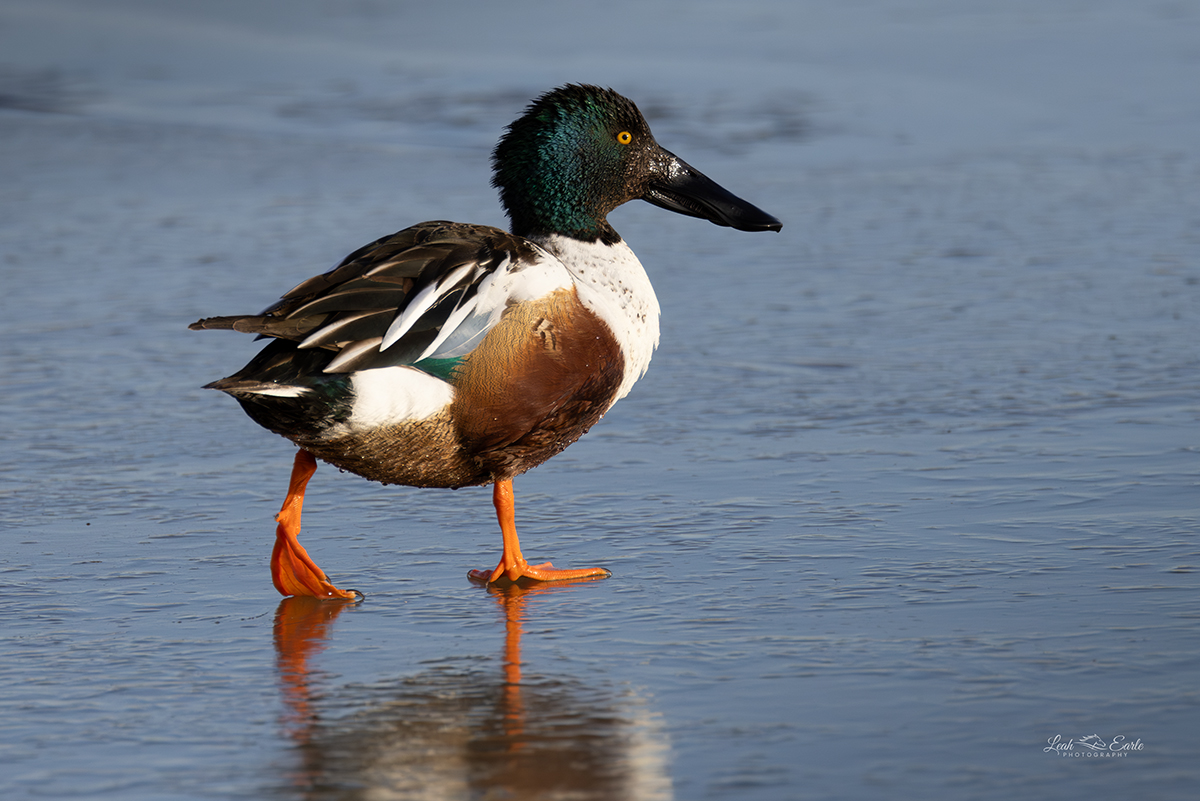
Canon EOS R5 RF100-500mm F4.5-7.1 L IS USM lens 500mm f/7.1 1/2000s 800 ISO 0.0 EV
Feb 12, 2025 at 11:29 PM
p.1 #2Suggestions For FM Uploads?
learle wrote:
Whenever I post images to share photos my images seem to be soft. They look sharp on my screen, but somehow the upload changes the sharpness. I resize my images for 1200px on the long side for regular uploads (FM assignments are only 800). If needed I use Denoise in LR and I resize images in PS. I don't sharpen other than what LR does by default. I had a long break from photography and FM so maybe I am forgetting a step. I attached an image that is slightly cropped shot with a Canon R5 and RF 100-500.
I too upload at 1200 px on long side and they show fine. I'm not seeing this particular image as being "soft". Just my opinion, but it appears to be over sharpened, but again, just a subjective point of view.
When I export out of LR, using the Export window, under sub heading_ Output Sharpening: Check box "sharpen for screen", and in the Amount _ set to "High".
Again, I don't think this image shows what your concern is. Maybe post in Photo Critique forum for additional C&C.
Good Luck.
Tom
Whenever I post images to share photos my images seem to be soft. They look sharp on my screen, but somehow the upload changes the sharpness. I resize my images for 1200px on the long side for regular uploads (FM assignments are only 800). If needed I use Denoise in LR and I resize images in PS. I don't sharpen other than what LR does by default. I had a long break from photography and FM so maybe I am forgetting a step. I attached an image that is slightly cropped shot with a Canon R5 and RF 100-500.
I too upload at 1200 px on long side and they show fine. I'm not seeing this particular image as being "soft". Just my opinion, but it appears to be over sharpened, but again, just a subjective point of view.
When I export out of LR, using the Export window, under sub heading_ Output Sharpening: Check box "sharpen for screen", and in the Amount _ set to "High".
Again, I don't think this image shows what your concern is. Maybe post in Photo Critique forum for additional C&C.
Good Luck.
Tom
Feb 13, 2025 at 10:23 AM
p.1 #3Suggestions For FM Uploads?
Thank you for the response. That might be the issue with the output sharpening. I should change the default sharpening in LR on import to 0 I think.
Feb 13, 2025 at 11:03 AM
p.1 #4Suggestions For FM Uploads?
I don't use LR but I would not sharpen on input. I would sharpen only after the final size has been determined for that use. For me sharpening amounts are different for online posting, final print size (larger prints may be sharpened a bit more depending on the content of the image), etc.
Feb 13, 2025 at 10:12 PM
p.1 #5Suggestions For FM Uploads?
justashooter wrote:
I don't use LR but I would not sharpen on input. I would sharpen only after the final size has been determined for that use. For me sharpening amounts are different for online posting, final print size (larger prints may be sharpened a bit more depending on the content of the image), etc.
Yeah, that's the workflow I usually go with. I didn't realize LR was set to default sharpen with RAW files. Getting back in the groove after a few years, . Thank you!
I don't use LR but I would not sharpen on input. I would sharpen only after the final size has been determined for that use. For me sharpening amounts are different for online posting, final print size (larger prints may be sharpened a bit more depending on the content of the image), etc.
Yeah, that's the workflow I usually go with. I didn't realize LR was set to default sharpen with RAW files. Getting back in the groove after a few years,
. Thank you!Feb 14, 2025 at 02:59 PM
RoamingScott
Offline
Activity
[X]
Details
p.1 #6Suggestions For FM Uploads?
Embed a high res image instead of uploading. Uploaded images will always appear soft on modern high resolution screens.
Feb 14, 2025 at 03:00 PM
p.1 #7Suggestions For FM Uploads?
The duck image seems reasonably sharp to me.
It would be useful to have access to an alternate copy of the image that isn't served by FM for comparison. Am I correct that you literally uploaded the displayed image to FM? If so, and if you have a separate copy posted elsewhere (another website, Flickr, etc.) you can share it by posting the URL (in the case of jpg files on another server) including the image with ".jpg" at the end, and that image will be delivered use directly from your server.
I do a final sharpening step for images that will be viewed on the web as jpgs. After flattening and downsizing I use a moderately large "amount" and a very small "radius." Try something like amount: 150 and radius: .3 as a starting point if you are not already doing this. (For various reasons you may end up preferring somewhat different settings. Feel free to experiment!)
Note that this is different from the sharpening that I use for prints, and that it is an additional step just for jpg images destined to the web and applied after flattening. (I also do an input sharpening step when I convert raw to Photoshop smart layers, and another sharpening step in Photoshop as part of my workflow.
It would be useful to have access to an alternate copy of the image that isn't served by FM for comparison. Am I correct that you literally uploaded the displayed image to FM? If so, and if you have a separate copy posted elsewhere (another website, Flickr, etc.) you can share it by posting the URL (in the case of jpg files on another server) including the image with ".jpg" at the end, and that image will be delivered use directly from your server.
I do a final sharpening step for images that will be viewed on the web as jpgs. After flattening and downsizing I use a moderately large "amount" and a very small "radius." Try something like amount: 150 and radius: .3 as a starting point if you are not already doing this. (For various reasons you may end up preferring somewhat different settings. Feel free to experiment!)
Note that this is different from the sharpening that I use for prints, and that it is an additional step just for jpg images destined to the web and applied after flattening. (I also do an input sharpening step when I convert raw to Photoshop smart layers, and another sharpening step in Photoshop as part of my workflow.
Feb 14, 2025 at 03:20 PM
p.1 #8Suggestions For FM Uploads?
RoamingScott wrote:
Embed a high res image instead of uploading. Uploaded images will always appear soft on modern high resolution screens.
I also have doubts about the wisdom of resizing a hi res images to mere 1200px on the long side, unless this is done to protect some valuable work from theft. A 4K display typically has a resolution of 3840 x 2160 pixels, that is about 8MP.
In my experiences, paying members of FM can upload jpegs as large as 3.3 - 3.4 MB without problems (regardless of the MP size).
The alternative method, as Scott mentioned, is embedding images, that also works nicely.
Embed a high res image instead of uploading. Uploaded images will always appear soft on modern high resolution screens.
I also have doubts about the wisdom of resizing a hi res images to mere 1200px on the long side, unless this is done to protect some valuable work from theft. A 4K display typically has a resolution of 3840 x 2160 pixels, that is about 8MP.
In my experiences, paying members of FM can upload jpegs as large as 3.3 - 3.4 MB without problems (regardless of the MP size).
The alternative method, as Scott mentioned, is embedding images, that also works nicely.
Feb 14, 2025 at 05:23 PM
p.1 #9Suggestions For FM Uploads?
ruthenium wrote:
I also have doubts about the wisdom of resizing a hi res images to mere 1200px on the long side, unless this is done to protect some valuable work from theft. A 4K display typically has a resolution of 3840 x 2160 pixels, that is about 8MP.
In my experiences, paying members of FM can upload jpegs as large as 3.3 - 3.4 MB without problems (regardless of the MP size).
The alternative method, as Scott mentioned, is embedding images, that also works nicely.
I have mixed feelings about this on FM.
I view the site on two machines. One is my photography workstation, which uses a pair of 27” monitors. I can make the web browser window as large as I need to, so larger images can be OK up to a point. (If one wants to share truly huge images, even in this context, it probably makes more sense to share a reasonable sized on and then add a link to the giant version for the small number of people who really need to see it at super-gigantic size.)
Right now I’m using my other machine, which is an iPad Pro. I use it for travel and for all purposes outside my photography studio. Here those really big images wreak havoc on the display of FM threads. Let’s say I open a thread with a more normal sized image in the first post — perhaps 800-1200 pixels wide. Everything is just fine. But if I scroll down into the thread and someone posts one of those mega-gigantic images (which happens a lot in image presentation threads), suddenly the whole screen resizes to make the image be page width… and the formerly readable text in the other posts becomes so small that you can’t read it without a magnifying glass. Oh, and it also makes the image in the original post shrink down a a tiny size.
Perhaps this is an FM-specific issue? In any case, for those who aren’t viewing on large monitors (hello to all the laptop and tablet users out there!) the gigantic images are more of a hindrance than a help… and that option to post small with links to larger versions is more considerate.
(IN some cases the really gigantic images simply spill off the edge of the screen, and the benefit you hope for when posting them disappears — we can’t actually see your entire photograph!)
This has been an ongoing issue that has become more problematic recently. I really wish that Fred would address it in some specific way. There are some guidelines for posting size in some forums (like the landscape forum, IIRC) but I don’t know if there is a general policy for all of FM. It would help if there was such a policy.
YMMV.
RoamingScott wrote
Embed a high res image instead of uploading. Uploaded images will always appear soft on modern high resolution screens.In my experiences, paying members of FM can upload jpegs as large as 3.3 - 3.4 MB without problems (regardless of the MP size).
The alternative method, as Scott mentioned, is embedding images, that also works nicely.
I have mixed feelings about this on FM.
I view the site on two machines. One is my photography workstation, which uses a pair of 27” monitors. I can make the web browser window as large as I need to, so larger images can be OK up to a point. (If one wants to share truly huge images, even in this context, it probably makes more sense to share a reasonable sized on and then add a link to the giant version for the small number of people who really need to see it at super-gigantic size.)
Right now I’m using my other machine, which is an iPad Pro. I use it for travel and for all purposes outside my photography studio. Here those really big images wreak havoc on the display of FM threads. Let’s say I open a thread with a more normal sized image in the first post — perhaps 800-1200 pixels wide. Everything is just fine. But if I scroll down into the thread and someone posts one of those mega-gigantic images (which happens a lot in image presentation threads), suddenly the whole screen resizes to make the image be page width… and the formerly readable text in the other posts becomes so small that you can’t read it without a magnifying glass. Oh, and it also makes the image in the original post shrink down a a tiny size.
Perhaps this is an FM-specific issue? In any case, for those who aren’t viewing on large monitors (hello to all the laptop and tablet users out there!) the gigantic images are more of a hindrance than a help… and that option to post small with links to larger versions is more considerate.
(IN some cases the really gigantic images simply spill off the edge of the screen, and the benefit you hope for when posting them disappears — we can’t actually see your entire photograph!)
This has been an ongoing issue that has become more problematic recently. I really wish that Fred would address it in some specific way. There are some guidelines for posting size in some forums (like the landscape forum, IIRC) but I don’t know if there is a general policy for all of FM. It would help if there was such a policy.
YMMV.
Feb 15, 2025 at 11:51 AM
p.1 #10Suggestions For FM Uploads?
learle wrote:
Whenever I post images to share photos my images seem to be soft. They look sharp on my screen, but somehow the upload changes the sharpness. I resize my images for 1200px on the long side for regular uploads (FM assignments are only 800). If needed I use Denoise in LR and I resize images in PS. I don't sharpen other than what LR does by default. I had a long break from photography and FM so maybe I am forgetting a step. I attached an image that is slightly cropped shot with a Canon R5 and RF 100-500.
I use a higher magnification on my browser or linked to the desktop magnification so that various programs and websites are more legible.
Unless it is 100% maybe the browser is expanding it. For example your file downloaded and viewed at 100% in PS looks just fine technically. On my computer it is displaying at FM as 125% (125% desktop x 100% browser). I'm not sure if that may be an issue for you or others.
EBH
Whenever I post images to share photos my images seem to be soft. They look sharp on my screen, but somehow the upload changes the sharpness. I resize my images for 1200px on the long side for regular uploads (FM assignments are only 800). If needed I use Denoise in LR and I resize images in PS. I don't sharpen other than what LR does by default. I had a long break from photography and FM so maybe I am forgetting a step. I attached an image that is slightly cropped shot with a Canon R5 and RF 100-500.
I use a higher magnification on my browser or linked to the desktop magnification so that various programs and websites are more legible.
Unless it is 100% maybe the browser is expanding it. For example your file downloaded and viewed at 100% in PS looks just fine technically. On my computer it is displaying at FM as 125% (125% desktop x 100% browser). I'm not sure if that may be an issue for you or others.
EBH
Feb 15, 2025 at 12:13 PM
p.1 #11Suggestions For FM Uploads?
EB-1 wrote:
I use a higher magnification on my browser or linked to the desktop magnification so that various programs and websites are more legible.
Unless it is 100% maybe the browser is expanding it. For example your file downloaded and viewed at 100% in PS looks just fine technically. On my computer it is displaying at FM as 125% (125% desktop x 100% browser). I'm not sure if that may be an issue for you or others.
EBH
On my 16-inch MacBook Pro, the image views are 200%. When I view the image in Photoshop at 100%, it looks fine, and the 5X JPEG compression is not the issue either. Of course, it is smaller on the screen, being only 4.5 inches in width.
If you want the image quality to be higher, you need more pixels instead of magnification on the screen.
learle wrote
Whenever I post images to share photos my images seem to be soft. They look sharp on my screen, but somehow the upload changes the sharpness. I resize my images for 1200px on the long side for regular uploads (FM assignments are only 800). If needed I use Denoise in LR and I resize images in PS. I don't sharpen other than what LR does by default. I had a long break from photography and FM so maybe I am forgetting a step. I attached an image that is slightly cropped shot with a Canon R5 and RF 100-500.Unless it is 100% maybe the browser is expanding it. For example your file downloaded and viewed at 100% in PS looks just fine technically. On my computer it is displaying at FM as 125% (125% desktop x 100% browser). I'm not sure if that may be an issue for you or others.
EBH
On my 16-inch MacBook Pro, the image views are 200%. When I view the image in Photoshop at 100%, it looks fine, and the 5X JPEG compression is not the issue either. Of course, it is smaller on the screen, being only 4.5 inches in width.
If you want the image quality to be higher, you need more pixels instead of magnification on the screen.
Feb 15, 2025 at 03:15 PM
p.1 #12Suggestions For FM Uploads?
gdanmitchell wrote:
I also have doubts about the wisdom of resizing a hi res images to mere 1200px on the long side, unless this is done to protect some valuable work from theft. A 4K display typically has a resolution of 3840 x 2160 pixels, that is about 8MP.
In my experiences, paying members of FM can upload jpegs as large as 3.3 - 3.4 MB without problems (regardless of the MP size).
The alternative method, as Scott mentioned, is embedding images, that also works nicely.I have mixed feelings about this on FM.
I view the site on two machines. One is my photography workstation, which uses a pair of 27” monitors. I can make the web browser window as large as I need to, so larger images can be OK up to a point. (If one wants to share truly huge images, even in this context, it probably makes more sense to share a reasonable sized on and then add a link to the giant version for the small number of people who really need to see it at super-gigantic size.)
Right now I’m using my...Show more →
I believe that your unfortunate experience of viewing "gigantic images" might be due to the images having been posted incorrectly in some way. Let's test this, I might be wrong. I am going to post two 26 - 28 MP photos, unresized. The first is going to be posted from Flickr and the second I shall post from FM, using the upload mechanism available to paying members.
Let me know if these create some problems when viewed on your side. I expect these photos should appear scaled to fit from the left to the right edge of your display window. I hope I am not mistaken.
If you want to see an image fit your display window top to bottom, then click on the particular image, however this works only with the images posted from FM.
The first image:
https://live.staticflickr.com/65535/54331049666_22f6a200fd_o_d.jpg
Then the second:
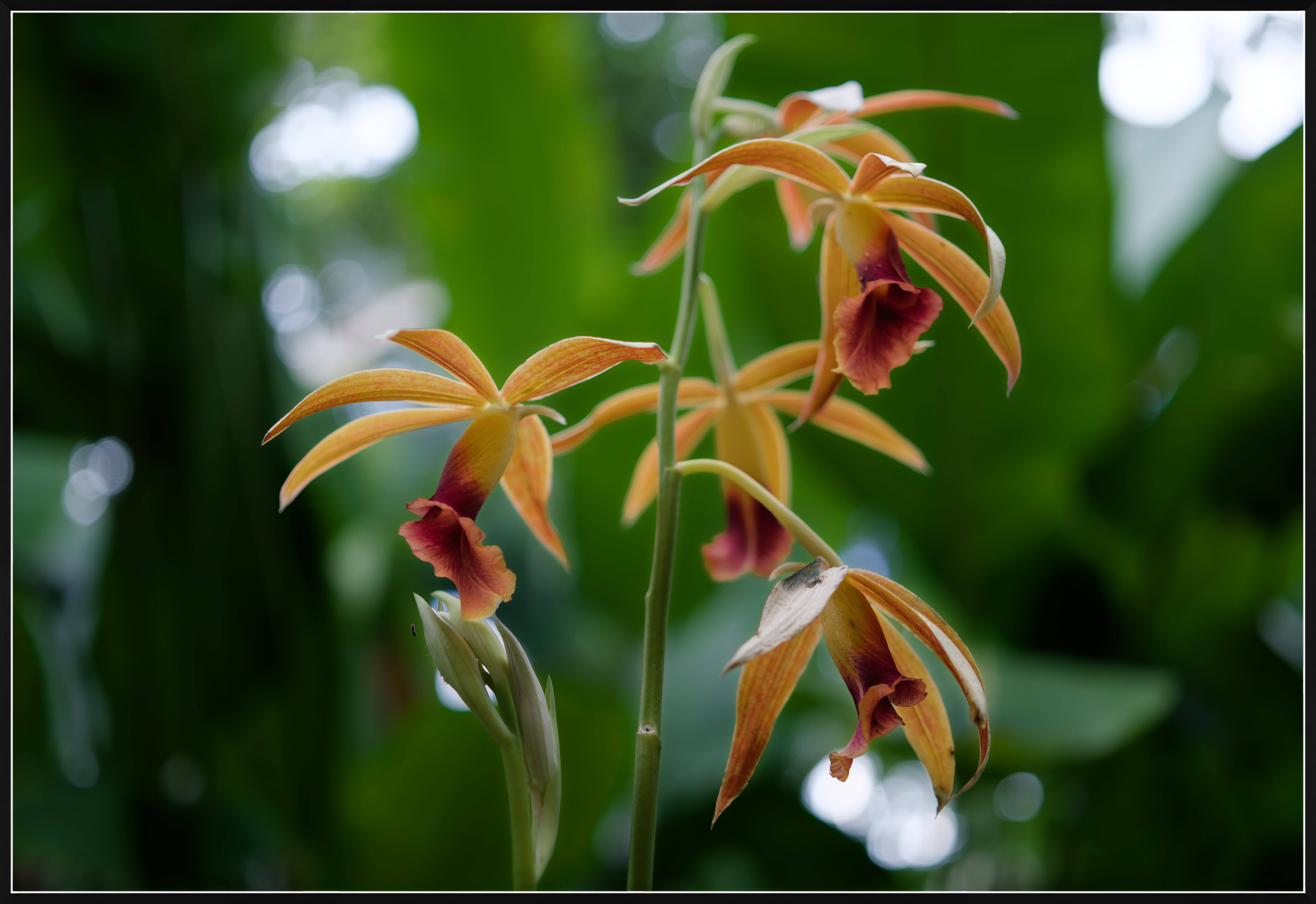
ruthenium wrote
RoamingScott wrote
Embed a high res image instead of uploading. Uploaded images will always appear soft on modern high resolution screens.In my experiences, paying members of FM can upload jpegs as large as 3.3 - 3.4 MB without problems (regardless of the MP size).
The alternative method, as Scott mentioned, is embedding images, that also works nicely.
I view the site on two machines. One is my photography workstation, which uses a pair of 27” monitors. I can make the web browser window as large as I need to, so larger images can be OK up to a point. (If one wants to share truly huge images, even in this context, it probably makes more sense to share a reasonable sized on and then add a link to the giant version for the small number of people who really need to see it at super-gigantic size.)
Right now I’m using my...Show more →
I believe that your unfortunate experience of viewing "gigantic images" might be due to the images having been posted incorrectly in some way. Let's test this, I might be wrong. I am going to post two 26 - 28 MP photos, unresized. The first is going to be posted from Flickr and the second I shall post from FM, using the upload mechanism available to paying members.
Let me know if these create some problems when viewed on your side. I expect these photos should appear scaled to fit from the left to the right edge of your display window. I hope I am not mistaken.
If you want to see an image fit your display window top to bottom, then click on the particular image, however this works only with the images posted from FM.
The first image:
https://live.staticflickr.com/65535/54331049666_22f6a200fd_o_d.jpg
Then the second:
DC-G9M2 LEICA DG 10-25/F1.7 lens 25mm f/1.7 1/125s 100 ISO -0.7 EV
Feb 16, 2025 at 08:14 AM
p.1 #13Suggestions For FM Uploads?
Thanks.
Both of those display correctly and have no secondary effect on the other posts in the thread.
I wonder what folks are doing that creates the problem with _their_ gigantic images? Many people (me included) are sharing images by posting their URL (ending in “.jpg”) into the post. I wonder if the issue lies there?
Perhaps I’ll post a couple of images at different sizes that way and see what happened.
Dan
ruthenium wrote:
I also have doubts about the wisdom of resizing a hi res images to mere 1200px on the long side, unless this is done to protect some valuable work from theft. A 4K display typically has a resolution of 3840 x 2160 pixels, that is about 8MP.
In my experiences, paying members of FM can upload jpegs as large as 3.3 - 3.4 MB without problems (regardless of the MP size).
The alternative method, as Scott mentioned, is embedding images, that also works nicely.I have mixed feelings about this on FM.
I view the site on two machines. One is my photography workstation, which uses a pair of 27” monitors. I can make the web browser window as large as I need to, so larger images can be OK up to a point. (If one wants to share truly huge images, even in this context, it probably makes more sense to share a reasonable sized on and then add a link to the giant version for the small number of people who really need to see it at super-gigantic size.)
Right now I’m using my other machine, which is an iPad Pro. I use it for travel and for all purposes outside my photography studio. Here those really big images wreak havoc on the display of FM threads. Let’s say I open a thread with a more normal sized image in the first post — perhaps 800-1200 pixels wide. Everything is just fine. But if I scroll down into the thread and someone posts one of those mega-gigantic images (which happens a lot in image presentation threads), suddenly the whole screen resizes to make the image be page width… and the formerly readable text in the other posts becomes so small that you can’t read it without a magnifying glass. Oh, and it also makes the image in the original post shrink down a a tiny size.
Perhaps this is an FM-specific issue? In any case, for those who aren’t viewing on large monitors (hello to all the laptop and tablet users out there!) the gigantic images are more of a hindrance than a help… and that option to post small with links to larger versions is more considerate.
(IN some cases the really gigantic images simply spill off the edge of the screen, and the benefit you hope for when posting them disappears — we can’t actually see your entire photograph!)
This has been an ongoing issue that has become more problematic recently. I really wish that Fred would address it in some specific way. There are some guidelines for posting size in some forums (like the landscape forum, IIRC) but I don’t know if there is a general policy for all of FM. It would help if there was such a policy.
YMMV.I believe that your unfortunate experience of viewing "gigantic images" might be due to the images having been posted incorrectly in some way. Let's test this, I might be wrong. I am going to post two 26 - 28 MP photos, unresized. The first is going to be posted from Flickr and the second I shall post from FM, using the upload mechanism available to paying members.
Let me know if these create some problems when viewed on your side. I expect these photos should appear scaled to fit from the left to the right edge of your display window. I...Show more →
Both of those display correctly and have no secondary effect on the other posts in the thread.
I wonder what folks are doing that creates the problem with _their_ gigantic images? Many people (me included) are sharing images by posting their URL (ending in “.jpg”) into the post. I wonder if the issue lies there?
Perhaps I’ll post a couple of images at different sizes that way and see what happened.
Dan
ruthenium wrote:
gdanmitchell wrote
ruthenium wrote
RoamingScott wrote
Embed a high res image instead of uploading. Uploaded images will always appear soft on modern high resolution screens.In my experiences, paying members of FM can upload jpegs as large as 3.3 - 3.4 MB without problems (regardless of the MP size).
The alternative method, as Scott mentioned, is embedding images, that also works nicely.
I view the site on two machines. One is my photography workstation, which uses a pair of 27” monitors. I can make the web browser window as large as I need to, so larger images can be OK up to a point. (If one wants to share truly huge images, even in this context, it probably makes more sense to share a reasonable sized on and then add a link to the giant version for the small number of people who really need to see it at super-gigantic size.)
Right now I’m using my other machine, which is an iPad Pro. I use it for travel and for all purposes outside my photography studio. Here those really big images wreak havoc on the display of FM threads. Let’s say I open a thread with a more normal sized image in the first post — perhaps 800-1200 pixels wide. Everything is just fine. But if I scroll down into the thread and someone posts one of those mega-gigantic images (which happens a lot in image presentation threads), suddenly the whole screen resizes to make the image be page width… and the formerly readable text in the other posts becomes so small that you can’t read it without a magnifying glass. Oh, and it also makes the image in the original post shrink down a a tiny size.
Perhaps this is an FM-specific issue? In any case, for those who aren’t viewing on large monitors (hello to all the laptop and tablet users out there!) the gigantic images are more of a hindrance than a help… and that option to post small with links to larger versions is more considerate.
(IN some cases the really gigantic images simply spill off the edge of the screen, and the benefit you hope for when posting them disappears — we can’t actually see your entire photograph!)
This has been an ongoing issue that has become more problematic recently. I really wish that Fred would address it in some specific way. There are some guidelines for posting size in some forums (like the landscape forum, IIRC) but I don’t know if there is a general policy for all of FM. It would help if there was such a policy.
YMMV.
Let me know if these create some problems when viewed on your side. I expect these photos should appear scaled to fit from the left to the right edge of your display window. I...Show more →
Feb 16, 2025 at 10:57 AM
p.1 #14Suggestions For FM Uploads?
I don't have a universal recipe. For posting from Flickr the correct method was explained to me by Scott @RoamingScott:
1) Display an image by clicking on this in photostream (or an album).
2) Left-click on the down-pointing arrow in the bottom right corner of the Flickr window ("Download this photo"), then pick the size you want to post, right click on the chosen size and copy link.
3) Place the Flickr url that ends in .jpg in your FM post. Don’t put any tags around it.
4) For more sizes, left-Click on "View all sizes"
5) Left-Click on the size you want, for example "Large 1600"
6) Right-click on "Download the Large 1600 size of this photo" that appears under "license" in the "Download" line and copy link.
1) Display an image by clicking on this in photostream (or an album).
2) Left-click on the down-pointing arrow in the bottom right corner of the Flickr window ("Download this photo"), then pick the size you want to post, right click on the chosen size and copy link.
3) Place the Flickr url that ends in .jpg in your FM post. Don’t put any tags around it.
4) For more sizes, left-Click on "View all sizes"
5) Left-Click on the size you want, for example "Large 1600"
6) Right-click on "Download the Large 1600 size of this photo" that appears under "license" in the "Download" line and copy link.
Feb 16, 2025 at 11:15 AM
p.1 #15Suggestions For FM Uploads?
ruthenium wrote:
Let me know if these create some problems when viewed on your side. I expect these photos should appear scaled to fit from the left to the right edge of your display window. I hope I am not mistaken.
I see that image is a little larger than 6500px x 4300px. On my 1920 x 1080 monitor it fills the total width but I need to scroll down to see the bottom of the image which is not a deal breaker but not ideal. It is the pixel dimensions of an image and not the pixel count that affects how it is displayed in a post.
An alternative is to wrap the image's url in a bbcode img tag and use CSS styling to set the width of the displayed image to an appropriate value so that the entire image can be seen without the user having to scroll down. You can then wrap the img tag in a url tag pointing to the image's url which allows the user to click the image and have it opened in a new browser tab with the whole image displayed in the tab.
Below is your image's url displayed with width set to 60%.

Edited on Feb 17, 2025 at 01:51 PM · View previous versions
Let me know if these create some problems when viewed on your side. I expect these photos should appear scaled to fit from the left to the right edge of your display window. I hope I am not mistaken.
I see that image is a little larger than 6500px x 4300px. On my 1920 x 1080 monitor it fills the total width but I need to scroll down to see the bottom of the image which is not a deal breaker but not ideal. It is the pixel dimensions of an image and not the pixel count that affects how it is displayed in a post.
An alternative is to wrap the image's url in a bbcode img tag and use CSS styling to set the width of the displayed image to an appropriate value so that the entire image can be seen without the user having to scroll down. You can then wrap the img tag in a url tag pointing to the image's url which allows the user to click the image and have it opened in a new browser tab with the whole image displayed in the tab.
Below is your image's url displayed with width set to 60%.
Edited on Feb 17, 2025 at 01:51 PM · View previous versions
Feb 16, 2025 at 02:07 PM
RoamingScott
Offline
Activity
[X]
Details
p.1 #16Suggestions For FM Uploads?
Interesting, never seen CSS styling on here before. It might be useful for tall, high res images. I like to post original resolution because if you don't, you're getting huge quality loss from the smaller flickr versions, but it makes verticals a scroll fest.
Testing an 11.5k tall image with your code...

And testing a 10.5k wide pano

And full width
https://live.staticflickr.com/65535/53558790770_08971c8346_o.jpg
The effect is akin to when you look at an image on flickr, as it's showing you a scaled down, full res picture. I think I like full width for landscape and scaled for portrait.
Testing an 11.5k tall image with your code...

And testing a 10.5k wide pano

And full width
https://live.staticflickr.com/65535/53558790770_08971c8346_o.jpg
The effect is akin to when you look at an image on flickr, as it's showing you a scaled down, full res picture. I think I like full width for landscape and scaled for portrait.
Feb 16, 2025 at 02:15 PM
p.1 #17Suggestions For FM Uploads?
RoamingScott wrote:
Interesting, never seen CSS styling on here before. It might be useful for tall, high res images. I like to post original resolution because if you don't, you're getting huge quality loss from the smaller flickr versions, but it makes verticals a scroll fest.
Anyone familiar with website development will also be familiar with CSS styling of html elements.
Anyway, my personal preference is to try to make entire tall portraits visible in the post's "thumbnail" and then users can click the image to see the high res version viewable in a new browser tab.
This display version of your image's url (32% width) displays fully without needing to scroll down on my 1080px monitor. Clicking your image then displays the full high res version in a new browser tab. Imo this is more "user-friendly". In the new browser tab (at least in Chrome and Edge) the user can scroll around the image viewing it at 100%.
Click image to see full high res image.
Interesting, never seen CSS styling on here before. It might be useful for tall, high res images. I like to post original resolution because if you don't, you're getting huge quality loss from the smaller flickr versions, but it makes verticals a scroll fest.
Anyone familiar with website development will also be familiar with CSS styling of html elements.
Anyway, my personal preference is to try to make entire tall portraits visible in the post's "thumbnail" and then users can click the image to see the high res version viewable in a new browser tab.
This display version of your image's url (32% width) displays fully without needing to scroll down on my 1080px monitor. Clicking your image then displays the full high res version in a new browser tab. Imo this is more "user-friendly". In the new browser tab (at least in Chrome and Edge) the user can scroll around the image viewing it at 100%.
Click image to see full high res image.
Feb 16, 2025 at 02:37 PM
p.1 #18Suggestions For FM Uploads?
Interesting... I am going to try posting the same image at 75% of the original size
 _1004990 by Dmitri Goussev, on Flickr
Edited on Feb 18, 2025 at 01:54 PM · View previous versions
_1004990 by Dmitri Goussev, on FlickrEdited on Feb 18, 2025 at 01:54 PM · View previous versions
Feb 16, 2025 at 03:32 PM
p.1 #19Suggestions For FM Uploads?
ruthenium wrote:
Interesting... I am going to try posting the same image at 40% of the original size
That is till displaying at 100% width.
A couple of posts back I posted your image's url set to 60% width. Click the quote button on that post to see the code I used.
Use the width and not max-width style, as you used above, and change the 60% to 40%.
As a side issue, I see you image's url actually downloads the image instead of displaying the full-size version in a new browser window.
Scott's image url, also from flickr like yours, displays the image in a new browser window. I don't know why your link doesn't.
Edited on Feb 16, 2025 at 06:42 PM · View previous versions
Interesting... I am going to try posting the same image at 40% of the original size
That is till displaying at 100% width.
A couple of posts back I posted your image's url set to 60% width. Click the quote button on that post to see the code I used.
Use the width and not max-width style, as you used above, and change the 60% to 40%.
As a side issue, I see you image's url actually downloads the image instead of displaying the full-size version in a new browser window.
Scott's image url, also from flickr like yours, displays the image in a new browser window. I don't know why your link doesn't.
Edited on Feb 16, 2025 at 06:42 PM · View previous versions
Feb 16, 2025 at 03:59 PM
p.1 #20Suggestions For FM Uploads?
danny_j1971 wrote:
That is till displaying at 100% width.
A couple of posts back I posted your image's url set to 60% width. Click the quote button on that post to see the code I used.
Use the width and not not max-width style, as you used above, abd change the 60% to 40%.
As a side issue, I see you image's url actually downloads the image instead of displaying the full-size version in a new browser window.
Scott's image url, also from flickr like yours, displays the image in a new browser window. I don't know why your link doesn't.
Thank you, this helped.
I don't know why clicking on my image would not open it in a new window and downloads the image instead.
I looked at the syntax in Scott's post and mine looks exactly the same - strange.
ruthenium wrote
Interesting... I am going to try posting the same image at 40% of the original sizeA couple of posts back I posted your image's url set to 60% width. Click the quote button on that post to see the code I used.
Use the width and not not max-width style, as you used above, abd change the 60% to 40%.
As a side issue, I see you image's url actually downloads the image instead of displaying the full-size version in a new browser window.
Scott's image url, also from flickr like yours, displays the image in a new browser window. I don't know why your link doesn't.
Thank you, this helped.
I don't know why clicking on my image would not open it in a new window and downloads the image instead.
I looked at the syntax in Scott's post and mine looks exactly the same - strange.
Feb 16, 2025 at 04:38 PM