p.4 #2 · iPad Pro for Trips : Photo dumping and basic editing.
i'ved used it. a good friend of mine just got it recently and i gave it a a once over using my software in it. oh it is to a degree somewhat faster but really not that much more usable.
p.4 #3 · iPad Pro for Trips : Photo dumping and basic editing.
I've bought an 11" iPad Pro M1 256GB (the larger memory units are ridiculously priced TBH) with the Apple pencil and I'll pair that with a Sandisk 2TB SSD I have.
I'll have photos in 3 places : SD cards, iPad Pro for photos, not video (video in 2 places), and on the SSD. All kept in different locations on my body and in the pack. I don't use anything Adobe and Wi-Fi will be a crawl in the remote Guizhou highlands !
Fingers crossed nothing averse happens during the trip (nothing ever has in the previous 20 years) as far as backing up and storage is concerned).
Thank you everyone for your comments and for posting your experience - it all helped get me over the line
p.4 #4 · iPad Pro for Trips : Photo dumping and basic editing.
I would love some input from those that have chimed in on this topic about the new iPad Air - M1 versus the M2 Pro. An obvious difference is that the Air is limited to 256gb but for my use is don’t see that as a problem as when travelling I will like have access to decent wifi or 5g/LTE. I currently have a 3rd generation Air with 256gb which I am not in a rush to replace but of course looking ahead. I love the form factor of the iPad and without a touch screen a MacBook is not an alternative for me.
p.4 #5 · iPad Pro for Trips : Photo dumping and basic editing.
pwschladen wrote:
I would love some input from those that have chimed in on this topic about the new iPad Air - M1 versus the M2 Pro. An obvious difference is that the Air is limited to 256gb but for my use is don’t see that as a problem as when travelling I will like have access to decent wifi or 5g/LTE. I currently have a 3rd generation Air with 256gb which I am not in a rush to replace but of course looking ahead. I love the form factor of the iPad and without a touch screen a MacBook is not an alternative for me....Show more →
I did exactly this comparison before I decide on, and bought, the iPad Pro M1. To help me make that decision I just input iPad Air m1 vs iPad Pro M1 into Google and watched a few videos (far more information than I can write here). In the end it wasn't even close.
p.4 #6 · iPad Pro for Trips : Photo dumping and basic editing.
Not sure if this meets your needs, but I'm going to try a NewQ Filehub AC750 Travel Router and an iPad Mini this trip (for basic web browsing). The Filehub should allow me to backup files to a hard drive and serve as a secure router when I have a hard wire connection. It's a small setup but no editing.
p.4 #7 · iPad Pro for Trips : Photo dumping and basic editing.
Some recharging times :
iPad Pro M1 at 21% using 3A Powerbank to recharge took around (I forget to check the exact time ) 4.5 hrs to 100%. This is very cool for me because it means I'll get plenty out of my 3 powerbanks (2x10k mAh and 1x20k mAh) when off grid (and I'll have a LOT to charge).
iPad Pro M1 at 03 %, using mains to recharge, took around 4 hrs to 82% and another hour to 100%.
Sorry I can't be more accurate - but it's a guide.
p.4 #8 · iPad Pro for Trips : Photo dumping and basic editing.
Just another update for the 3 people who may be interested in this. This is the procedure and how it worked out, of transferring RAW files from my camera SD card to the SSD via the iPad Pro M1.
I used a slow SD card to transfer (8 GB and 30 mb/s), so I assume as I was selecting them the iPad was already preparing them. This is the long version (not using a hub to connect both SD card and SSD at the same time).
3.5 GB (1.5 GB video and 2.0 GB RAW files)
1. Connect the Apple SD card dongle (C type connector) to the iPad.
2. Open the Files app on the iPad
3. Using the Files app choose 'Select' and then navigate to the SD card in the well known disk & folder bar on the left (hit the icon top left if it's not showing).
4. Select the SD card and then go to the files to move (and it's MOVE not Duplicate, it WON'T remove the files from the SD card but 'duplicate' just copies them to your SD card) it takes just a few seconds, just run your finger down the list on the left and it'll select them as you go - or hit 'Select All'.
5. Select where you want to copy them to on the iPad
6. Hit Copy in the top right corner : copying took about 6 secs in total (see the 2nd paragraph above).
7. Exchange the SD card Dongle for the SSD (I am using a Sandisk 2 TB SSD)
8. In the Files app go to the folder where you copied them to and hit 'select all'.
9. Navigate to the SSD folder where you want to paste them and hit 'Copy' in the top right.
10. Moving the 3.5 GB from the iPad onto the SSD took 3.5 secs.
Notes
1. If you haven't done so already you can create new folders in both Files and on the SSD before starting the procedure or during.
2. My iPad has 246GB space so, as I've used ca. 70GB already I'm limited to transferring ca. 180GB at any one time. Likely more than enough for any one day depending on how much video has been shot.
p.4 #9 · iPad Pro for Trips : Photo dumping and basic editing.
Re-visiting this thread after having made the decision the buy an M2 Pro mini, but not doing so yet, I’m wondering if I should downsize to a regular M2 or even used/refurbished M1. My needs for editing and other use are not much, the most demanding thing other than LR will be Sims 4 (a must have for my partner ). I was leaning M2 pro for the ports and future expansion but I’m thinking I would wind up getting a TB dock anyway, so why not save a bit on the lower end chassis…
p.4 #10 · iPad Pro for Trips : Photo dumping and basic editing.
Frogfish wrote:
Just another update for the 3 people who may be interested in this. This is the procedure and how it worked out, of transferring RAW files from my camera SD card to the SSD via the iPad Pro M1.
I used a slow SD card to transfer (8 GB and 30 mb/s), so I assume as I was selecting them the iPad was already preparing them. This is the long version (not using a hub to connect both SD card and SSD at the same time).
3.5 GB (1.5 GB video and 2.0 GB RAW files)
1. Connect the Apple SD card dongle (C type connector) to the iPad.
2. Open the Files app on the iPad
3. Using the Files app choose 'Select' and then navigate to the SD card in the well known disk & folder bar on the left (hit the icon top left if it's not showing).
4. Select the SD card and then go to the files to move (and it's MOVE not Duplicate, it WON'T remove the files from the SD card but 'duplicate' just copies them to your SD card) it takes just a few seconds, just run your finger down the list on the left and it'll select them as you go - or hit 'Select All'.
5. Select where you want to copy them to on the iPad
6. Hit Copy in the top right corner : copying took about 6 secs in total (see the 2nd paragraph above).
7. Exchange the SD card Dongle for the SSD (I am using a Sandisk 2 TB SSD)
8. In the Files app go to the folder where you copied them to and hit 'select all'.
9. Navigate to the SSD folder where you want to paste them and hit 'Copy' in the top right.
10. Moving the 3.5 GB from the iPad onto the SSD took 3.5 secs.
Notes
1. If you haven't done so already you can create new folders in both Files and on the SSD before starting the procedure or during.
2. My iPad has 246GB space so, as I've used ca. 70GB already I'm limited to transferring ca. 180GB at any one time. Likely more than enough for any one day depending on how much video has been shot....Show more →
Frog, I would suggest getting a card reader/hub that you can attach your SSD to so that you can do this in one step instead of two. I use the same technique but do it in one step.
And for anyone who really needs the lightest and most compact solution of all, you can backup cards to to inexpensive cards. For example, for those shooting with SD cards - you can buy cheap micro SD cards and insert them into a dual card reader. This allows you to backup your SD card to the micro SD card in one step, and eliminates the need to have SSDs because your card reader becomes your SSD with the micro SD card inside. You can do this for less than $100 per terabyte and only bring a compact card reader and iPad along.
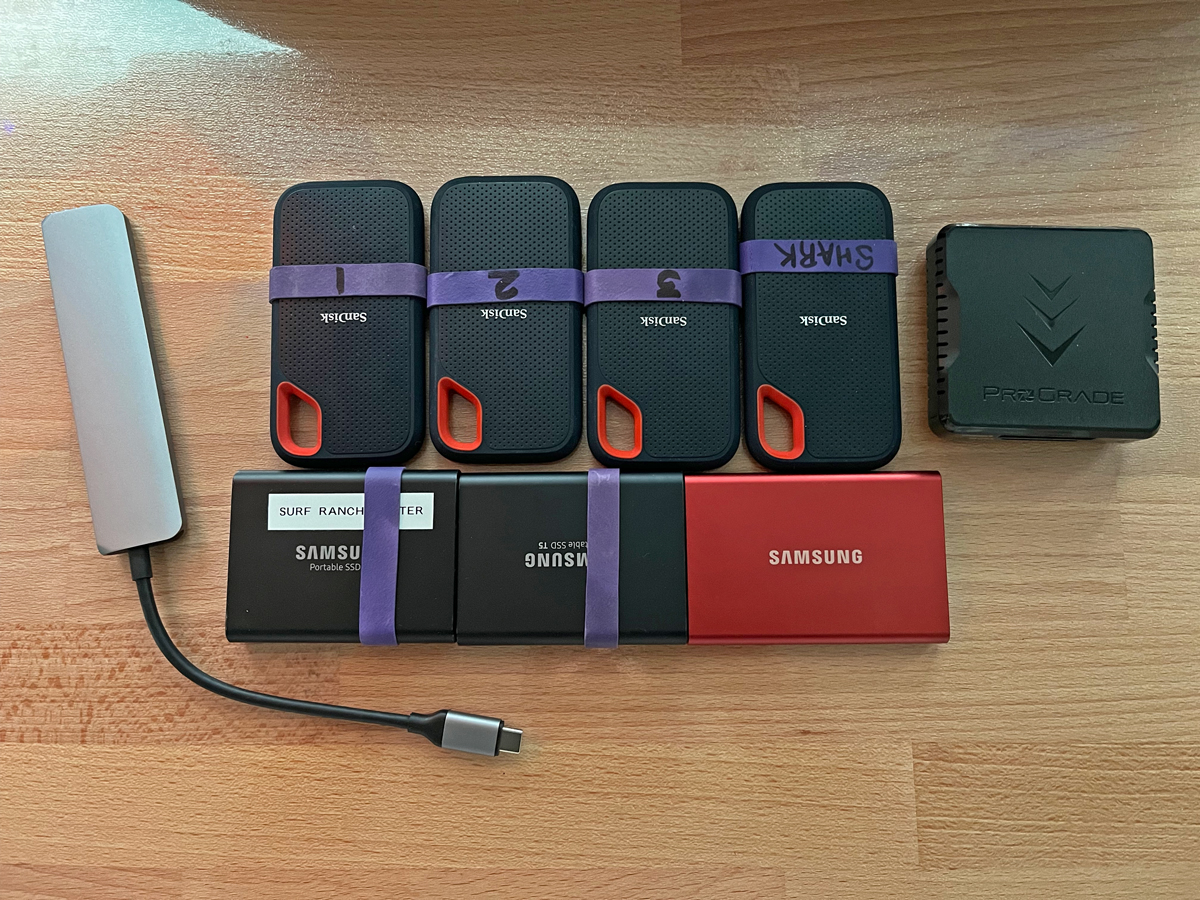
I do this same thing with CFe to SD. My Prograde card reader is now my backup drive with the SD card insterted and I can trasnsfer files from CFe to SD in one step on the iPad.
p.4 #12 · iPad Pro for Trips : Photo dumping and basic editing.
jrhoffman75 wrote:
For pure backup you could also use something like this plugged into the hub.
SanDisk 512GB Ultra Fit USB 3.1 Flash Drive - SDCZ430-512G-G46
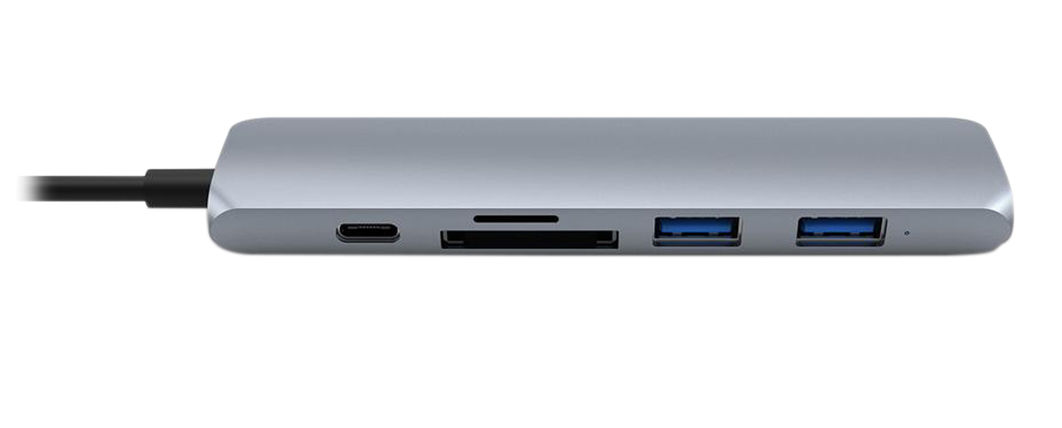
If you paired a couple of those with this hub I use you could have a 1TB backup drive with a built in SD card reader, all-in-one small package for $150 bucks. Not bad. For those who shoot on SD cards, this and the iPad is all you would need to backup your images out in the bush.
p.4 #13 · iPad Pro for Trips : Photo dumping and basic editing.
artsupreme wrote:
Frog, I would suggest getting a card reader/hub that you can attach your SSD to so that you can do this in one step instead of two. I use the same technique but do it in one step.
And for anyone who really needs the lightest and most compact solution of all, you can backup cards to to inexpensive cards. For example, for those shooting with SD cards - you can buy cheap micro SD cards and insert them into a dual card reader. This allows you to backup your SD card to the micro SD card in one step, and eliminates the need to have SSDs because your card reader becomes your SSD with the micro SD card inside. You can do this for less than $100 per terabyte and only bring a compact card reader and iPad along.
I do this same thing with CFe to SD. My Prograde card reader is now my backup drive with the SD card insterted and I can trasnsfer files from CFe to SD in one step on the iPad....Show more →
Yes I need the hub now for sure. I tried the SD to mini SD but the mini-SD plastic holder needed forcing in and almost got stuck in my A7r5 so I'm not trying that again ! I'll go the Hub route.
p.4 #14 · iPad Pro for Trips : Photo dumping and basic editing.
jrhoffman75 wrote:
For pure backup you could also use something like this plugged into the hub.
SanDisk 512GB Ultra Fit USB 3.1 Flash Drive - SDCZ430-512G-G46
I didn't know these existed! Too small for me though at 512GB (and x4 is roughly the equivalent cost to my 2TB SSD). I still like the 53g SanDisk 2TB SSD but if you don't need that size then these are a great option.
p.4 #15 · iPad Pro for Trips : Photo dumping and basic editing.
What kind of transfer rate do you get when using ipad to dump photos from CFExpress card to external SSD? I never used this set up before but I just tried this with USB-C hub with external power. Card redader and SSD HD connected to USB3 port on the hub and transfer rate is not all that great.
Using File on ipad, it took about 5 minutes to transfer about 8.5 GB of NEF files. I tried backing out about 800 NEF files and it stopped after about 170 files with error message that device is missing. USB hub is connected to external power source.
I have an older version of ipad pro 11 inch that is several years old but I pretty much only use it for internet, kindle a few games here and there an occasional LR edit on the road and that has been enough for me. Not sure if the newer iPad would be more reliable for use for backing up or not.
PS 2nd run, backed up 41 gb in a bit under 30 minutes with no problem. One thing strange is that when a card reader/cfexpress is attached to ipad, I could see thumbnail of NEF file in the card and select whatever pictures I want to import into LR. However, when files are on external SSD, only NEF icon shows up and I could not see any thumbnail. Not sure why this is the case.
p.4 #16 · iPad Pro for Trips : Photo dumping and basic editing.
Frogfish wrote:
Just another update for the 3 people who may be interested in this. This is the procedure and how it worked out, of transferring RAW files from my camera SD card to the SSD via the iPad Pro M1.
I used a slow SD card to transfer (8 GB and 30 mb/s), so I assume as I was selecting them the iPad was already preparing them. This is the long version (not using a hub to connect both SD card and SSD at the same time).
3.5 GB (1.5 GB video and 2.0 GB RAW files)
1. Connect the Apple SD card dongle (C type connector) to the iPad.
2. Open the Files app on the iPad
3. Using the Files app choose 'Select' and then navigate to the SD card in the well known disk & folder bar on the left (hit the icon top left if it's not showing).
4. Select the SD card and then go to the files to move (and it's MOVE not Duplicate, it WON'T remove the files from the SD card but 'duplicate' just copies them to your SD card) it takes just a few seconds, just run your finger down the list on the left and it'll select them as you go - or hit 'Select All'.
5. Select where you want to copy them to on the iPad
6. Hit Copy in the top right corner : copying took about 6 secs in total (see the 2nd paragraph above).
7. Exchange the SD card Dongle for the SSD (I am using a Sandisk 2 TB SSD)
8. In the Files app go to the folder where you copied them to and hit 'select all'.
9. Navigate to the SSD folder where you want to paste them and hit 'Copy' in the top right.
10. Moving the 3.5 GB from the iPad onto the SSD took 3.5 secs.
Notes
1. If you haven't done so already you can create new folders in both Files and on the SSD before starting the procedure or during.
2. My iPad has 246GB space so, as I've used ca. 70GB already I'm limited to transferring ca. 180GB at any one time. Likely more than enough for any one day depending on how much video has been shot....Show more →
That's great info thanks. Been thinking about getting an iPad Pro to use for backup from SD to the iPad + external Samsung SSD, looks like it works just as I was hoping it would! Thanks again.
p.4 #17 · iPad Pro for Trips : Photo dumping and basic editing.
suteetat wrote:
What kind of transfer rate do you get when using ipad to dump photos from CFExpress card to external SSD? I never used this set up before but I just tried this with USB-C hub with external power. Card redader and SSD HD connected to USB3 port on the hub and transfer rate is not all that great.
Using File on ipad, it took about 5 minutes to transfer about 8.5 GB of NEF files. I tried backing out about 800 NEF files and it stopped after about 170 files with error message that device is missing. USB hub is connected to external power source.
I have an older version of ipad pro 11 inch that is several years old but I pretty much only use it for internet, kindle a few games here and there an occasional LR edit on the road and that has been enough for me. Not sure if the newer iPad would be more reliable for use for backing up or not.
PS 2nd run, backed up 41 gb in a bit under 30 minutes with no problem. One thing strange is that when a card reader/cfexpress is attached to ipad, I could see thumbnail of NEF file in the card and select whatever pictures I want to import into LR. However, when files are on external SSD, only NEF icon shows up and I could not see any thumbnail. Not sure why this is the case. ...Show more →
I've never really paid attention to transfer rate because when I'm backing up it's usually when I'm winding down and multitasking at night. I have an M1 Macbook Air and M1 iPad Pro and the iPad seems just as fast as the MBA but I haven't really done any stopwatch testing. I'm either backing up to these SSD's or just using the card reader alone to backup to SD card, which is a bit slower because of the SD card speed. But both work great with the iPad.
p.4 #18 · iPad Pro for Trips : Photo dumping and basic editing.
Is the native Files app on the iPad sufficient for coping images from a card reader to an external SSD? Or is there a better suited option? I think for trips when I don't want to take my laptop, taking my iPad Pro, a USB-C hub, and a card reader and external SSD would be just the ticket just for duplicate backups.
p.4 #19 · iPad Pro for Trips : Photo dumping and basic editing.
Cduff406 wrote:
Is the native Files app on the iPad sufficient for coping images from a card reader to an external SSD? Or is there a better suited option? I think for trips when I don't want to take my laptop, taking my iPad Pro, a USB-C hub, and a card reader and external SSD would be just the ticket just for duplicate backups.
Yes, you can easily open them side by side. I found it much more stable performance wise to take the extra step and place the files on the iPad then move to storage - going directly to storage can cause issues due to the way the iPad uses the single port.
p.4 #20 · iPad Pro for Trips : Photo dumping and basic editing.
Just a quick update. I’m currently at a small town called Congjiang in Guizhou on my way to yet another small town (my 9th on this tour).
My workflow has been simple, back up files to my iPad Pro M1 (it won’t read the large Sony RAWs unless you import them into Apple Photos, which I don’t, I keep them in the Files app so shoot both RAW and jpg.
I then switch out the Green card reader (fast) and connect the Sandisk 2TB SSD. Transfers are fast enough but the iPad doesn’t multitask. Transferring around 30-40GB per time (I video too and have drones and Insta X2 POV on top of my A7r5 and A7r4 (IR).
I then delete the RAW files from the iPad keeping the jpgs for editing (ON1, LR, Snapseed and Darktable) for on the road social media posting.
The most important RAW files from each day I keep on the iPad. This all takes me around 30 mins each evening.
So I now have the important files in three places (SD card, SSD and iPad) stored in different places (SSD on me, SD cards in the roller bag and iPad in my camera bag.
The system works and has saved me a kg in weight over a MBP. I will however check out hubs for my next trip, so I can go direct from SD cards to the SSD.
A bonus is the 4 speaker surround on the iPad Pro (only, not on the other iPads which have just the two speakers despite appearing to have four speaker enclosures) which is excellent for watching films or YT.


 ) 4.5 hrs to 100%. This is very cool for me because it means I'll get plenty out of my 3 powerbanks (2x10k mAh and 1x20k mAh) when off grid (and I'll have a LOT to charge).