p.69 #2 · Portrait and People Image Thread using Sony
some great work in this thread. But i never liked the "Sony" skintones and without spending a lot of time in post couldn't get it to where I wanted them. Even then it wasn't exactly where I wanted them.
p.69 #3 · Portrait and People Image Thread using Sony
Sony colours in portraits tend to be touchy, and ambient light makes it harder. Bear in mind they are aiming for accuracy and are much more oriented to non-NA markets than say, Canon. So skin tones complicate the matter. Many times I've felt like you do, then seen the subjects palms and seen they were perfect. But it's also a sound reason to use off-brand lenses like longer CZ lenses and (we hope) Voigtlander. You have to choose profiles carefully and work up - I recommend 'neutral' in Adobe's offerings. Here are a couple with Sony lenses:
p.69 #4 · Portrait and People Image Thread using Sony
KE_Photo wrote:
Very nice, precious moments of beautiful children! :-)
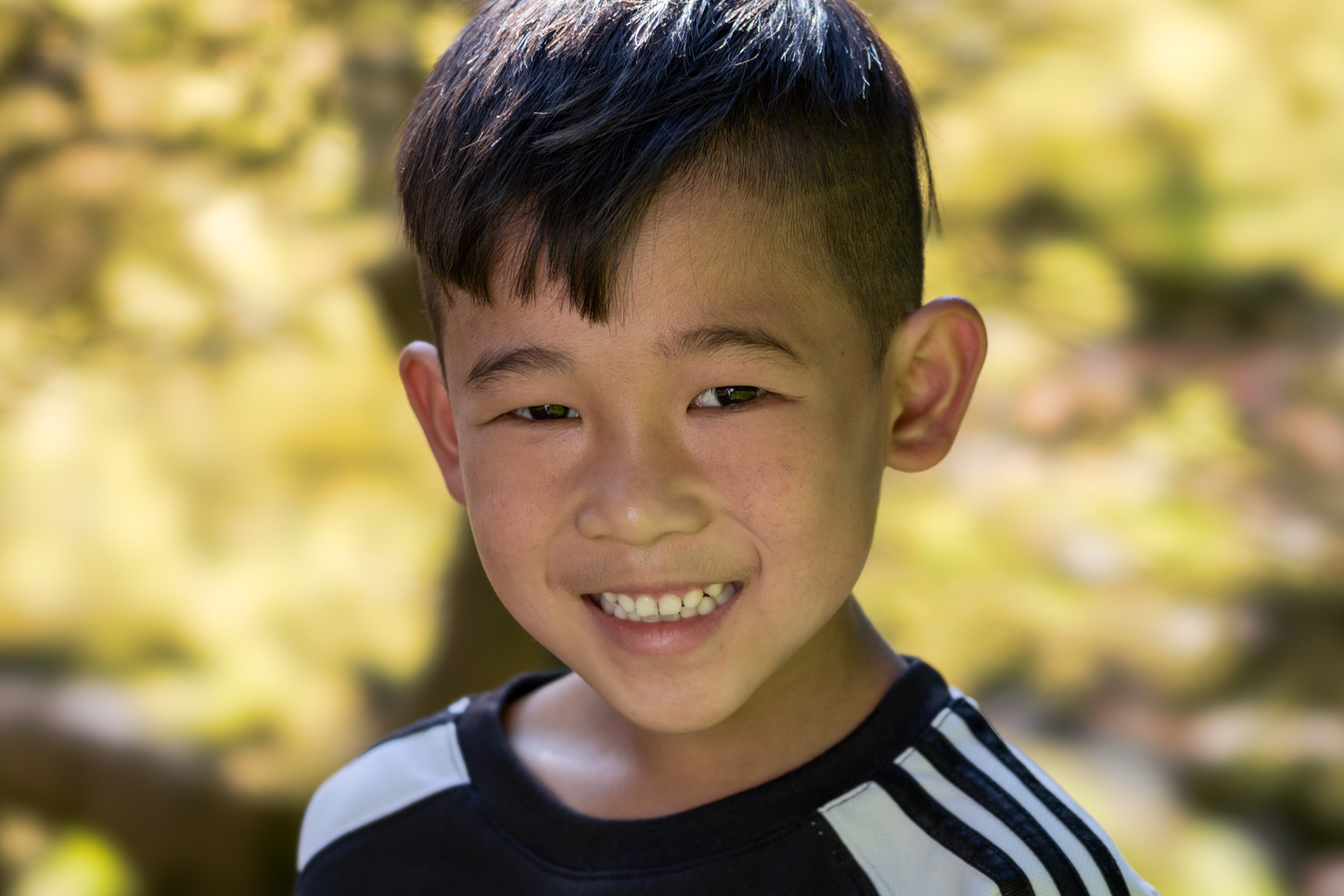
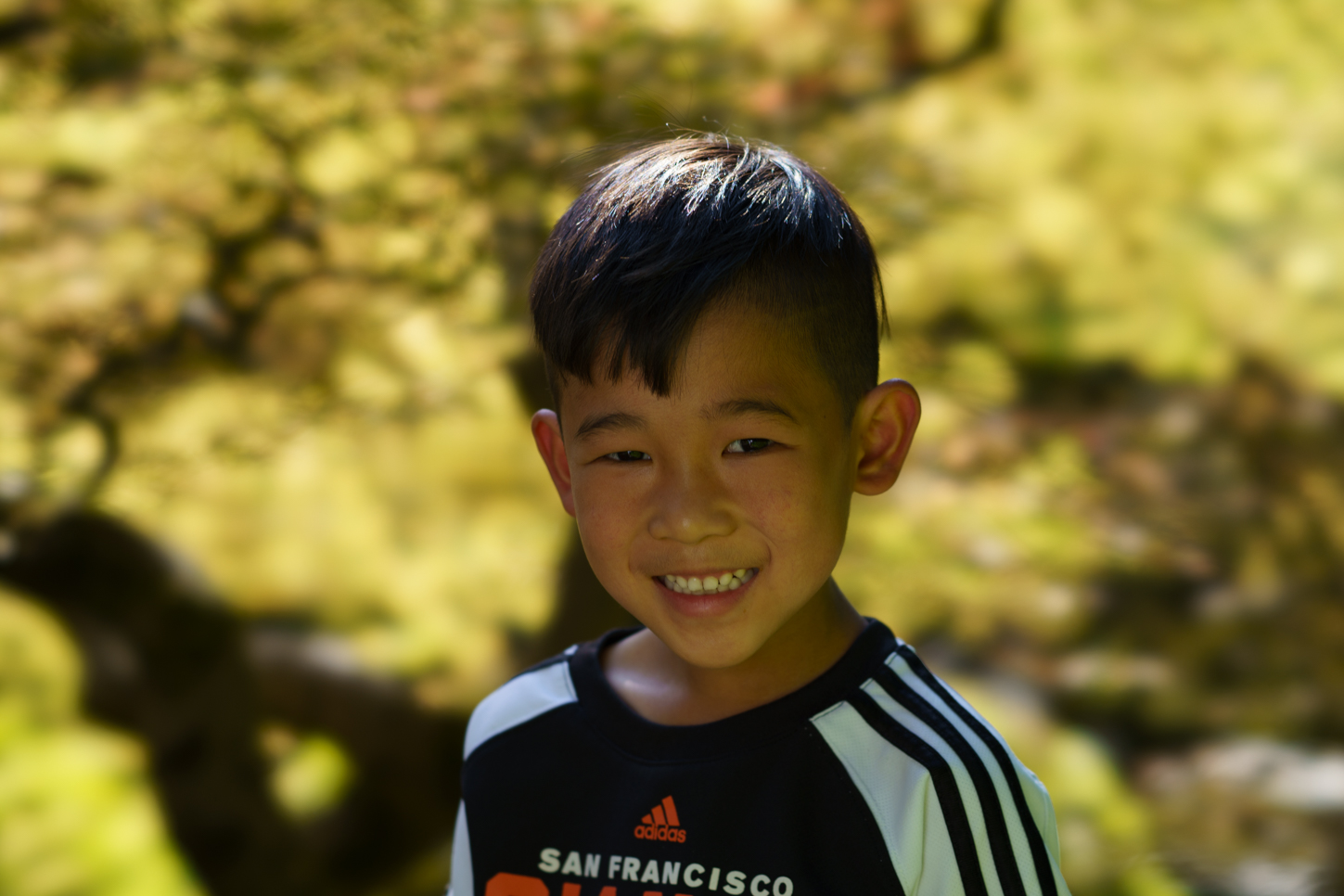
Minor note - WB/color is just a bit off on these. #1 has a bit of reflective color contamination from green/yellow foliage - while #2 is a bit cool (shadow/shade). Hope this helps!
I re-edited the first photo. Let me know what you think.
Thanks for any feedback!
p.69 #5 · Portrait and People Image Thread using Sony
(i) ambient light bounces around wildly as you see in his left side - using his face as the axis, hold a sheet of A4 over the right side of the image to see this clearly. (ii) our eyes see colour bleeding from strong surrounding colour, don't sweat it overly. (iii) hair is the greatest test of LoCA. My three thoughts right there.
Fixes? Brush a colour fix on his left side, get into the yellows and reds and adjust the mix. If a PS user, use Selective Color, an old but very sound tool that lets you work on the actual composition of colour. In other s/w, much harder. Take an RGB cue from his right cheek and try to match it on the left cheek. Run a light desat over his hair, not so much it removes all colour, focus on magenta (image left side) and green (image right side). Try white point and black point off several parts of his shirt, for confirmation, does not have to be perfect (shade etc. affect WB). I'll send you the invoice.
p.69 #6 · Portrait and People Image Thread using Sony
Thanks, Philip. I appreciate it. I must admit, this one has been challenging/frustrating. I consider myself an intermediate PS user, particularly with landscapes, but when it comes to portrait colors, my eyes seem to deceive me. This particular photo was a spur of the moment photo and I was enticed by the lighting on the maple trees all around, so I don’t mind the yellow spilling onto the skin because that’s how it was. That said, the more I try to tweak, the further I seem to make it worse
philip_pj wrote:
(i) ambient light bounces around wildly as you see in his left side - using his face as the axis, hold a sheet of A4 over the right side of the image to see this clearly. (ii) our eyes see colour bleeding from strong surrounding colour, don't sweat it overly. (iii) hair is the greatest test of LoCA. My three thoughts right there.
Fixes? Brush a colour fix on his left side, get into the yellows and reds and adjust the mix. If a PS user, use Selective Color, an old but very sound tool that lets you work on the actual composition of colour. In other s/w, much harder. Take an RGB cue from his right cheek and try to match it on the left cheek. Run a light desat over his hair, not so much it removes all colour, focus on magenta (image left side) and green (image right side). Try white point and black point off several parts of his shirt, for confirmation, does not have to be perfect (shade etc. affect WB). I'll send you the invoice. ...Show more →
p.69 #7 · Portrait and People Image Thread using Sony
Hodie wrote:
Thanks, Philip. I appreciate it. I must admit, this one has been challenging/frustrating. I consider myself an intermediate PS user, particularly with landscapes, but when it comes to portrait colors, my eyes seem to deceive me. This particular photo was a spur of the moment photo and I was enticed by the lighting on the maple trees all around, so I don’t mind the yellow spilling onto the skin because that’s how it was. That said, the more I try to tweak, the further I seem to make it worse
You could go through a lot in PS to fix it…but if it were me, I’d just do a B+W conversion and be done with it. The opposing colors from either side make fixing this a chore. Also because they are somewhat on opposite sides of the spectrum. You can crank up saturation in LR and see exactly the colors on the face that you are dealing with.
Another question might be - if you find yourself in a forest taking portraits, what’s the best way to avoid colored ambient light from impacting the final image? The more I edit portraits, the less I want to actually spend time editing and just getting the right initial environment in the first place. Of course, this is spontaneous with kids, so it is completely understandable. It’s a good shot otherwise!
p.69 #8 · Portrait and People Image Thread using Sony
I re-edited the first photo. Let me know what you think.
Thanks for any feedback!
Better! :-). Ideally you might be able to shoot a color checker and create a custom color profile for mixed lighting situations like these, though even then - sometimes the reflective color contamination can be tricky. Another approach would be to use masks in Photoshop and do selective color adjustment to only specific areas - (for instance, just one side of his face instead of global to the entire image).
Aaron at Phlern has a couple of good tutorials on changing color in select areas - - I like this first approach a lot and do something similar -
I shoot under trees, around foliage and on green grass a lot due to bright sun and people requesting "outdoors" nature shots - my go to is to start with shooting a color checker and create a custom color profile at each location.
p.69 #9 · Portrait and People Image Thread using Sony
Thanks! For processing this image, I did use luminosity masks and Blend If “masks” to target certain colors and areas of the image. It was really difficult to get everything “right.” I did the best I could. At the end of the day, it’s a picture of my son that I like.
Not to make excuses, but we were walking in the Portland Japanese Garden in 90+ heat with a baby stroller that I had to carry up stairs. I saw backlit maple trees and told my son to take position in shade; he reluctantly agreed while rushing me to hurry, so admittingly, I didn't not even consider all the things one would normally do in a planned shoot. This is like 90% of my photography
KE_Photo wrote:
Better! :-). Ideally you might be able to shoot a color checker and create a custom color profile for mixed lighting situations like these, though even then - sometimes the reflective color contamination can be tricky. Another approach would be to use masks in Photoshop and do selective color adjustment to only specific areas - (for instance, just one side of his face instead of global to the entire image).
Aaron at Phlern has a couple of good tutorials on changing color in select areas - - I like this first approach a lot and do something similar -
I shoot under trees, around foliage and on green grass a lot due to bright sun and people requesting "outdoors" nature shots - my go to is to start with shooting a color checker and create a custom color profile at each location....Show more →
p.69 #10 · Portrait and People Image Thread using Sony
abadger wrote:
You could go through a lot in PS to fix it…but if it were me, I’d just do a B+W conversion and be done with it. The opposing colors from either side make fixing this a chore. Also because they are somewhat on opposite sides of the spectrum. You can crank up saturation in LR and see exactly the colors on the face that you are dealing with.
Another question might be - if you find yourself in a forest taking portraits, what’s the best way to avoid colored ambient light from impacting the final image? The more I edit portraits, the less I want to actually spend time editing and just getting the right initial environment in the first place. Of course, this is spontaneous with kids, so it is completely understandable. It’s a good shot otherwise!...Show more →
Thanks, Adam! I don't like falling back to B+W just because the colors don't work, but maybe in this instance it would have been the right choice. I was drawn to the colors of the maple leaves, so I wanted to retain that.
I personally didn't even think about the skin tones too much because the scene and picture weren't meant to convey perfection, but rather an expression with a cool background.
Feeling pretty dejected and defeated right now. I'll live.
p.69 #12 · Portrait and People Image Thread using Sony
Thank you! And I totally appreciate the feedback. It definitely will help me improve and think more to see more. Portraiture is, IMO, the most challenging and rewarding genre of photography. There’s just so much that goes into it.
KE_Photo wrote:
Please don't - it's nice as is - we all just try to "help" too much sometimes. ha ha.
p.69 #13 · Portrait and People Image Thread using Sony
@Hodie this is my favorite hack for contaminated skin tones. Create a gradient map adjustment layer in PS and then turn it off. Go to the eye dropper tool and then the toolbar at the top of the PS interface. Make sure your sampling is at least set to 3x3 average to avoid sampling noise. Go back to your gradient map and double click on it to open the options, double click the left node and select a shadow (but not extreme shadow) color from the non-contaminated skin. Double click the right node and select a highlight but not a specular highlight. Turn the gradient map layer on, set the blending mode to color, and create an empty black mask. Paint over the contaminated skin with a 100% opacity brush. It will look like way too strong of a correction so reduce the opacity of the gradient map to ~25-35%. It almost always works. You can try some different samples if it doesn’t quite look right. There is also very little harm in painting this onto all of the skin to unify the hues a bit, which I do quite a bit!
p.69 #14 · Portrait and People Image Thread using Sony
fuzzykeys wrote:
@Hodie@ this is my favorite hack for contaminated skin tones. Create a gradient map adjustment layer in PS and then turn it off. Go to the eye dropper tool and then the toolbar at the top of the PS interface. Make sure your sampling is at least set to 3x3 average to avoid sampling noise. Go back to your gradient map and double click on it to open the options, double click the left node and select a shadow (but not extreme shadow) color from the non-contaminated skin. Double click the right node and select a highlight but not a specular highlight. Turn the gradient map layer on, set the blending mode to color, and create an empty black mask. Paint over the contaminated skin with a 100% opacity brush. It will look like way too strong of a correction so reduce the opacity of the gradient map to ~25-35%. It almost always works. You can try some different samples if it doesn’t quite look right. There is also very little harm in painting this onto all of the skin to unify the hues a bit, which I do quite a bit! ...Show more →
Thanks, Matt! I'll come back to this and try it out. Appreciate it!
p.69 #15 · Portrait and People Image Thread using Sony
Would like to get a raw file and see how C1 handles it. I am no good in pp and hate to spend time in front of computer doing PS so I take easy way out, which for me is find a better spot with nice ambient light, if not, then create my own. I know it doesn't work for kids/family situations where you can't control everything but the shot of the boy is taken at a spot with not nice light falling on him. Move around, see the light and then take a shot. It is just like landscapes, actually easier as you are more in control.
p.69 #16 · Portrait and People Image Thread using Sony
Hodie wrote:
Thanks, Adam! I don't like falling back to B+W just because the colors don't work, but maybe in this instance it would have been the right choice. I was drawn to the colors of the maple leaves, so I wanted to retain that.
I personally didn't even think about the skin tones too much because the scene and picture weren't meant to convey perfection, but rather an expression with a cool background.
Feeling pretty dejected and defeated right now. I'll live.
Dude! I totally wasn’t going for that at all. Sorry it came off that way. It was more like, what if it were me? And I can be a little defeatist myself sometimes with this sort of thing so was just offering an easy alternative. Wasn’t saying to give up or anything. It’s a cool shot!
I’ve actually thought some of your recent post have been pretty awesome. Don’t even worry about it.
p.69 #17 · Portrait and People Image Thread using Sony
bobby350z wrote:
Would like to get a raw file and see how C1 handles it. I am no good in pp and hate to spend time in front of computer doing PS so I take easy way out, which for me is find a better spot with nice ambient light, if not, then create my own. I know it doesn't work for kids/family situations where you can't control everything but the shot of the boy is taken at a spot with not nice light falling on him. Move around, see the light and then take a shot. It is just like landscapes, actually easier as you are more in control....Show more →
Thanks, Bobby. I'll see if I can host a RAW file. For this shot, I was focused more on the background. I had the 100 STF mounted on my camera. That was probably my main issue is I put zero thought for how the light was falling on my son's face, except to put him into shade (it was midday, so out of the shade was no good).
I appreciate and agree with everyone's advice. I feel like under a more controlled and less hectic circumstance, I would have done better.
---------------------------------------------
abadger wrote:
Dude! I totally wasn’t going for that at all. Sorry it came off that way. It was more like, what if it were me? And I can be a little defeatist myself sometimes with this sort of thing so was just offering an easy alternative. Wasn’t saying to give up or anything. It’s a cool shot!
I’ve actually thought some of your recent post have been pretty awesome. Don’t even worry about it.
Adam, no worries. I know you weren't suggesting what I should have done. It's good to get your perspective on this. I was just making a general comment about B+W. My "woe is me" comment was not in response to your suggestion (sorry if I made it seem like). It's just like any photographer...you feel defeated sometimes. We put so much time and energy into this hobby or profession that when things don't go your way, or others point it out for you (and you know they're right), it can hurt.
I'm a big boy and will learn from it. I truly appreciate everyone's comments and I think all of you are wonderful and gifted photographers (and post processing editors). I strive to be a fraction of what many of you can do.
p.69 #18 · Portrait and People Image Thread using Sony
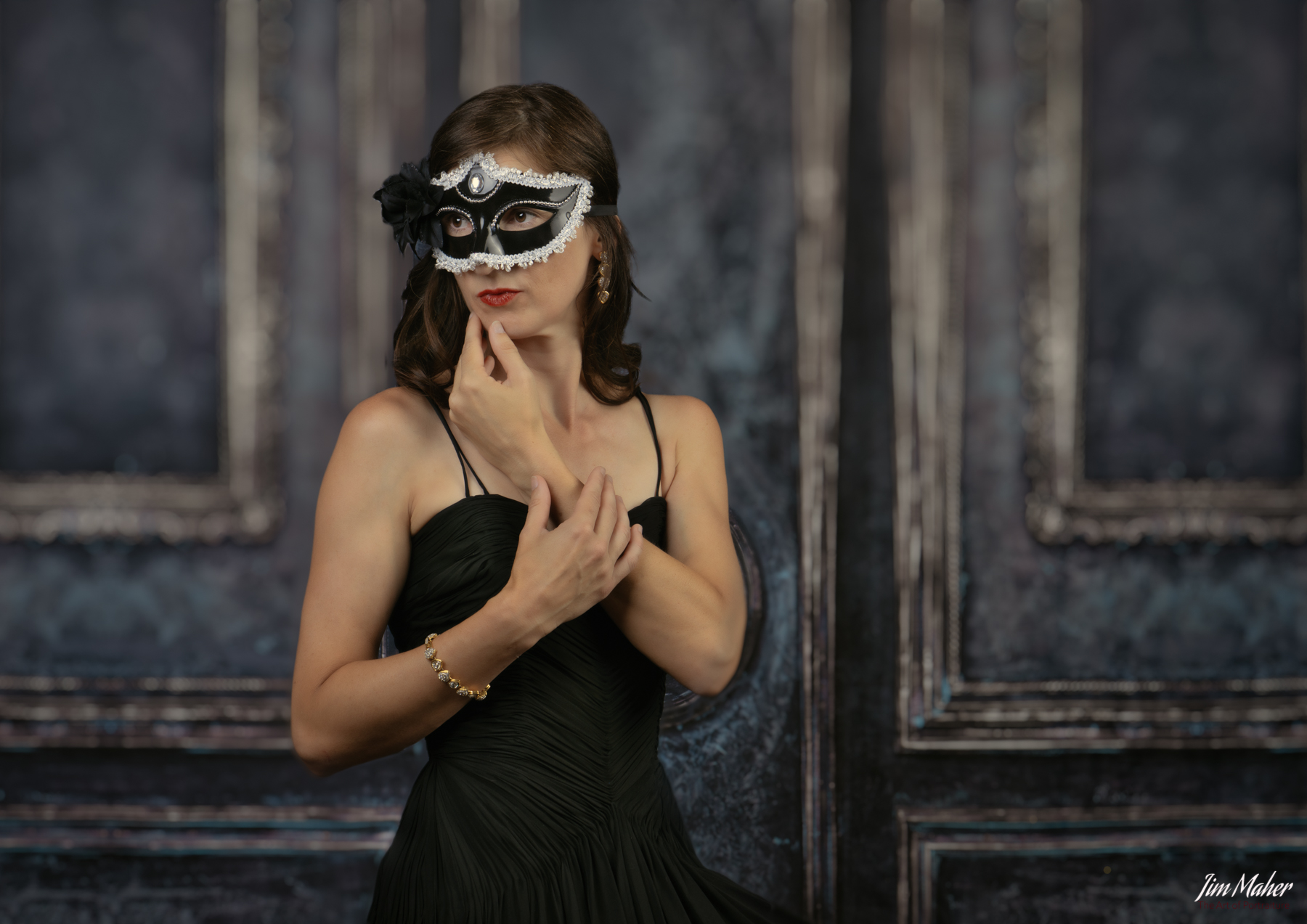
Since I had my home studio setup for something else yesterday I took advantage of Delaney’s daughter who is visiting us, and had her stand in as a model 🙂
p.69 #19 · Portrait and People Image Thread using Sony
I just did this a few days ago on some shots of a model in a pool where there was major blue color contamination from light reflecting off the water. Gradient maps fixed it up nicely and with minimum fuss without being too strong as to be unrealistic looking and fail to take the fact that the water is in fact blue out of the equation 100%. I think the result eliminated the distraction. The shots are on my last Instagram post but I will try to export some versions for the forum as well. You do need a tidier mask than you would for a less brute force method like selective color or hue/saturation but IMHO this works very well and is a mainstay in my portrait editing workflow because things like this simply happen all the time to me even when I try to avoid them. For harder edges like you have here on the camera right cheek, object selection with a little 0.5-1 pixel feathering in PS works well and quickly. Just shift+f5 after you’ve selected the skin and then fill with white paint with the layer mask selected. Anyway, I’d rather get the shot I want and fix the color when necessary, and gradient maps are super powerful! I also use them for more brute force color grading when more subtle shifting of hues is just not cutting it. Give it a shot and let me know how it goes!
Hodie wrote:
Thanks, Matt! I'll come back to this and try it out. Appreciate it!
p.69 #20 · Portrait and People Image Thread using Sony
fuzzykeys wrote:
I just did this a few days ago on some shots of a model in a pool where there was major blue color contamination from light reflecting off the water. Gradient maps fixed it up nicely and with minimum fuss without being too strong as to be unrealistic looking and fail to take the fact that the water is in fact blue out of the equation 100%. I think the result eliminated the distraction. The shots are on my last Instagram post but I will try to export some versions for the forum as well. You do need a tidier mask than you would for a less brute force method like selective color or hue/saturation but IMHO this works very well and is a mainstay in my portrait editing workflow because things like this simply happen all the time to me even when I try to avoid them. For harder edges like you have here on the camera right cheek, object selection with a little 0.5-1 pixel feathering in PS works well and quickly. Just shift+f5 after you’ve selected the skin and then fill with white paint with the layer mask selected. Anyway, I’d rather get the shot I want and fix the color when necessary, and gradient maps are super powerful! I also use them for more brute force color grading when more subtle shifting of hues is just not cutting it. Give it a shot and let me know how it goes!
I just tried the gradient map and it took out a lot of the red blotches on the skin, but I think it makes the skin look more yellow. His skin did actually have some red blotches on it because it was so damn hot that day. The unedited RAW shows this.
I've been looking at this photo so much now, I've kind of lost track of what I'm supposed to be correcting. Dumb question: What is it that I should be looking to fix? Here's the unedited photo (RAW > JPEG).