AGeoJO
Offline
• • • • • • •
Upload & Sell: On
|
 p.34 #15 · Portrait and People Image Thread using Sony p.34 #15 · Portrait and People Image Thread using Sony | |
fuzzykeys wrote:
Thanks Joshua! I just used a regular PS layer mask and the paint brush tool at 0% hardness. I usually find that to be sufficient for most quick luminosity and color adjustments in PS as a bit of a loose mask helps to smooth over the edit and reduce the possibility of halo artifacts. If I need to make a super precise selection, I am finding the latest iteration of the PS "select and mask" feature to be very accurate with the refine edge brush, but honestly I very rarely use it.
For any masking tasks that are more complex than just painting white with a brush on a black layer mask, 90% of the time I find that using luminosity and color masks as in intermediate masking step before ultimately just painting with a brush to be much faster and more efficient. It's basically only when I need to make a precise selection that can't be narrowed down in a few seconds by including or excluding certain colors and/or luminosities that I will resort to a detailed pixel-based masking approach with "select and mask." So if I need to select a complex dark brown object against a dark brown background for example, I will get into the "select and mask" options.
This may seem a bit over-complicated and technical but I swear it saves me a huge amount of time and has made Photoshop into so such more of a fluid and creative tool for me regardless of the photographed subject. End disclaimer.
For example, let's say you would like to emphasize some highlights in a model's hair to accentuate some curls and make them look more three dimensional. Normally I would create a curves adjustment layer, drag the curve up to increase the brightness, invert the mask of the adjustment layer from white to black (command/control + I), and then just paint with white on the highlights to brighten them. But let's say there is a lot of blue sky poking through the hair and you are seeing unwanted artifacts from inadvertently brightening the sky. Rather than trying to make a precise selection of the hair or painting tediously with a super tiny brush, I will just use Lumenzia or PS's built in "select color range" to make a blue selection with one or two clicks, invert that selection and then paint with white on my black mask as I would have otherwise. PS will just ignore the blue pixels as I add white paint to reveal the curves adjustment where I want it.
Similarly, let's say you wanted to darken a shadow on a model's cheek to add a little more 3D depth to the face or maybe even add a slight touch of red but only to that shadow area. I'll create a curves or color adjustment layer, invert it's layer mask to black, make a luminosity selection of the darker midtones and then just loosely paint white over the area that I want to adjust. PS will ignore the brighter pixels that have already been excluded by the luminosity selection. Even better, the adjustment will be naturally feathered as the darkest pixels will be affected the most, the somewhat dark pixels proportionally less, and the brightest pixels will not be affected at all. It's ultimately a simple technique but it's very fast, accurate and there are so many awesome ways to use it...color grading, exposure blending, compositing, landscape editing, astrophotography editing, portrait retouching...it's great!
To illustrate how precise you can actually be with this method, you can even stack multiple luminosity and color masks by putting your adjustment layer into a group by itself and adding a mask to the group! Say you want to darken some shadows and brighten the highlights on a complex shaped rock silhouetted against a bright blue sky to give it more 3D pop while leaving the sky intact. Easy. Make a luminosity mask of the brighter tones (1 click), apply it to the mask of a curves adjustment layer (1 click), put the curves into a group (command + G), make a blue selection (1-2 clicks) and invert the blue selection (command + I). Now you can either a) sloppily paint on the group mask with white to make a very precise selection of only the highlights on the rock or b) apply the negative blue mask to the group, put the group in a group, and continue to refine. Maybe you are finding that there is actually a part of the highlight on the rock that was a bit overexposed and brightening it is causing problems. You can eliminate just those extreme highlights from the adjustment in a group mask with two clicks. So now in just a few seconds and without any manual masking, you are telling PS I want to affect the bright pixels -> but not any blue pixels -> oh and also ignore the pixels that are brighter than X threshold. All you need to do precisely impact the highlights you want is to select the topmost clean black mask and click on the rock once with a big white brush at 100% opacity. You will have applied your adjustment to what ultimately turned out to be a pretty sophisticated selection, but it took very little time and would have been tedious or impossible otherwise. Lumenzia also has a nice feature that will allow you to collapse and merge group masks into one layer mask once you are done so you can clean up your layers panel if you so desire.
There ways to do all that without Lumenzia but they are way more complicated. Lumenzia will also let you make selections based on saturation or vibrance. You can also make what's called a "difference" selection where Lumenzia will analyze the luminance of pixels in relation to the pixels immediately adjacent to them. It is kind of similar to telling PS to find edges but more versatile and incredibly accurate at this. In practice, you can select all of the pimples on someone's arm almost immediately and then reduce their red saturation or slightly brighten them for a super quick and dirty retouch. In another scenario, Lumenzia was extremely helpful to isolate stars from the sky to reduce shadow noise more precisely and get a little more pop out of the stars.
Anyway, that's a lot of info but hopefully it's interesting or helpful to y'all! I'm always happy to discuss!
Cheers,
Matt...Show more →
Wow, Matt, thank you for the explanation, buddy! For whatever reasons, I found the masking tool of PS is not that accurate. Or better said, it feels less refined, especially for the area around the hair. I came across a marketing blurb from Topaz the other day about their new masking software. So, I thought.... Hm, I have to look into Lumenzia, too, it seems. Thank you again, Matt.
Joshua
|


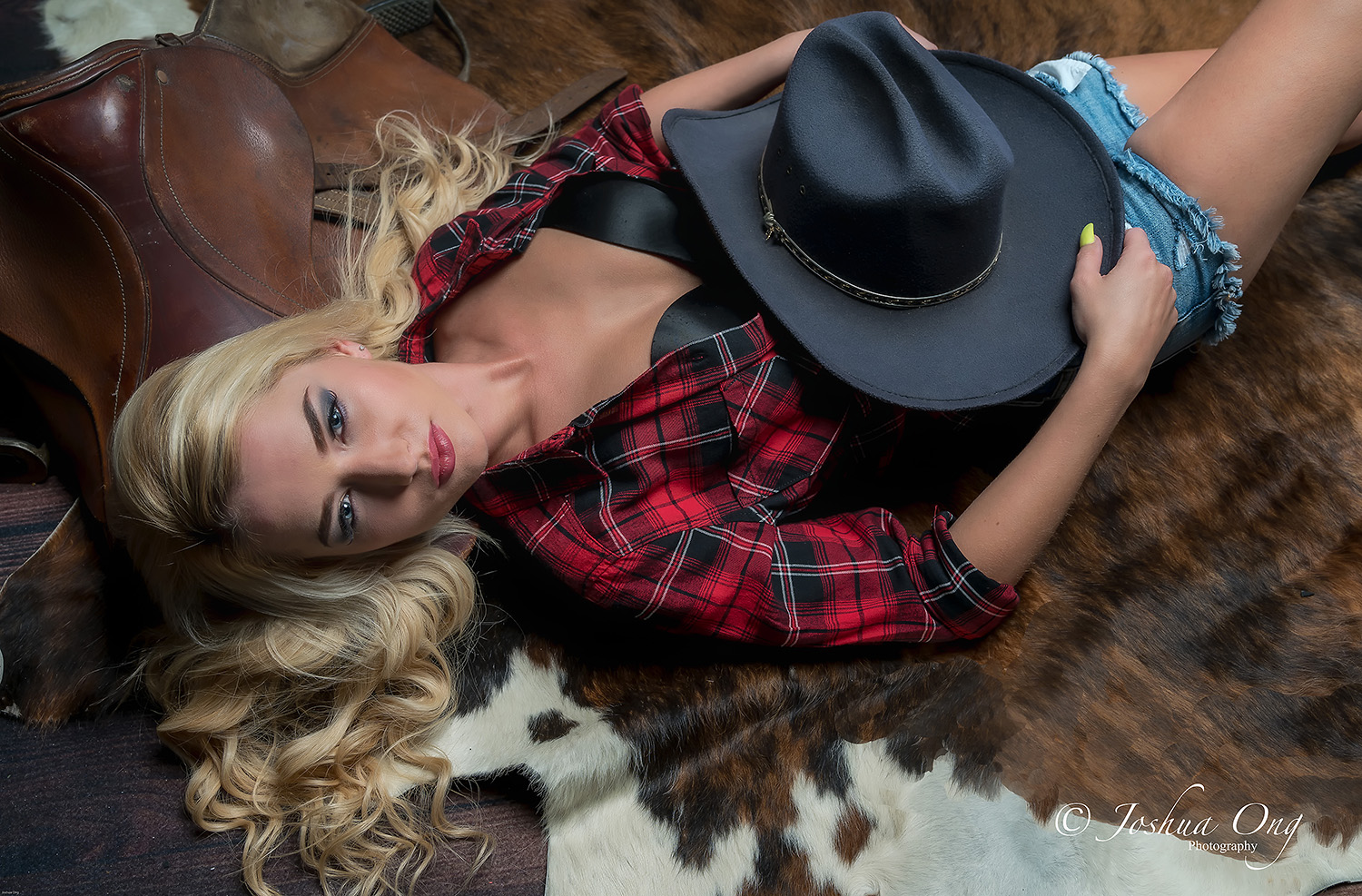

 . It is more a passion to me. As such, there is no client breathing behind my back that needs to see what just has been captured. I do it at my own pace, in other words.