Travis Rhoads
Offline
• • • • •
Upload & Sell: On
|
 p.1 #14 · Chasing the Milky Way in The Outer Banks p.1 #14 · Chasing the Milky Way in The Outer Banks | |
dgdg wrote:
These are all nice, you were quite productive!
You have some amazing milky way detail for a single capture untracked.
It is a nice place to shoot the milky way, esp before the bugs kick into full gear.
Some little nits -
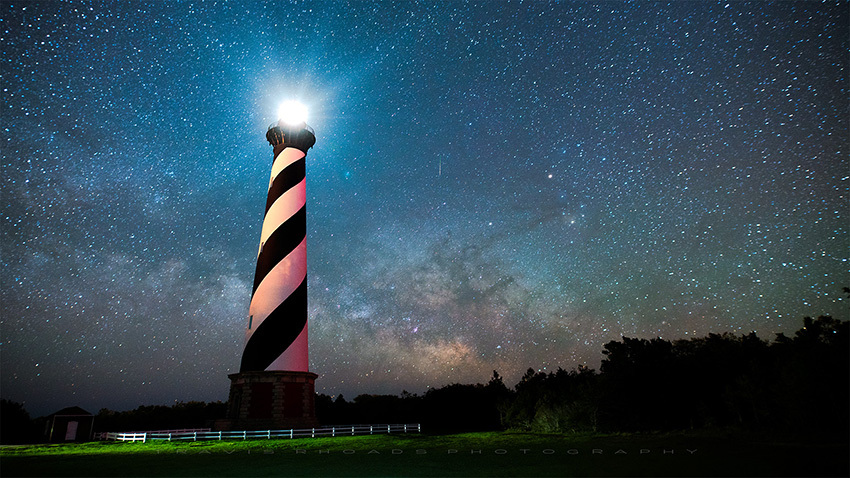
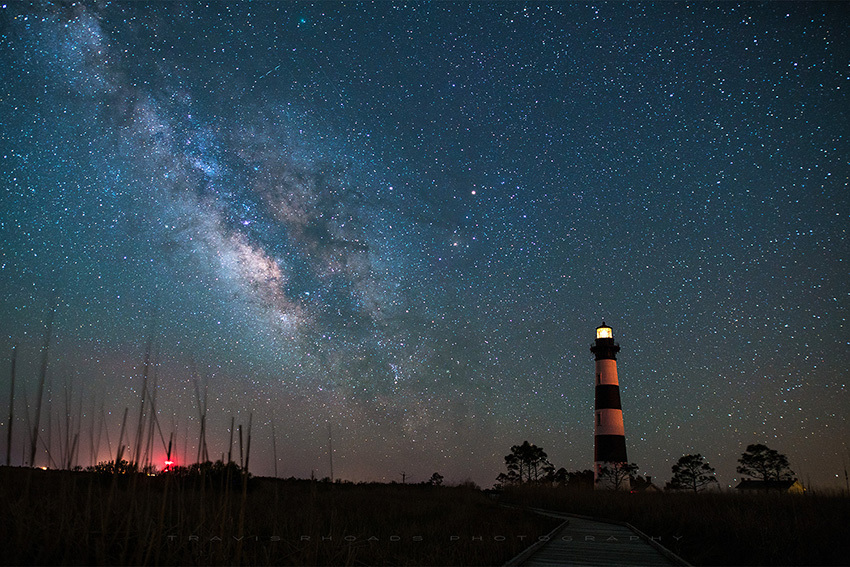
In #1, if you create too strong of a high pass filter effect on the sky, it will create black halos around the stars. I see them in this upload for #1, but not the others.
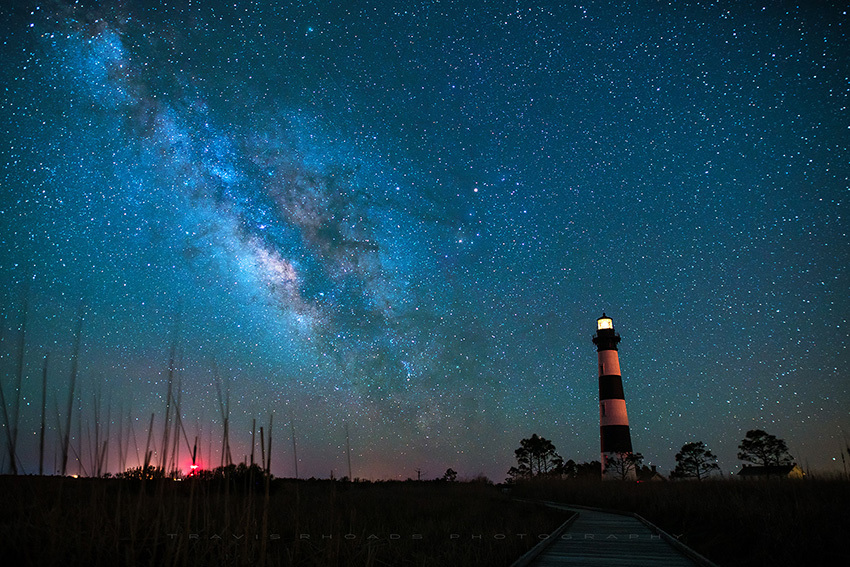
In the one's with the light houses, I'd warp them upright.
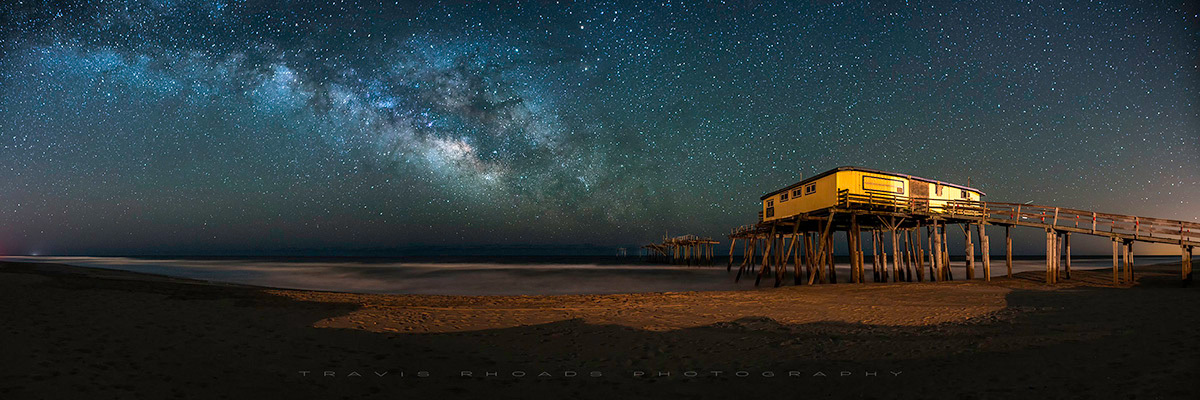
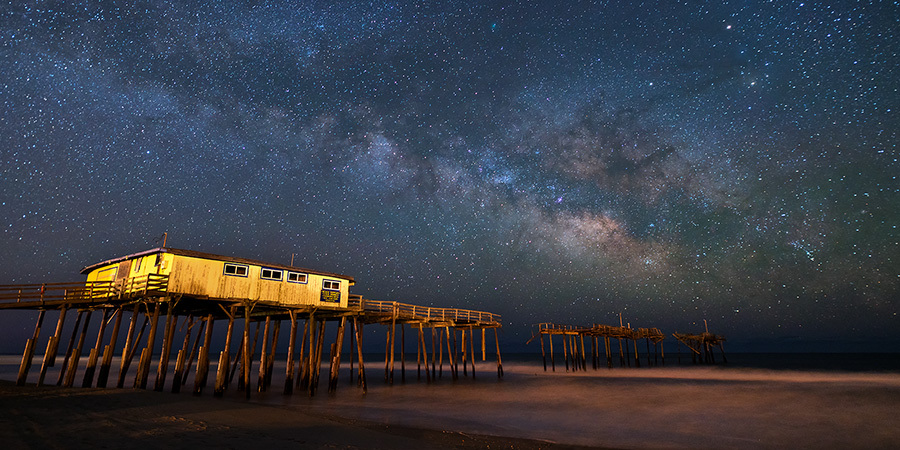
For the brightly lit pier houses, nothing you can do about the dock lights, I'd darken and cool (more blue) them a little for better balance.
The sky color balance is off and inconsistent shot to shot. If you are doing any gallery presentations, you'd have to be careful having them too close to each other.
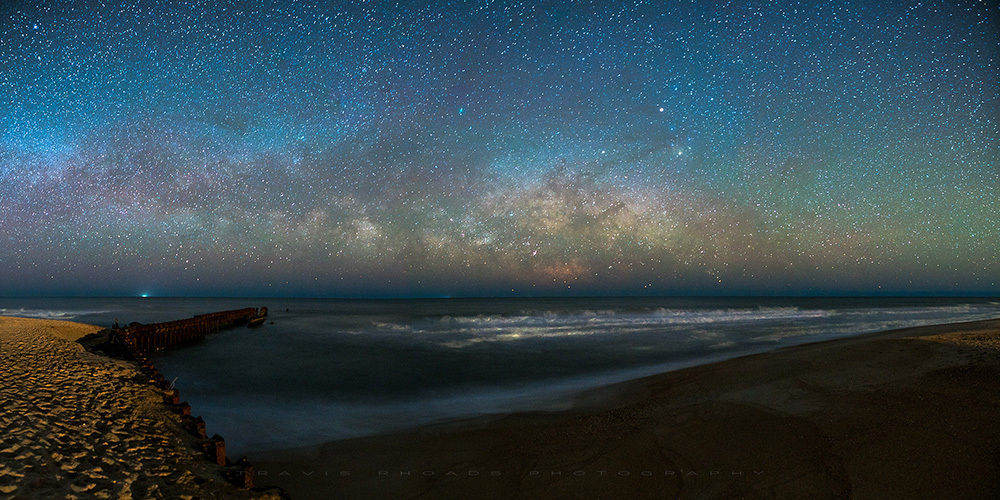
Color balance is a personal taste for the night sky and it needs to blend with the land portion for your tastes. Given that important caveat, I'd say your edit for #3 is the best color balance (for me). Sky color balance used to drive me nuts but I finally found a consistent method that works for me.
In Photoshop, I like to put a 3x3 color picker dropper on a piece of dark sky and then look at the R,G,B values in the info window. After I correct for vignetting first, I then use levels on each color channel and move the far left (black point) slider until the info window shows 30/30/35 (R,G,B respectively) for the dropper. If you want the background sky (black point) brighter or darker, simply just adjust these far left level sliders. If the sky is underexposed ('gasp'), then you would need to adjust the output level instead. Assuming no funky light pollution or air glow, this should give a pleasing sky and milky way core color (yellow on left, reddish on the right) as well without having to do further color adjustments.
Then to blend the color balance for the foreground if needed, I go back to each channel in levels and adjust the middle slider. Color changes but black point stays the same. I do not often need to do this.
To adjust the milky way core further, I use an inverted luminance mask. You can increase micro-contrast in the dust lanes, etc without affecting the stars or background sky. That being said, I would not do anything to yours as the detail is excellent but still very 'natural' looking.
This gives me a more objective approach to sky brightness and color. This also helps with contrast and permits gentler clarity/high pass filter use.
I try to make it down there once a summer with the family to see the bears. If I'm lucky enough to head down to the beach this summer I'll have to give you a ring!
...Show more →
I will have to experiment with what you posted, thanks for the tips. Yeah, the WB is off a little from one to the next, each was done in its own editing session and with a different feel intended for each...I think here on FM is the only place I would present them as a collection like this...I went that route rather than a new post for each...seems a bit silly to do that.
I am no where near the OBX, I wish I was. I am a little over 12 hours away, I planned this trip around a work trip to North Carolina. I was in the OBX scouting for future plans too...
---------------------------------------------
JimFox wrote:
Hey Travis,
Your edit of #3 looks so much better! I am liking the way both the MW and the sky looks.
Shooting and especially processing MW shots I think just takes time and there is a learning curve one has to go through. Milky Ways are delicate! I don't have any tutorials I have used or seen on processing the MW, I just learned how I do it by trial and error. What I typically do is to have 3 layers in Photoshop.
Top Layer: Will have a layer mask selecting the whole sky. This then protects the sky layer from adjustments you do to the ground layer.
Middle Layer: Will use the Color Range tool and select a white star in the sky. Then adjust the Fuzziness to get it to select the Milky Way also. You can ignore anything it might select in the ground layer since with the Top Layer mask the Ground is protected in this layer. Then Press ALT and click on the make Layer Mask icon in the Layers window and you have a Layer Mask from the Selection. Now this layer you adjust the background sky since it is protecting the Milky Way and stars. So any tweeks to the color balance, any darkening won't affect the brightness or whiteness of the stars and MW.
Bottom Layer: No Layer Masks on this. In this layer you will usually brighten it a bit to make the Milky Way and stars look a little more prominent. You can possibly Desaturate it some in case from your Raw conversion the Color Balance had given some off coloring to the stars and MW.
That's my basic steps. I will most often Flatten this and then do some other localized editing perhaps on the foreground or sky as you fine tune the image.
Hope that helps, or sparks some ideas for your editing.
Jim...Show more →
Thanks for the editing info Jim, like the above, I will have to experiment with it.
---------------------------------------------
martines34 wrote:
A very enjoyable set of well taken and well processed images.
Thanks for sharing.
Thank you.
---------------------------------------------
Mark Metternich wrote:
Very nice work. Quite inspiring. Thank you for sharing.
My only nit is that I feel the web sharpening could be better. What is your sharpening / noise reduction protocol, if you don't mind me asking?
Thanks Mark. To be honest, the sharpening/NR for web in my workflow needs more work...I focus so much of what I do around printing, that presentation on the web suffers. Do they lack sharpening in your opinion? I use NIK dFine for NR but try not to get too heavy handed with it, since it tends to ruin details.
---------------------------------------------
Fred Miranda wrote:
Very well balanced images Travis. I really like the edited version (#3). If you could do the same for the other images, they will improve even further.
Thank you Fred...I might just have to go back and edit all of them again in one sitting and try to unify the process.
---------------------------------------------
d4mike wrote:
If this was your first time shooting the milky way with new equipment, I think you did great. Post editing is always a matter of taste, some night skys are dark black, early or late it will be more blue.
The more you shoot night sky's, the more you'll want to shoot night sky's more.
At 20 seconds I was a little surprised you had some star movement in the corners, maybe it's the 20mm lens?
"When I left the house I was staying at, I thought it would be almost 4AM before the Milky Way came off the horizon, it was more like 2AM..."
Have you ever heard of the app called PhotoPils? It has a planing function where you can get a augmented reality of the scene, rotate the image and you can tell exactly how the milky way will line up with the foreground, and at what time it will line up.
You can even look into the future to plan shots of the MW, around the dark of the moon, meteor showers, etc. I use it all the time. ...Show more →
While it was not my first time "trying" to shoot the MW...it was the first with this gear. I too was confused by the longer trails at 20mm and 20 seconds, especially in #1. I think it is wide angle distortion myself...
I have heard of PhotoPils, and put it on an iPad, but its built for an iphone, and I am an Android user...I have StarWalk 2 and its really good, it was just off a little in its prediction for when the Milky Way would be more visible, that and it was so much clearer on the horizon than I expected which meant it was more visible early.
|