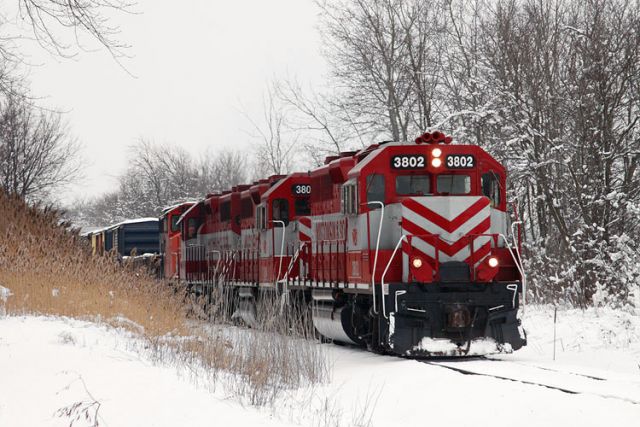
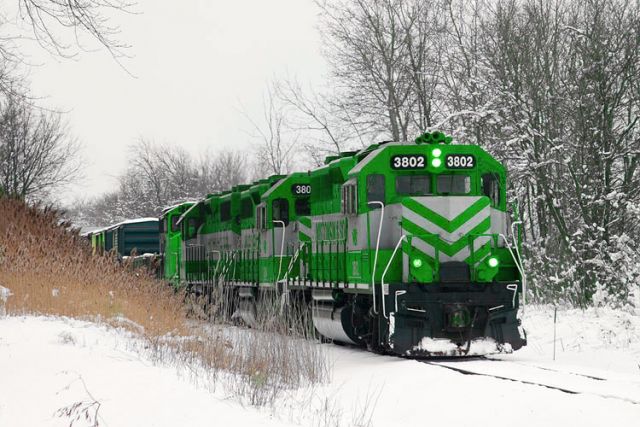
I have recently take some shots which appear to me to have a blue color cast. I am wondering if someone can help me with the removal of this cast. The cast seems to be most apperant in the gray on the locotive and in the shadows.
The way I know how to do it is to make an adjustment layer using selective color and then working with the complimentary colors to remove the cast. So I did that and for the CYAN color moveed the cyan setting to - 100% and then for the BLUE color moved the blue setting to - 100% and the yellow setting to + 100%.
I know I read about this technique awhile ago and this is the first time I have really had to deal with a color cast problem so I could be way off base in what I did. The 2 images are below the first with the cast and the second without.
Eddie's method seems a little over-complicated to me. Also, he just says "find the white point", "find the black point". Did I miss where he says how? Let me take this opportunity for a shameless plug of a little tutorial I put together last year. Let me know if it helps.
Thanks for the input everyone. I realize that there is a number of different ways to remove color casts but does anyone know if the way I have done it is acceptable or is it way off the mark?
caryb wrote:
Eddie's method seems a little over-complicated to me. Also, he just says "find the white point", "find the black point". Did I miss where he says how? Let me take this opportunity for a shameless plug of a little tutorial I put together last year. Let me know if it helps.
Nice Tutorial.....
I had all of this down except the one showing filling with 50% gray....
THANK YOU.......tried it and work great!
LOVE THIS FORUM.....
caryb wrote:
Eddie's method seems a little over-complicated to me. Also, he just says "find the white point", "find the black point". Did I miss where he says how? Let me take this opportunity for a shameless plug of a little tutorial I put together last year. Let me know if it helps.
Hello Cary. Thanks for the great tutorial. I am having a little trouble understanding what to do in step 4. Specifically, what are you doing when "repeat step 3". When you create a threshold layer on top of the gray layer, do you pull the pointer from the left until you have a black spot big enough to sample? I hope I'm asking this correctly.
Michael Tucker wrote:
Hello Cary. Thanks for the great tutorial. I am having a little trouble understanding what to do in step 4. Specifically, what are you doing when "repeat step 3". When you create a threshold layer on top of the gray layer, do you pull the pointer from the left until you have a black spot big enough to sample? I hope I'm asking this correctly.
Yes Micheal you are correct. After you have the gray layer move the slider from the left side until you see a solid black spot to sample.
If I understand correctly what you are doing in creating the gray layer is essentially making a point on the image that is pure gray. Then when you creat the threshold although it is in black the areas that start to turn black are actually the areas on the photo that are pure gray.
Aaron Jors wrote:
Once you have the color checker points on the image how do you remove them?
Well, personally I never remove them. If they're displayed when you're not editing an adjustment layer, you can use Ctrl + H to toggle them. If you really want to get rid of them, bring up your curves layer and shift + drag them off the canvas.
Aaron Jors wrote:
If I understand correctly what you are doing in creating the gray layer is essentially making a point on the image that is pure gray. Then when you creat the threshold although it is in black the areas that start to turn black are actually the areas on the photo that are pure gray.
caryb wrote:
Well, personally I never remove them. If they're displayed when you're not editing an adjustment layer, you can use Ctrl + H to toggle them. If you really want to get rid of them, bring up your curves layer and shift + drag them off the canvas.
Thanks Cary I think I will leave them and just turn them off when not in use.
I'll share this because although it probably isn't as accurate as some of the other methods mentioned it is superfast and sometimes good enough.
Duplicate your image on a new layer. Select Blur>Average. Add a new adjustment layer, curves. Click the midpoint eyedropper and click in the image. Discard the blurred duplicate layer. Presto.
I use Eddie method because I'm a little color blind. I need to do it by the numbers. A question was raised how do you find the Black and white points. A tutorial was posted on how to use threshold. I would not use that because when there is a color cast it effects the neutral colors as well. Where is it written that the brightest areas and the darkest area of an image are white and and black. They may well be but are they always. Eddie state his method does not always work 10% of the time it does not work. That's 1 out of 10 in other words quite a bit of the time it does not work. Eddie uses knowledge to set his Black and white points. For instant pupils of eye's are black. Brides usually wear white etc. His method does not relay on gray is gray in a color cast image gray or some other color when the cast is there.... Eddie also uses other knowledge lake he stays away from spatula highlights and reflections you cant trust these areas. I think threshold might actually point you to use a highlight area.
Hmm, perhaps I'm missing how the brightest part of the image would not be white and the darkest black. Am I interpreting correctly that Eddie just wants you to run your eyedropper around the image until you find the right numbers? That seems like it'd take a lot of time and you could make an error.
As you'll see by the colors shown as selected from the OPs original image, the numbers are very close to white and black (ignoring gray to keep with Eddie's method of ignoring it).
I guess that's what makes PS so powerful, though. A thousand ways to skin a dead cat.
ETA: I think you mean 'specular' highlights...unless you're cooking. You do bring up a good point, though, and it's something I should add to the tutorial. This method doesn't work on pure white and pure black. If you set the point on a value of 255 it's not going to make any adjustment. There's no detail here anyway. Which leads me to another point...I never try to make anything pure white or black. For example, if I want a white border, I'll use values of 240 for the RGB. If you use 255 for white nothing gets printed and the paper just comes through. If you vary the value slightly you at least get some ink down.
specular' highlights is correct Now a simple question for you. If I take a full frame picture of a gray card where is the white where is the black where is the gray in that picture. An image does not have to have white black or gray a picture of a red wall.... What most color correcting method try to make neutral colors neutral. White and black are that. Eddie method is doing that by manipulating the color channels histogram.
Ok, I'm not going to go round and round with you on this. You obviously like Eddie's method so use it. But hopefully this will answer your question first.
The first image here is a full-frame gray card. Guess what? Using my method there is still white and black via the threshold adjustment. Points 1 and 2 show their locations respectively.
Now since this is a gray card, using those as described in the tutorial I shared really whacks the image out. However, if you skip to the neutral (gray) portion using the 50% fill layer, you'll find that the neutral point is roughly where the black point is.
What's pretty obvious in this picture (perhaps not for someone who's colorblind, I don't know) is that there's a blatant red cast to the gray card. Setting the gray point in the curves adjustment just as I've described removes it and makes it gray. I really hope you can see the difference. I've masked it on the left of the image. If you can't see it, maybe others can attest to the difference my method made.
Again, this is PS. There's 1000 ways to skin a dead cat. Use what works for you.