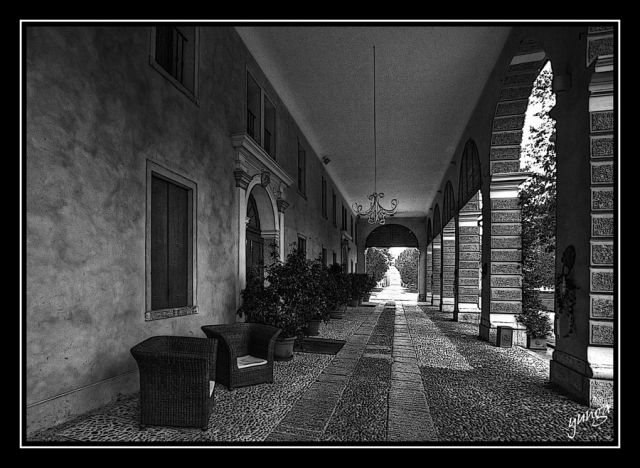
Here's a brief over view of how I processed my monochrome series,
Please keep this to your self and do not share with anyone:-)
I have often been asked, "How do I create HDR pictures with moving subjects?” so here is my workflow to produce a B/W HDR with people as the main subject. Please be advised this is "My work flow" so it may be unconventional and incorrect.
1. I use a Canon 5D with a 17-40 L F/4.0 USM
2. I shoot in RAW and RGB mode. (Always in AV mode to keep DOF constant)
3. I use auto bracketing and take three shots simultaneously –2.00ev / 0.00ev / +2.00ev (Varies)
4. Select one image from the three. The image should have good dynamic range and exposure
5. Open the image in Raw Shooter Essentials 2006 or an equivalent RAW converter
6. Set output preferences to 16 Bit Tiff and RGB
7. Ensure all auto exposure controls are off and turn off sharpening
8. Create the 1st image with an exposure of –2.00ev and save to the desktop
9. Create the 2nd image with an exposure of 0.00ev and save to the desktop
10. Create the 3rd image with an exposure of +2.00ev and save to the desktop
11. Now open Photomatix Pro 3.0
12. Set the out put to 16 bit Tiff RGB
13. Click on generate HDR and select the three Tiffs from the desktop
14. There will be a brief pop up appears stating the images have the same exposure value. Ignore this.
15. The next pop up will ask you to input the exposure latitudes
16. Enter +2.00ev and –2.00ev and click OK
17. On the next screen deselect ‘Align source images’ and ‘Reduce ghosting’ (only required when merging three separate images)
18. Click tone map and adjust as required
19. Save the mapped image to the desktop
20. Open the image in Photoshop
21. Duplicate the background and use shadow and highlight for added detail
22. Next adjust curves and levels
23. When the contrast and brightness are correct, duplicate the background and use ‘Noise Ninja’ to lessen the noise levels
24. Flatten the image and duplicate the background. (Flattening is optional but will reduce file size considerably and processing time)
30. Select the black and white filter and cycle through the presets and choose the best option
31. Adjust curves and levels if required
32. Create a new layer.
33. Add the high pass filter at about 1.5 and change the blending mode to overlay
34. If the image is slightly dark go to Layer > New adjustment Layer > Exposure and knock the Gamma slide back slightly
35. Save as a 16 bit Tiff with LZW compression
There are several intermediate processes. Between 14 and 15 I scratch my head several times and between steps 27 and 28 I reach for a suitable alcoholic beverage, strength depends on the progress being made.