Nope. Same result - whole frame on the 27, partial (right side and bottom cut off) on the laptop, whole image but no frame the phone. It's getting bizarre. I'll try manual framing tomorrow. Thanks again, guys.
Jack Kelley wrote:
Thinking about subscribing to Upload & Sell to occasionally post photos in the Micro Four Thirds Forum. Can anyone point me to a link that covers recommended FM dimensions and other how-to essentials? Thanks.
Note: you are correct, there is no way to find this page on the current Fred Miranda Forum pages. You have to find it using an internet search. You should also note that the FAQ deals with images uploaded directly to FM, and there only seem to be two hard requirements:
File sizes can't exceed 1,000kb
Images larger than 2,000px will be resized to 2,000px
There is a recommendation to limit image sizes to 800px, but that is a courtesy recommendation based on an [outdated] assumption about a typical user's monitor pixel dimensions, not a requirement.
Most of the discussion in this thread focuses on how much of an image shows on a browser page; more specifically if you are seeing the full border provided for FM-hosed images. Unfortunately, the discussion is based on monitor size [in inches]. We are talking digital display here. Physical size in inches is not a pertinent size unit. The pertinent unit is pixel dimensions of your monitor and, secondarily, the window size of your browser.
I was able to duplicate your 13.6" MacBook Air pixel border issue on my equivalent except in aspect ratio BENQ 27" monitor (2560x1440; 16:9 vs. your 16:10 monitor). Viewing your 1500px pelican, the image including borders fit well within my full-screen browser window. However, I was able to reduce my browser window width sufficiently to lose the right and bottom border, but, tellingly, not any of the JPG image content itself.
I attribute this behavior to the fact that FM-hosted images don't have the border embedded into the displayed JPG (a la Tony's embedded borders using Photoshop and extending the canvas). The borders for FM-hosted images are generated in realtime by the HTML text that builds the web page. Losing the borders appears to be an artifact of the page code, not the screen size in inches. It may be related to the available screen size in pixels for the body of the message and "rounding errors" for centering the image in the body of the message.
I believe you don't lose any of the JPG image content because modern browsers auto-size JPG images to fit the available display space up to the actual pixel dimensions, as long as the image is included in the page via an "href" link rather than embedded as a "src" reference in the page.
By extension, I suspect that the page coding for the "mobile app" may exclude adding the border in order to optimize the image viewing experience.
Stephen -- Big thanks for tracking down that FAQ page, testing my 1500px image, and explaining why borders are disappearing on some devices. You'd think FM would update page codes across device types given that the site offers so many one-click border options, no? If I'm understanding you correctly, the best (and only?) way to add a classic-style border across all devices is to embed it, right? I don't do a lot of Photoshop, but I'll try using Tony's excellent screen shots to learn to do that. Much appreciated.
Meanwhile trying this one with stroke borders to see if they embed until I learn Tony's more efficient method. Borders show on all devices but inexplicably added an outer white. No matter. It shows that you are right Stephen - embedding is key.
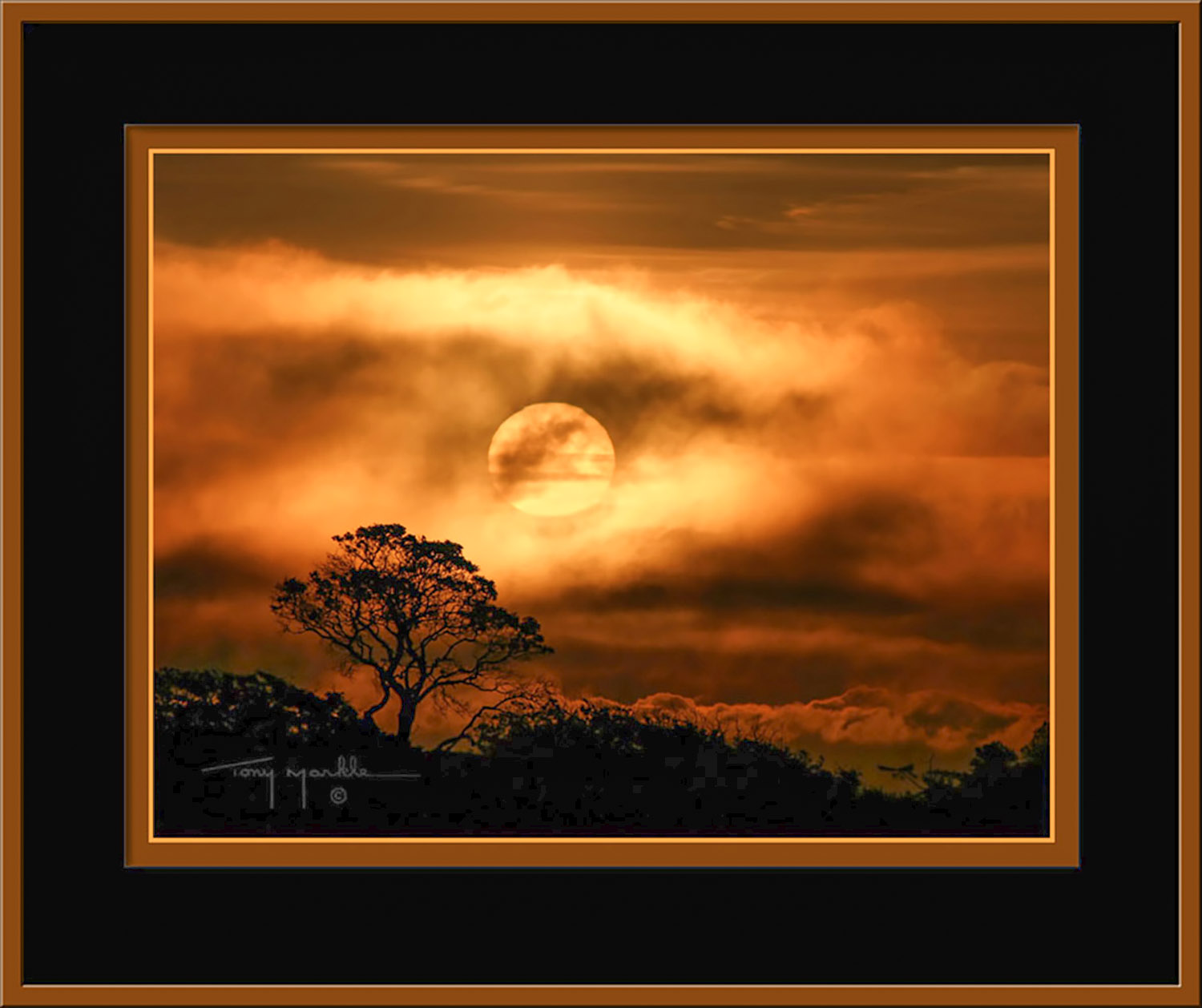
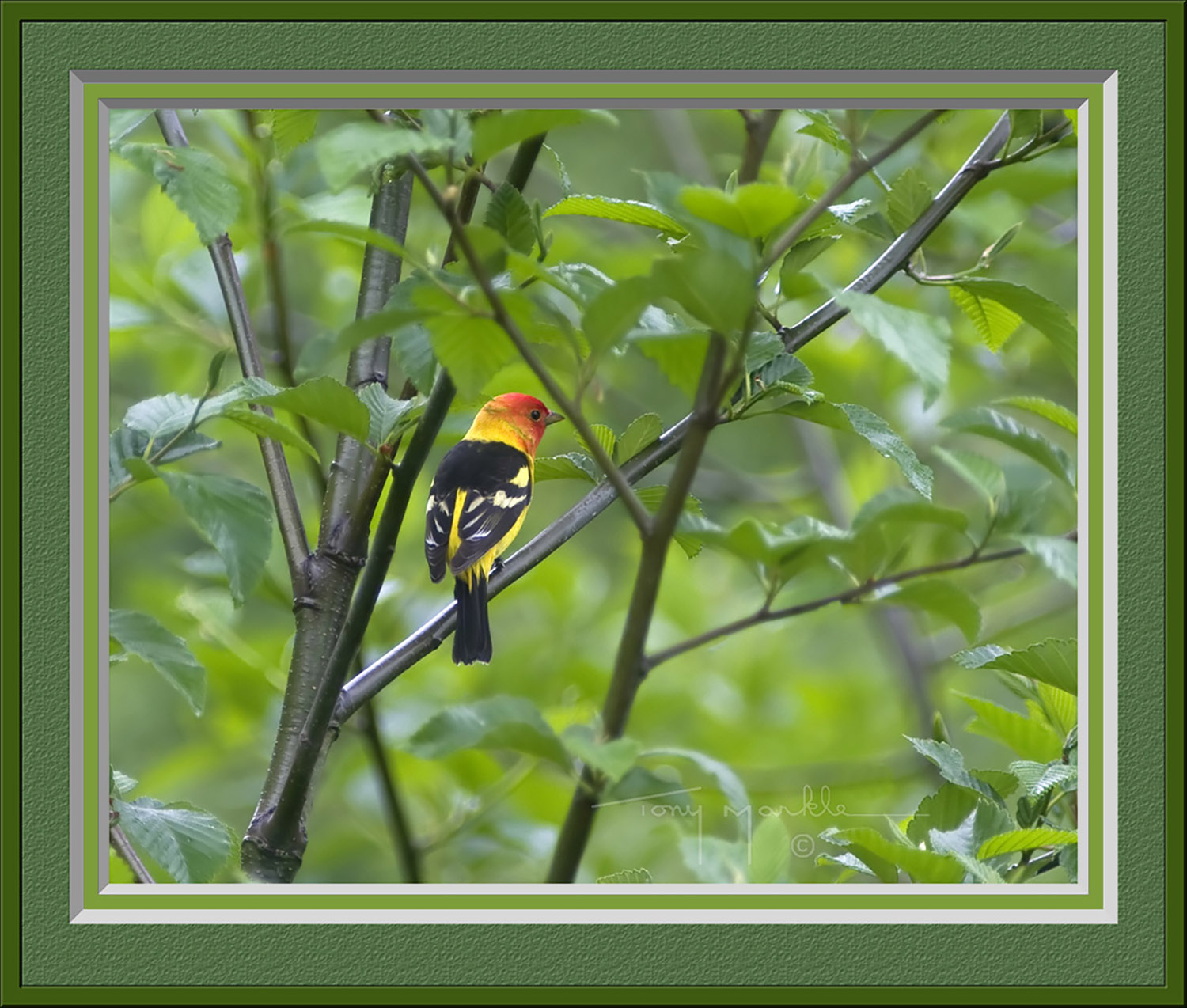
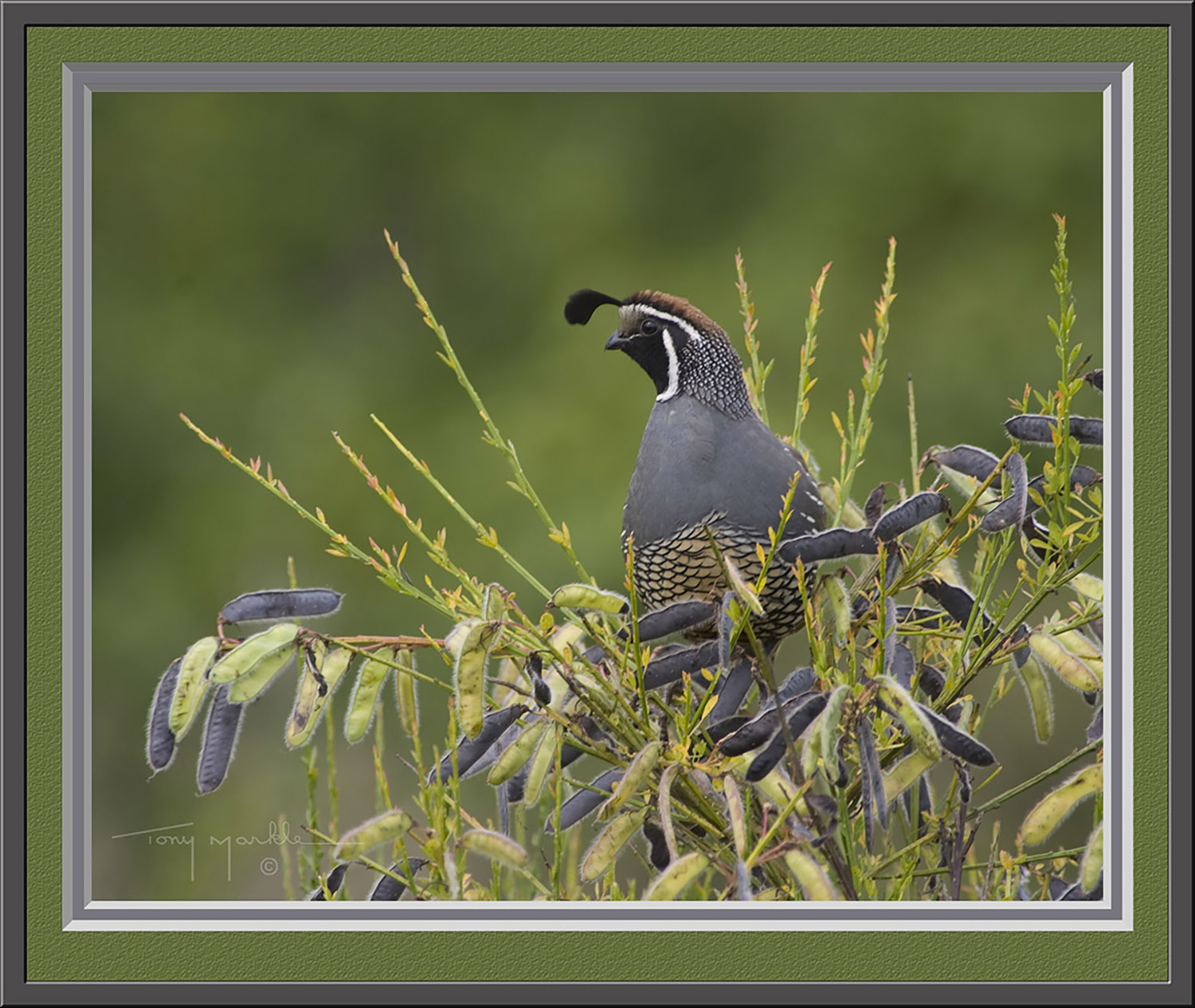
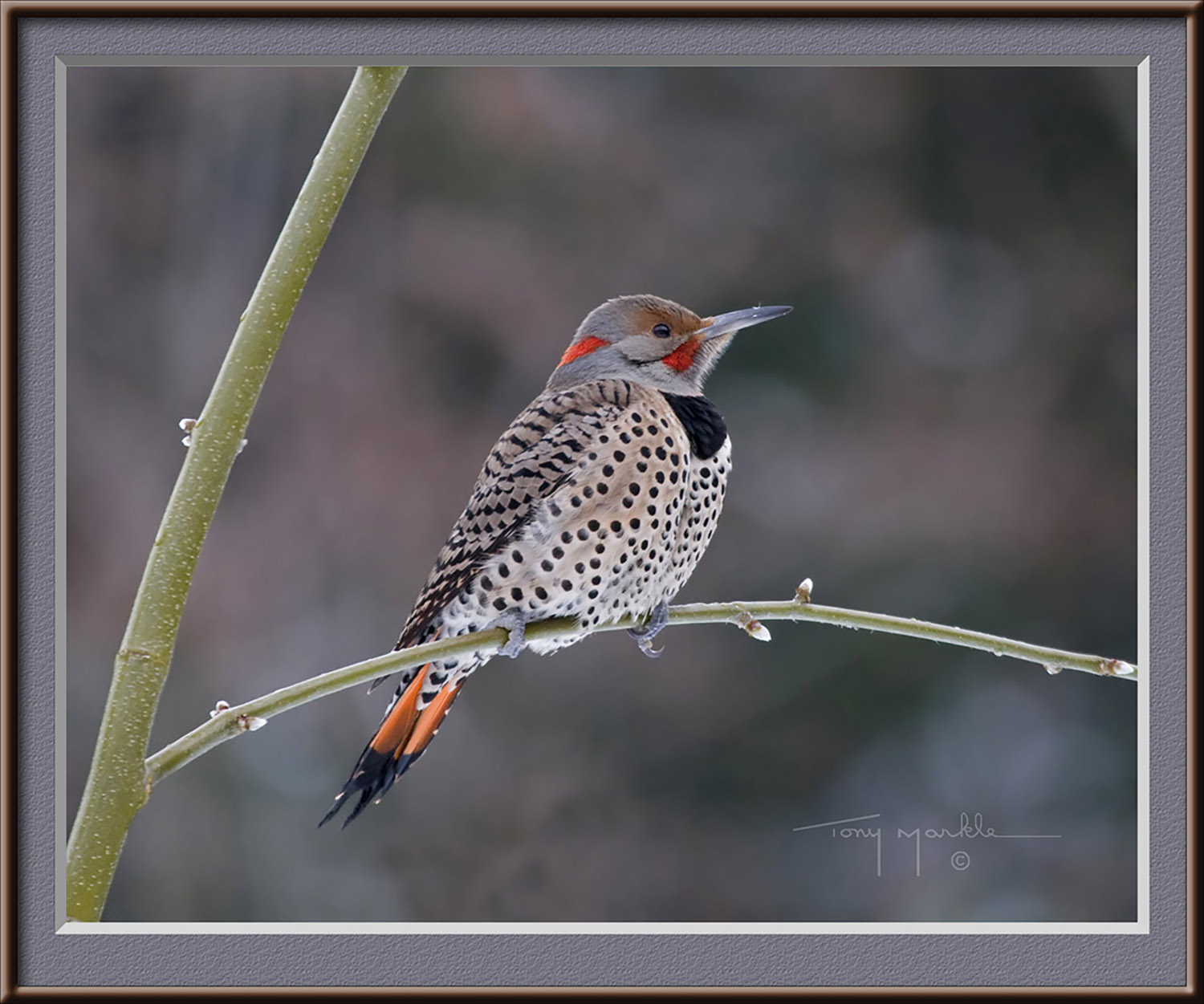
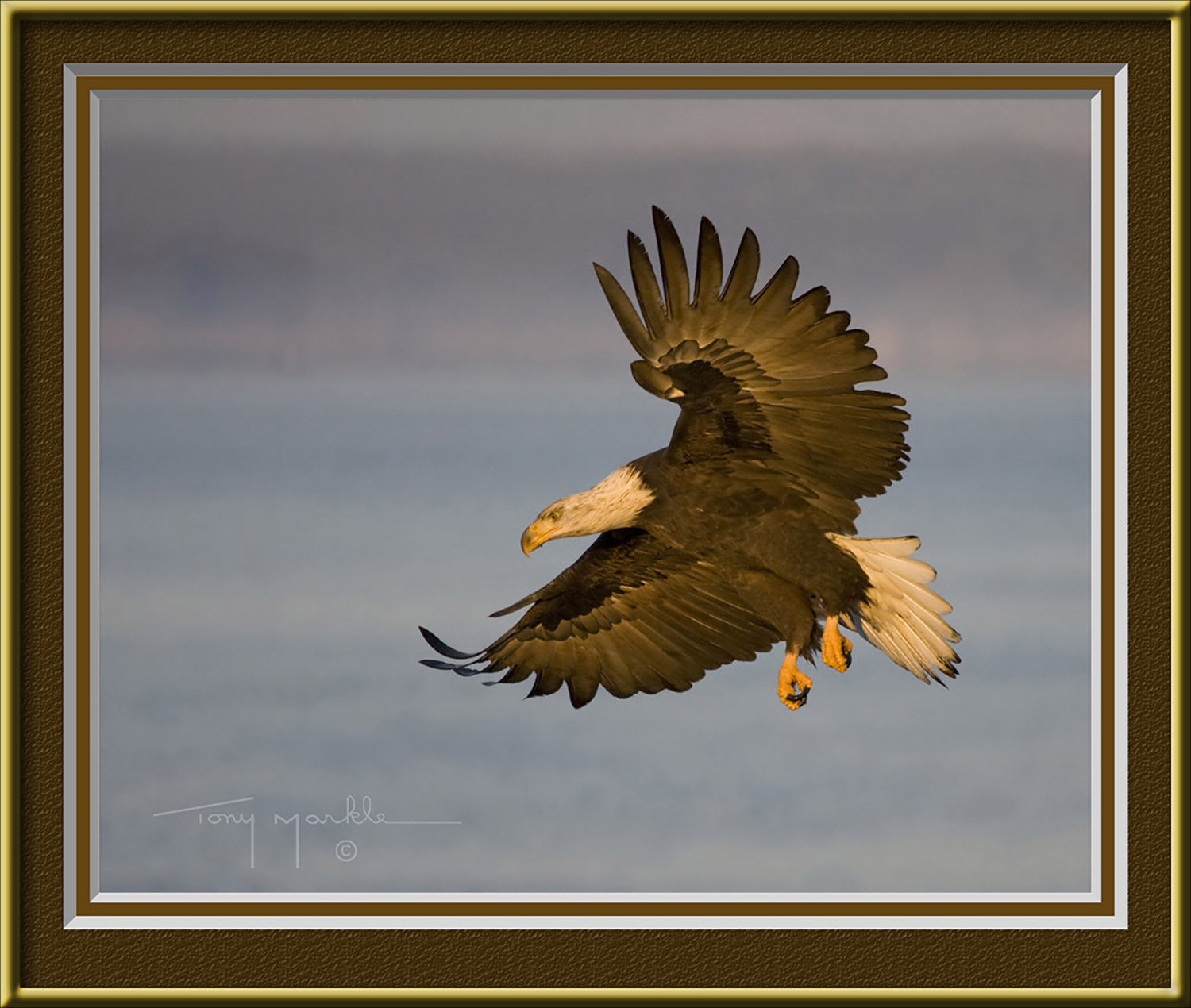
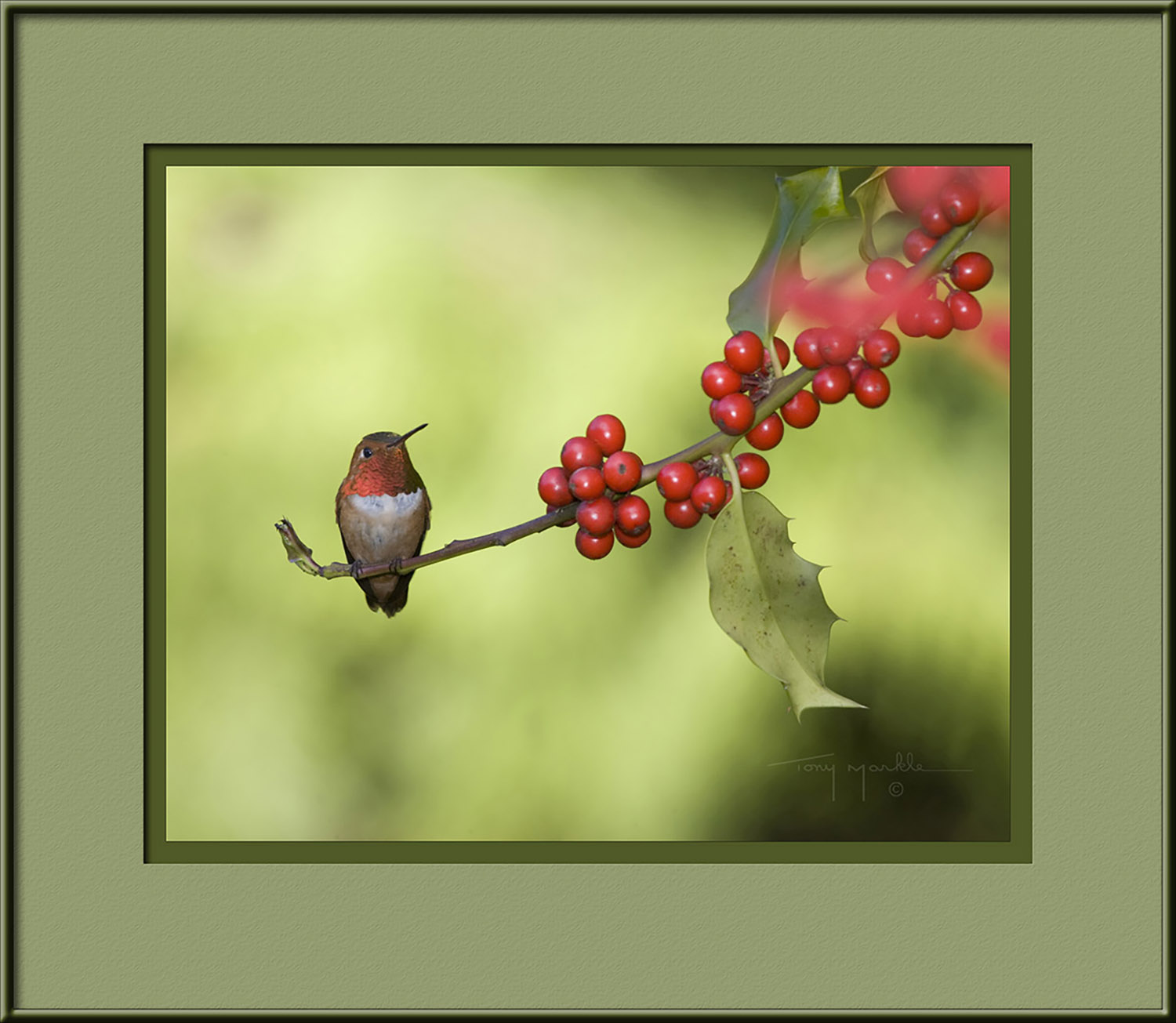
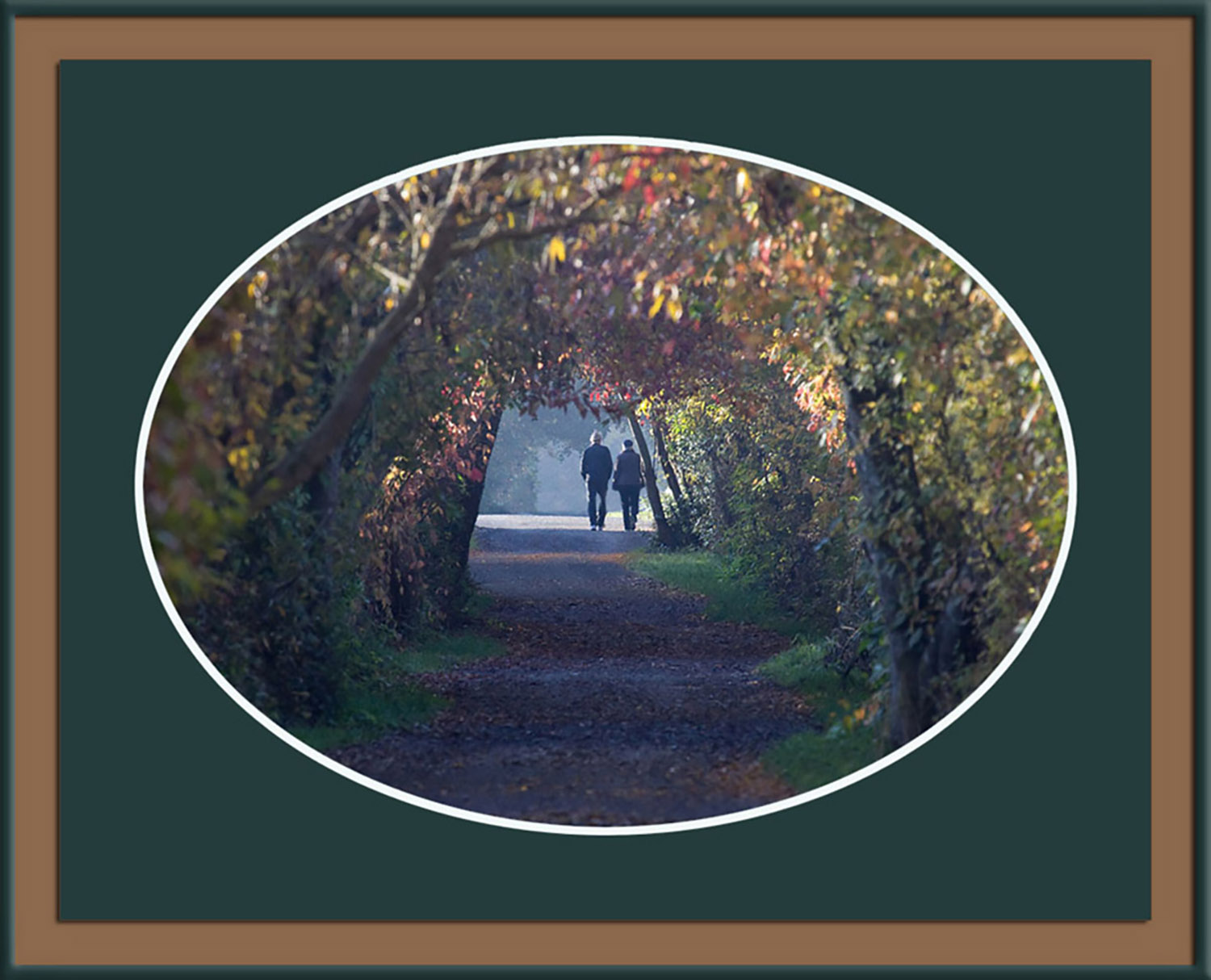
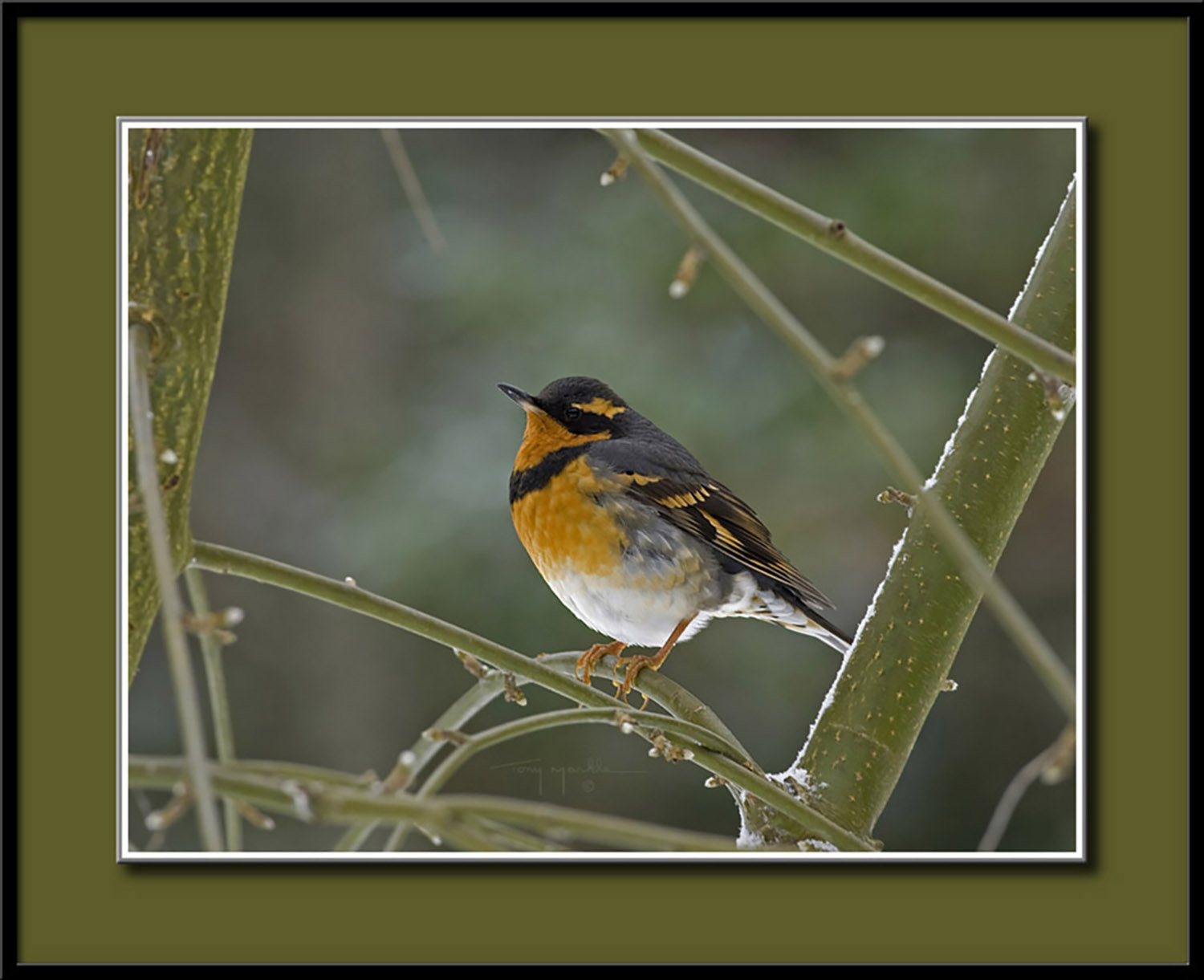
Many years ago I used a Photoshop plug-in called ShutterFreaks that easily allowed me to add realistic-looking mats and frames. They are no longer around as a PS plug-in or standalone as far as I know.
IMO, they were a far better solution for me in not having to make real mats and frames. Not only that, but when you had a print made of your digitally-framed print, it look realistic on the computer. Even when you had a 20" x 24" digitally-framed print hanging on a wall and viewed at a distance, nearly every viewer thought they were real mats and frames.
Not only was it easier and faster to create these, the cost was a small fraction of the 'real' product.
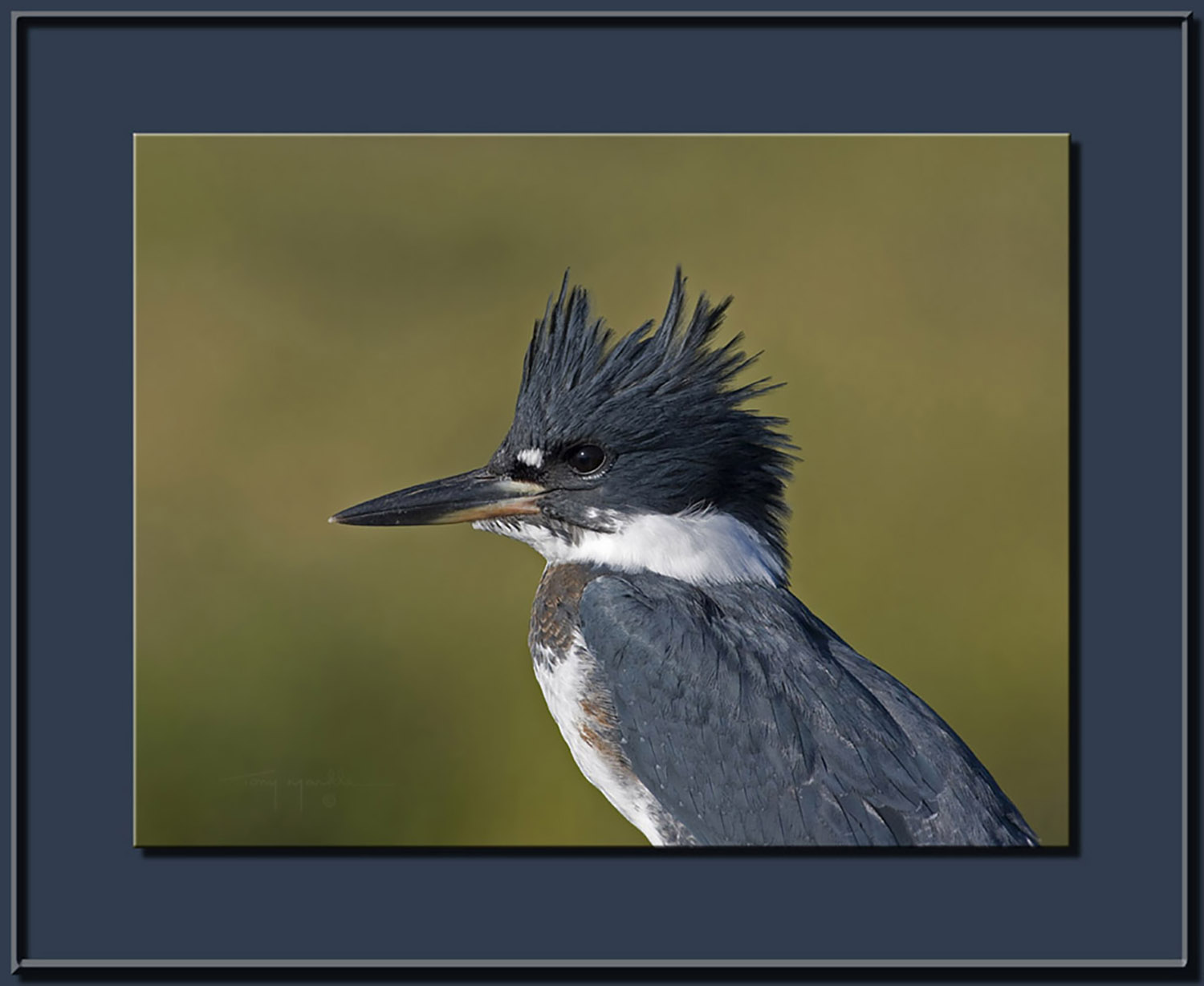
The examples below were posted many years ago at 1200px horizontally, but I have uploaded them here at 1500px.
I'm not one to always be going after "what could've/would've/should've". I'm generally satisfied with and try to work within the bounds of "what is". I suppose my main "should've" for FM is that as often as this question comes up, this FAQ [or its updated equivalent] should be included the the site's FAQ page linked at the bottom of the site.
I think FM has done a pretty good job at building a web-site that provides a lot of flexibility and consistency of presentation for his diverse audience. I think the software-generated borders are a great feature that relieves the user of the burden of jumping through "photoshop hoop's" even if they behave a bit unexpectedly when the browser window becomes constrained relative to the pixel size of the image.
But you do understand me correctly. Presuming that by "best" you mean "most reliable" way to present an image with a border is to build it yourself and embed it in the JPG. The browsers work at the image level, they don't break it down into components.
For myself, I don't concern myself with the posted image size because there is a browser-based capability that makes overs-size images too easy to manage. In any image, if you hover over it and the cursor becomes a hand, you can click on it and the browser will open the image in a full-screen mode that presents the image up to the full screen size limited only by the pixel dimensions of the original. That's actually my preferred method for viewing images.
When I open a page, I generally click on the first hyperlinked image. I also tend to get rid of the browser overhead by using F11. I can then "scroll" through the images on the page using the navigation keys. I see each image individually filling the screen up to the images pixel dimensions with a black background. IMHO, a great way to take a critical look at an image and enjoy it the way it was intended to to be enjoyed. The only downside is people that post small images that result in occupyinng only a third to half of my 27" [2560px wide] monitor that limits my ability to actually enjoy the picture.
And again, as long as the poster links to the image appropriately, if it should happen that a dynamically linked image is too large, I can always click on the image to get the full-screen view of it.
Tony, my eyes were immediately pulled to those beautiful images, and it took a moment to realize how you had customized the frames to complement the colors of each. Really elegant. Yes, a shame that the app faded out of business. BTW, I always admired the watermark you used back then. Was that from another now-defunct app?
Stephen, I agree - no big complaint about FM. Just a minor wish and a sigh. Thanks to you and Tony there's now an easy solution to my problem. I shouldn't even call it a problem. I just like the look of those classic frames. Most FM posters obviously are fine with none. Thanks also for the viewing tips. Much appreciated.
Imagemaster wrote:
Many years ago I used a Photoshop plug-in called ShutterFreaks that easily allowed me to add realistic-looking mats and frames. They are no longer around as a PS plug-in or standalone as far as I know.
IMO, they were a far better solution for me in not having to make real mats and frames. Not only that, but when you had a print made of your digitally-framed print, it look realistic on the computer. Even when you had a 20" x 24" digitally-framed print hanging on a wall and viewed at a distance, nearly every viewer thought they were real mats and frames.
Not only was it easier and faster to create these, the cost was a small fraction of the 'real' product.
The examples below were posted many years ago at 1200px horizontally, but I have uploaded them here at 1500px.
Jack Kelley wrote:
BTW, I always admired the watermark you used back then. Was that from another now-defunct app?
Thanks Jack. Back in the 'old days' I signed my name on a white piece of paper, photographed it, then digitized it to place on my photos. Later I just used the Photoshop font 'Apple Chancery' as I thought it looked more classy than my scrawl.