I am facing some issues while I resize my images to JPEG (specifically downsizing them to 800 pixels on the longer side ). The resulting JPEG is losing a lot of detail. I understand there will be some loss, the but I see a lot of reduction in quality. I tried all the algorithms that are there in the software and none of them are helping me. Please help me identify what I am doing wrong?
More context:
I use a Nikon Z9 and it has a higher mega pixel count. As RAW processing software, I use DXO Photolab 9. Considering the fact that it is a resonably high megapixel sensor and Photolab is a good raw processing software, I was using "Bilinear" mode for downsizing ("Biculbical" is good for upsizing). To my surprise, the resulting image lost a lot of detail.
My thoughts were, okay Z9 has a higher megapixel sensor. Ad the downsizing could result in loss of data as the pixel pitch is small and I am downsizing them. Let me try with a lower megapixel sensor. I have a D4S as well and that is a 16MP camera, far lower than the Z9. My thought process was with better pixel pitch, if I downsize I should get reasonably good output. surprisingly same, results or in some cases worse than what I found with my Z9.
To eliminate software influence, I converted the RAW files after processing and exported them to DNGs (with corrections applied) and used Affinity photo for downsizing. It has a couple of options more than the regular "biliner" & "bicubical" algorithms offered by Photolab. One of them gave me slightly better output, but pretty insignificant.
So, I am reaching out to the community for any suggestions. Other than asking me to use Photo Shop/Capture One. I like both of them and used them in the past, but would not use them due to their subscription only options anymore.
PS: The lens resolution is out of context, as I used one of the best Zeiss lenses available with me. Anyhow, irrespective of the lens resolution, the post processed RAW image looks excelled on my calibrated monitor.
It might help if you provide some additional information:
1) Are you on Mac or Windows?
2) What is your "quality" setting in PL9?
3) Do you export sRGB, Adobe RGB, or Display P3 jpegs?
3) Why do you need resizing to 800 pixels, and not to (say) 2000 pixels or more? Is this to protect your pro-quality photos from theft, or for some other reason (like everyone is doing this, and so do I)?
I am facing some issues while I resize my images to JPEG (specifically downsizing them to 800 pixels on the longer side ). The resulting JPEG is losing a lot of detail. I understand there will be some loss, the but I see a lot of reduction in quality. I tried all the algorithms that are there in the software and none of them are helping me. Please help me identify what I am doing wrong?
Usually I output full sized 16-bit TIF, resample with bicubic smoother and then sharpen if necessary. You are going to lose a lot of detail at 800 pix wide and need to sharpen a bit. Maybe bicubic sharper will work for you; try it. Bilinear is rather archaic.
ruthenium wrote:
It might help if you provide some additional information:
1) Are you on Mac or Windows?
2) What is your "quality" setting in PL9?
3) Do you export sRGB, Adobe RGB, or Display P3 jpegs?
3) Why do you need resizing to 800 pixels, and not to (say) 2000 pixels or more? Is this to protect your pro-quality photos from theft, or for some other reason (like everyone is doing this, and so do I)?
Hi,
Thanks for your reply. Please see below:
1) Are you on Mac or Windows? - Windows 11
2) What is your "quality" setting in PL9? - I am not sure what do you mean by this? If you meant sharpening options provided by PL, it is DeepPRIME XD2s
3) Do you export sRGB, Adobe RGB, or Display P3 jpegs? - sRGB as that is supposed to be the best choice/universally accepted for web display.
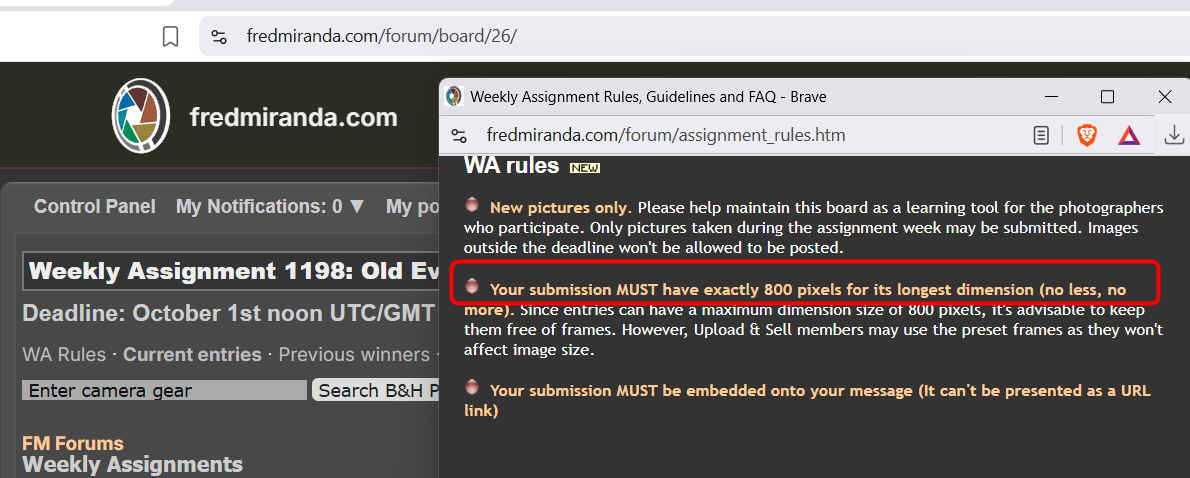
4) Why do you need resizing to 800 pixels, and not to (say) 2000 pixels or more? - Lol... I don't have a choice here. It is for the pics that I submit for weekly assignment on this site. The limitation is 800 pixles.
Usually I output full sized 16-bit TIF, resample with bicubic smoother and then sharpen if necessary. You are going to lose a lot of detail at 800 pix wide and need to sharpen a bit. Maybe bicubic sharper will work for you; try it. Bilinear is rather archaic.
EBH
EBH, thanks for your reply. I have tried the option you mentioned, but for unhappy results. It is not the sharpening, but the loss of details that bothers me.
Yes, tried bicubic sharper as well and the same results. According to Affinity Photo's James Riston ( the official tutor guy), bilinear is supposed to be best for downsizing & bicubical for upsizing. Whatever the software be, the algorithms are not going to change. So, I did go by his words.
1) Are you on Mac or Windows? - Windows 11
2) What is your "quality" setting in PL9? - I am not sure what do you mean by this? If you meant sharpening options provided by PL, it is DeepPRIME XD2s
3) Do you export sRGB, Adobe RGB, or Display P3 jpegs? - sRGB as that is supposed to be the best choice/universally accepted for web display.
4) Why do you need resizing to 800 pixels, and not to (say) 2000 pixels or more? - Lol... I don't have a choice here. It is for the pics that I submit for weekly assignment on this site. The limitation is 800 pixles.
"Quality" is the setting that you must generally pay attention to.
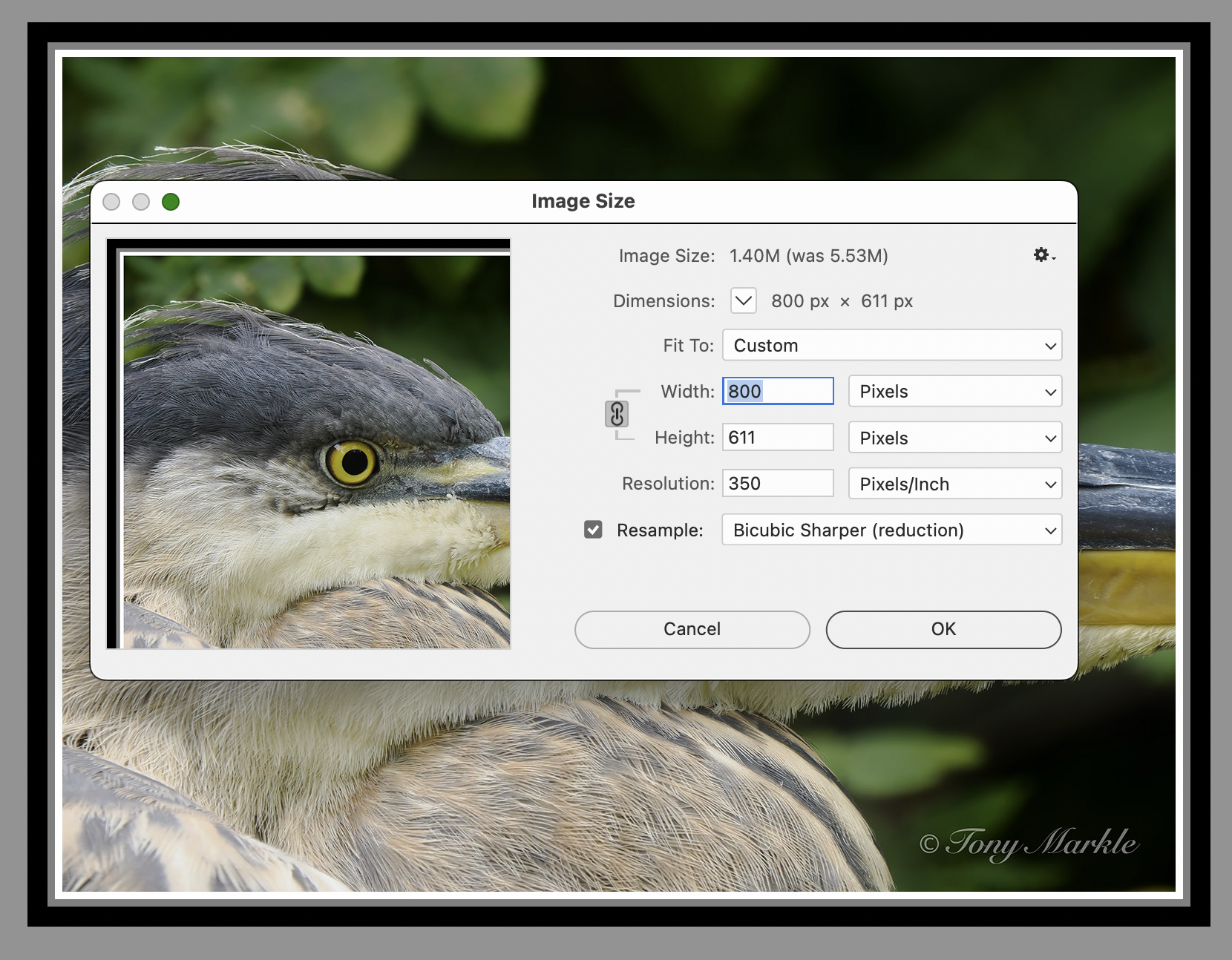
When you click Export to disk, then a new window appears where in the right top side you should see Action and then Quality.
Since the pixel size of your photo is unreasonably small (suitable for a smartphone but not for an average modern monitor/display), then you can use a Quality setting near the maximum 100; for example, at 90 to 95. For normal-sized jpegs, this high Quality setting can (but not always) produce unreasonably large jpegs (in terms of their disk size). Thus, normally I would not exceed 90 when setting Quality. In your case of a super-small pixel size, set the quality as high as possible, as long as the disk size of the exported jpeg would not exceed 3.4 - 3.5 MB.
Since you are on Windows and export sRGB, then another option for resizing to try is in FastStone Image Viewer. To try this and see if you should get a better result, first export the image as a tif file from PL9, then open this in FastStone and go to Edit --> Resize/resample. There are different options there.
A final comment is that sRGB is no longer the best choice for web display. Adobe RGB and Display P3 have wider color gamuts and this can be important if your photos have saturated colors, e.g. saturated colors of flowers .
ruthenium wrote:
"Quality" is the setting that you must generally pay attention to.
When you click Export to disk, then a new window appears where in the right top side you should see Action and then Quality.
Since the pixel size of your photo is unreasonably small (suitable for a smartphone but not for an average modern monitor/display), then you can use a Quality setting near the maximum 100; for example, at 90 to 95. For normal-sized jpegs, this high Quality setting can (but not always) produce unreasonably large jpegs (in terms of their disk size). Thus, normally I would not exceed 90 when setting Quality. In your case of a super-small pixel size, set the quality as high as possible, as long as the disk size of the exported jpeg would not exceed 3.4 - 3.5 MB.
Since you are on Windows and export sRGB, then another option for resizing to try is in FastStone Image Viewer. To try this and see if you should get a better result, first export the image as a tif file from PL9, then open this in FastStone and go to Edit --> Resize/resample. There are different options there.
A final comment is that sRGB is no longer the best choice for web display. Adobe RGB and Display P3 have wider color gamuts and this can be important if your photos have saturated colors, e.g. saturated colors of flowers . ...Show more →
Thanks you for the explanation. Then I use 100% for quality, yet my files are about 500KB on an average. I do agree that Adobe RGB has a wider color gamut, no argument there. But for general display on the web, sRGB is till widely used.
guywithgas wrote:
Thanks you for the explanation. Then I use 100% for quality, yet my files are about 500KB on an average. I do agree that Adobe RGB has a wider color gamut, no argument there. But for general display on the web, sRGB is till widely used.
I will give a shot with FastStone.
Thanks.
sRGB is widely used but this is because this is not widely known that modern wide- or widish-gamut displays can display more colors than sRGB, and if you own such a display, and want/need to see more colors in your pictures then exporting Adobe RGB or Display P3 jpegs is as easy as exporting sRGB. You stand absolutely nothing to lose, for web display, because modern browsers support the wider-gamut jpegs.
ruthenium wrote:
sRGB is widely used but this is because this is not widely known that modern wide- or widish-gamut displays can display more colors than sRGB, and if you own such a display, and want/need to see more colors in your pictures then exporting Adobe RGB or Display P3 jpegs is as easy as exporting sRGB. You stand absolutely nothing to lose, for web display, because modern browsers support the wider-gamut jpegs.
I see your point, I will give it a shot and see if it improves any. Thank you for your time and insights.
Sreedhar.
guywithgas wrote:
I see your point, I will give it a shot and see if it improves any. Thank you for your time and insights.
Sreedhar.
Just keep this in mind that you see the difference between sRGB and Adobe RGB or Display P3 only in the saturated colors (saturated reds or greens, for example). This is when the latter two may reveal details in the saturated areas that you don't see in sRGB. The simplest way to see this difference is by taking a picture of a bright, vivid red flower. Then export as sRGB or Adobe RGB and compare in a web browser.
guywithgas wrote:
4) Why do you need resizing to 800 pixels, and not to (say) 2000 pixels or more? - Lol... I don't have a choice here. It is for the pics that I submit for weekly assignment on this site. The limitation is 800 pixles.
Thanks,
Sreedhar.
Seems rather outdated to have that limitation when many images are posted at 1500-1800 pixels on other forums.
In your resizing I see that you are a PS user and PS might be better than PL & AP in resizing? May be, I don't have any other explanation. I am just trying to see what can I do to improve the quality of my resized photos, within my constraints.
I never said you did: Imagemaster wrote:
Seems rather outdated to have that limitation when many images are posted at 1500-1800 pixels on other forums.
I am facing some issues while I resize my images to JPEG (specifically downsizing them to 800 pixels on the longer side ). The resulting JPEG is losing a lot of detail. I understand there will be some loss, the but I see a lot of reduction in quality. I tried all the algorithms that are there in the software and none of them are helping me. Please help me identify what I am doing wrong?
More context:
I use a Nikon Z9 and it has a higher mega pixel count. As RAW processing software, I use DXO Photolab 9. Considering the fact that it is a resonably high megapixel sensor and Photolab is a good raw processing software, I was using "Bilinear" mode for downsizing ("Biculbical" is good for upsizing). To my surprise, the resulting image lost a lot of detail.
My thoughts were, okay Z9 has a higher megapixel sensor. Ad the downsizing could result in loss of data as the pixel pitch is small and I am downsizing them. Let me try with a lower megapixel sensor. I have a D4S as well and that is a 16MP camera, far lower than the Z9. My thought process was with better pixel pitch, if I downsize I should get reasonably good output. surprisingly same, results or in some cases worse than what I found with my Z9.
To eliminate software influence, I converted the RAW files after processing and exported them to DNGs (with corrections applied) and used Affinity photo for downsizing. It has a couple of options more than the regular "biliner" & "bicubical" algorithms offered by Photolab. One of them gave me slightly better output, but pretty insignificant.
So, I am reaching out to the community for any suggestions. Other than asking me to use Photo Shop/Capture One. I like both of them and used them in the past, but would not use them due to their subscription only options anymore.
PS: The lens resolution is out of context, as I used one of the best Zeiss lenses available with me. Anyhow, irrespective of the lens resolution, the post processed RAW image looks excelled on my calibrated monitor.
Hi Sreedhar
I think it would really help if you post an example 800 pixel image that has the issue you mention. You have posted 800 pixel images in the WA forum and they look just fine. If you zoom in of course you can see the pixelization yet that size imge is not meant to be zoomed in and if you do only 2X.
If you problem only when downsizing from the Z9 or for only particular software or is it all the time.
This info will help in trying to track down the issue.
John Wheeler
John Wheeler wrote:
Hi Sreedhar
I think it would really help if you post an example 800 pixel image that has the issue you mention. You have posted 800 pixel images in the WA forum and they look just fine. If you zoom in of course you can see the pixelization yet that size imge is not meant to be zoomed in and if you do only 2X.
If you problem only when downsizing from the Z9 or for only particular software or is it all the time.
This info will help in trying to track down the issue.
John Wheeler
Hello John,
Thanks for your time and reply.
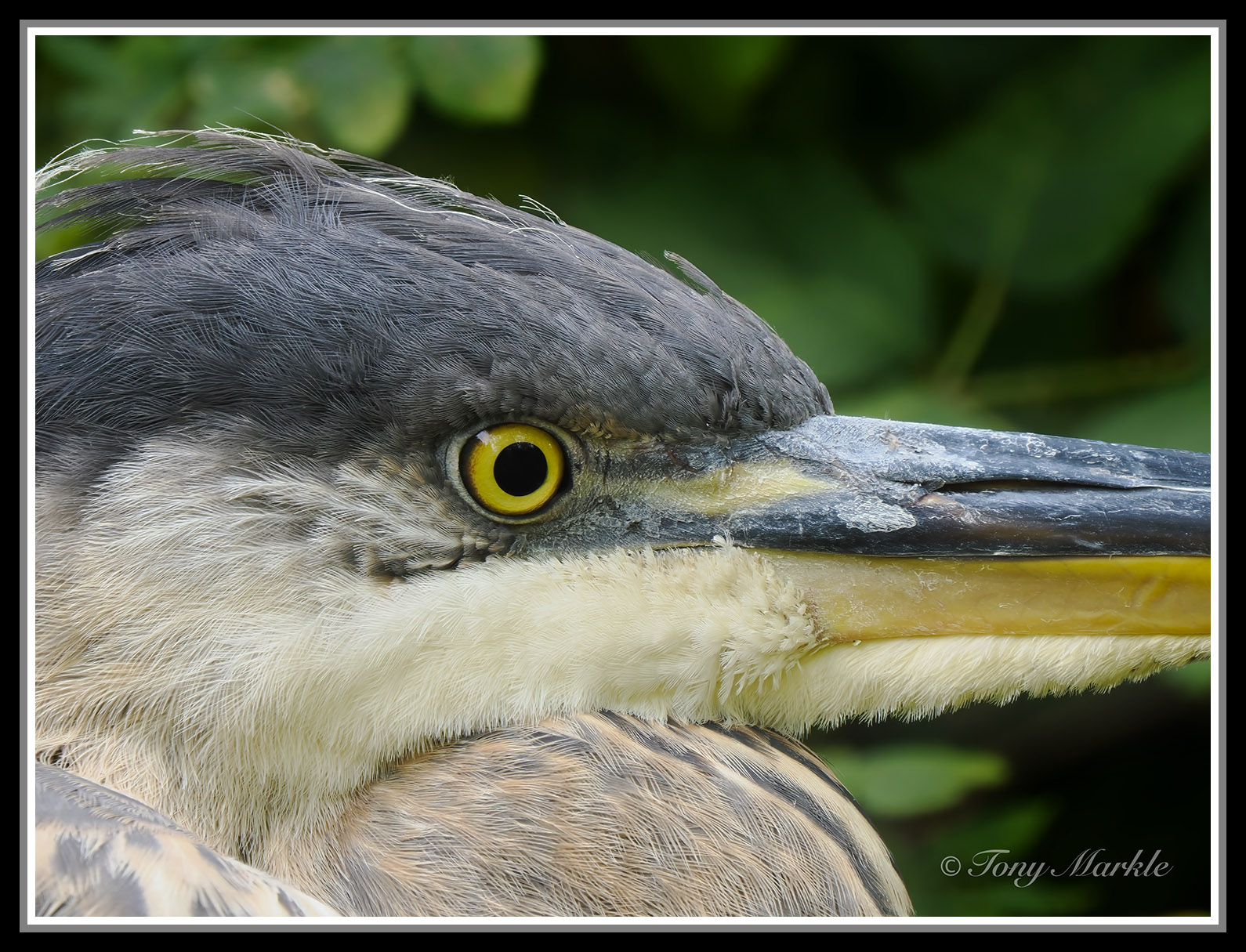
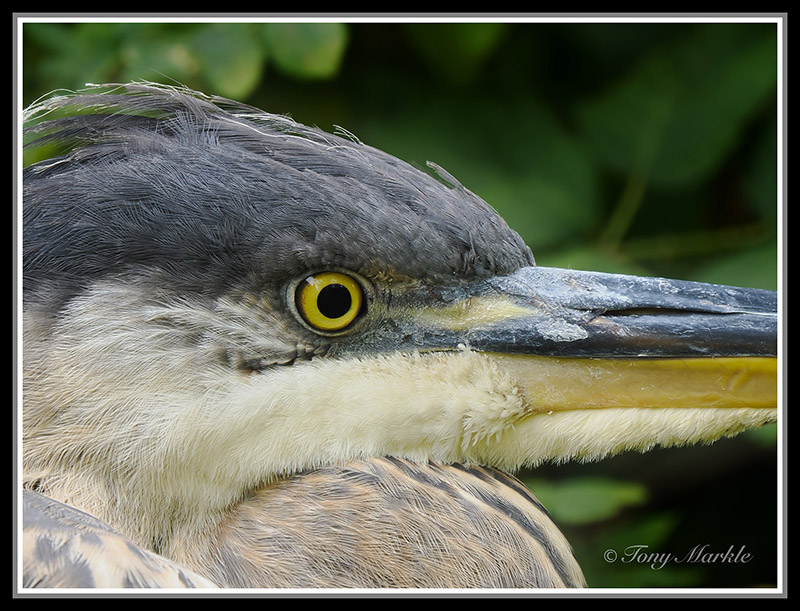
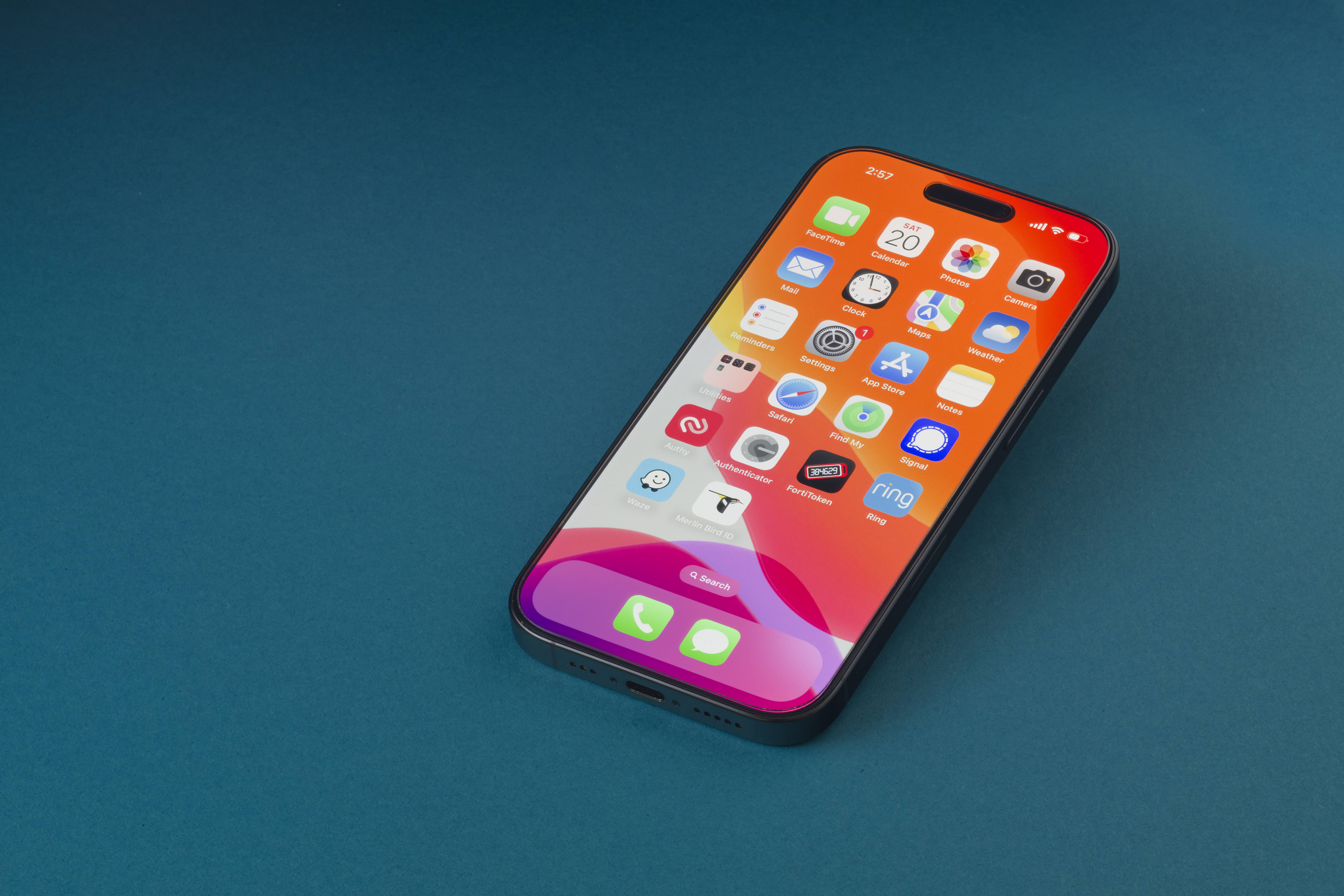
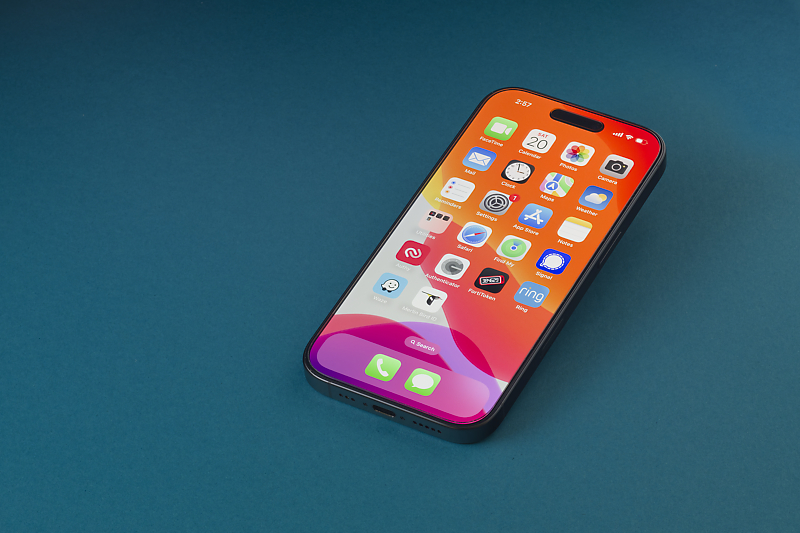
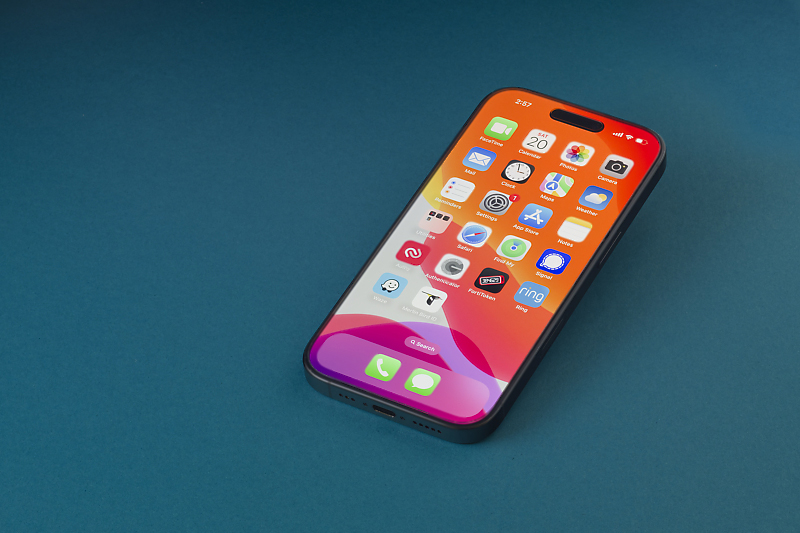
The problem is with all software. Perhaps is it the limit, may be? Attached are the 2 photographs of the same edit, one with 5463 pixels (cropped in post for composition and downloaded) on the long edge and the other at 800 pixels. Both use Bicubic Sharper for resizing and Adobe RGB as profile.
Yes, maybe this is the best that can be done.
I looked at the jpeg with more points in it, and this can be made more contrasty and punchier but the fine text is lost after resizing to 800 pixels
The problem is with all software. Perhaps is it the limit, may be? Attached are the 2 photographs of the same edit, one with 5463 pixels (cropped in post for composition and downloaded) on the long edge and the other at 800 pixels. Both use Bicubic Sharper for resizing and Adobe RGB as profile.
Thanks,
Sreedhar.
HI @Sreehat
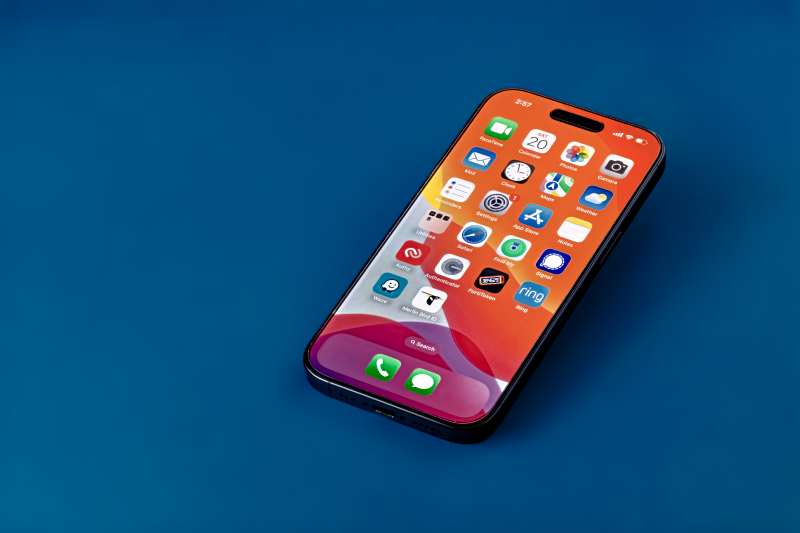
Actually I think the 800 px image is pretty good. I looked at several images on the W2 forum, and theirs are not better, other than their edges are a bit blurred (0.5 to 1.0 pixel blur). For you image, I took the 800 pixel image in Photoshop, added a duplicate Layer and set the Gaussian blur to 0.5 pixle, added a Layer mask set to all Black, and then just painted white around the edge of the phone and around high contrast app icons on the screen. I am attaching (I hope) the image below that I modified. By hidiing just some of the rought edges it does not catch the eye and is slightly more pleasing I think. Just wanted that option out there for you to consider:
John Wheeler wrote:
HI @Sreehat
Actually I think the 800 px image is pretty good. I looked at several images on the W2 forum, and theirs are not better, other than their edges are a bit blurred (0.5 to 1.0 pixel blur). For you image, I took the 800 pixel image in Photoshop, added a duplicate Layer and set the Gaussian blur to 0.5 pixle, added a Layer mask set to all Black, and then just painted white around the edge of the phone and around high contrast app icons on the screen. I am attaching (I hope) the image below that I modified. By hidiing just some of the rought edges it does not catch the eye and is slightly more pleasing I think. Just wanted that option out there for you to consider:
Thank you so much for taking time and doing some checks on it. I do not see the photo for some reason, but I understand what you tried to do the pixelated edges better by duplicating & applying Gaussian blur. PS is better overall when it comes to manipulating pixel details, but I do not use it (I use Affinity Photo). Also, my pixel editing skills are pretty basic. I guess I need to spend more time on it.
Once again, thank you very much for your guidance. Highly appreciate it. Have a great weekend!
ruthenium wrote:
Yes, maybe this is the best that can be done.
I looked at the jpeg with more points in it, and this can be made more contrasty and punchier but the fine text is lost after resizing to 800 pixels
Thank you for taking time and doing some investigation. One more user (see below) also mentioned similar thoughts and provided some pointers. I highly appreciate feedback provided by y'll.