This must be an embarrassingly silly question, I am sure.
My main display is BenQ SW 271C, used with an M2 Max MacBook Pro running the very latest MacOS.
The native resolution of the display is 3840 x 2160.
The "default resolution" set by the MacBook is 1920 x 1080. My understanding is that this means pixel binning.
Changing this "default" resolution to the native of the display makes everything on screen look too small.
The questions:
1) Is there a way to scale the text font size, the icons (basically everything) to look "normally sized" while using a 4K display at its native 3840 x 2160 resolution?
2) Does the "default resolution" 1920 x 1080 make images look different (e.g., crispier or softer), compared to how these look at 3840 x 2160 resolution? Basically, do I need to worry about the display resolution being downsampled from 3840 x 2160 to 1920 x 1080 when processing from raw in Capture One or DxO Photolab?
Thank you in advance for any help with these questions!
You should run your display in 4K not 1K, unless you have poor vision. When viewing continuous tone images (photographs), people with 20/20 vision can see the difference between 1K and 4K on a 27" monitor when viewed from a normal viewing distance. Viewing graphics (e.g. fonts) the difference is more noticeable. Most people cannot see a difference between 2K and 4K on a 27" monitor at normal viewing difference for contone images, but can see a noticeable improvement in fonts. My experience was that before I got my vision corrected by eye surgery I could not see any difference, but now I am back to 20/20 and can easily see the difference. I use both 2K and 4K 27" displays, but 1K is not acceptable for photographic work.
Another consideration is when examining sharpness in images what zoom ratio is needed. If the pixel density of your display exceeds your visual acuity you may need to go higher than 100%. I find that on a 2K display 100% works well but on a 4K display, I need to use 200% to see pixel level detail in images.
I don't know how to set the scaling for text and icons on a Mac (I use Win10/11) but I am sure there is a system setting.
do similar considerations apply when viewing print ready output files? That is if I prepared a file for printing at 300 DPI should I scale my viewing of that file depending upon what the pixels per inch specs of my monitor are?
RoamingScott wrote:
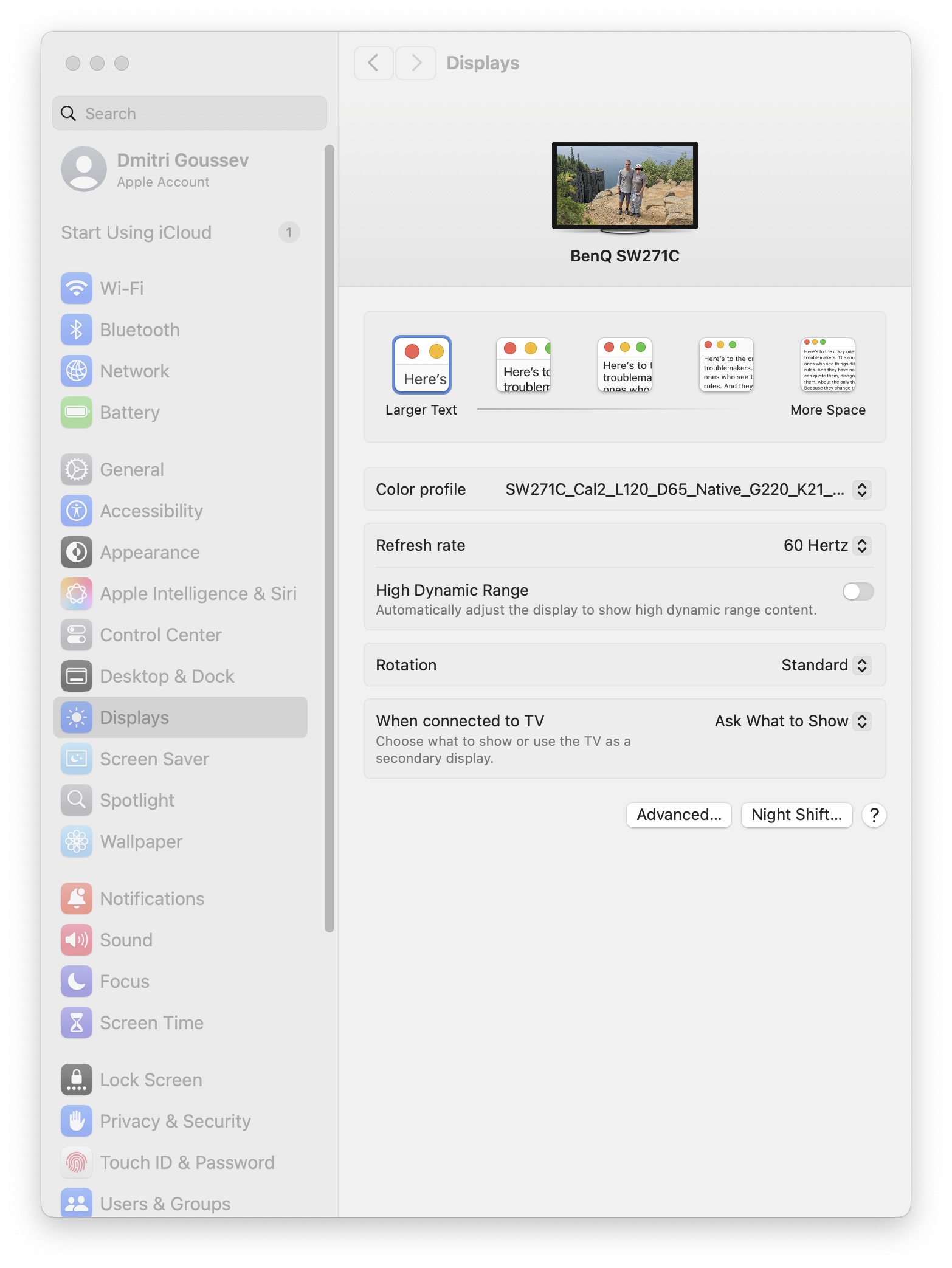
Settings > Displays > Top option is for large text (pick the leftmost option).
You can of course change the dock size as well.
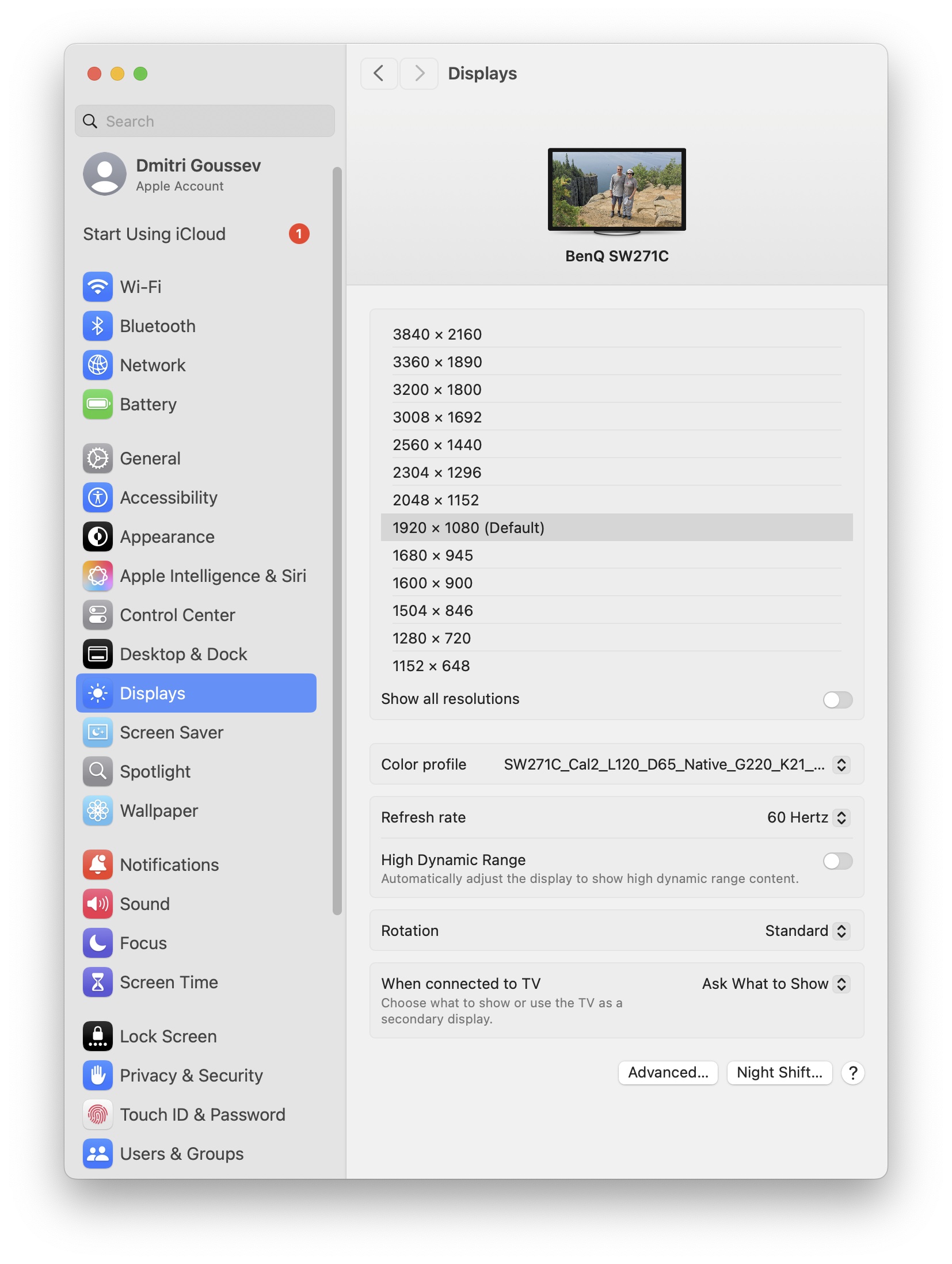
I see no such top option (for large text).
Attached is a screenshot of Settings > Displays
I don't know what the "dock size" means, sorry!
I added the MacBook relatively recently, after using Windows computers most of my life; thus, I am less familiar with the options in MacOS (I am familiar with Linux, if this helps).
I found the way to switch from my list view to your view. This requires clicking on the list while holding the Opt button.
Now I see the options the same as in your screenshot (see my new screenshot below)
This doesn't help, however, because the Larger Text button comes with the fixed 1920 x 1080 resolution. This resolution info is hidden UNTIL the mouse pointer is moved onto this Larger Text button. My native resolution 3840 x 2160 is linked with the More Space button on the very left. This is when all text and menus in Capture One, DxO Photolab etc. are srunk to the size that is too small.
Basically, it doesn't look like there is a scaling option in MacOS that would allow me to use the 4K display AND see the text and menus in the apps reasonably sized.
Unless there is some other way that I'm also not aware of, this was the main reason I went with a 5k vs 4k screen. My older eyes needed larger text too.
Enable “Show All Resolutions” and you should see HiDPI/scaled resolutions in the list that will do what you want.
ruthenium wrote:
I see no such top option (for large text).
Attached is a screenshot of Settings > Displays
I don't know what the "dock size" means, sorry!
I added the MacBook relatively recently, after using Windows computers most of my life; thus, I am less familiar with the options in MacOS (I am familiar with Linux, if this helps).
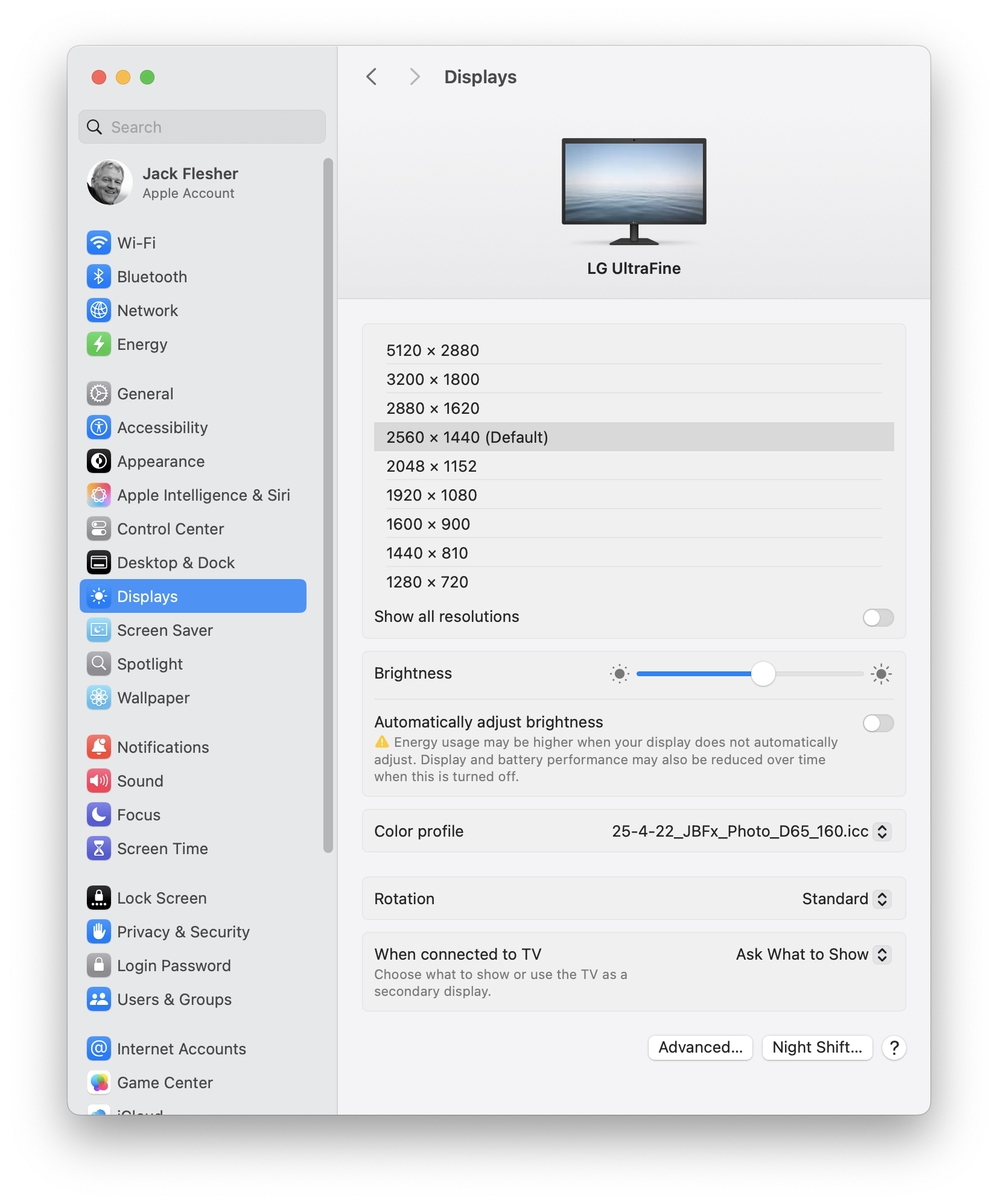
Current Macs are smart and utilize retina binning protocols for most displays. As such, the "default" resolution is usually less than (¼, or ½ x ½ to be precise) than the top available resolution. Here is a screenshot from my system with a 5K LG UltraFine -- note the default vs maximum resolution available. If I choose the maximum resolution, fonts and icons are TINY, basically 1/4th size. Yes, I can adjust those via the settings shared above, but the reality is Mac simply works best using default monitor resolutions for most daily purposes.
In imaging software like PS where I want to view actual 100 or higher percent pixels for printing or image evaluation purposes, I have its screen resolution set so it aligns with the full 5K for 100% views. Hope this makes sense.
Note this is the Mac Studio Display setting screen. The MBP's show the icon system as you shared above -- for that you generally want to pick the middle one for the "default" half x half net resolution.
schlotz wrote:
Unless there is some other way that I'm also not aware of, this was the main reason I went with a 5k vs 4k screen. My older eyes needed larger text too.
That makes zero sense. Things get smaller by default the more resolution you have.
So Jack, I have read that some suggest using a monitor with 1440 p (QHD) rather than the 4K route. Thoughts?
Jack Flesher wrote:
Current Macs are smart and utilize retina binning protocols for most displays. As such, the "default" resolution is usually less than (¼, or ½ x ½ to be precise) than the top available resolution. Here is a screenshot from my system with a 5K LG UltraFine -- note the default vs maximum resolution available. If I choose the maximum resolution, fonts and icons are TINY, basically 1/4th size. Yes, I can adjust those via the settings shared above, but the reality is Mac simply works best using default monitor resolutions for most daily purposes.
In imaging software like PS where I want to view actual 100 or higher percent pixels for printing or image evaluation purposes, I have its screen resolution set so it aligns with the full 5K for 100% views. Hope this makes sense.
Note this is the Mac Studio Display setting screen. The MBP's show the icon system as you shared above -- for that you generally want to pick the middle one for the "default" half x half net resolution. ...Show more →
pjmsj21 wrote:
So Jack, I have read that some suggest using a monitor with 1440 p (QHD) rather than the 4K route. Thoughts?
I would suggest starting at 50% x 50% and seeing how you get along with that. If you like it for day to day, then just set your imaging software to utilize actual resolution. C1 does this automatically for me, but I have to set PS's screen resolution to 220 (in rulers and guides I think) for my monitor to get it looking right.
Jack ..actually I’m considering a new monitor purchase, as an upgrade from my 24” 1080p.
Jack Flesher wrote:
I would suggest starting at 50% x 50% and seeing how you get along with that. If you like it for day to day, then just set your imaging software to utilize actual resolution. C1 does this automatically for me, but I have to set PS's screen resolution to 220 (in rulers and guides I think) for my monitor to get it looking right.
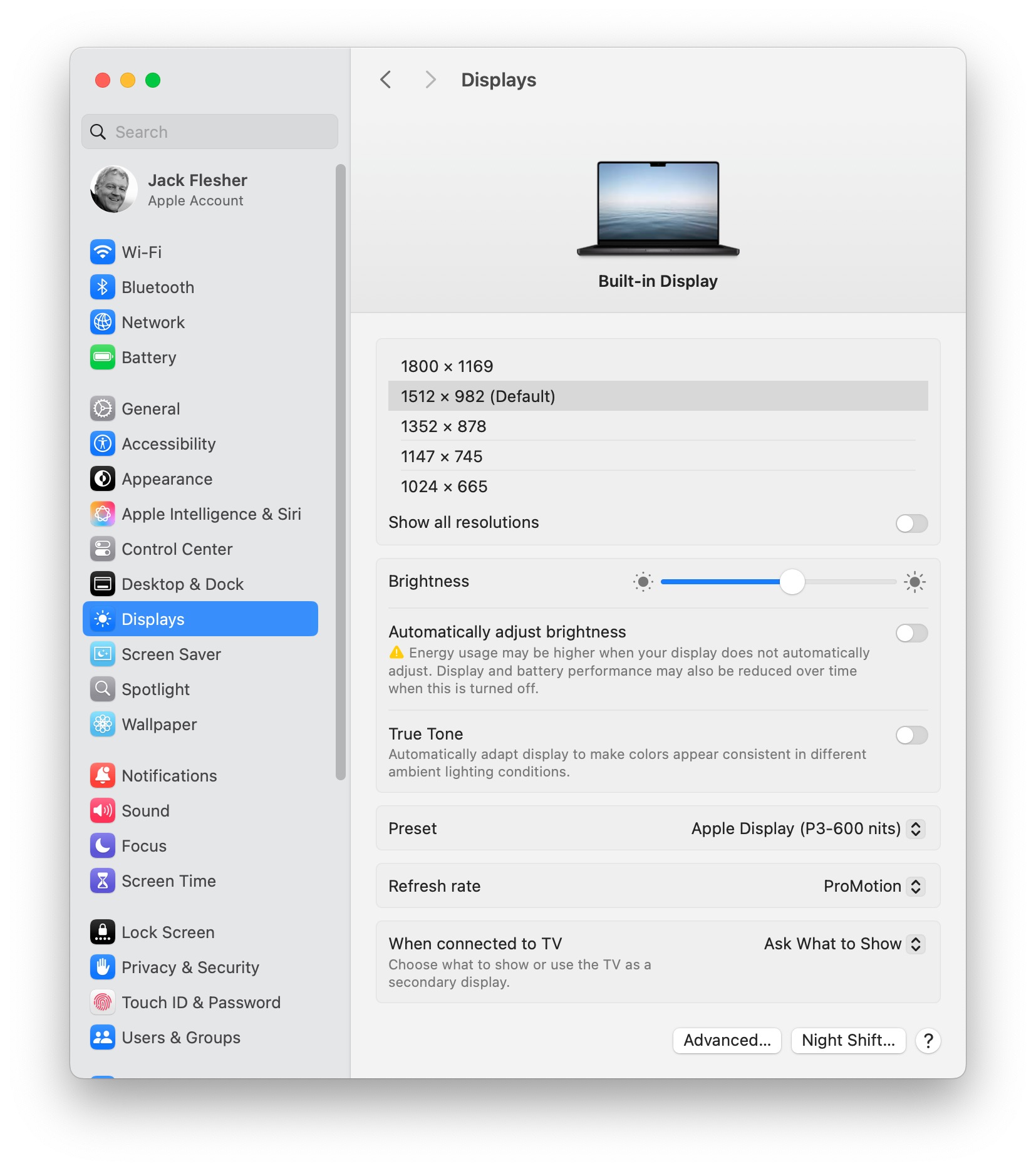
Correction for thread posterity, I made an incorrect comment above about MBP display settings. I just got home and checked my MBP and it shows actual resolutions like my studio. I assume the icon version is an older OS or perhaps older or different hardware. "Default" is still 50% x 50% of actual resolution. Both my Macs were new in January. Here is a screenshot from my MBP 14" M4:
I have gone to a somewhat higher default resolution on my MacBook Pro 14 inch, I use the 2048x1330 setting. Smaller icons and text but still usable/readable for me. I've always kinda wondered why such a high resolution MacBook screen when the highest resolution is unreadable.
justashooter wrote:
I have gone to a somewhat higher default resolution on my MacBook Pro 14 inch, I use the 2048x1330 setting. Smaller icons and text but still usable/readable for me. I've always kinda wondered why such a high resolution MacBook screen when the highest resolution is unreadable.
It’s how retina works. It uses lower resolution with larger, smoother fonts, icons and graphics for normal display and precise resolution when needed.
In what way does a "Mac simply works best using default monitor resolutions"?
If a 4K display is set to 1K resolution, how do you get LrC to display images using the full 4K resolution?