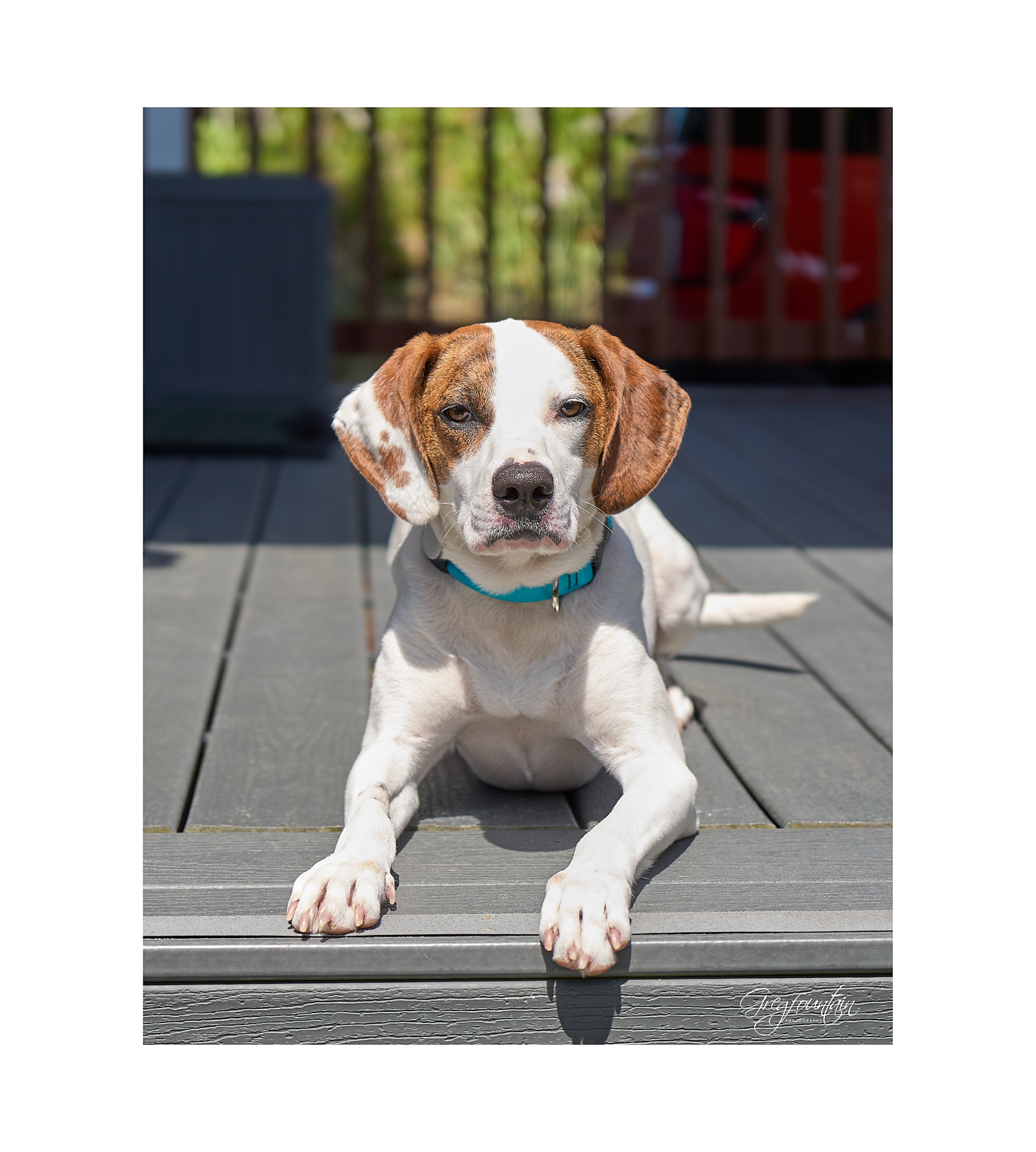
I recently started scanning 120 film and have added a Negative Supply Full Border cassette. I like the look of a white border around the image and it's easy enough to do after converting the image with NLP. The top and the bottom of the image are set by the negative position in the carrier and the height of the camera, it's consistently making border on either side of the image the same size. I've been using the "looks good to me" technique but was looking for a repeatable setting while staying in Development. Any ideas?
Do you also have Photoshop? If so, open the image in PS, go to "Image>Canvas Size." This feature simply adds space to the canvas the image resides on. I use inches and usually add a 4":3" ratio between the length and width, depending on orientation. I almost always set mine to white as I like the look to the presentation. So far, this is the easiest way I have learned to create a custom frame border - but others might have other options.
Thanks for the advice. The only part of the Adobe suite I use is Lightroom Classic which supports the Negative Lab Pro plug in. I tried several different conversion software packages but NLP is the easiest to use. When working with NLP, in order to eliminate orange cast and achieve proper white balance with color negatives, you crop out everything but the actual image. Once the conversion is applied, it's easy enough to add a bit of a border. With 135 negatives, I can adjust the scanning height to give me an equal amount around the image. 120 is a bit more problematic. If I use the standard Negative Supply cassette and the 6X6 mask, due to the way the 1955 Fujica feeds the film through the camera, the mask cuts off the very bottom of the frame. With the full border cassette, I get room at the top and bottom but too much on either side.
The plan is to set the border for the top and bottom at the same width as the points on the sizing arrow and use that as a gauge for the side border. Not the fastest method but it retains a full size image and gives me a nice thin border.
Little Free Library, Multnomah Village Super Fujica Six, FP4+. Rodinal 1:50
The camera feeds from right to left giving me an upside down image.
gregfountain wrote:
Do you also have Photoshop? If so, open the image in PS, go to "Image>Canvas Size." This feature simply adds space to the canvas the image resides on. I use inches and usually add a 4":3" ratio between the length and width, depending on orientation. I almost always set mine to white as I like the look to the presentation. So far, this is the easiest way I have learned to create a custom frame border - but others might have other options.
Thanks for this, I like that presentation look as well.
Seabassius wrote:
Thanks for this, I like that presentation look as well.
If you want to take it a step further, add a fill layer (say, black), and then the rectangular marquee tool to create a layer mask depending on how big of a black border you want.