Two months ago my beloved 9-year old Dell Latitude e6440 died.
I needed to get something new for zoom court appearances, depositions, etc., so I ordered a Dell XPS 15.
It seems like a very nice laptop - except that is has Windows 11.
So - here's my question. My Windows 10 desktop and my late laptop allowed me to import photos from a memory card using Import Photos and Videos, which let me name the files with a date code and import them to a designated folder.
I don't seem to be able to do that with the Windows 11 machine. Anyone have a suggestion?
RSSmith wrote:
Two months ago my beloved 9-year old Dell Latitude e6440 died.
I needed to get something new for zoom court appearances, depositions, etc., so I ordered a Dell XPS 15.
It seems like a very nice laptop - except that is has Windows 11.
So - here's my question. My Windows 10 desktop and my late laptop allowed me to import photos from a memory card using Import Photos and Videos, which let me name the files with a date code and import them to a designated folder.
I don't seem to be able to do that with the Windows 11 machine. Anyone have a suggestion?
What were you using in Win 10 to do your Import? Photos has an Import option in Win 10 that seems to be the same in Win 11
I've not used either so I've not delved into the Import options but if you were using Photos and if Win 11 differs from the Win 10 version it tells you that you can download the Win 10 version by looking for Photos Legacy in the MS store.
Drag and drop keeps it simple that’s what I have been doing for as long as I’ve been using for years. I don’t like adding pretty much useless software. Yes I can easily rename each folder with data I need.
mcbroomf wrote:
What were you using in Win 10 to do your Import? Photos has an Import option in Win 10 that seems to be the same in Win 11
I've not used either so I've not delved into the Import options but if you were using Photos and if Win 11 differs from the Win 10 version it tells you that you can download the Win 10 version by looking for Photos Legacy in the MS store.
In Win 10, autoplay opens with "Import Photos and Videos (Windows)" when I insert my SD card.
This allows me to name the files with a date code and each file is numbered starting from 001.
Win 11 has an option called "Import Photos and Videos (Photos)", which is not the same.
RSSmith wrote:
In Win 10, autoplay opens with "Import Photos and Videos (Windows)" when I insert my SD card.
This allows me to name the files with a date code and each file is numbered starting from 001.
Win 11 has an option called "Import Photos and Videos (Photos)", which is not the same.
Strange, I don't get that exact option in Win10. The closest in Autoplay options is "Import Photos and Videos (Onedrive)" and if I turn that on it just opens a Windows File Explorer window when the card is inserted. No option for renaming though I can move from my Onedrive (which I don't use) to anywhere on my PC. Win11 has the same option.
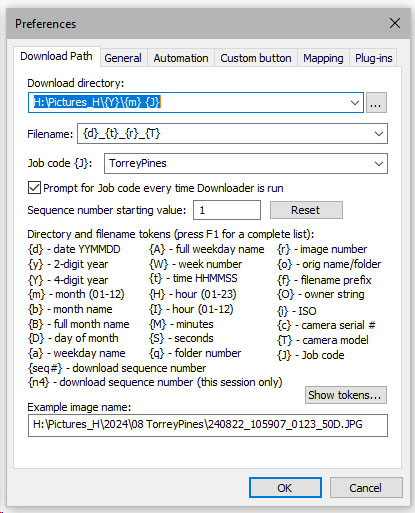
There is a bit of a learning curve to get Downloader Pro set up. Here are the settings I use to manage the folders and filenames. When I start Downloader Pro it prompts me for a "Job code". I enter something descriptive of the photo shoot, usually the location. In this example it shows that the photos were taken at Torrey Pines. This setup loads the files into a folder structure such as H:/Pictures_H>2024>08 Torrey Pines. The file names show the data and time followed by the serial number assigned by the camera and then the camera model. For example 240501_114815_3653_ILCE-1. The serial number is needed since if you shoot a burst at a high frame rate there will be several files with the same date and time. I use the serial number assigned by the camera rather that a serial number that is maintained by the downloader.
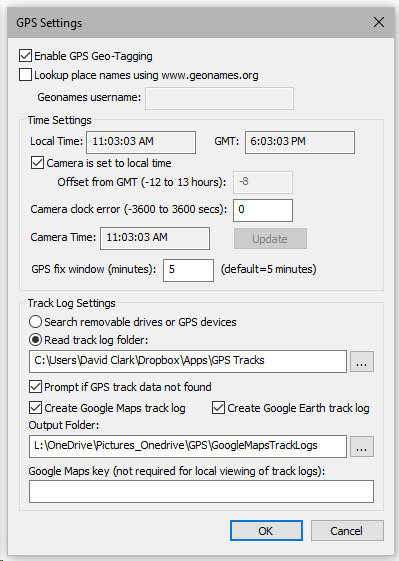
I also use the GPS tagging capability of Downloader. I run a GPS logger on my iPhone (GPS Tracker) that produces a GPX file. That file is loaded into a folder in my Dropbox account. Downloader Pro reads the file and inserts GPS metadata into the files metadata as it downloads them. If it does not find a GPX file that covers the time of capture of the files, it prompts me whether to proceed without GPS data. I find that very convenient.
Maybe this will save you a few minutes testing Downloader Pro.
You can still get the classic "Import pictures and videos" window in File Explorer. Simply open File Explorer, right-click on your SD card then select "Import pictures and videos"
If you want to restore that in your Autoplay option since that was removed, you can do the following
- Click Start, type CMD
- Right-click on it then Run as administrator
- copy and paste the commands below one at a time (See image below for reference)
cd "C:Program Files (x86)Windows Photo Viewer"
regsvr32 PhotoAcq.dll
regsvr32 PhotoViewer.dll
- Go to Settings > Devices > Autoplay > Memory card then choose "Import pictures and videos (Windows)
Image