p.2 #1 · A simple method to determine your Fujifilm recipe afterward
Fred Miranda wrote:
The only way to get the mechanical shutter count is from the camera itself via the tethering interface.
Can you describe how to do that in a Mac?
I use gphoto2 (this may void the camera warranty so take care)
I am told it can also be done using Capture One although I've not tried
p.2 #2 · A simple method to determine your Fujifilm recipe afterward
snapsy wrote:
Sure Fred, here's a basic example that will add "FredLandscapeRecipe" if the image has a specific film mode and grain effect size:
exiftool "-FileName=%f_FredLandscapeRecipe.%e" -if "$FilmMode eq 'ClassicChrome' and $GrainEffectSize eq 'Small'"
Thank you. I've tried this but I'm getting: 1 files failed condition
My JPG file has ClassicChrome and GrainEffectSize Small. I believe it should overwrite FileName to "FredLandscapeRecipe" but I get that error and nothing happens..
p.2 #3 · A simple method to determine your Fujifilm recipe afterward
Fred Miranda wrote:
Thank you. I've tried this but I'm getting: 1 files failed condition
My JPG file has ClassicChrome and GrainEffectSize Small. I believe it should overwrite FileName to "FredLandscapeRecipe" but I get that error and nothing happens..
That error means your IF condition isn't matching (btw you can suppress that message in the future via -q). Check to make sure the text exactly matches, including case. If you still can't get it then PM me the file and your command line and I'll have a look.
p.2 #4 · A simple method to determine your Fujifilm recipe afterward
AZ Photo wrote:
It would be something like this - including whichever tags make up your custom setting:
exiftool -if '$FilmMode eq "Classic Chrome" and $GrainEffectSize eq "Off" and $WhiteBalance eq "Auto" and $ISO == 160' -Comment="Custom Setting 23" -Overwrite_Original -ext jpg -ext raf .
There are other ways of doing it that might be better/more efficient but this is the easiest way to understand the logic
This solution worked, probably because I added the correct values as Adam mentioned above.
However, I had to updated the field from "Comment" to "UserComment", as that's the correct designation for that particular field.
After adhering to the custom settings of the JPG I was experimenting with, I verified that "Kodak Gold" was successfully included in the EXIF data. Excellent!
Here is what I used:
exiftool -if '$FilmMode eq "Classic Chrome" and $GrainEffectSize eq "Small" and $WhiteBalance eq "Auto" and $ISO == 320' -UserComment="Kodak Gold" -Overwrite_Original -ext jpg -ext raf
It seems like I'll need to write a code for every custom setting I have. It would be great if a code could automatically identify which custom setting specific values belong to and then add the custom setting name based on those values. It could write the Custom Setting automatically to all the files in a folder for example.
p.2 #5 · A simple method to determine your Fujifilm recipe afterward
Fred Miranda wrote:
This solution worked, probably because I added the correct values as Adam mentioned above.
However, I had to updated the field from "Comment" to "UserComment", as that's the correct designation for that particular field.
After adhering to the custom settings of the JPG I was experimenting with, I verified that "Kodak Gold" was successfully included in the EXIF data. Excellent!
Here is what I used:
exiftool -if '$FilmMode eq "Classic Chrome" and $GrainEffectSize eq "Small" and $WhiteBalance eq "Auto" and $ISO == 320' -UserComment="Kodak Gold" -Overwrite_Original -ext jpg -ext raf
It seems like I'll need to write a code for every custom setting I have. It would be great if a code could automatically identify which custom setting specific values belong to and then add the custom setting name based on those values. It could write the Custom Setting automatically to all the files in a folder for example....Show more →
There may be a tag in the EXIF for the style name that just isn't being decoded by exiftool. There's lots of undecoded tags - they usually only get discovered when a user takes the time to find them. Since it's a text name you can do a quick search of an EXIF dump to see if it exists anywhere in the metadata - that would be the first step in adding a new tag decode to exiftool. You can do this via the -htmldump option and then search the resulting ASCII dumps.
p.2 #6 · A simple method to determine your Fujifilm recipe afterward
snapsy wrote:
There may be a tag in the EXIF for the style name that just isn't being decoded by exiftool. There's lots of undecoded tags - they usually only get discovered when a user takes the time to find them. Since it's a text name you can do a quick search of an EXIF dump to see if it exists anywhere in the metadata - that would be the first step in adding a new tag decode to exiftool. You can do this via the -htmldump option and then search the resulting ASCII dumps.
Its not there - I've looked (I've done most of the Fujifilm decoding for Exiftool over the last few years but there are still unidentified tags )
p.2 #7 · A simple method to determine your Fujifilm recipe afterward
AZ Photo wrote:
Its not there - I've looked (I've done most of the Fujifilm decoding for Exiftool over the last few years but there are still unidentified tags )
Yeah. Unfortunately, it's not included. I believe it would be simple for Fuji to add that information to the EXIF, but maybe it's too specialized for them to implement this change.
p.2 #8 · A simple method to determine your Fujifilm recipe afterward
AZ Photo wrote:
Its not there - I've looked (I've done most of the Fujifilm decoding for Exiftool over the last few years but there are still unidentified tags )
Thanks. There's a remote chance Fuji stores the index of the style in the EXIF rather than the name. I realize that would make it exponentially more difficult to find since doing a differential of two images with different styles (indexes) used in the huge mass of undecoded EXIF is not for the faint of heart.
p.2 #9 · A simple method to determine your Fujifilm recipe afterward
snapsy wrote:
Thanks. There's a remote chance Fuji stores the index of the style in the EXIF rather than the name. I realize that would make it exponentially more difficult to find since doing a differential of two images with different styles (indexes) used in the huge mass of undecoded EXIF is not for the faint of heart.
p.2 #10 · A simple method to determine your Fujifilm recipe afterward
Fred Miranda wrote:
Yeah. Unfortunately, it's not included. I believe it would be simple for Fuji to add that information to the EXIF, but maybe it's too specialized for them to implement this change.
There are a number of ways that Fujifilm could make the EXIF more useful - documenting it would be a good start
p.2 #11 · A simple method to determine your Fujifilm recipe afterward
snapsy wrote:
Fred, another great feature of exiftool is its ability to rename files based on the metadata. I use this feature all the time when ingesting images for a lot of my camera tests, for example adding the shutter speed, ISO, aperture, etc.. to the filenames to make it easy to evaluate which images are what.
Here's a recipe that will add the film mode to the end of a Fuji image filename:
This will turn "DSCF0640.jpg" into "DSCF0640_ClassicChrome.jpg".
The "~s/W//g" removes any non-alphanumeric characters including spaces, which is my personal preference for filenames.
exiftool also supports conditional logic, which you could use to solve the camera not putting the name of the custom settings into the EXIF (ie, use a matching set of EXIF values to inject a new EXIF tag into your file to include a name for your custom settings).
Note for Windows users - if you put this in a batch file you'll need to use two %% instead of % for the %f and %e...Show more →
Adam,
I tried this code linking to my filename (JPG file)
What I'm ultimately trying to do is connect the "Color Temperature" or "WB shift" in Kelvins to a particular recipe I have. For instance, my recipe uses 5800K, so I intend to add to the JPG file name: DSCF0640_Kodak_Gold_200.JPG
How can I do that in exiftool?
Essentially, I could load an entire directory of files, and exiftool would append the name of my recipe based on the Kelvin temperature. If a recipe shares the same color temperature, I could differentiate by changing it by 1 degree. For instance, instead of 5200, I would use 5201 and so on..
The code needs to have something like: if "ColorTemperature" is "5800" write Kodak_Gold_200 to the JPG file.
Looking good Fred. Btw regular expressions are supported as well, which you can use with =~. For example, here's an invocation that will add H264 to the filename if avc exists anywhere in the CompressorId tag of a video file:
exiftool -q "-FileName<%f_H264.%e" -if "$CompressorId=~/avc/"<filename or directory/spec>
p.2 #16 · A simple method to determine your Fujifilm recipe afterward
snapsy wrote:
Looking good Fred. Btw regular expressions are supported as well, which you can use with =~. For example, here's an invocation that will add H264 to the filename if avc exists anywhere in the CompressorId tag of a video file:
Today, I created a tool using shell scripting (.sh) to make renaming images easier. Whether you have one image or many in a folder, this tool can add the name of the Custom Setting (recipe) used as a tag. It might seem complicated to some, but it worked well for me, so I thought I'd share in case others want to give it a try. It's helpful to have the Custom Setting (recipe) added to the file name.
Custom Recipe Renaming Tool
This tool scans each image file (in formats like JPG, RAF, or HEIC) to identify a unique Color Temperature measured in Kelvins. It then checks if the image was taken using a specific Custom Setting. If it finds a match, it adds the name of that Custom Setting to the filename. If not, it leaves the filename unchanged.
What it Does:
It renames image files by appending the name of the Custom Setting used to capture the image. I depend on two specific white balance temperatures measured in Kelvins: one for outdoors in the 5200 range and the other for indoors in the 3200 range.
How it Works:
Each of my custom settings has a slightly different Kelvin temperature associated with it. For example:
REALA ACE: 5360 or 3360
EKTAR 100: 5350 or 3350
PORTRA 400: 5340 or 3340
Kodachrome: 5330 or 3330
LEICA M9 BW: 5320 or 3320
Nostalgic Neg: 5310 or 3310
FUJIFILM Sim: 5300 or 3330
By aligning these Kelvin temperatures with my custom settings, the script can discern which custom setting was applied to each image. The slight variations in Kelvin have minimal impact on the images as they will see be "Daylight" or "Tungsten", making it a creative approach to associating the Custom Setting name, especially since it's not included in the EXIF data.
To switch to indoor conditions, I manually activate a custom button, so I can change from 5360 to 3360 very quickly in the case of using the Reala Ace sim.
How to Use:
Download, uncompress and save the script file to your computer.
Once you run the script, it will automatically rename your image files based on the custom settings linked to their Kelvin temperatures. It's a simple yet powerful way to organize and manage your photos!
It's helpful to add White Balance to a custom button on your camera. This way you can easily change the WB from the outdoor setting to the indoor setting. Just make sure to add the correspondent number to it. For example, if you are shooting indoor with Kodachrome custom setting remember to change the Kelvin setting from 5330 to 3330. (just change the 5 number to 3, it's easy with the custom button)
Of course the shell script can be modified with your own Custom setting names.
Here is a screenshot showing how the tool added the custom name to the files with the correct Kelvin settings and ignore those without it.
p.2 #18 · A simple method to determine your Fujifilm recipe afterward
Fred Miranda wrote:
Thanks for the tip. I just tried Capture One in Tethering mode and it does shows the mechanical shutter count.
Would you mind running a few tests in continuous shooting mode? I've found single shot accurate but inconsistencies in both low and high continuous modes.
p.2 #19 · A simple method to determine your Fujifilm recipe afterward
Fred Miranda wrote:
Today, I created a tool using shell scripting (.sh) to make renaming images easier. Whether you have one image or many in a folder, this tool can add the name of the Custom Setting (recipe) used as a tag. It might seem complicated to some, but it worked well for me, so I thought I'd share in case others want to give it a try. It's helpful to have the Custom Setting (recipe) added to the file name.
Custom Recipe Renaming Tool
This tool scans each image file (in formats like JPG, RAF, or HEIC) to identify a unique Color Temperature measured in Kelvins. It then checks if the image was taken using a specific Custom Setting. If it finds a match, it adds the name of that Custom Setting to the filename. If not, it leaves the filename unchanged.
What it Does:
It renames image files by appending the name of the Custom Setting used to capture the image. I depend on two specific white balance temperatures measured in Kelvins: one for outdoors in the 5200 range and the other for indoors in the 3200 range.
How it Works:
Each of my custom settings has a slightly different Kelvin temperature associated with it. For example:
REALA ACE: 5360 or 3360
EKTAR 100: 5350 or 3350
PORTRA 400: 5340 or 3340
Kodachrome: 5330 or 3330
LEICA M9 BW: 5320 or 3320
Nostalgic Neg: 5310 or 3310
FUJIFILM Sim: 5300 or 3330
By aligning these Kelvin temperatures with my custom settings, the script can discern which custom setting was applied to each image. The slight variations in Kelvin have minimal impact on the images as they will see be "Daylight" or "Tungsten", making it a creative approach to associating the Custom Setting name, especially since it's not included in the EXIF data.
To switch to indoor conditions, I manually activate a custom button, so I can change from 5360 to 3360 very quickly in the case of using the Reala Ace sim.
How to Use:
Download, uncompress and save the script file to your computer.
Once you run the script, it will automatically rename your image files based on the custom settings linked to their Kelvin temperatures. It's a simple yet powerful way to organize and manage your photos!
It's helpful to add White Balance to a custom button on your camera. This way you can easily change the WB from the outdoor setting to the indoor setting. Just make sure to add the correspondent number to it. For example, if you are shooting indoor with Kodachrome custom setting remember to change the Kelvin setting from 5330 to 3330. (just change the 5 number to 3, it's easy with the custom button)
Of course the shell script can be modified with your own Custom setting names.
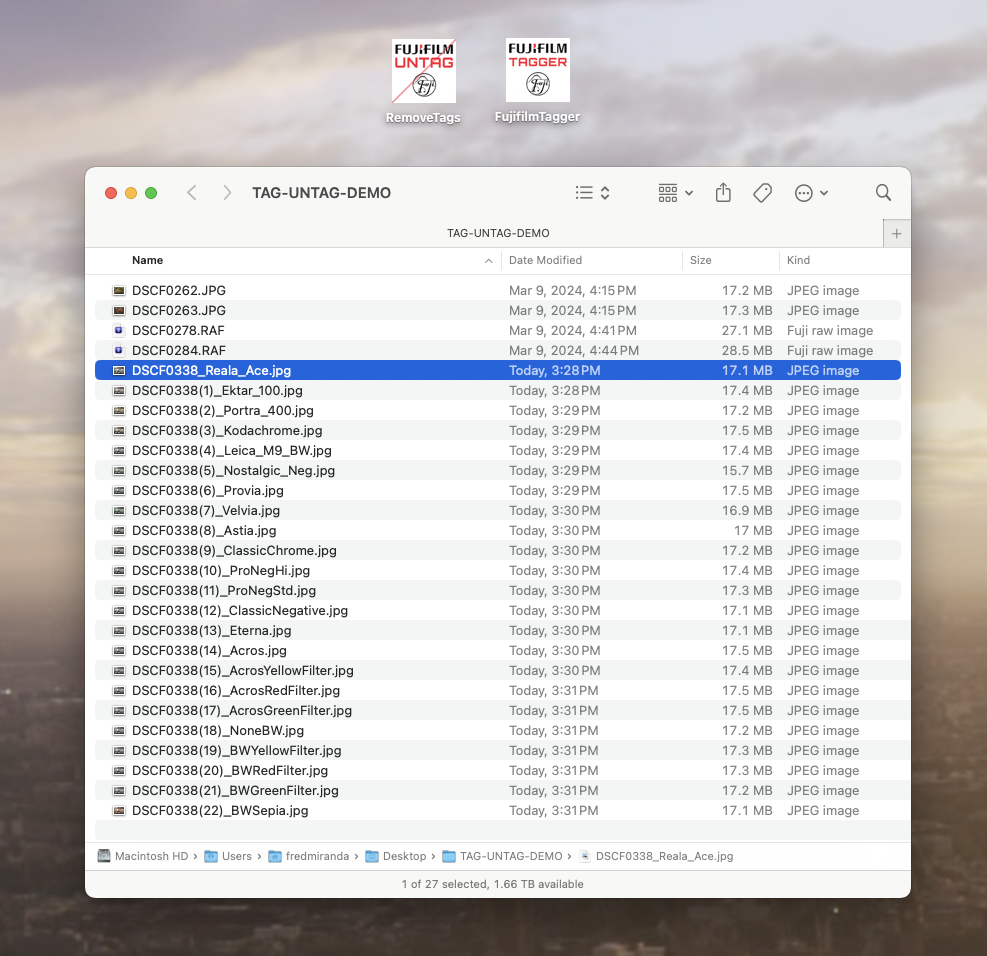
Here is a screenshot showing how the tool added the custom name to the files with the correct Kelvin settings and ignore those without it. ...Show more →
I converted this into a Mac app today, eliminating the need to use Terminal for command lines.
Now, I can simply drag one file, multiple files, or an entire folder to the FujifilmTagger app, and the custom settings or Fujifilm simulations will be applied to the files. I also added another feature that removes the custom tags from the files, which also works by just dragging the file(s) or folder to the app. This functionality is compatible with any file type. Files can only be tagged once, and images that do not conform to the "Color Temperature" values layout mentioned in my previous post remain unaffected.
If you're interested in trying out these apps, feel free to let me know via private message. 👍
Below is a screenshot displaying several files tagged by the app. The first four files didn't have the correct white balance (WB), so they weren't processed. However, the rest followed my Color Temperature scheme and were successfully tagged.
p.2 #20 · A simple method to determine your Fujifilm recipe afterward
Thanks for all the work in this area. I was able to create some command lines to tag my fujixweekly.com recipes and I have some tips for recreating tools for yourself with some windows-specific tools:
Most of the film sim stuff is in the makernotes area. You can use ExifToolGui to read Makernotes and I found this easier.
To query all the info with the command line use the Makernotes: prefix:
exiftool.exe -Makernotes:all <filename>
This gives you the actual field names and raw values you need to match.
You can also use solentsystems.com to look at Makernotes but some of the values there are translated to be more readable and match the camera GUI. If you're trying to do matches with exiftool, you'll need to use exiftool to get the actual values.
My workflow is not updating filenames as Fred's is, rather I used Keywords and UserComment fields. So here's an example of using windows syntax for parsing and retagging a photo that uses Reggie's Portra from fujixweekly.
You can use any set of fields to identify your particular combination of settings. I chose 3 or 4 to make sure it was unique.
I make a batch file with this line (a different line for each film sim type) and I can drag files or folders on to it to tag them. It replaces the keywords field and Comment fields. I found that keywords are usually better for filtering results in Adobe tools.
exiftool.exe -P -keywords="Reggies Portra" -UserComment="Film Simulation: Reggies Portra (fujixweekly.com)" -if "$Makernotes:FilmMode eq 'Classic Chrome' and $MakernotesynamicRangeSetting eq 'Auto' and $Makernotes:Sharpness eq '-2 (soft)' and $Makernotes:Saturation eq '+2 (high)' and $Makernotes:WhiteBalanceFineTune eq 'Red +40, Blue -80'" "%~1"
My original goal was to take all the relevant fields from Makernotes and copy them to regular tags to be used in tools that can't read Makernotes. I couldn't find a good tag candidate so I just went with a recipe name in keywords.





 ynamicRangeSetting eq 'Auto' and $Makernotes:Sharpness eq '-2 (soft)' and $Makernotes:Saturation eq '+2 (high)' and $Makernotes:WhiteBalanceFineTune eq 'Red +40, Blue -80'" "%~1"