p.2 #1 · Photoshop/Mac - How to access color management settings
The previous Post seems to link to a Commercial Site whose products are geared to changing the colour of a selected item and to the the sale of customized Clipping Paths.
This is very different from the correct use of Colour Profiles and achieving predictable output from a printer.
p.2 #2 · Photoshop/Mac - How to access color management settings
rambhowmik wrote:
The following procedures will allow you to access the color management settings in Photoshop on a Mac:
*Open Photoshop: On your Mac, launch Adobe Photoshop.
*To access the Photoshop menu, click "Photoshop" (next to the Apple logo) in the top menu bar.
*Select the Color Settings:
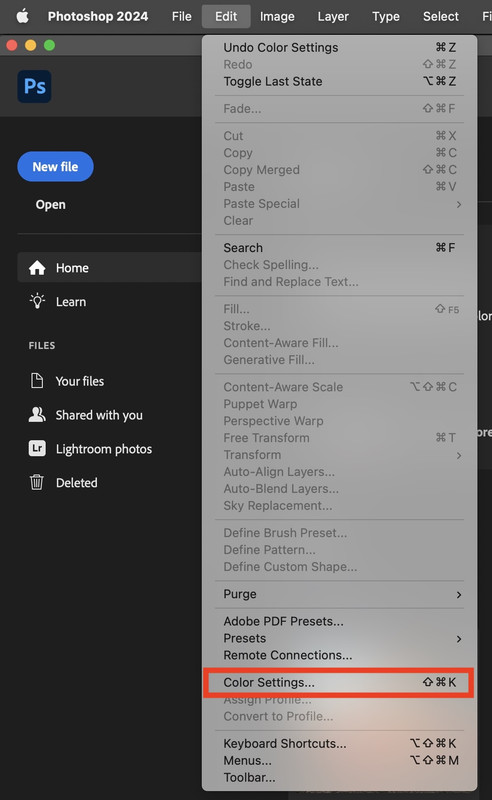
Take note of the dropdown menu and choose "Color Settings." The Color Settings dialog box will open as a result.
*Modify Color Settings: You can modify RGB, CMYK, and grayscale color management settings in the Color Settings dialog box. Depending on your preferences, you can change the settings or select from a variety of presets.
*Save Changes: To save your color management settings after making the necessary adjustments, click the "Save" button.
p.2 #3 · Photoshop/Mac - How to access color management settings
Gary Clennan wrote:
Thank you. There is no "Color Settings" option in the PS menu as you mentioned. Perhaps I have a different version? 2024, 25.10
Hi Gary:
But will this fix your problem? Not sure. Is there a reason you must print in Photoshop instead of Lightroom? Could you import the final image processed in Photoshop back into Lightroom and print there if you can't get to the bottom of the printing problem?
p.2 #4 · Photoshop/Mac - How to access color management settings
Hi Gary
There seems to be a lot of confusion on how to turn off Color Management in the printer driver when using Photoshop Manages Printer.
On Windows, one has to search quite a bit to find the "turn off color management option"
However, for Macs, for some time, the printer drivers for the Mac will automatically be turned off when Photoshop is set to Photoshop Manages Color. So you won't find that option in the printer driver for Macs. This only applies when you are using the proper printer driver for the Epson P600 and not the Airprint driver.
Note the yellow exclamation mark warning you to turn off 'Color Management' in the printer settings. This is there for a very good reason! You don't want 'double' Colour Management, which is ugly, very ugly!
You will find a lot of confusing answers to questions about this on Internet fora. Especially with the difference between Windows PCs and Macs!:
Windows: It is very important to check that Color Management and/or ICM is turned OFF in the Printer Driver with Windows PCs.
Macs: It should be automatically switched off when using the correct Printer Driver in Macs. If it isn't greyed-out you probably have a problem! Note that the Apple AirPrint printer driver is not capable of switching off Colour Management, so cannot be used when Photoshop Manages Colors....Show more →
This is pretty handy for Macs unless one keeps looking forever for the magic "Turn off color management" which is no longer there on Mac printer drivers
p.2 #5 · Photoshop/Mac - How to access color management settings
I forgot to mention. If for some reason you had a really old version of Photoshop and OSX version that does not automatically turn off color management in the printer driver, this link to the original Epson P600 shows how to turn off color management in the printer driver for both Windows and Mac systems: https://files.support.epson.com/docid/cpd4/cpd41370.pdf
p.2 #6 · Photoshop/Mac - How to access color management settings
John Wheeler wrote:
Hi Gary
There seems to be a lot of confusion on how to turn off Color Management in the printer driver when using Photoshop Manages Printer.
On Windows, one has to search quite a bit to find the "turn off color management option"
However, for Macs, for some time, the printer drivers for the Mac will automatically be turned off when Photoshop is set to Photoshop Manages Color. So you won't find that option in the printer driver for Macs. This only applies when you are using the proper printer driver for the Epson P600 and not the Airprint driver.
This is pretty handy for Macs unless one keeps looking forever for the magic "Turn off color management" which is no longer there on Mac printer drivers ...Show more →
Depending on the printer, the driver and the operating system, sometimes those options are there in the Mac. Most of the time they are grayed out and you can't change them but now on Ventura, and I have not gone to Sonoma yet, some of those choices are back and it's just a little bit confusing especially if you're not full versed in all of this.
p.2 #7 · Photoshop/Mac - How to access color management settings
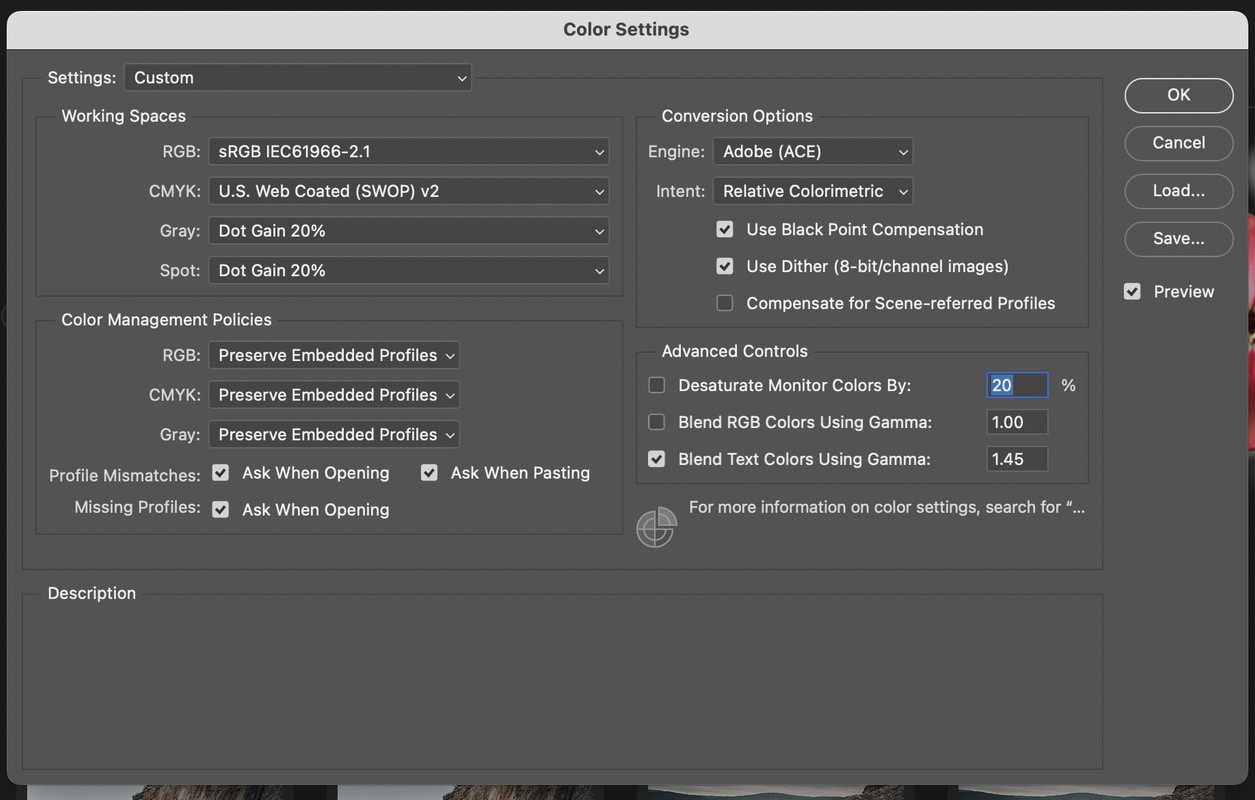
I wouldn't choose a Working Space with a restricted gamut (such as sRGB) when printing. A wider gamut working space, such as Adobe ProPhoto RGB or Adobe RGB, will provide less banding and better greens and reds when used with a multi-inks Epson printer.
sRGB is useful when the image is destined to be displayed on the Internet.
p.2 #8 · Photoshop/Mac - How to access color management settings
AnnJS wrote:
I wouldn't choose a Working Space with a restricted gamut (such as sRGB) when printing. A wider gamut working space, such as Adobe ProPhoto RGB or Adobe RGB, will provide less banding and better greens and reds when used with a multi-inks Epson printer.
sRGB is useful when the image is destined to be displayed on the Internet.
It doesn't matter what working space you choose and it hasn't since the time when Adobe introduced the feature of Ps being able to work in multiple RGB or CMYK spaces at the same time. The only thing that matters is the working space of the file or files you are printing, the type of printer and paper you are printing it on, and most importantly, whether or not there are significant areas of saturated content that might push the envelope of the media you are printing on. The reality is, is that for most images, sRGB is more than adequate and even if there are small areas in an image that might exceed that if they were in a larger color space, in most cases, you'll never see the difference. As far as potential banding is concerned, you have a much smaller chance of visible banding in a smaller space than a larger space, and even on the best, widest gamut papers on an Espon, there are only very small areas that exceed the Adobe RGB color gamut so it becomes another "in theory" vs. "in practice" argument with the "in practice" argument winning the day virtually every time.
But will this fix your problem? Not sure. Is there a reason you must print in Photoshop instead of Lightroom? Could you import the final image processed in Photoshop back into Lightroom and print there if you can't get to the bottom of the printing problem?
Ron! Long time, no talk. Hope you are doing well. Thanks for the help. Under "Working Spaces", I have selected "Coated GRACoL 2006" option instead of the one you show. Also, under "Conversion Options", I have "Compensate for Scene-referred Profiles" checked off too. All other settings are the same as yours. I actually usually print out of LR but thought why not try and do everything from PS. And it bugs me that the colors are off. . Now I am seeing issues with images for the web I process. Argh. Question - when exporting from LR, what color space should be selected? Thanks!
p.2 #10 · Photoshop/Mac - How to access color management settings
I also neglected to mention that in PSFilePrintPrint Settings, the document profile is showing as "ProPhoto RGB". Is it better to have the default set to something else. Thanks again.
p.2 #11 · Photoshop/Mac - How to access color management settings
John Wheeler wrote:
Hi Gary
There seems to be a lot of confusion on how to turn off Color Management in the printer driver when using Photoshop Manages Printer.
On Windows, one has to search quite a bit to find the "turn off color management option"
However, for Macs, for some time, the printer drivers for the Mac will automatically be turned off when Photoshop is set to Photoshop Manages Color. So you won't find that option in the printer driver for Macs. This only applies when you are using the proper printer driver for the Epson P600 and not the Airprint driver.
This is pretty handy for Macs unless one keeps looking forever for the magic "Turn off color management" which is no longer there on Mac printer drivers ...Show more →
p.2 #12 · Photoshop/Mac - How to access color management settings
John Wheeler wrote:
I forgot to mention. If for some reason you had a really old version of Photoshop and OSX version that does not automatically turn off color management in the printer driver, this link to the original Epson P600 shows how to turn off color management in the printer driver for both Windows and Mac systems: https://files.support.epson.com/docid/cpd4/cpd41370.pdf
p.2 #13 · Photoshop/Mac - How to access color management settings
AnnJS wrote:
I wouldn't choose a Working Space with a restricted gamut (such as sRGB) when printing. A wider gamut working space, such as Adobe ProPhoto RGB or Adobe RGB, will provide less banding and better greens and reds when used with a multi-inks Epson printer.
sRGB is useful when the image is destined to be displayed on the Internet.
Thanks. I have been using ProPhoto RGB for printing (I think).
p.2 #14 · Photoshop/Mac - How to access color management settings
Peter Figen wrote:
It doesn't matter what working space you choose and it hasn't since the time when Adobe introduced the feature of Ps being able to work in multiple RGB or CMYK spaces at the same time. The only thing that matters is the working space of the file or files you are printing, the type of printer and paper you are printing it on, and most importantly, whether or not there are significant areas of saturated content that might push the envelope of the media you are printing on. The reality is, is that for most images, sRGB is more than adequate and even if there are small areas in an image that might exceed that if they were in a larger color space, in most cases, you'll never see the difference. As far as potential banding is concerned, you have a much smaller chance of visible banding in a smaller space than a larger space, and even on the best, widest gamut papers on an Espon, there are only very small areas that exceed the Adobe RGB color gamut so it becomes another "in theory" vs. "in practice" argument with the "in practice" argument winning the day virtually every time.
p.2 #15 · Photoshop/Mac - How to access color management settings
Gary Clennan wrote:
It would be wonderful to work in once colourspace for both web and print. Sounds like you feel sRGB may just do the trick?
If you're at a point where you're not sure about what color space to use and why then it's best to stick with sRGB for everything until you get to the point where it all starts to make sense. I'm sort of an "all color spaces all the time" kind of person because I work on my own images, other people's images and a ton of stock photos which are either sRGB or Adobe RGB. The bottom line, and one that far too many people won't admit to or don't have experience with, is that for most images, sRGB is more than enough to work with and have bright, contrasty and vibrant images either on screen or in print. And, if you're shooting digital and shooting raw files, you can always go back to your raw file and re-process it into a larger gamut color space, but you should really understand why you might or might not want to before just doing it.
p.2 #16 · Photoshop/Mac - How to access color management settings
I prefer to edit in a wide-gamut space (I normally use ProPhoto RGB) and only convert a copy of an image to sRGB when I need that format for the web.
I always retain my master images (which may have many Layers) in a wide-gamut space.
Photoshop prints to an Epson extremely accurately from ProPhoto RGB.