This topic is in the 2020 archive. You can read it and like its posts here. It is read only.
Archive 2020Installed windows 10, now problem with calibration
p.1 #1Installed windows 10, now problem with calibration
So I had windows 8.1 and PS CC stopped working. They told me its not compatible with my version of windows even though I have been using it for 4 years. I decided to install windows 10 and it went well....I didn't even have to pay anything. However, my monitor calibration went crazy, so I did a calibration with my old eye one puck. Still looked oversaturated...I had to go into color management and check some boxes and finally my PS files look fairly normal, a little oversaturated. But my actual window photo program shows them way oversaturated and my wallpaper looks way oversaturated too.
Any solutions? I have an HP LP 2275w monitor which has render really good colors that translate well to print. I use srgb.
Any solutions? I have an HP LP 2275w monitor which has render really good colors that translate well to print. I use srgb.
Dec 17, 2020 at 03:25 PM
p.1 #2Installed windows 10, now problem with calibration
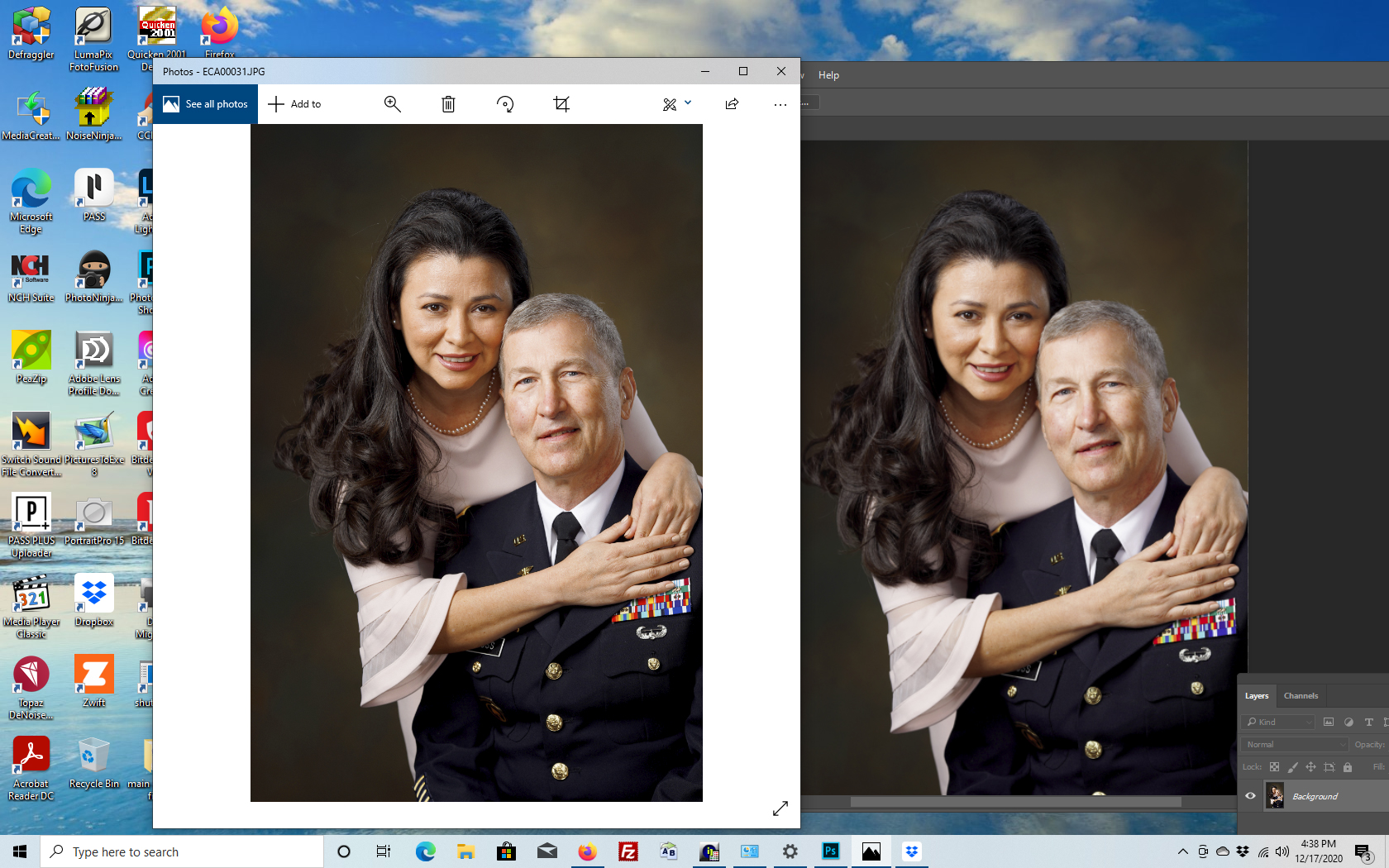
Here is a screen shot of what I mean....left image is windows photo viewer and right image is the photoshop screen which looks correct to me
https://www.dropbox.com/s/ongjsf76m68f6o2/Screenshot%202020-12-17%2016.38.07.png?dl=0
https://www.dropbox.com/s/ongjsf76m68f6o2/Screenshot%202020-12-17%2016.38.07.png?dl=0
Dec 17, 2020 at 03:40 PM
p.1 #3Installed windows 10, now problem with calibration
Hi echelonphoto
I don't see any pictures in your second post (CORRECTION, I clicked on the very small image to open a dropbox page)
Note that Windows wallpaper and Windows Photo App are not color managed so you cannot depend on your color calibration to help at all
If you ran color calibration/profiling and then and went and change monitor controls (e.g. OSD parameters) and/or OS settings it is quite possible that you invalidated your calibration/profiling work.
Your monitor is a wide gamut monitor even if not quite Adobe RGB in gamut. When sending images from wallpaper and win photo viewer, they are assuming that the images are sRGB monitors as the images and send the color data directly to the monitor without compensating for the fact you have a wide gamut monitor. Sending sRGB images directly to your wide gamut monitor with no color management will always look too saturated.
You need to set the monitor settings and OS settings first, then calibrate/profile and then only use color managed applications. A poor workaround or things such as wallpaper is to load the wallpaper into PS, convert it to your monitor profile and re-save. That should make it much closer to the right color since the image data would now be in the right color space to be sent directly to your monitor yet the best approach would be in Microsoft would make the software so it color managed and you would not have to mess with it.
EDITED: Corrected the text to reflect the correct name to Window Photo App
Just my opinion and suggestions.
John Wheeler
Edited on Dec 18, 2020 at 02:02 PM · View previous versions
Dec 17, 2020 at 03:56 PM
p.1 #4Installed windows 10, now problem with calibration
Hi echelonphoto
As another follow up, I took your side by side image and reverse engineered the image on the left side shown in Win Photo App and showed what it would look like if the image data was in Adobe RGB (I don't have your monitor profile) and sent directly to your monitor (in lieu of color management). As you can see it comes a lot closer to what you see in color managed Photoshop.
So the behavior matches what I said in my previous post about Windows Photo App just sending the data directly to your monitor without the adjusting to the monitors profile.
EDITED: I updated the text to properly reflect that the App in question was the Windows Photo App
Edited on Dec 18, 2020 at 02:01 PM · View previous versions
As another follow up, I took your side by side image and reverse engineered the image on the left side shown in Win Photo App and showed what it would look like if the image data was in Adobe RGB (I don't have your monitor profile) and sent directly to your monitor (in lieu of color management). As you can see it comes a lot closer to what you see in color managed Photoshop.
So the behavior matches what I said in my previous post about Windows Photo App just sending the data directly to your monitor without the adjusting to the monitors profile.
EDITED: I updated the text to properly reflect that the App in question was the Windows Photo App
Edited on Dec 18, 2020 at 02:01 PM · View previous versions
Dec 17, 2020 at 04:20 PM
p.1 #5Installed windows 10, now problem with calibration
How are you viewing the photo in Windows 10? If you're using anything other than the old Windows Photo Viewer, which is color managed despite claims to the contrary, your color profiles will be ignored—unless MS has updated its Win 10 photo app to be icc aware. Review the link provided.
Dec 18, 2020 at 07:47 AM
p.1 #6Installed windows 10, now problem with calibration
echelonphoto
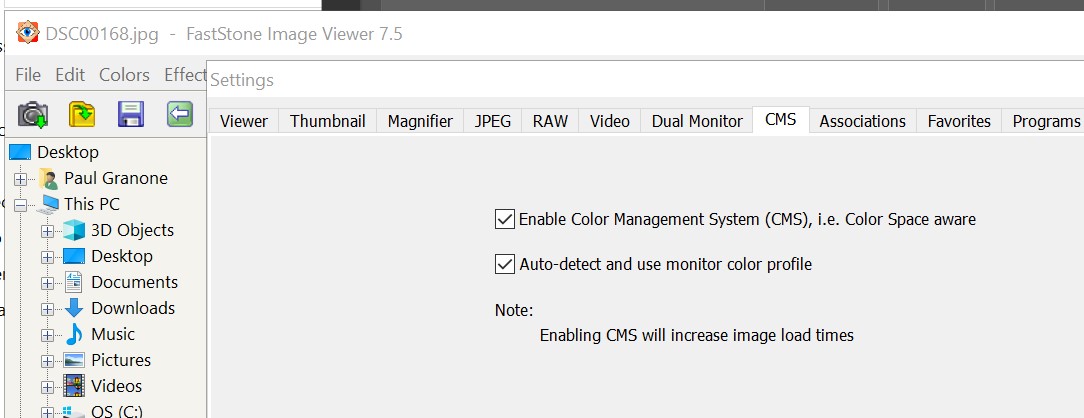
Fastone Image Viewer works quite well and can use the monitor profile
https://www.faststone.org/FSViewerDetail.htm
If you turn on the color management using the Settings>Settings>CMS>Enable Color Management System command then most images that have an embedded color profile will display correctly.
The view works great and has some nice optins
Fastone Image Viewer settings
Fastone Image Viewer works quite well and can use the monitor profile
https://www.faststone.org/FSViewerDetail.htm
If you turn on the color management using the Settings>Settings>CMS>Enable Color Management System command then most images that have an embedded color profile will display correctly.
The view works great and has some nice optins
Fastone Image Viewer settings
Dec 18, 2020 at 01:22 PM
p.1 #7Installed windows 10, now problem with calibration
Ho1972 wrote:
How are you viewing the photo in Windows 10? If you're using anything other than the old Windows Photo Viewer, which is color managed despite claims to the contrary, your color profiles will be ignored—unless MS has updated its Win 10 photo app to be icc aware. Review the link provided.
Thanks Ho1972. While I was referring to the Photos app that the OP was using (from the dropbox link that was posted), my text made that quite confusing when I said "Windows Photo Viewer" and will edit the post to fix that. Good catch
John Wheeler
Dec 18, 2020 at 01:45 PM
p.1 #8Installed windows 10, now problem with calibration
Thanks for the suggestions....I dont really know how to make the old photo viewer my default....still learning windows 10.
Dec 18, 2020 at 03:48 PM
p.1 #9Installed windows 10, now problem with calibration
This link might help you.
Hope it helps
John Wheele rhttps://answers.microsoft.com/en-us/windows/forum/all/how-to-change-my-default-photo-viewer-on-windows/fb62448f-9854-4983-98d3-104aed6fac44
Hope it helps
John Wheele rhttps://answers.microsoft.com/en-us/windows/forum/all/how-to-change-my-default-photo-viewer-on-windows/fb62448f-9854-4983-98d3-104aed6fac44
Dec 18, 2020 at 03:57 PM
p.1 #10Installed windows 10, now problem with calibration
https://www.howtogeek.com/225844/how-to-make-windows-photo-viewer-your-default-image-viewer-on-windows-10/
Depending on how MS is handling in-place upgrades these days, the old app should be available without a Registry tweak. If not, both my link and John's provide the how-to.
Depending on how MS is handling in-place upgrades these days, the old app should be available without a Registry tweak. If not, both my link and John's provide the how-to.
Dec 18, 2020 at 04:10 PM
p.1 #11Installed windows 10, now problem with calibration
It's easy. My Windows 10 is a clean install. Here's what I did:
Export the content of the following Win 10 registry key:
HKEY_CLASSES_ROOT\Applications\photoviewer.dll
I did this so I can revert back to the previous settings if I want to.
Open the same registry key on Windows 7 PC. Export the content and import that to Win 10. Administrator permission is needed to import/merge the registry.
I now have Windows Photo Viewer listed in the Open With menu. All that's needed is to select Windows Photo Viewer and click Always use this app to open JPG files. I never like Windows 10 Photos app anyway so I won't miss it.
Jan 05, 2021 at 06:14 PM
p.1 #12Installed windows 10, now problem with calibration
I’ve had limited success upgrading Window OS. A while ago I upgraded a simple with my IT expert. NFG! had to revert to Windows 7. After all of it I could have bought a new computer preloaded with W 10. They make it that way. So I bough a cheap Windows 10 Laptop to run modern PC only software.
Really do everything I can to avoid Microsoft.
Really do everything I can to avoid Microsoft.
Feb 04, 2021 at 06:16 AM
p.1 #13Installed windows 10, now problem with calibration
There are a lot of concerns over privacy issues, but a full Win 10 Pro normally installs fine in just about any system post 2017 and many older ones. Just keep the first install very simple with only a single boot drive. I prefer the USB version, but there are cheaper OEM options.
EBH
EBH
Feb 04, 2021 at 10:30 PM