Let me start by saying most of my editing experience is LR based. I rarely use PS3, but am literate enough to understand filters, layers, masks, etc.
Skin softening in LR4 was producing very fake results. I was also interested in fixing the dark portions under the eyes without using clone/heal in LR. So I took a shot at it in PS3. I know there are some stellar retouchers on this forum, so I hope your expert eyes will tell me where I may have gone wrong and if there are opportunities to improve.
Jason Lang wrote:
Let me start by saying most of my editing experience is LR based. I rarely use PS3, but am literate enough to understand filters, layers, masks, etc.
Skin softening in LR4 was producing very fake results. I was also interested in fixing the dark portions under the eyes without using clone/heal in LR. So I took a shot at it in PS3. I know there are some stellar retouchers on this forum, so I hope your expert eyes will tell me where I may have gone wrong and if there are opportunities to improve.
It depends on how you're doing the skin softening in Lightroom. A touch of negative Clarity works most of the time and you can also use an adjustment brush to address specific areas of your image.
You said you wanted to avoid using clone/heal in Lightroom but you didn't say what you actually used in Photoshop. One of the most effective ways of fixing the "bags" under her eyes is by using the Patch tool in Photoshop.
Duplicate the layer or use the Stamp Visible (CTRL + ALT + Shift + E) command since the Patch tool only works on a layer that contains pixels. Choose the Patch tool from the tool palette and select the area under one eye, and drag it to an area with the skin texture you prefer like her cheek. Once you release the mouse button you'll see the area under the eye is modified. Now immediately click on Edit > Fade Patch Selection and reduce the opacity of the fix until it blends in correctly (approx. 65 percent works in most cases). Repeat for the other eye; once you've fixed both eyes you can choose to merge the layer to reduce your file size.
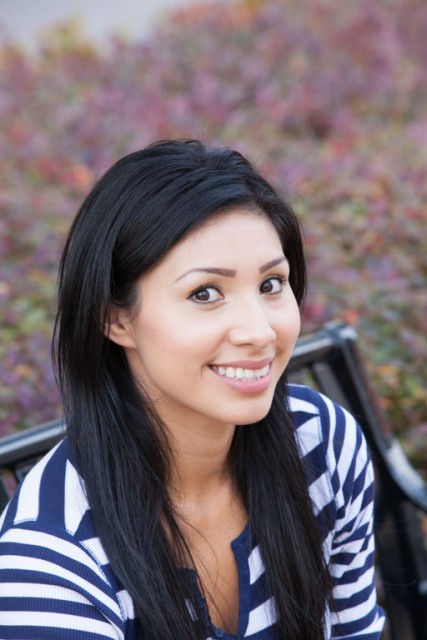
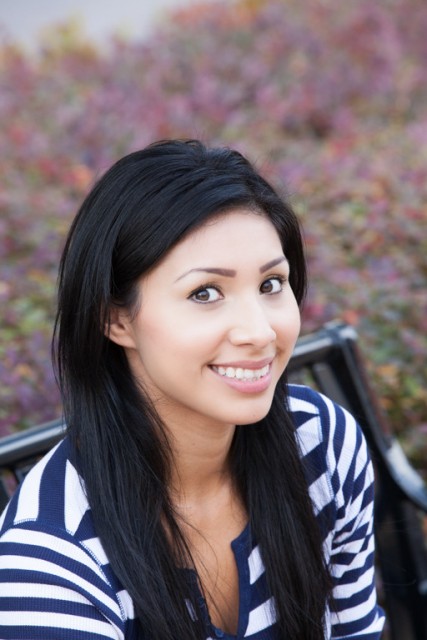
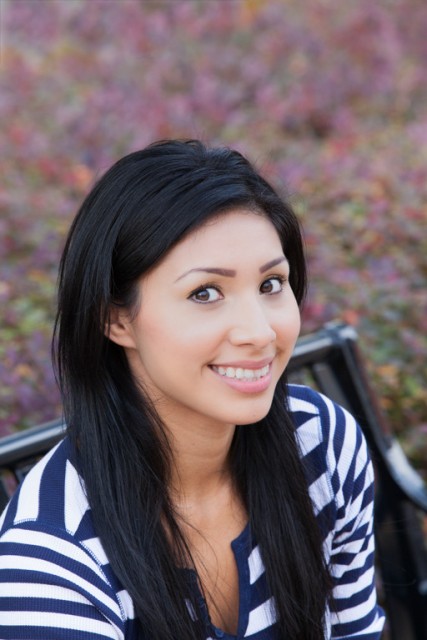
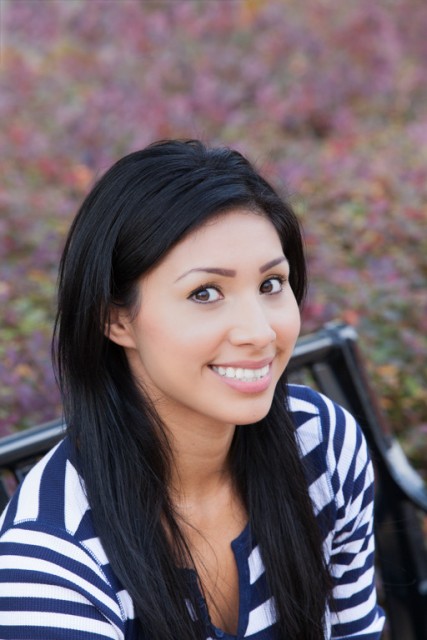
Image 1 is out of camera. Image 2 is edited.
Thanks a bunch for looking and helping.
It appears you've also lightened the skin tones in her face; I'd darken them instead to match the rest of her body. Also, I'd suggest cloning the upper left corner so it doesn't distract and lead the eyes away from the subject.
I used the patch tool in PS3 for the undereye bags in the image above using the precise method you described. I also increased exposure, slightly, which likely is the cause of the brightened skin. I'll retouch.
You mentioned closing the upper left corner -- are you referencing the gray area near at the top left of the image?
Looks better to me but you also darkened her teeth. Either mask them out so they aren't affected by the exposure adjustment or select them and use a Hue/Saturation adjustment layer to whiten them.