Overview
See what’s on your camera before it’s copied
A straight import copies everything into your catalog, good and bad. FM Studio sits in front of it. Browse what’s on the camera or card, rate and filter, fix the metadata, name and sort the files, and download only the shots you want. Then hand off to Lightroom Classic or any other software.
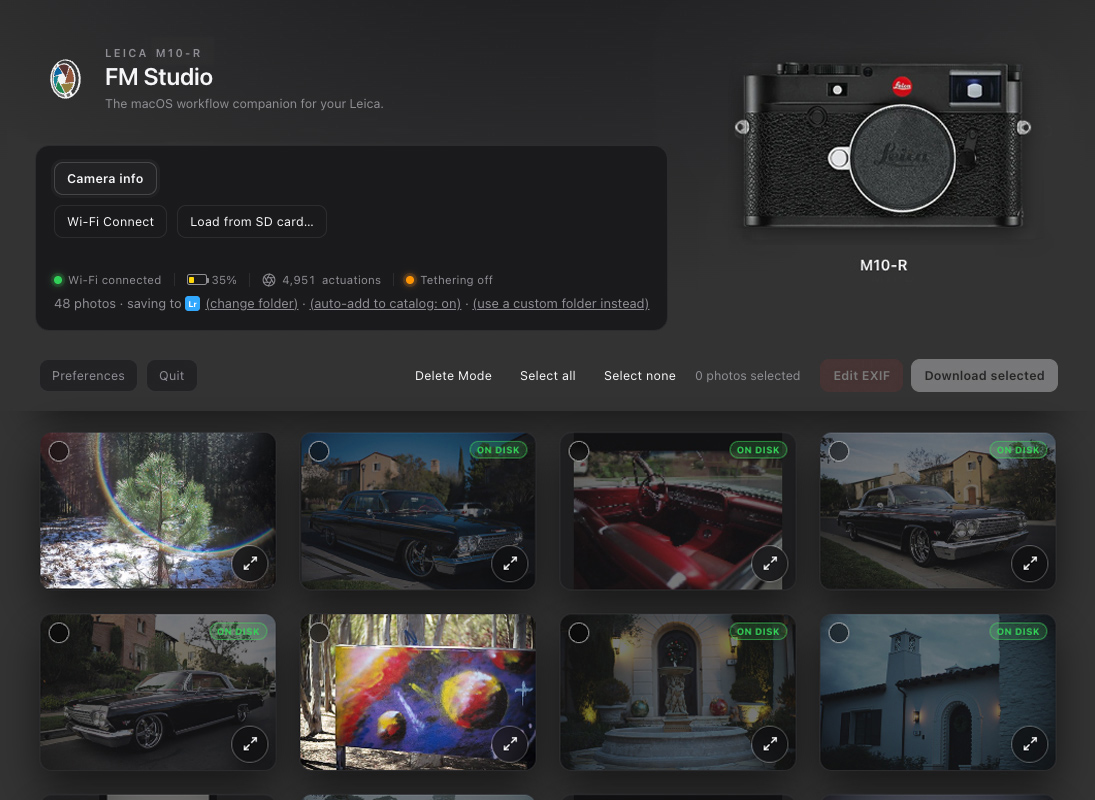
Fast thumbnails, clear badges, and filters so you can decide what leaves the camera.
Shutter count
See the shutter count of your Leica M8, M9, M10 and M11
FM Studio reads the number of shutter actuations the camera itself has recorded, straight from the body. It is not estimated from file numbers, so it stays accurate through card swaps, formats, and deleted files.
Leica M10 series
M10, M10-P, M10-R, M10-D, and M10 Monochrom. Connect over Wi‑Fi, open Camera info, and the Actuations row shows the camera’s own count.
Leica M11 series
Connect over USB in PTP mode, open Camera info, and the Actuations row shows the camera’s own count of actual shots.
Leica M8, M8.2 and M9 New in 1.3
These cameras can’t report a count over a connection, but they write it into every photo. FM Studio reads it from the photo files, so it works with a card reader or a FlashAir card, and shows it in the header and in Camera info.
Read only, nothing to set up
FM Studio only reads the number. Nothing is changed on the camera, and there is nothing extra to install.
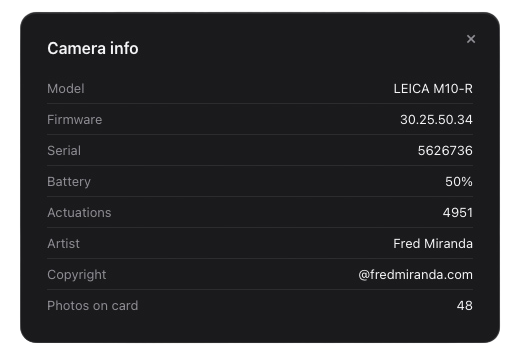
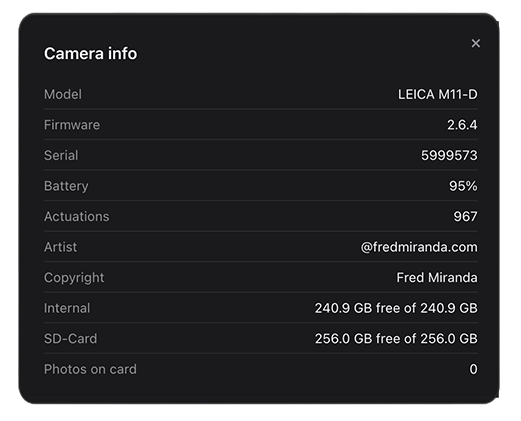
Click Camera info to see model, firmware, battery, storage, and the true number of shots the camera has taken.
Features
From first glance to a clean handoff
Built for speed on the contact sheet and safety on the card.
Review without importing
- See what’s on the camera or card in a grid of sharp thumbnails, with large previews for RAW and JPEG
- Badges show RAW, JPEG and RAW+JPEG pairs, Burst files, Content Credentials, edited metadata, and whether a photo is already on disk
- Full EXIF for every shot, plus a one-click Map link when it has a GPS location
- Select with click, drag or shift-click, then filter by one or several camera models or lenses (tick as many as you like), file type, download status or minimum star rating
- Rate 1 to 5 stars from the lightbox or with the 0 to 5 keys, just like Lightroom. Ratings sync with Lightroom in both directions
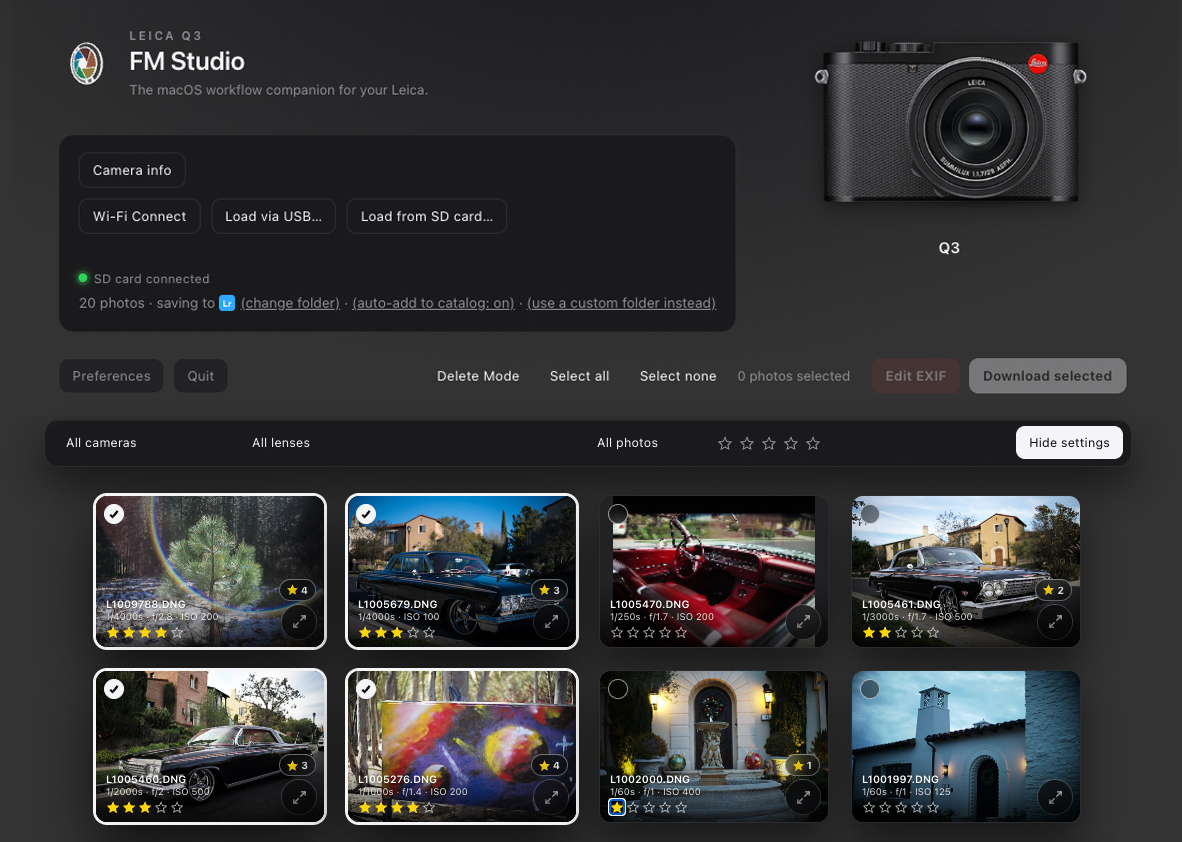
Rate your photos in FM Studio and the ratings carry over to Lightroom.
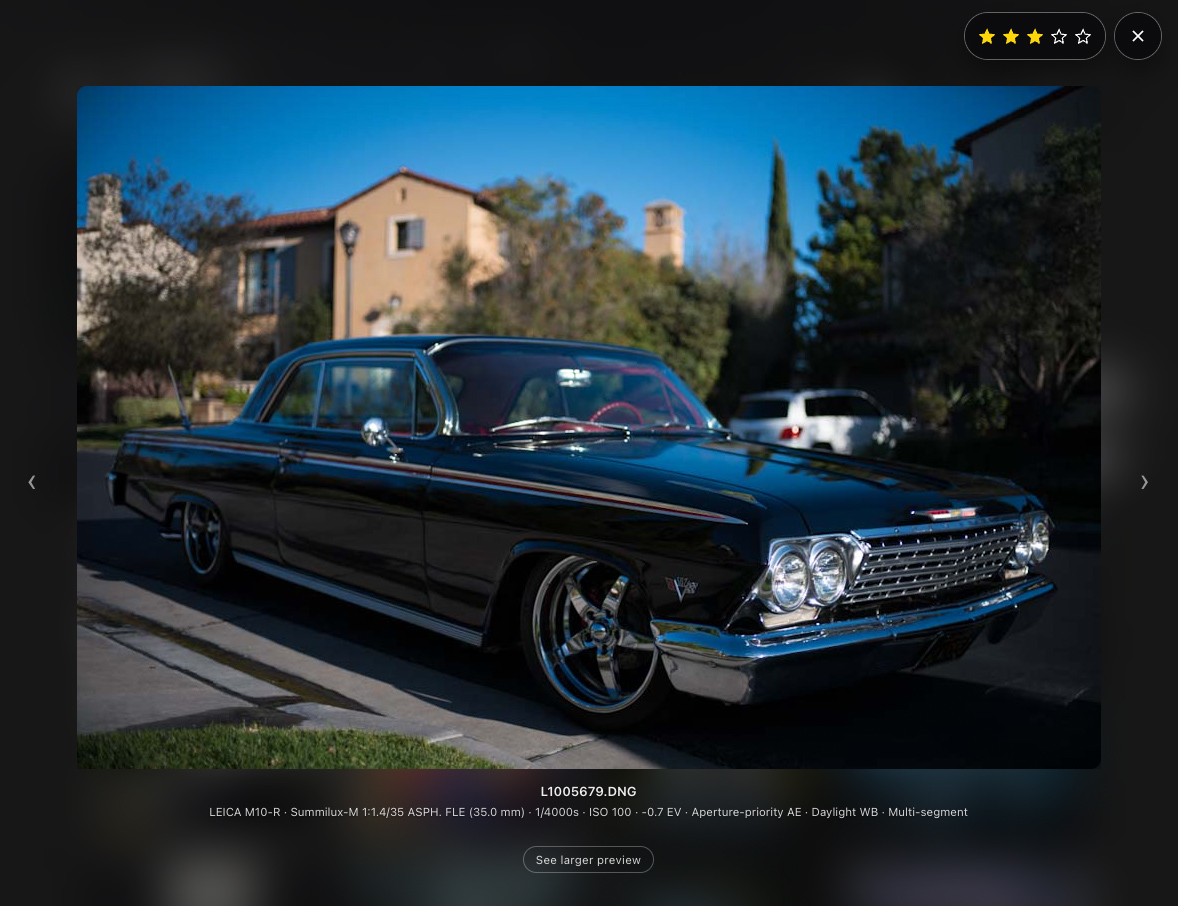
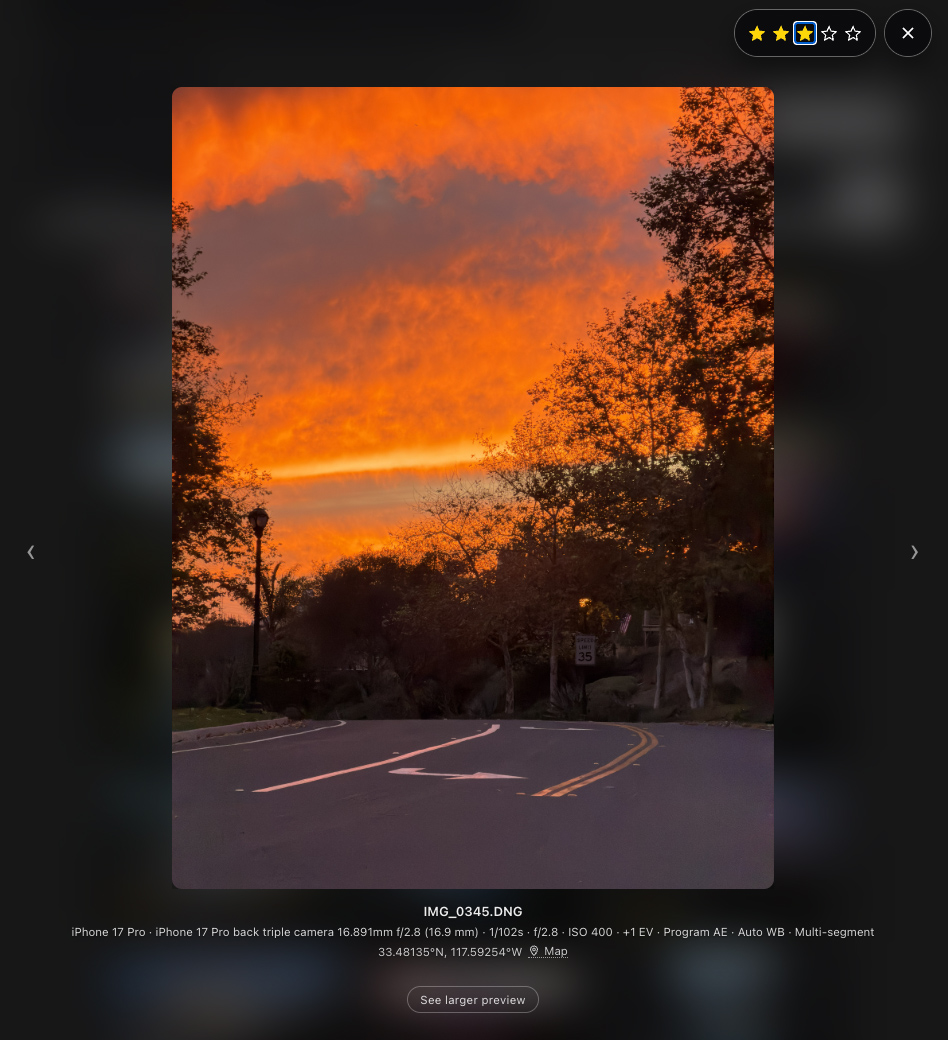
Inspect full previews and metadata before anything is copied.
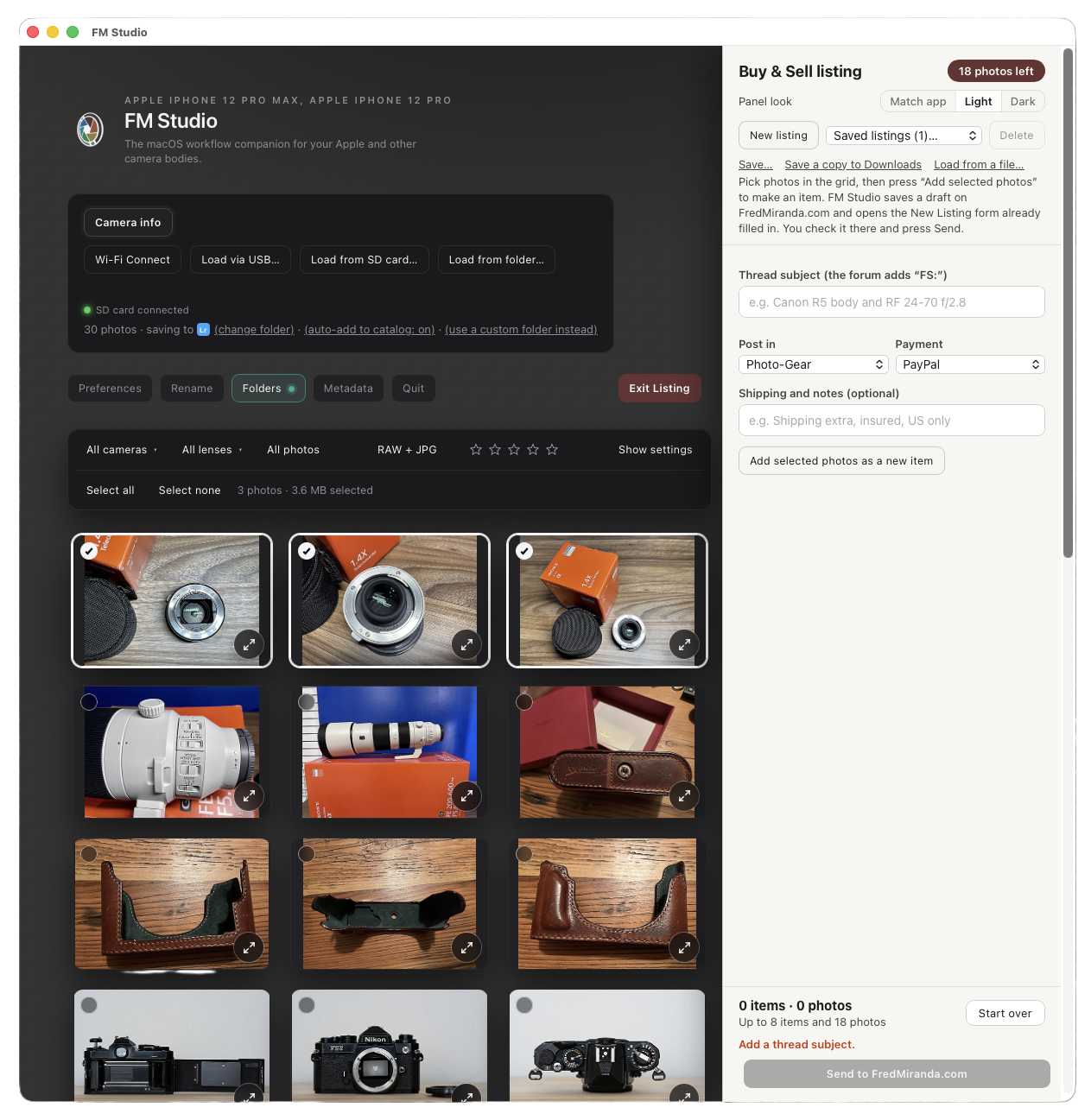
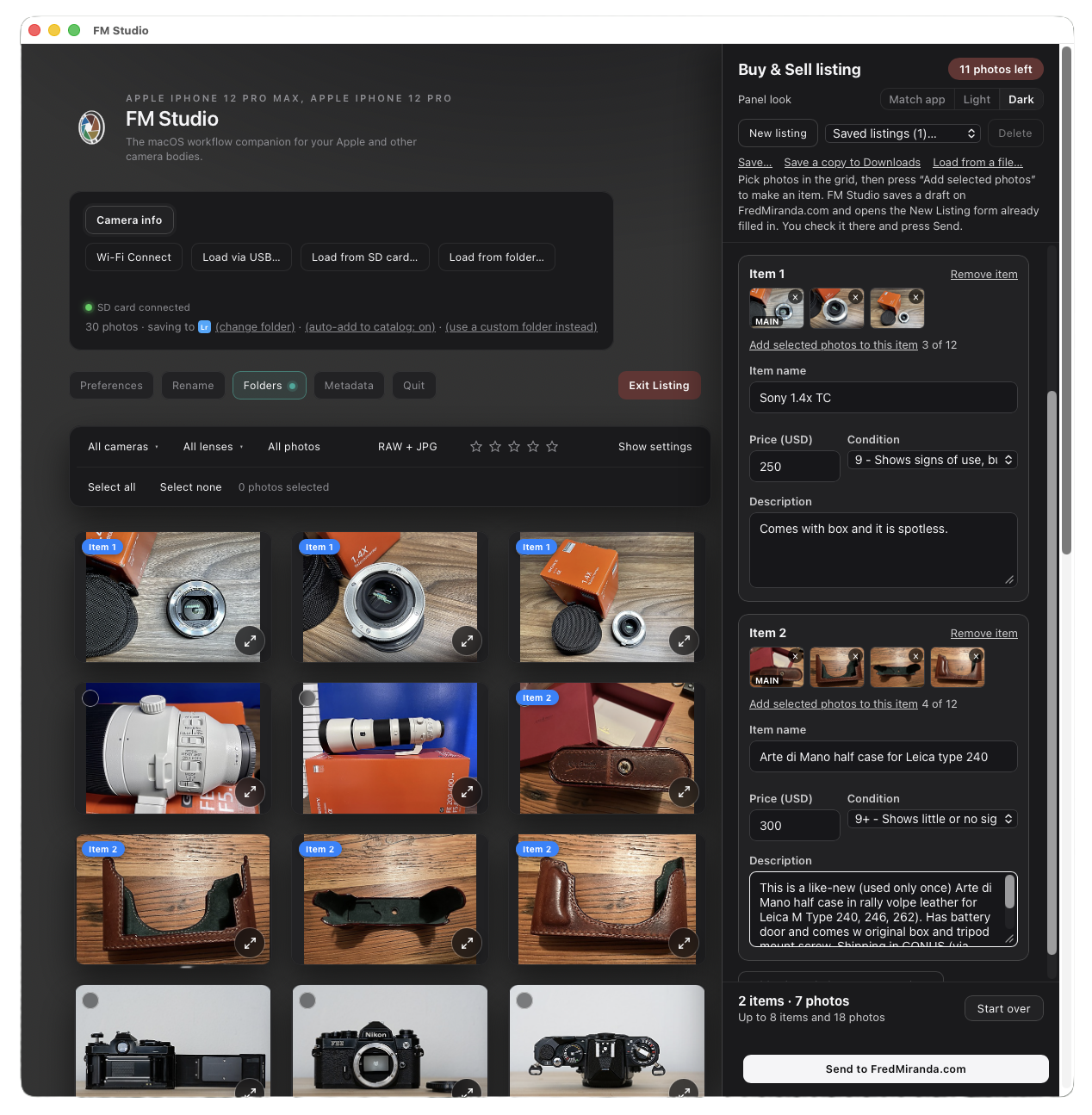
Forum Listing: sell your gear from FM Studio New in 1.5.0
Ever thought about selling a camera or lens, then put it off because writing the listing is so tedious? Take a few quick photos of your gear, with your camera, an iPhone or iPad, or from files already on your computer, and FM Studio does the busy work. Add a name, price and description for each item and click send. The Buy & Sell form on FredMiranda.com opens already filled in, with your photos attached. You take a quick look, press Send, and you’re done.
- Each item sits next to its own photos in the thread, in its own card with price, payment, condition and description, instead of every image being dumped together at the bottom of the post
- Nothing is posted until you look it over on the forum and press Send there, so every Buy & Sell rule still applies, exactly as if you had typed the listing yourself
- Up to 8 items and 18 photos in one listing, with at most 12 on any one item. Choose the board (Photo-Gear or Tech-Tools), the payment method and a shipping note
- Photos can come from a camera, a card or a folder, downloaded or not. Each one is sent at 1600 pixels on its longest side without EXIF or GPS location, and your original files are never changed
- Save a listing to finish it later or reuse it, or copy it to another Mac. After you send, the panel clears for your next one and keeps a copy
- For Upload & Sell members. A “Listing produced by FM Studio” line closes the thread
Fix lens and EXIF data before importCorrect the lens make and name, focal length, aperture, ISO and camera model before anything is copied.
- Edit the lens make and name, focal length, aperture, ISO, exposure time and camera model on one photo or a whole selection, before the files land in a folder or Lightroom, so your catalog starts clean
- Especially useful with manual lenses and uncoded M-mount glass that don’t report a lens name. Save your lenses and reuse them
- Leave a field blank and that value stays untouched. Available for every supported camera brand, not just Leica
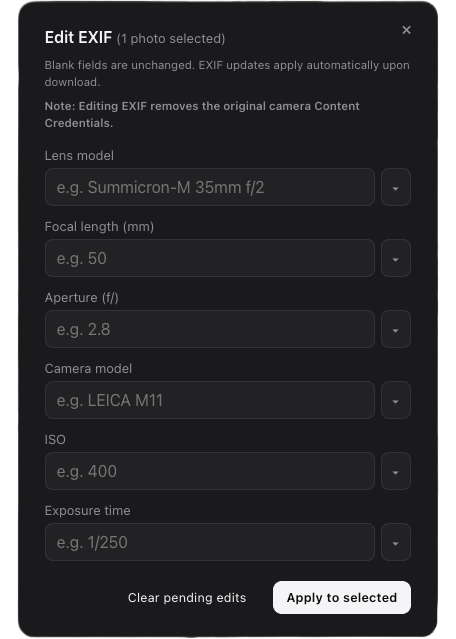
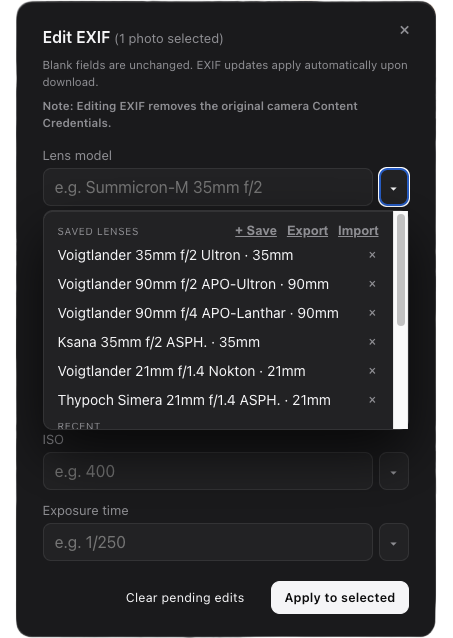
Fix naming and lens data at the source, not after a thousand files are already in the catalog.
Transfer on your termsDownload with progress, pause or stop, skip what is already on disk, and delete or format only after a confirmed copy.
- Download your selection with progress, and pause or stop whenever you need to
- Skip files that are already on disk
- Rename, sort into folders and add your copyright as photos download (all below)
- Delete from the camera after a confirmed download, when the camera supports it
- Format the card or internal memory only after every file is confirmed on your Mac
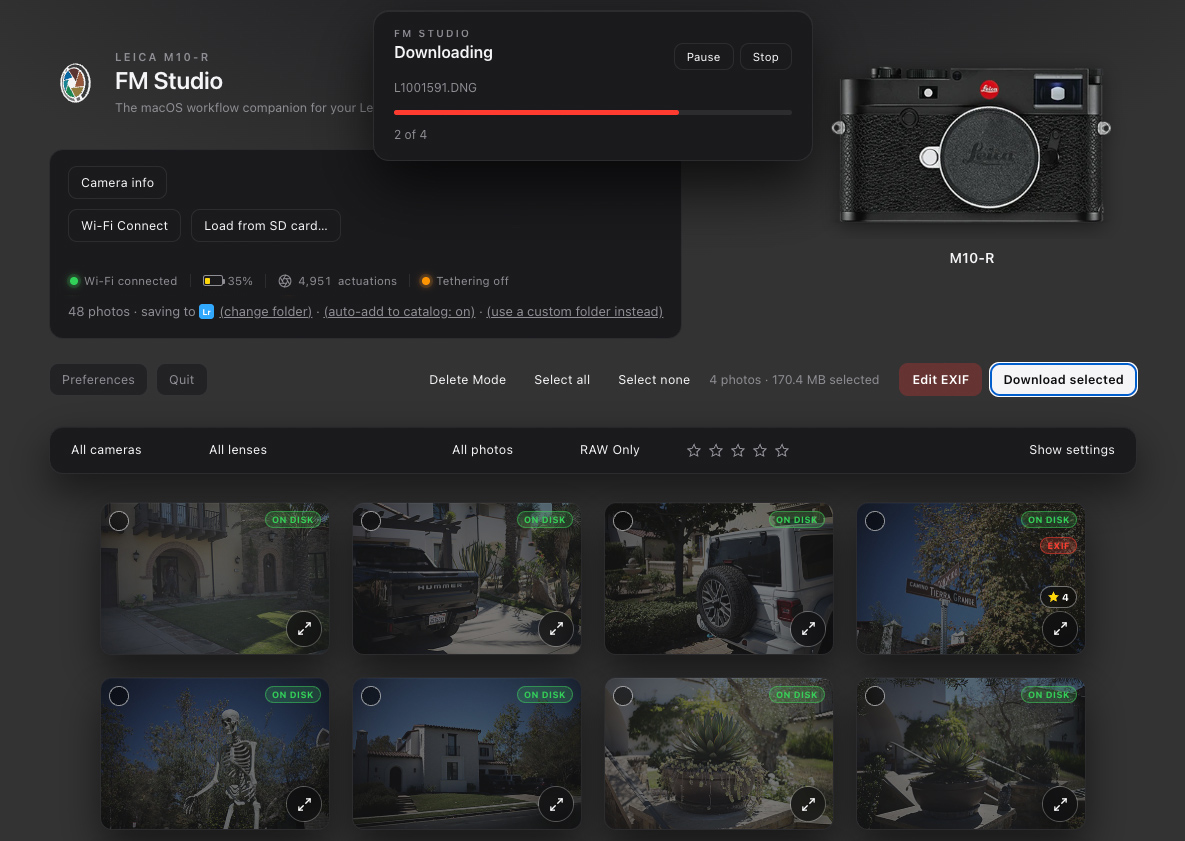
Download images and see what’s already “on disk”, all from one screen.
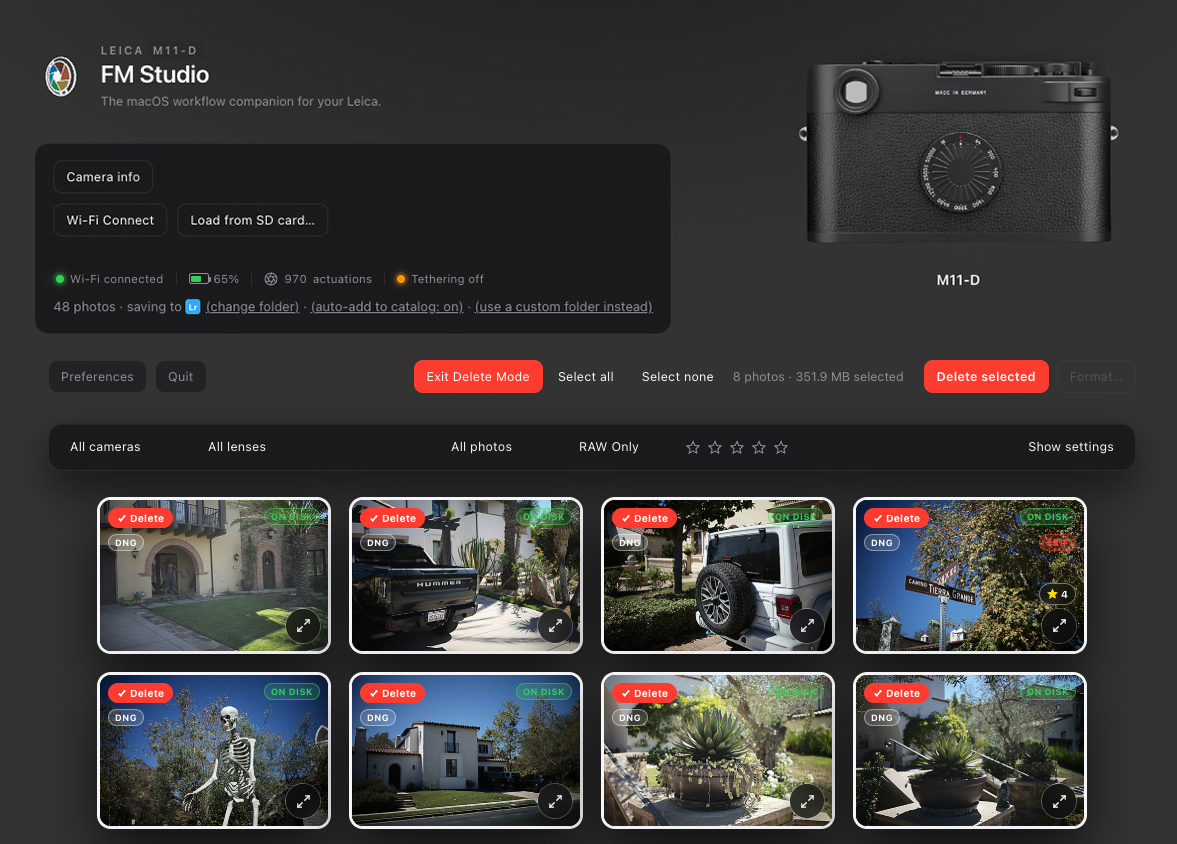
Delete selected camera images. Once transferred, you may also format your SD cards or internal memory.
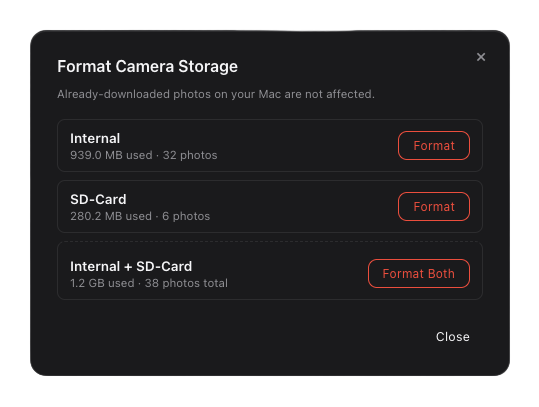
Choose SD card or internal memory when you format.
Rename on import New in 1.1Name photos from the date, camera and your own text as they download.
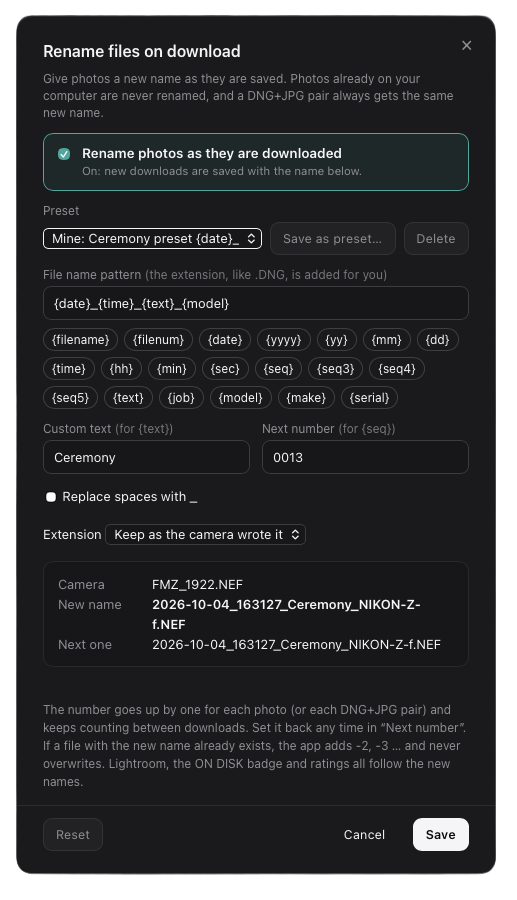
- Name photos as they download, such as 2026-10-18_Wedding_0001.DNG instead of L1000123.DNG
- Build the name from the capture date and time, camera model, serial number (all of it, or just the last few digits with {serial3}), original file name or number, your own text, a job name and a counter. Click the items to add them and watch a live preview
- Start from a ready-made preset or save your own, for example one for weddings and one for travel
- A DNG and JPEG shot together always keep matching names, and nothing is ever overwritten. If two cameras use the same numbers, such as a Leica M-D and a Q3, the new photo gets a short camera tag like L1000028_Q3.DNG
- Off until you turn it on. Works with the Lightroom import, and the On Disk badges, ratings and Delete still recognize your renamed files
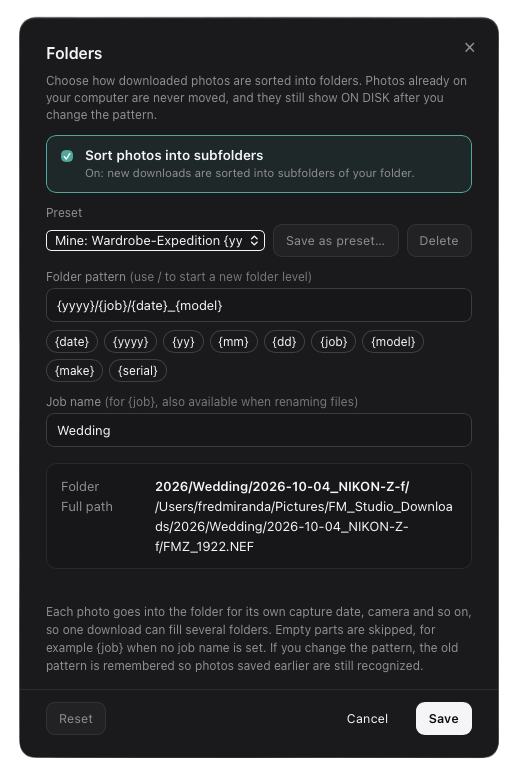
Folders New in 1.3Sort downloads into folders built from the date, camera and a job name.
- Sort downloads into folders such as 2026/Wedding/2026-10-04_NIKON-Z-f, built from the capture date, camera model and make, serial number and a job name. A / starts a new folder level
- Each photo goes to the folder for its own date and camera, so one download can fill several folders
- Start from a preset or save your own, and see the exact folder path in a live preview before you save
- Works with Lightroom folders or a plain folder you choose, and the Lightroom Importer plug-in still finds your photos
- Off until you turn it on. Change the pattern any time: photos you already downloaded keep showing ON DISK, and nothing is moved, renamed or deleted
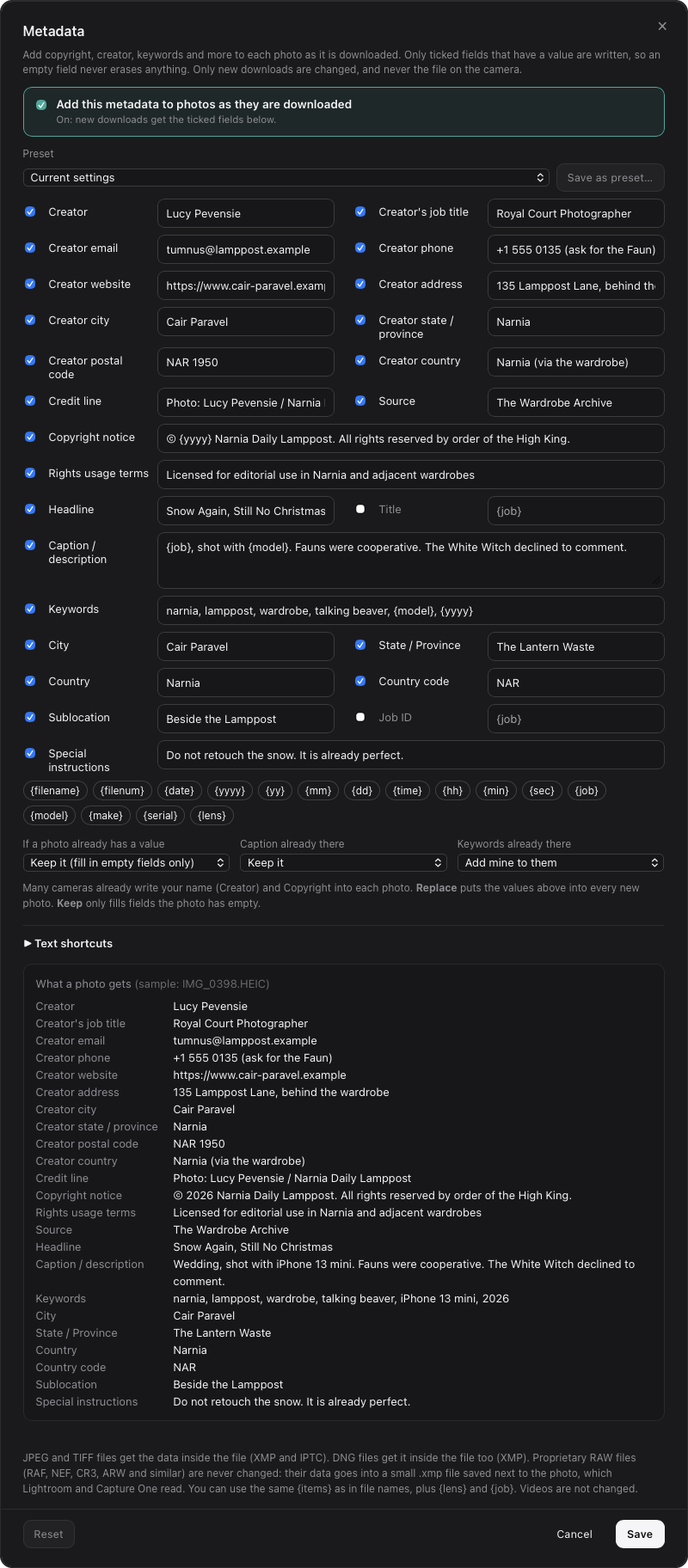
IPTC metadata on download New in 1.3Put your name, copyright and contact details into every photo as it downloads.
- Fill in the IPTC fields photographers and agencies use, as each photo downloads, instead of in Lightroom afterward
- 25 fields to choose from: Creator, Creator’s job title, Creator email, phone, website, address, city, state/province, postal code and country (new in 1.3.4), Credit line, Copyright notice, Rights usage terms, Source, Headline, Title, Caption, Keywords, City, State/Province, Country, Country code, Sublocation, Job ID and Special instructions. Tick only the ones you want, and an empty field never erases anything
- Two copyright fields too, new in 1.5.0: Copyright status (Copyrighted or Public Domain) and a Copyright info URL, the same ones Lightroom Classic shows in its Copyright block
- Use the year, camera model, lens or job name inside any field, for example © {yyyy} Your Name, and short text shortcuts like =ts= that expand to your full text
- If the camera already wrote a name or copyright, choose to keep it or replace it. Replacing a copyright asks you to confirm first
- JPEG, TIFF and DNG files get the data written inside the file, in the standard XMP and IPTC fields where the format supports them, plus the EXIF Artist and Copyright tags. RAW files from other makers (RAF, NEF, CR3, ARW and more) are never changed. Their data goes into a small .xmp file next to the photo, which Lightroom reads
- Save presets, for example one per client, with a live preview of what each photo will get. Off until you turn it on, only photos you download afterward are changed, and the files on your camera or card are never touched
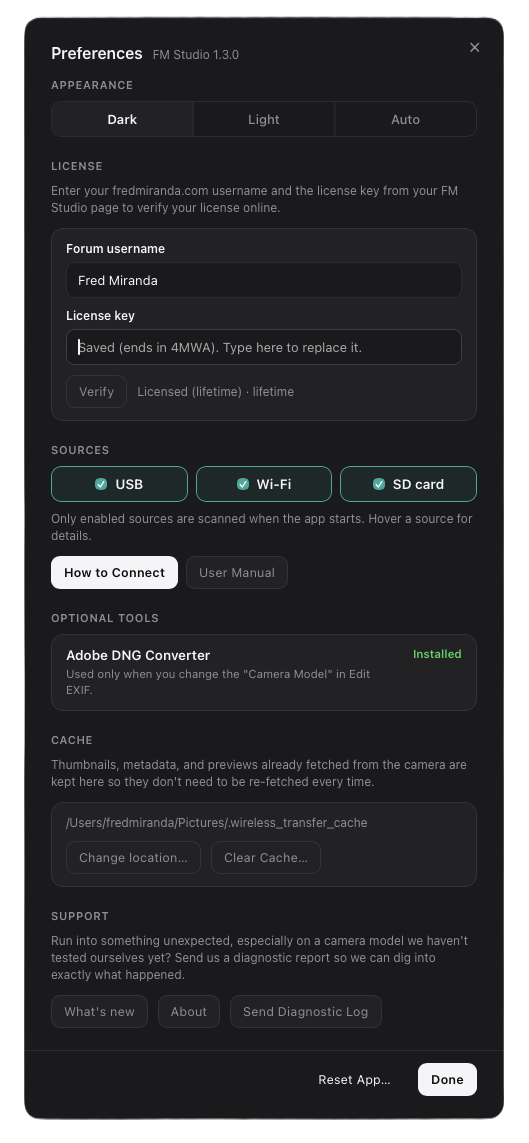
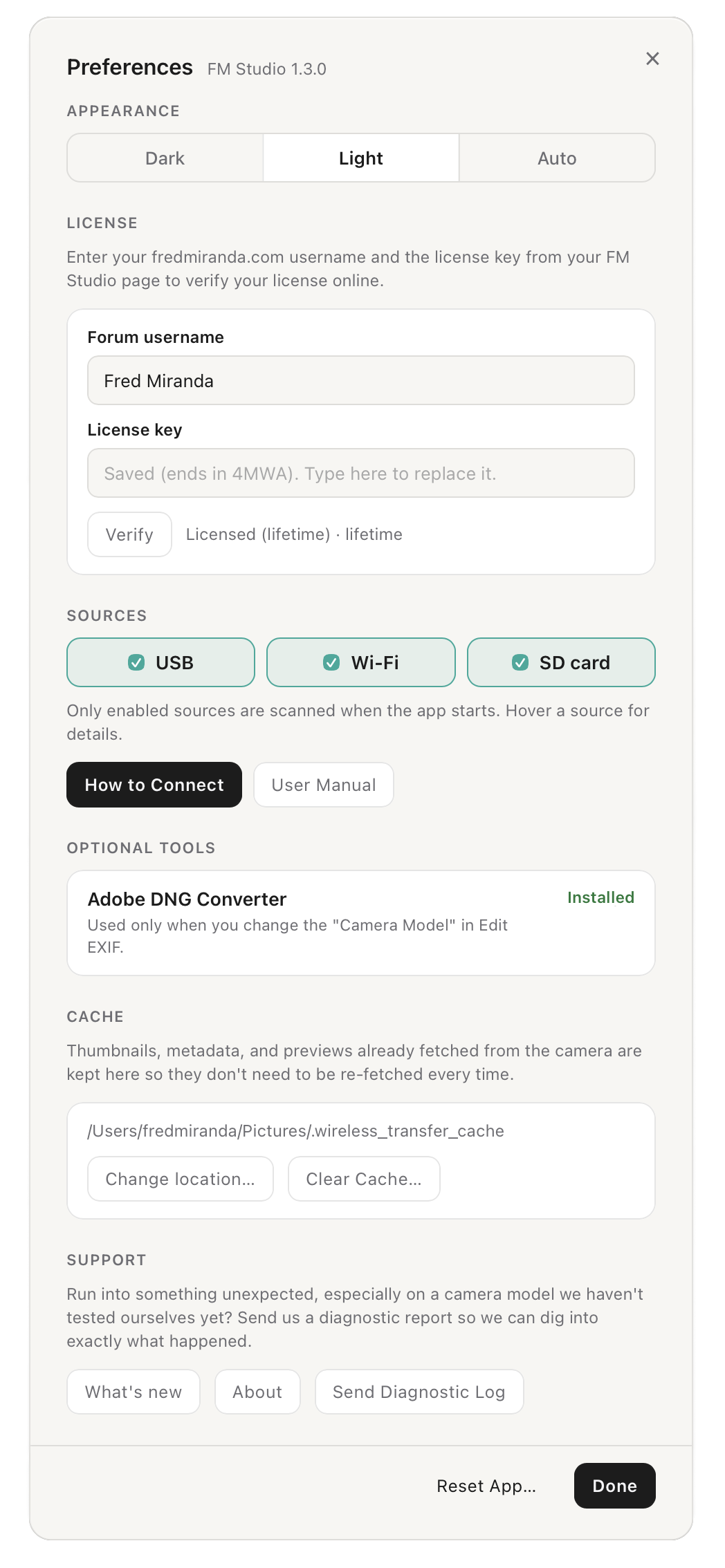
Dark, Light, or Auto appearanceChoose Dark or Light, or set it to Auto and FM Studio follows your Mac’s display setting.
Lightroom
Works with Lightroom. Doesn’t replace it.
FM Studio is the review and transfer step. Develop and catalog stay in the tools you already use. Every download lands in a plain folder on your Mac, so it also works with Capture One, Photo Mechanic, darktable, or whatever you use next.
Star ratings sync both ways, automatically
- Rate 1 to 5 stars in FM Studio and it’s written straight into the file’s metadata. Already imported into Lightroom? The new rating shows up there too, no re-import needed
- Change a rating in Lightroom and FM Studio picks it up
- This works for every photo, with or without the plug-in below
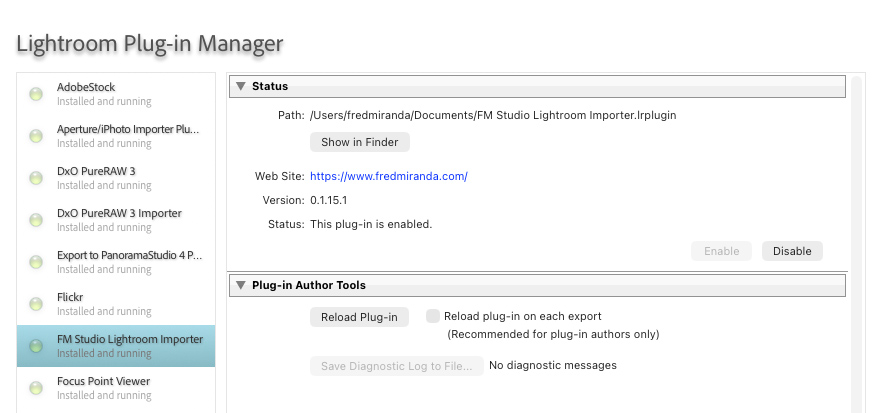
Optional Lightroom Classic plug-in
- Included with every license, at no extra cost
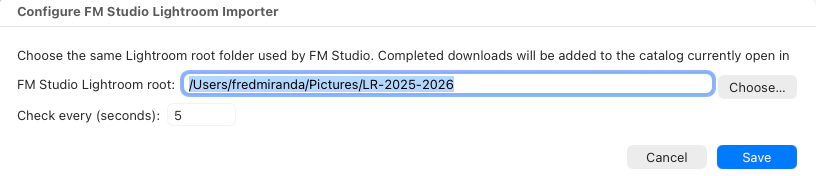
- Watches your download folder and imports new files into Lightroom Classic automatically
- Install it only if you want automatic catalog import. You can always sync your current folder without it
Connect
Wi‑Fi for Leica M10 and M11 and Canon EOS cameras. USB and SD for almost every other camera.
FM Studio often detects the source automatically when the Mac sees a volume or a USB camera. Set the camera’s USB mode to Mass Storage first, and use Load via USB, from SD card, from folder or Wi‑Fi to switch sources from within the app.
Leica M · Wi‑Fi
M11 series: Bluetooth pairing once on this Mac, then the camera’s Wi‑Fi network can join automatically.
M10 series: Menu → Leica FOTOS for the password, then join from the Mac Wi‑Fi menu.
M11 bodies also work over USB PTP if you prefer.
Canon EOS · Wi‑Fi New in 1.3.4
Fully tested with the EOS R6 Mark II, and compatible with modern Canon EOS cameras that have Wi‑Fi. Photos, thumbnails, EXIF, Camera info, battery and the shutter count load over the camera’s own Wi‑Fi network.
First time: join the camera’s Wi‑Fi on your Mac and open FM Studio. On the camera choose Connect to EOS Utility, then Add a device to connect to, and press OK when it shows “PC FM Studio found. Connect to the PC.”
After that: pick FM Studio in the camera’s Connect to EOS Utility list. Each pairing is named with its date and time, so the newest entry is the current one.
USB · PTP (live camera link)
Verified for the Leica M11 series only. Enables the live camera link: tethering, camera info and battery level.
Nikon Z, Canon EOS and others also show camera info and battery level over PTP.
Canon EOS: turn the camera’s Wi‑Fi off (Network menu → Wi‑Fi settings → Disable), set Setup menu → USB connection app → Photo Import / Remote Control, and plug the USB‑C cable straight into the Mac.
Nikon Z: set the USB connection type to MTP/PTP and turn Airplane mode on, so Wi‑Fi or SnapBridge doesn’t block USB.
USB · Mass Storage
Mass Storage Mode (menu may show as Upload, PC Connect, or Storage): works with most USB-equipped cameras, including Leica, Nikon, Sony, Canon, Fujifilm, Panasonic, OM System, and Hasselblad.
Disk in Finder → FM Studio treats it like an SD volume. Best for fast bulk download.
Files only: no live battery, tether, or camera info.
Show 4 more ways to connectShow fewer
SD card / card reader
Insert the card in a reader. FM Studio can detect the volume and show the grid, using the same review, filter, and download tools. Files only; no live camera status.
Folder on your computer New in 1.4.0
Click Load from folder to read photos that are already on your Mac, in any folder or on an external drive, with or without subfolders. Plugged-in drives are listed, and your last few folders are remembered. Photos show newest first, and downloading works like it does from a card, with renaming, folders, metadata and Lightroom. Delete Mode and Format are never available for a folder.
FlashAir
Optional wireless path using a FlashAir “Wi‑Fi” card in the camera or a reader, useful when you want Wi‑Fi without the camera’s own network.
iPhone & iPad
Plug in with a data cable, unlock it, and tap Trust This Computer if asked. FM Studio connects the same way Apple’s own Image Capture does. Full support for Apple ProRAW DNG and HEIC photos, from the thumbnail up through the largest preview. No tethering, live camera info or Format. Those stay a Leica-camera feature.
Live camera linkLeica M10 and M11 series: tethering, camera information, battery and counts.
- Tethering: new shots can appear in the grid while you work. Verified on Leica M10/M11 over Wi‑Fi and the Leica M11 series over USB PTP
- Camera information: model, serial, firmware and related body details when the camera reports them
- Battery and counts: battery level, pictures on the card, and true shutter actuations (see Shutter count above). Some other bodies report their own count too, for example the Nikon Zf
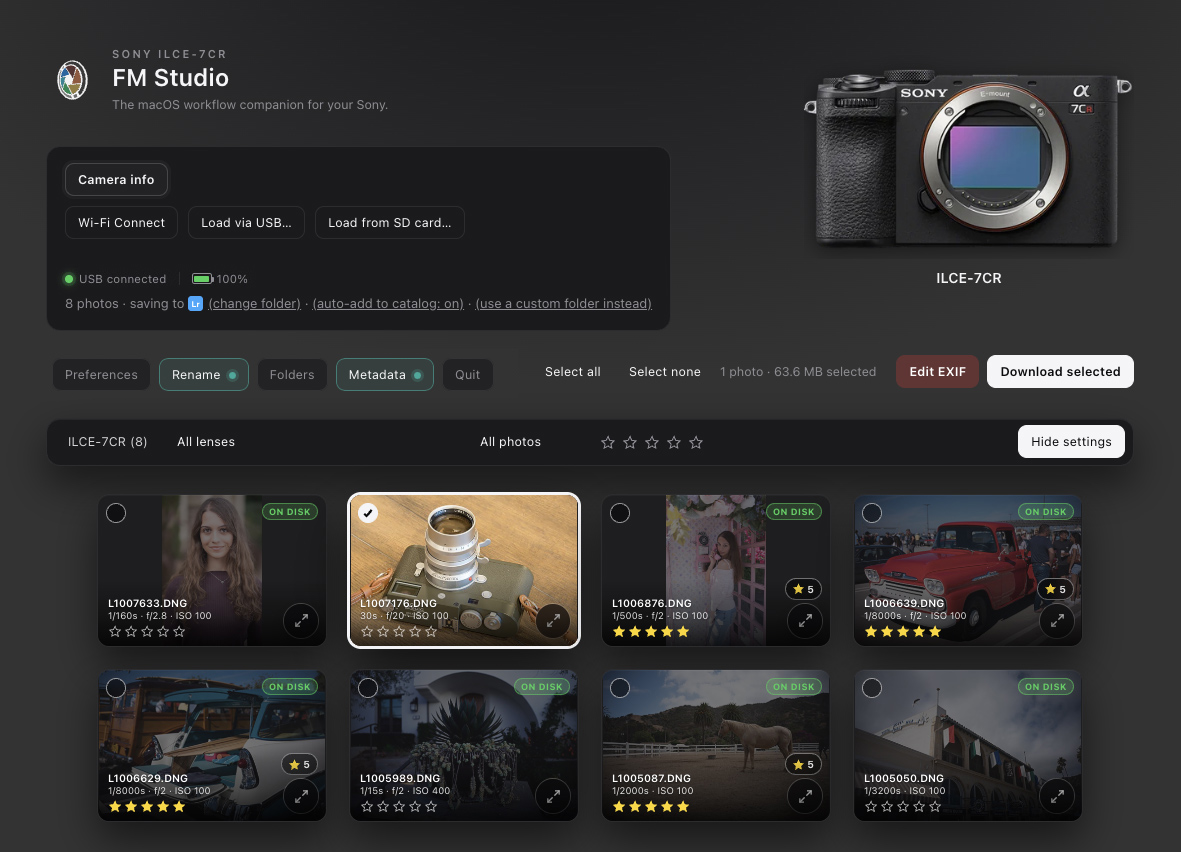
A Sony A7CR connected to FM Studio.
Compatibility
Cameras and connection options
Browse and download work with any camera the Mac sees as a disk (Mass Storage or SD) or as a USB stills camera (PTP/MTP). Live status and tethering need Wi‑Fi or USB PTP on bodies that support the live link.
Swipe sideways on small screens →
| Camera | Wi‑Fi | USB | SD / card reader | Tethering |
|---|---|---|---|---|
| Leica M11 series | Yes, Bluetooth + Wi‑Fi | Yes, PTP | Yes | Yes, USB PTP or Wi‑Fi |
| Leica M10 series | Yes, manual | No | Yes | Yes, Wi‑Fi |
| Canon EOS bodies (fully tested on the R6 Mark II) | Yes, through EOS Utility, pair once on the camera | Yes, PTP | Yes | No |
| Sony (tested on the A7CR) | No. PC Remote is tethering only | Yes, Mass Storage or MTP | Yes | No |
| Leica SL series / Q3, Nikon, Canon models without Wi‑Fi, Fujifilm, Panasonic, OM System, Hasselblad, and others | No | Mass Storage and/or PTP/MTP | Yes | No |
| iPhone / iPad | No | Yes, same link Image Capture uses | Yes, if copied to a card | No |
Camera info, battery and tethering need Wi‑Fi or USB PTP. Mass Storage and SD are for browsing and downloading. The USB PTP live link is verified for the Leica M11 series only. Other brands transfer files over USB without full live status.
RAW names you’ll seeNEF, ARW, CR3, RAF, DNG and the rest, and what counts as RAW.
NEF (Nikon), ARW (Sony), CR2/CR3/CRW (Canon), RAF (Fujifilm), DNG (Leica, iPhone/iPad ProRAW and others), RW2 (Panasonic), ORF (OM System), 3FR/FFF (Hasselblad). Apple’s HEIC and Fujifilm’s HIF are finished photos rather than RAW, so they sit on the JPEG side of the filter, but they still get full thumbnails and large previews. FM Studio lists and downloads the files your connection exposes. It is not a RAW developer.
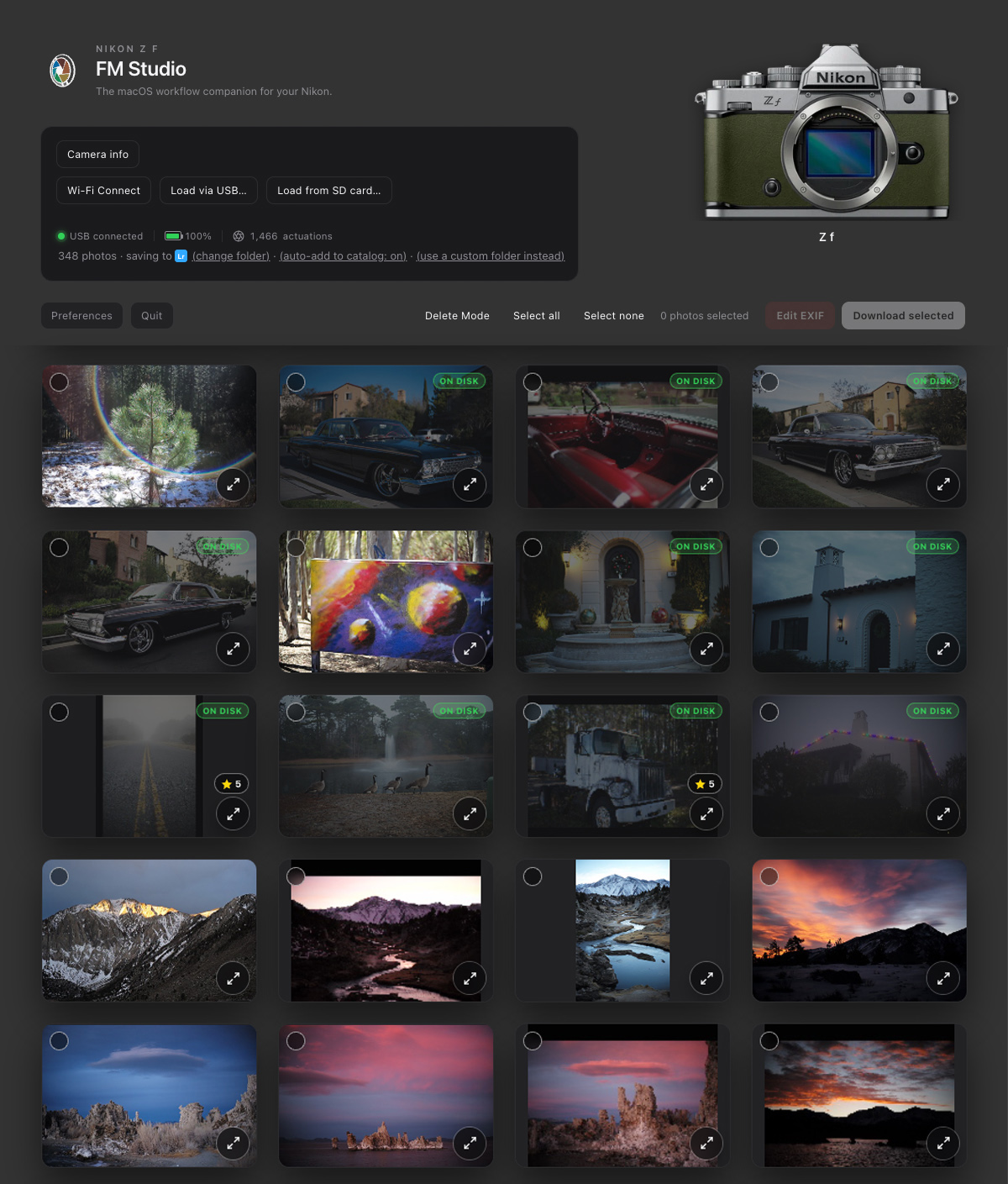
A Nikon Zf and its thumbnail grid.
Get FM Studio
Choose a plan
Pay once and it’s yours, or try FM Studio for a month. Your license is tied to your fredmiranda.com account and checked online.
Launch price: the lifetime license is $99.95 until December 31, 2026, then $119.95.
FM Studio for macOS
Includes the Mac app and the Lightroom plug-in. Installing the plug-in is optional. Built for Apple silicon and Intel Macs running macOS 11 (Big Sur) or later.
Current FM Studio version: 1.5.0
After you buy
- Come back to this page to generate your personal license key and download the Mac app
- Enter the key and your fredmiranda.com username in the app’s Preferences so license checks can run
FAQ
Questions, answered
The things people usually ask before buying.
Is FM Studio only for Leica?
No. FM Studio grew out of Leica M development, but it works with Nikon, Sony, Canon, Fujifilm, Panasonic, OM System, Hasselblad, Leica SL, Q and D‑Lux bodies, and with iPhone and iPad. Set the camera’s USB mode to Mass Storage (menus call it Upload, PC Connect, Storage and so on) or use a card reader. Every brand gets the review, filter, rename, folders and metadata tools, including lens and EXIF editing for manual and uncoded lenses. Leica M10 and M11 and Canon EOS cameras add Wi‑Fi, the M11 series adds a live USB PTP link, and the M8, M9, M10 and M11 show their shutter count.
What is Forum Listing, and do I need Upload & Sell?
Forum Listing, new in version 1.5.0, turns photos in your FM Studio grid into a Buy & Sell listing on FredMiranda.com. Click Forum Listing, select photos, add them as items with a name, price, condition and description, and press Send to FredMiranda.com. FM Studio opens the forum’s New Listing form already filled in, with your photos attached. You check it there and press Send, so nothing is posted without your OK. In the thread, each item appears in its own card next to its own photos, instead of every image being dumped at the bottom. It is for Upload & Sell members. Without Upload & Sell, the button explains this and can be hidden.
Does FM Studio replace Lightroom? Is the plug-in extra?
No to both. FM Studio sits between your camera and whatever you edit in next, handling review, culling, metadata and transfer to a folder you choose. The folder-watcher plug-in for Lightroom Classic is included with every purchase and is optional. The download works the same way for Capture One, Photo Mechanic or any other software.
Do I have to subscribe?
No. Lifetime is a one-time payment. You can also try it for 1 month. Every payment is a single payment, by PayPal or card, and nothing renews by itself. A 1-month license can be renewed here before it ends, and lifetime never expires. If you try the month and decide to keep FM Studio, your 1-month payment is credited toward the lifetime license.
What happens right after I buy? What if I lose my license key?
Log in to this page, generate your personal license key, and download the Mac app. In the app, open Preferences, enter your fredmiranda.com username and the key, and verify the license. The key is shown only once, so save it somewhere safe and keep it private, like a password. If you lose it, or think someone else has seen it, generate a new key on this page. The old key stops working right away, so enter the new one in Preferences on each of your Macs.
Can FM Studio rename my files and sort them into folders?
Yes. Rename (since 1.1) builds file names from the date, camera, your own text and a counter, such as 2026-10-18_Wedding_0001.DNG. Folders (since 1.3) sorts downloads by date, camera and job name, such as 2026/Wedding/2026-10-04_NIKON-Z-f. Both show a live preview, work with Lightroom folders or a plain folder, and are off until you turn them on. A DNG and JPEG shot together always keep matching names, and a different photo with the same name is never overwritten, even when two cameras number their files the same way. Photos you downloaded earlier keep showing ON DISK if you change a pattern later, and nothing is moved or deleted.
Patterns can use {yyyy}, {mm}, {dd}, {date}, {model}, {make}, {serial} and {job}. File names also have {filename}, {filenum}, {text} and counters like {seq4}. You type the job name once, in the Folders window, and {job} works everywhere.
Show 11 more questionsShow fewer questions
Can FM Studio edit EXIF and IPTC fields, or put my copyright on every photo?
Yes. Edit EXIF changes the lens make and name, focal length, aperture, ISO, exposure time and camera model on the photos you select, before they download. Since version 1.3, Metadata writes up to 25 IPTC fields into every photo as it downloads: Creator, Creator’s job title, your contact details (email, phone, website, address, city, state/province, postal code and country, added in 1.3.4), Credit line, Copyright notice, Rights usage terms, Source, Headline, Title, Caption, Keywords, City, State/Province, Country, Country code, Sublocation, Job ID and Special instructions. Click Metadata, tick the fields you want, type the values and turn it on. Items like the year fill in by themselves, and text shortcuts such as =ts= expand to a longer sentence you saved. If your camera already wrote a copyright, you choose whether to keep or replace it, and replacing asks you to confirm first. Only the copies saved on your Mac are changed, and only photos you download afterward. Your camera and card are never touched, and a metadata problem never stops a download.
Why is there a small .xmp file next to my RAF, NEF or CR3 files? FM Studio never changes a RAW file from another maker. Your data goes into a sidecar .xmp file with the same name, which Lightroom reads. DNG and JPEG files get the data inside the file.
Does FM Studio work with Canon cameras over Wi‑Fi?
Yes, since version 1.3.4. It is fully tested with the Canon EOS R6 Mark II and compatible with modern Canon EOS cameras that have Wi‑Fi. Join the camera’s Wi‑Fi network on your Mac and open FM Studio. The first time, go to Connect to EOS Utility → Add a device to connect to on the camera and press OK when it shows “PC FM Studio found. Connect to the PC.” After that, you only pick FM Studio in the camera’s list. FM Studio then shows your photos with thumbnails and EXIF, plus Camera info, battery level and the shutter count, and downloads them like any other camera. Other modern EOS cameras use the same EOS Utility Wi‑Fi connection. I have fully tested the R6 Mark II only, so if yours doesn’t connect, let me know in the forum thread. Every Canon also works over USB.
Can I import photos that are already on my Mac or an external drive?
Yes, since version 1.4.0. Click Load from folder, then pick a drive from the list or choose any folder. FM Studio reads the photos where they are, newest first, and you review, filter, rate and download them the same way as from a card. Renaming, folders, metadata and Lightroom all apply. Tick or untick Include subfolders to choose how deep it looks. Delete Mode and Format are never available for a folder, so nothing is removed from it. A single load is limited to 30,000 photos, so pick a smaller folder for a very large library.
How many photos can a listing have, and what happens to my files?
Up to 8 items and 18 photos per listing, shared by all the items, with at most 12 on any one item. Each photo is sent at 1600 pixels on its longest side, usually about 1 MB or less, without EXIF or GPS location. Your original files are never changed or moved.
Can I choose more than one camera or lens in the filters?
Yes, since version 1.5.0. The Camera and Lens filters are tick lists, so you can show photos from two bodies or three lenses at once. All cameras or All lenses at the top clears the choice.
Does FM Studio work with Sony cameras?
Yes, over USB or from a card. Sony cameras such as the A7CR work in both the USB Mass Storage and the MTP setting of the camera’s USB connection menu. Sony’s Wi‑Fi does not work with FM Studio: PC Remote is for tethering only and sends no photo list, and Smartphone Connection needs Sony’s own Creators’ App to pair.
Can I hide the Delete and Format buttons?
Yes, since version 1.3.4. In Preferences, under Sources, tick Hide Delete Mode and Format. The Delete Mode, Delete selected and Format buttons then disappear from the main screen, so nothing can be erased from a camera or card by mistake. Untick it to bring them back. It is off by default, and nothing is deleted or formatted either way unless you do it yourself.
Can FM Studio show the shutter count of my Leica M8 or M9?
Yes, since version 1.3. The M8, M8.2 and M9 can’t report a count over a connection, but they write it into every photo, and FM Studio reads it from the photo files. It works with a card reader or a FlashAir card, and shows the count in the header and in Camera info. The M10 and M11 series show their own count over a connection. Bodies that don’t store a count in their photos, such as the Leica M240, M262 and M-D, have nothing for FM Studio to read.
Does FM Studio work with my iPhone or iPad?
Yes. Plug it in over USB, unlock it, and tap Trust This Computer if asked. FM Studio connects the same way Apple’s own Image Capture does, then gives you the same review, filter and download workflow as any camera. Apple ProRAW DNG and HEIC photos are fully supported, including thumbnails and large previews. Live camera info, tethering and Format stay Leica-camera features.
Do I need Mass Storage or PTP? Does tethering work on every camera?
Mass Storage or a card reader is usually best for fast bulk downloads. USB PTP is for the live camera link (tethering and status), and FM Studio often detects whichever the Mac presents. Tethering and live battery and body info need Wi‑Fi (Leica M10 and M11 series) or USB PTP, and are verified on Leica M10/M11 over Wi‑Fi and the Leica M11 series over USB PTP. Mass Storage and MTP-only connections are for file transfer.
How does payment and licensing work?
Checkout runs through Stripe or PayPal, the same processors used elsewhere on fredmiranda.com. Payments are final. Your license is tied to your fredmiranda.com username and your personal key, and the app checks it online. An internet connection is only needed for that check, so shoots without Wi‑Fi are not a problem, and lifetime licenses work offline for much longer between checks. One-time payments do not renew by themselves.
Updates
What’s new
Release notes, newest first. We’ll keep adding to this list as FM Studio grows.
FM Studio 1.5.0 is out!
November 2026
New: sell your gear from FM Studio. A new Forum Listing button turns photos in your grid into a Buy & Sell listing on FredMiranda.com. Plus several smaller improvements.
- Forum Listing. Pick photos, add them as items with a name, price, condition and description, and send. FM Studio prepares a draft on the forum and opens the New Listing form already filled in, with your photos attached. Nothing is posted until you check it there and press Send. In the thread, each item sits next to its own photos instead of every image at the bottom. Up to 8 items and 18 photos per listing, sent without EXIF or GPS. Save listings to finish later or reuse them. For Upload & Sell members.
- Several cameras or lenses at once. The Camera and Lens filters are now tick lists, and they fill in while your photos are still being read, so you can choose sooner.
- Copyright status and Copyright info URL. Two new Metadata fields, the same ones Lightroom Classic shows in its Copyright block.
- Shorter serial numbers in file names. New items such as {serial3} keep only the last few characters of the camera serial number, for example Leica-M11-D-234. They also work in folder patterns.
- Lens make in Edit EXIF. A new Lens make field sits above Lens model. Apps such as Glass use it to show who made the lens, so vintage and third-party lenses no longer show the camera maker instead.
- Clearer Pause and Resume. The button says Pausing… and Resuming… the moment you click, so you know the click arrived while the camera finishes its current step. If a Wi‑Fi camera goes to sleep during a download, a message tells you to wake it and reconnect, and the download carries on by itself.
- Safer Delete Mode. It shows every photo while you work and brings your own filters back afterward. A RAW and JPEG pair is labeled on each half, and the confirmation says exactly what is going, for example 18 photos (9.1 MB, 6 DNG, 12 JPG).
- A tidier window. Forum Listing, Delete Mode and Edit EXIF are one matching set of buttons, the filter row wraps instead of scrolling sideways, and Load from folder shows a folder picture in the header.
- Sony and Nikon. A Sony that connects over Wi‑Fi but sends no photo list now gets a clear message that suggests USB or the card. A Nikon connected by USB while switched off no longer keeps the app waiting for minutes.
Earlier releases: 1.4.0, 1.3.4, 1.3, 1.2, 1.1.2, 1.1.1, 1.1 and 1.0.1
FM Studio 1.4.0 is out!
November 10, 2026
New: load photos that are already on your computer. Everything else works as before.
- Load from folder. A new button reads photos from any folder on your Mac or an external drive, with or without subfolders, newest first. Plugged-in drives are listed for you, and your last few folders are remembered. Downloading works like it does from a card, so renaming, folders, metadata and Lightroom all apply. Delete Mode and Format are never available for a folder, so nothing can be removed from it.
- Smarter folder loading. A large folder is read in a single pass. Lightroom preview and Photos library bundles are skipped, and so is FM Studio’s own download folder when it sits inside the folder you chose, so your imports do not come back as new photos.
- Selection fixes. Shift-click ranges and filter changes no longer select photos you cannot see. If you select photos and then switch to a filter such as RAW Only, the hidden ones are dropped from the selection, so Download, Edit EXIF and Delete only act on what is on screen.
- Content Credentials are kept. Leica DNG files that carry Content Credentials (SL3‑P, M11‑D and M11‑P) keep them when FM Studio writes metadata or a rating. Lightroom Classic no longer shows an exclamation mark on those files or refuses to edit them.
FM Studio 1.3.4 is out!
October 31, 2026
New: Canon cameras over Wi‑Fi, your contact details in Metadata, and a way to hide Delete and Format. Everything else works as before.
- Canon EOS cameras over Wi‑Fi. Fully tested with the EOS R6 Mark II and compatible with modern Canon EOS cameras that have Wi‑Fi. FM Studio finds the camera on its own Wi‑Fi network and shows your photos with thumbnails and EXIF, Camera info, battery level and the shutter count, and downloads them like any other camera. You pair once on the camera (Connect to EOS Utility, then Add a device to connect to), and after that you just pick FM Studio in the camera’s list. Each pairing is named with its date and time, such as “FM Studio (Oct 31, 18:18)”, so entries never look alike.
- Creator contact details in Metadata. Add your email, phone, website, address, city, state/province, postal code and country as IPTC Creator contact info, next to your name and job title. That makes 25 fields in all, and only the ones you tick are written.
- Hide Delete Mode and Format. A new checkbox in Preferences, under Sources, removes the Delete Mode and Format buttons from the main screen, so nothing can be erased by mistake. It is off by default.
- Better Camera info. It shows the serial number, the lens, Artist and Copyright, and the memory cards when the camera reports them. Short camera names appear in full, such as Canon EOS R6 Mark II or Sony a7R V, and the Canon EOS R6 Mark II shows its shutter count.
- Clearer connection choices. When more than one camera or card is connected, each choice has a plain name, such as Nikon Z f (USB) or Sony a7R II (USB, Mass Storage). A camera on USB no longer hides another on Wi‑Fi, and two USB cameras, such as an iPhone and a Canon, are listed separately.
- A clear message when nothing is found. An empty card or camera now says so, instead of leaving you guessing.
- Fixes. iPhone and iPad connect more reliably on newer iOS, and the red EXIF badge now shows for a photo edited over USB when you see it over Wi‑Fi, and the reverse.
FM Studio 1.3 is out!
October 29, 2026
New: sort your photos into folders and add your details as they download. Everything below is off until you turn it on, so your downloads don’t change unless you want them to.
- Folders. Choose how downloaded photos are sorted, with folder names built from the date, camera, serial number and a job name, for example 2026/Wedding/2026-10-04_NIKON-Z-f. It works with Lightroom folders and with a plain folder, and photos you saved under an older pattern still show ON DISK.
- Metadata. Write up to 17 IPTC fields, such as your name, copyright, credit line, caption, keywords and location, into each photo as it downloads. Only the fields you tick are written. RAW files from other makers get a small .xmp file next to them instead of being changed, and Lightroom reads it.
- Text shortcuts. Type a short code like =ts= in a metadata field and it turns into your full text. Load shortcuts from a text file, or save them to one.
- Rename has a new {job} item that uses the job name from the Folders window, and a refreshed window.
- Leica M8 and M9 shutter count in the header and in Camera info, read from the photo files, so it works with a card reader or a FlashAir card.
- Camera pictures. The header shows a picture of the camera or phone you connected, for nearly 400 models.
- Reset buttons in the Rename, Folders and Metadata windows put that window back to its defaults and keep your saved presets.
- What’s new now appears once after you update, and you can open it any time from Preferences.
Everything else works as before.
FM Studio 1.2 is out!
October 27, 2026
FM Studio now has its own window. Instead of opening in your web browser, FM Studio runs in a dedicated app window with its own menu bar, so it feels like any other Mac app:
- Close the window and FM Studio keeps running. Click its icon in the Dock to bring the window back.
- Zoom in and out with Command + Plus, Command + Minus and Command + 0. FM Studio remembers your zoom and the size and position of the window.
- Links, such as the manual, open in your regular web browser.
- Your saved presets are kept by the app itself, so they no longer depend on a browser.
Everything else works as before. If the window can’t be opened for any reason, FM Studio opens in your browser the way it used to.
FM Studio 1.1.2 is out!
October 27, 2026
A small update that improves USB connections for cameras that appear on your Mac as a drive (USB Mass Storage mode):
- Cameras are recognized by name more reliably, including Sony models such as the A7R II, and Camera info shows the camera and its USB connection.
- A camera whose memory card has no photos yet now connects automatically too, instead of waiting for the first shot.
- The Sony A7R II and Hasselblad X2D II now show their own pictures in the header.
Memory cards in a card reader or your Mac’s SD slot work exactly as before.
FM Studio 1.1.1 is out!
October 26, 2026
A small update that makes USB connections smoother. Most cameras connect to your Mac as a drive (USB Mass Storage mode), and FM Studio now treats them as USB cameras instead of ordinary storage drives:
- Plug in your camera while FM Studio is open and it loads automatically.
- Load via USB now works with these cameras too, so you can use it with any camera on a USB cable.
- The header shows USB and your camera’s name instead of “SD card”.
- If a camera isn’t found, the message now tells you what to check.
Memory cards in a card reader or your Mac’s SD slot work exactly as before.
FM Studio 1.1 is out!
October 26, 2026
New: Rename on import. Give your photos names like 2026-10-18_Wedding_0001.DNG as they download. Build the name from the date, camera, your own text and a counter, with ready-made presets and a live preview. A DNG and JPEG shot together always keep matching names, nothing is overwritten, and nothing is renamed unless you turn it on.
Also in 1.1:
- Photos from two cameras with the same file numbers (such as a Leica M-D and a Q3) are no longer confused for each other.
- ON DISK badges are more reliable, and the lens list no longer splits one lens into several entries.
- Format Card now refuses until every photo has a verified copy on your Mac.
- Selected photos are easier to see in the light appearance.
- The first-time download folder is now in your Pictures folder.
FM Studio 1.0.1 is out!
October 25, 2026
Thanks to everyone who has tried FM Studio so far, and for the feedback. Version 1.0.1 is now available with a few small fixes and improvements:
- Dock icon brings the window back. If you close the browser window, click the FM Studio icon in the Dock and the window reopens. FM Studio keeps running until you quit it.
- Lifetime licenses work offline for much longer. An internet connection is only needed to verify your license, so travel and shoots without Wi-Fi aren’t a problem.
- Clearer Location Services warning (Leica M11 Wi-Fi connection only). If Location Services is off for FM Studio, the Bluetooth setup window now tells you right away, with a button that opens the right System Settings page. It doesn’t affect USB or card reader use.
- User Manual button. There’s a new button next to Preferences that opens the manual, and the manual itself has been updated.