I got the update today and tried it out on two images. These are my thoughts but keep in mind I'm very new to LR and nowhere near a seasoned power user. Overall I thought the sharpening did a good job but perhaps a little strong here or there. I couldn't find any way to fine tune the effect once it was applied. There is also a check box to simultaneously apply de-noise during the sharpening. This I did not care for at all. It seemed to leave a lot of noise behind and I thought the de-noise that was already part of LR was much better. Again, I'm not sure there is anyway to fine tune the amount after it's applied. There's probably a lot of nuance I'm missing so, I'll keep playing.
I have not tried the $$Topaz sharpener in Lightroom/ACR, because I gave up on Topaz long ago. Topaz sharpening is very inconsistent. It will do a good job on some parts of an image but make garbage in other parts. So you have to pixel peep the entire image to see if it's useable. That's very time consuming. Topaz Sharpen seems to have the most trouble with areas of very fine detail, which often get grossly over sharpened.
I don't use Lr....at all....so I can't offer any suggestions about using it.
I do, however, use Ps for my sharpening routine. I use a particular series of steps that involves creating a layer, applying a specific sharpening filter (unsharp mask) at a particular strength to that layer, then modifying the blending strength of that sharpening on that layer, then flattening that layer into the original layer. It takes longer to type it up than it does to actually do it.
If Lr offers the use of layers you might try that.
LarryBeemer wrote:
I don't use Lr....at all....so I can't offer any suggestions about using it.
I do, however, use Ps for my sharpening routine. I use a particular series of steps that involves creating a layer, applying a specific sharpening filter (unsharp mask) at a particular strength to that layer, then modifying the blending strength of that sharpening on that layer, then flattening that layer into the original layer. It takes longer to type it up than it does to actually do it.
If Lr offers the use of layers you might try that.
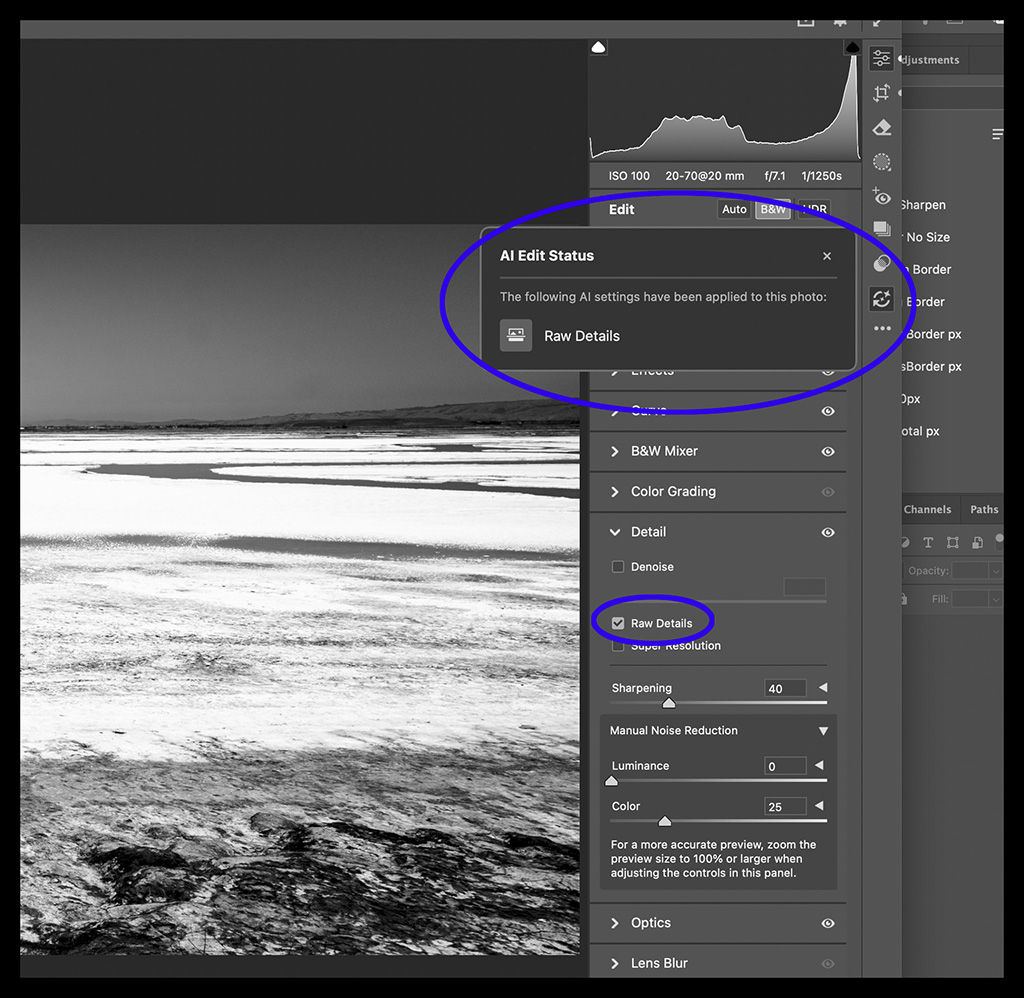
I didn't renew my C1 subscription in the hopes of finding PS/ACR usable enough for my now a lot more casual imaging needs. I was surprised to see the newer UI in ACR which included several AI app additions. My net takeaway is they're darn good. I don't have the minute control I had on sharpening before, but honestly what they've got in there is excellent; pick a value on a single slider until you get the sharpness you're after. In my case this defaults to 40 and that seems perfectly natural, sharp but not overly so. Moving up to 50 adds some additional bite, dropping back to 20 renders a more legacy look. Click "raw details" and the resulting adjustment is pretty compelling.
Equally impressive is the new "super resolution" toggle. Increases your raw file 4x, doubles height and width, and somehow maintains and enhances the finer detail without adding any significant weird artifacts. And it's fast, at least on my M4 Macs.
Oddly, clarity and texture seem a lot more subtle now -- very good results and seems near impossible to get garish results, so IDK if they're also now part of the AI detail engine, but perhaps.
Automated people removal has improved to what I would say is impressive and the AI healing brush is essentially perfection repairing with a single click. AI NR now in ACR is a bit better than it was in LRc last time I tried it there, and seems faster.
Even though I have less direct control over individual tweaks now, I'm finding a lot to like in the final results out of ACR -- including color which has not historically been the case for me with Adobe...
The new AI sharpen (Topaz et al) is not available in LRC or ACR. It is available as AI Sharpen in the main Filter menu of PS and will cost you AI credits. I believe it's also available in Desktop LR and Mobile LR (also for credits), but not LRC
mcbroomf wrote:
The new AI sharpen (Topaz et al) is not available in LRC or ACR. It is available as AI Sharpen in the main Filter menu of PS and will cost you AI credits. I believe it's also available in Desktop LR and Mobile LR (also for credits), but not LRC
Thanks for clarifying that. I had looked in ACR and did not see it. Still, as I wrote above, I can’t see “spending” credits for that when I get great sharpening already using presets that I’ve saved.
mcbroomf wrote:
The new AI sharpen (Topaz et al) is not available in LRC or ACR. It is available as AI Sharpen in the main Filter menu of PS and will cost you AI credits. I believe it's also available in Desktop LR and Mobile LR (also for credits), but not LRC
"Raw Details" in ACR appears to do sharpening of some kind, and it is called out as an AI tool. It may not work the same as the PS filter, but it definitely seems to sharpen fine details in ACR.
Interesting. I had though it was always (only) paired with Denoise or Super Rez. This is what a search pulled up.
Raw Details (formerly Enhance Details) in Adobe Camera Raw (ACR) is an AI-powered feature that refrains from upscaling but alters the initial demosaicing process to deliver crisp fine details, improve color rendering, and reduce artifacts like color noise and moiré.
What it Actually Does
Enhances edge definition: Yields cleaner, crisper diagonal and curved lines instead of blocky pixels.Improves color transitions: Preserves small details in colors and reduces false color artifacts.Fixes sensor-specific bugs: Significantly improves rendering for Fujifilm X-Trans sensors (reducing "worm" artifacts) and fixes moiré in fine patterns across many Bayer sensors.
How it Works in Practice
Subtle Difference: It does not increase the overall pixel count. The effect is highly subtle and is usually only noticeable at 100% to 200% magnification, particularly when printing large-format or deeply cropping images.
No File Bloat: Unlike Super Resolution, which doubles the image resolution and forces a new DNG file, Raw Details processes natively and can be applied non-destructively to your existing raw file.
When to Use It
Because the effect is mild, applying it to every photo causes unnecessary processing. Use it selectively on:
Images requiring massive prints or critical high-res viewing.
Shots with fine, repeating geometric patterns (like grilles, fabrics, or architectural features) that cause moiré.
Starscapes (like the Milky Way) and night cityscapes to preserve pinpoint stars and clear lines.
Subjects shot with Fujifilm X-Trans sensors.
Note: Raw Details is automatically applied in the background whenever you use AI Denoise or Super Resolution.
Would you like to know how to compare the before and after, or do you need help determining if your specific camera will benefit the most from this feature?
I have learned something new from this thread. I suppose I have not used enough of these features to cost me more. I'm on the Photography plan. I do use the LR Denoise more than anything, but not always. I have only used the Firefly add-on in PS on rare occasions. The result of those attempts, for the most part, has been less than satisfactory.
Adobe has just acquired Topaz Labs, so I guess we will soon see AI Sharpening included in all Adobe Photo editing products without needing to purchase Topaz products.