p.1 #1 · Recent JP models like RX1RM3 work with Sony-PMCA-RE Service Mode
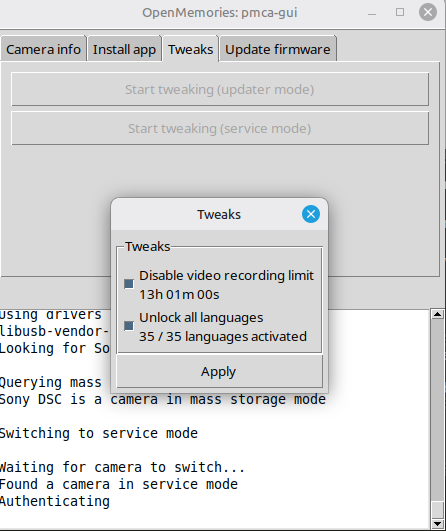
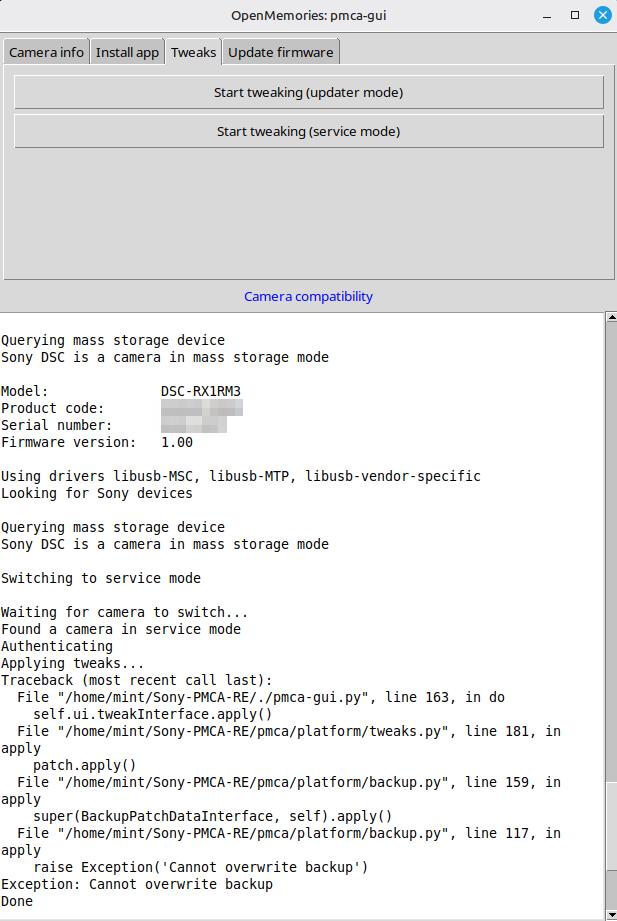
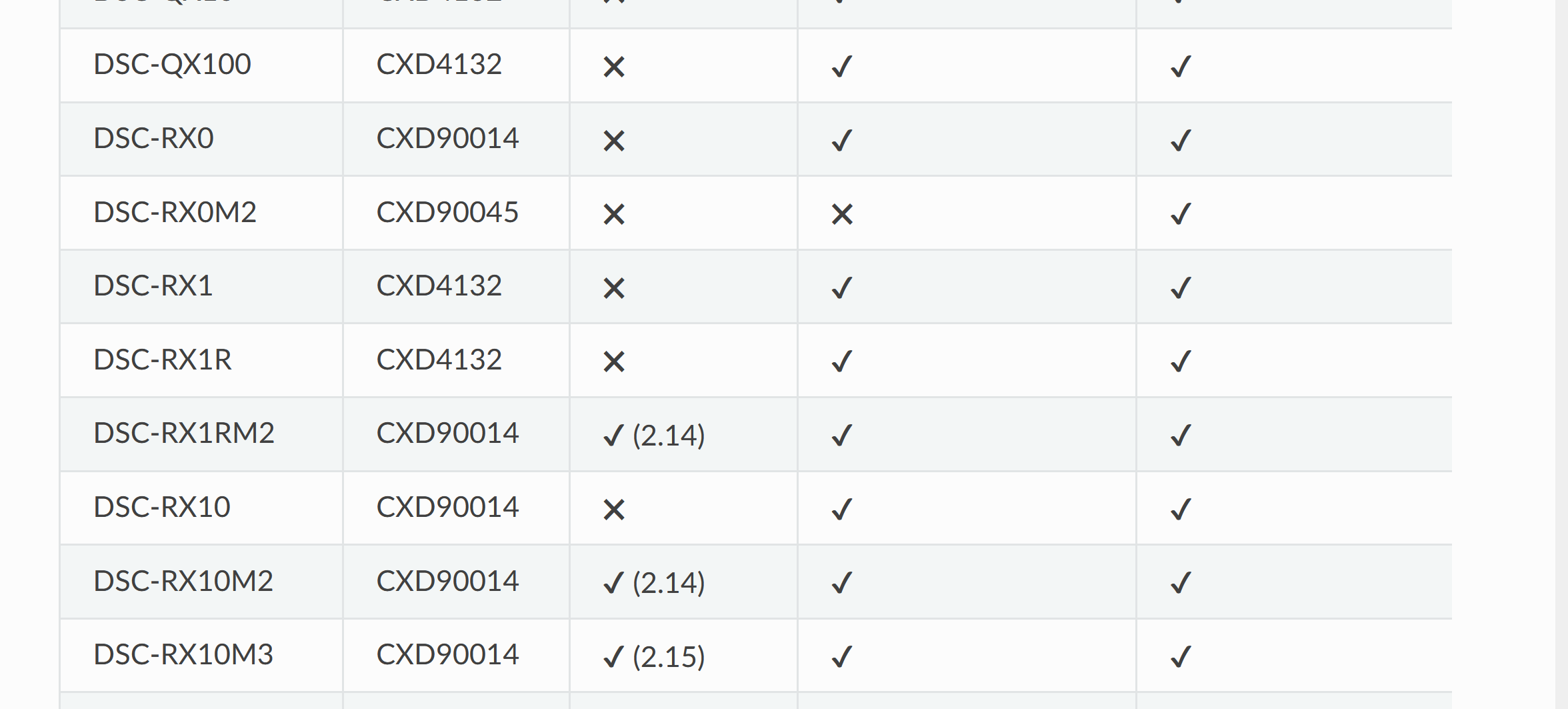
Some people were curious if recent/current Japanese language models (mostly the Sony RX1R M3) were compatible with the Tweak Service Mode option on PMCA-RE. I just tried it and it works with no issue on the RX1R M3.
Additionally, it's completely reversible back to the Japanese region lock mode (essentially, the option just hides or unhides the local GUI option for the 35 languages altogether in the camera).
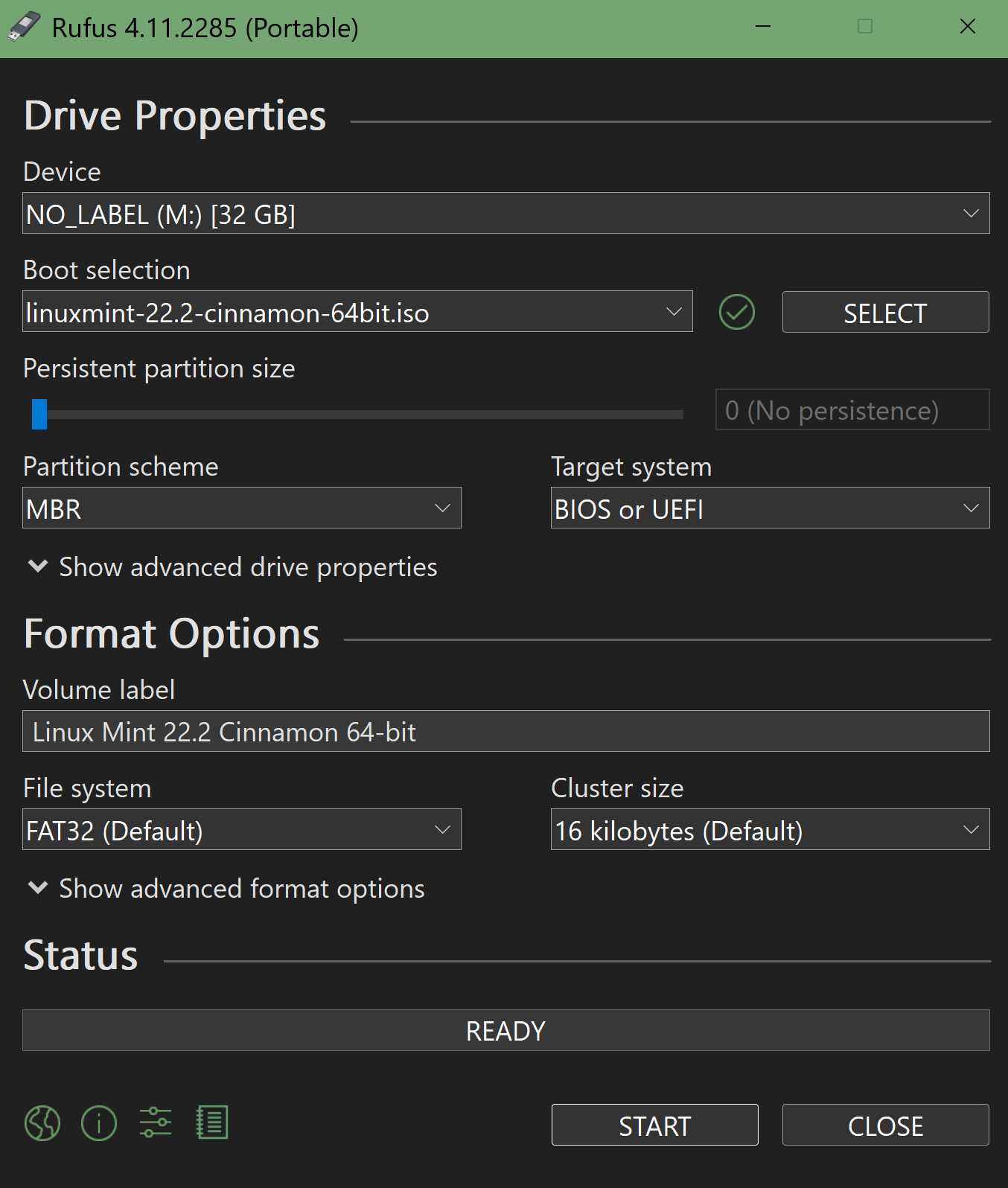
3. Put in 64GB+ USB Drive, Open Rufus Portable, Choose USB drive, Choose Linux Mint ISO, hit Start
4. After Rufus finished, reboot PC and spam whatever your boot key is (mine was F12), then boot off USB Drive
5. After Linux Mint Cinnamon Live loads, connect to your WIFI (bottom right should be icon)
6. Open Terminal (it's in the start menu thing) and run commands below line by line (sometimes it might require typing "Y" then hit enter to confirm)
-----------ignore this line----------------
sudo su
sudo apt update
sudo apt install git
sudo apt install python3-tk
sudo apt install python3-pip
git clone https://github.com/ma1co/Sony-PMCA-RE
cd Sony-PMCA-RE
pip install -r requirements.txt --break-system-packages
./pmca-gui.py
-----------ignore this line----------------
[Error right before launch gui command that was fixed by using KingAbe_b14's line:
pip install -r requirements.txt --break-system-packages]
7. PMCA GUI will launch, connect your camera (MSC mode), then click GET CAMERA INFO under default starting tab
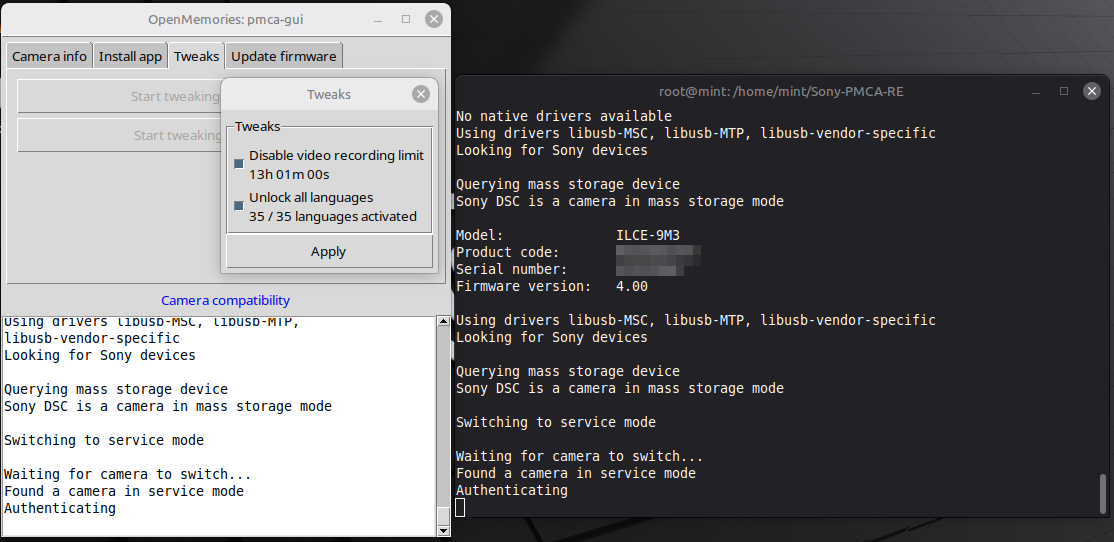
8. Go to TWEAKS Tab > Start tweaking (service mode)
9. Menu will pop up. Check the languages box. Click Apply. It'll do some stuff, wait until it says Done.
10. X out of Tweaks menu, camera should get out of USB mode.
11. Eject all media if you want (bottom right icons)
12. After you turn off camera and turn back on, all languages should be enabled.
13. If you have JP model, just goto the toolbox section and it's the first option, first line. Older models should be towards back of menu as well.
**You don't even really have to read the menu when connect the camera to the computer. Just choose MSC mode when it pops up (make sure to use data compatible USB cable).
*I tested if the language option would be persistent after an Initialize Factory Reset, and it is. When the camera reboots, it'll give you the option to select any of the languages including English like a normal US model.*
p.1 #4 · Recent JP models like RX1RM3 work with Sony-PMCA-RE Service Mode
kits_VA wrote:
Awesome. I know what to buy in the first hour or landing in Tokyo in 3 days.
Thank you so much.
MAP Camera has the lowest price vs all other vendors including Sony official store by 10%, so I recommend going to Shinjuku and getting one there (no problems with stock either).
Newenglandrocks wrote:
So is there an easy way to do this with a Mac? And reading the Reddit thread, it doesn’t look like anyone has tried this with the A1ii…
If you have Intel Mac you can just boot Linux Mint normally, for M series Macs you can use Parallels.
Maybe I'll test it on my US model A9iii later. If the menu pops up similarly for the US models, maybe someone with an A1ii can test it on their US model. If service menu can be accessed, then there's no reason why the JP model wouldn't also work.
p.1 #5 · Recent JP models like RX1RM3 work with Sony-PMCA-RE Service Mode
Just tested with my A9iii and it works perfectly. It's not the JP model, but there is a NA/EU language lock on it and I was able to enable all 35 languages with it. Haven't tried the A1ii yet, but should work.
p.1 #6 · Recent JP models like RX1RM3 work with Sony-PMCA-RE Service Mode
Several years ago, I bought a used RX1RM2 from a local seller for an unbelievable price, but with the caveat that it was Japanese language only. I did my best to learn the menus (google translate app on my phone came in handy), but I finally gave up after a couple months with it. Oh, how I looked for an option like this, to turn on English menus. Is this for the RX1RM3 only?
p.1 #7 · Recent JP models like RX1RM3 work with Sony-PMCA-RE Service Mode
chrisd999 wrote:
Several years ago, I bought a used RX1RM2 from a local seller for an unbelievable price, but with the caveat that it was Japanese language only. I did my best to learn the menus (google translate app on my phone came in handy), but I finally gave up after a couple months with it. Oh, how I looked for an option like this, to turn on English menus. Is this for the RX1RM3 only?
It should work for most old Sony models, made this thread mostly to see if it's also compatible with the newest models since not many people have tried it.
p.1 #8 · Recent JP models like RX1RM3 work with Sony-PMCA-RE Service Mode
Thank so much again for posting this information. My friend and myself picked up RX1Riii from Map camera for crazy good price. I got great trade in for my Ricoh GRs. Almost same as I would get selling in forum here. Already my friend is using it at Lake Kawaguchiko 😃
ftllens wrote:
MAP Camera has the lowest price vs all other vendors including Sony official store by 10%, so I recommend going to Shinjuku and getting one there (no problems with stock either).
If you have Intel Mac you can just boot Linux Mint normally, for M series Macs you can use Parallels.
Maybe I'll test it on my US model A9iii later. If the menu pops up similarly for the US models, maybe someone with an A1ii can test it on their US model. If service menu can be accessed, then there's no reason why the JP model wouldn't also work.
p.1 #10 · Recent JP models like RX1RM3 work with Sony-PMCA-RE Service Mode
Awesome, updated post. If RX1RM3, A9iii, and A1ii all work then pretty much every Sony camera should work up to now. Only test left would be upcoming A7V.
p.1 #11 · Recent JP models like RX1RM3 work with Sony-PMCA-RE Service Mode
My friend is visiting Tokyo in December and offered to bring back RX1Riii for me. Is Map camera the recommended store? How to do you get the best deal in Japan?
From their store front, ¥539,100 (base price) ¥53,910 (consumption tax). I assume if you get it in the store, you will only be paying ¥539,100 base price which is about $3400. That would be a great deal. Their used ones are even cheaper.
p.1 #12 · Recent JP models like RX1RM3 work with Sony-PMCA-RE Service Mode
They are the best. Other stores markup by 10% due to their points rewards. Used at Map are around to $3100 and I honestly thought they looked brand new.except camera and battery other packaging was not even touched.
gordec wrote:
My friend is visiting Tokyo in December and offered to bring back RX1Riii for me. Is Map camera the recommended store? How to do you get the best deal in Japan?
From their store front, ¥539,100 (base price) ¥53,910 (consumption tax). I assume if you get it in the store, you will only be paying ¥539,100 base price which is about $3400. That would be a great deal. Their used ones are even cheaper.
p.1 #14 · Recent JP models like RX1RM3 work with Sony-PMCA-RE Service Mode
kits_VA wrote:
They are the best. Other stores markup by 10% due to their points rewards. Used at Map are around to $3100 and I honestly thought they looked brand new.except camera and battery other packaging was not even touched.
Ok, thanks. Since my friend's buying it for me, it may be safer just get a brand new one since I can't return it.
p.1 #15 · Recent JP models like RX1RM3 work with Sony-PMCA-RE Service Mode
Unlocking All Languages on Sony RX1Riii using Windows tools.
5 minutes or less to change to the all-language menu using Windows 10 Pro. I followed the instructions exactly as mentioned in the video. Do at your own risk, though. I did it for two cameras, and it worked like a charm.
Here are the steps I followed that eventually worked.
1. Download Sony Tweaking tool. Files pmca-console-v0.18-22-ga82f5ba-win.exe AND pmca-gui-v0.18-22-ga82f5ba-win.exe. And zadig 2.8 version from https://zadig.akeo.ie/downloads/. That's the version I used.
3. Connect the USB cable between the camera and the Windows PC. On RX1Riii, Select Menu Setup (represented by a suitcase icon), and then Number 11, which is labeled USB. The first option is USB Connection Mode. Choose that. Then, when you click on it, you will see the Japanese text as shown in the video, but for the RX1Riii, they also have MSC in brackets. Choose that. Now you will see the camera in MSC mode.
4. Start zadig-2.8.exe and follow instructions as in the video. I saw RX1Riii show up in the list. Installed the drivers ("libusb-win32 (v1.2.7.3)) recommended in the video. You choose it from the right side list. It took a couple of minutes to install the driver.
5. After successful installation of the driver, just double-click on the file pmca-console-v0.18-22-ga82f5ba-win.exe. Windows will give a warning message that it won't run it. Click on the tiny link to see the option to INSTALL anyway. Install, and you see a black window pop up and close instantly.
6. Start the GUI version of the Sony tweak tool first - pmca-gui-v0.18-22-ga82f5ba-win.exe and follow instructions. It didn't work for me here. I saw some exception messages, etc., just run on tweak again and you will see All languages is already selected now. Click on tweak again for assurance and this time I had no errors.
7. Disconnect the cable to camera and restart the camera and follow the instructions in this video to locate language options and choose English.
p.1 #16 · Recent JP models like RX1RM3 work with Sony-PMCA-RE Service Mode
I updated the instructions as I unlocked on friends RX1Riii just now and it was way easier than I initially did. I updated the first video which gave me this method. It took me less than couple of minutes this time. It's basically clicking 3 apps and selecting few things in menus and lists and clicking buttons. No need to type any script or commands on console window.
p.1 #17 · Recent JP models like RX1RM3 work with Sony-PMCA-RE Service Mode
kits_VA wrote: Unlocking All Languages on Sony RX1Riii using Windows tools.
5 minutes or less to change to the all-language menu using Windows 10 Pro. I followed the instructions exactly as mentioned in the video. Do at your own risk, though. I did it for two cameras, and it worked like a charm.
p.1 #18 · Recent JP models like RX1RM3 work with Sony-PMCA-RE Service Mode
3 more of my friends got the camera from Japan and for few of them, it's their first camera they bought in last 10+ years just because they can't pass on the deal and the compact size 😂
Alan Parker wrote:
Even influencers are catching on to this
p.1 #19 · Recent JP models like RX1RM3 work with Sony-PMCA-RE Service Mode
I just unlocked all Languages on Japanese Sony A7Cii using this same Windows method. I had to restart pmca-gui-v0.18-22-ga82f5ba-win.exe several times and click on Get Camera info to make it see the camera successfully without USB Exception error. I was worried it might not work as I think I tried like 4-5 times until it finally saw the camera.
My friend bought a brand new one for $1309 at Map camera, and they quoted around $1270 for used, and the sales lady told her the new one is on sale, so the price. Strange they don't reduce used prices when new one is on sale.
kits_VA wrote: Unlocking All Languages on Sony RX1Riii using Windows tools.
5 minutes or less to change to the all-language menu using Windows 10 Pro. I followed the instructions exactly as mentioned in the video. Do at your own risk, though. I did it for two cameras, and it worked like a charm.
Here are the steps I followed that eventually worked.
1. Download Sony Tweaking tool. Files pmca-console-v0.18-22-ga82f5ba-win.exe AND pmca-gui-v0.18-22-ga82f5ba-win.exe. And zadig 2.8 version from https://zadig.akeo.ie/downloads/. That's the version I used.
3. Connect the USB cable between the camera and the Windows PC. On RX1Riii, Select Menu Setup (represented by a suitcase icon), and then Number 11, which is labeled USB. The first option is USB Connection Mode. Choose that. Then, when you click on it, you will see the Japanese text as shown in the video, but for the RX1Riii, they also have MSC in brackets. Choose that. Now you will see the camera in MSC mode.
4. Start zadig-2.8.exe and follow instructions as in the video. I saw RX1Riii show up in the list. Installed the drivers ("libusb-win32 (v1.2.7.3)) recommended in the video. You choose it from the right side list. It took a couple of minutes to install the driver.
5. After successful installation of the driver, just double-click on the file pmca-console-v0.18-22-ga82f5ba-win.exe. Windows will give a warning message that it won't run it. Click on the tiny link to see the option to INSTALL anyway. Install, and you see a black window pop up and close instantly.
6. Start the GUI version of the Sony tweak tool first - pmca-gui-v0.18-22-ga82f5ba-win.exe and follow instructions. It didn't work for me here. I saw some exception messages, etc., just run on tweak again and you will see All languages is already selected now. Click on tweak again for assurance and this time I had no errors.
7. Disconnect the cable to camera and restart the camera and follow the instructions in this video to locate language options and choose English. ...Show more →