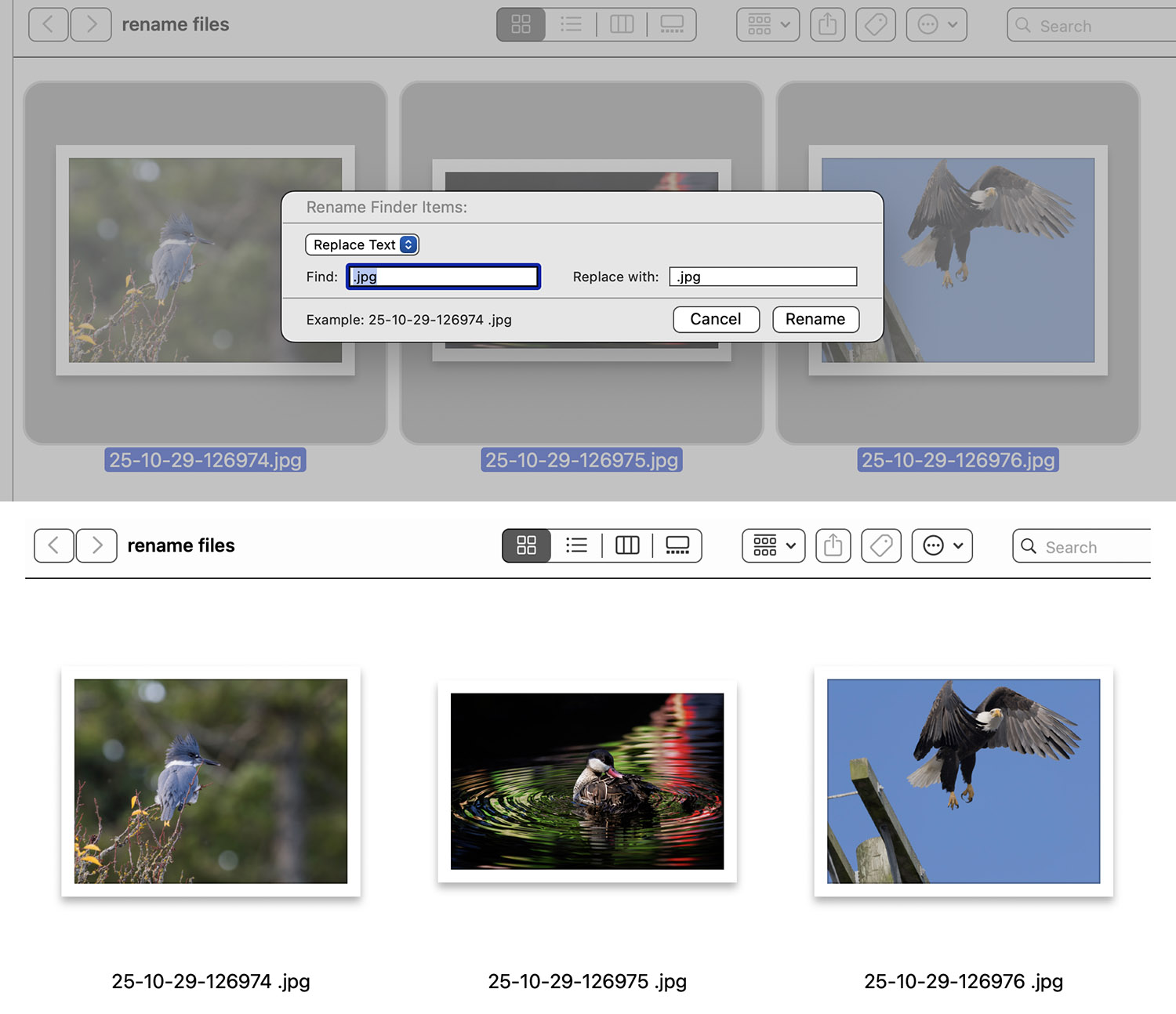
I use an app called "A Better Finder Rename 11.app" to make changes file names, and I just tried adding a space before the extension for a group of files and it seems to work. I didn't actually go ahead with the change, but I could see the result in a window. There's a newer version (12) now. I think you can try it out for a few files before purchasing.
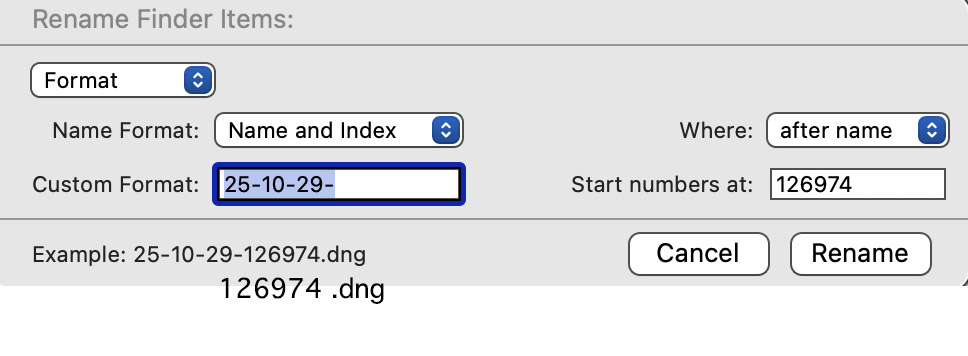
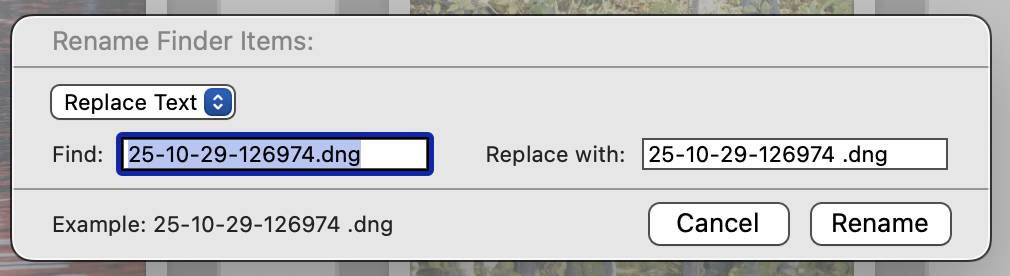
1 In the 'Find 'field (not visible until you switch from Format to Replace Text), enter ".dng"
2 In the 'Replace with' field (not visible until you switch from Format to Replace Text), enter " .dng" (a space character before the period)
3 Click on the Rename button
I just tested on 63 "screenshot...hh.mm.ssPM.png" files.
GoodEgg wrote:
Try
instead of Format, use Replace Text.
1 In the 'Find 'field (not visible until you switch from Format to Replace Text), enter ".dng"
2 In the 'Replace with' field (not visible until you switch from Format to Replace Text), enter " .dng" (a space character before the period)
3 Click on the Rename button
I just tested on 63 "screenshot...hh.mm.ssPM.png" files.
Thanks. I tried that, but it only changed the name of the first file of the 30 that were selected. ??
MacOS has an application to rename files built in to handle this, it is named Automator. Check YT for tutorials, it's pretty slick and doesn't require third party applications.
JBPhotog wrote:
MacOS has an application to rename files built in to handle this, it is named Automator. Check YT for tutorials, it's pretty slick and doesn't require third party applications.
schlotz wrote:
Out of curiosity Tony, why the desire for the space before the extension?
Because when I cull through my images individually I have to rename many one by one. With no space there it just makes it harder for me to place the cursor there.
Imagemaster wrote:
Because when I cull through my images individually I have to rename many one by one. With no space there it just makes it harder for me to place the cursor there.
In Finder, click once to select the file name. Then wait long enough for it not to be seen as a doube-click, and click again; this will select the part of the file name before the dot. Now, as with any other selection on macOS, press right-arrow to place the insertion point at the end of the selection and cancel the selection. This leaves the insertion point before the dot.
It’s even easier in Capture One. Click on the file name under the thumbnail, which will hide the dot and extension and select what’s left of the file name. Now press right arrow to turn the selection into an insertion poiint at the end and make your edit. Press return to accept or ESC to discard the edit, and the hidden dot and file name will reappear.
melcat wrote:
In Finder, click once to select the file name. Then wait long enough for it not to be seen as a doube-click, and click again; this will select the part of the file name before the dot. Now, as with any other selection on macOS, press right-arrow to place the insertion point at the end of the selection and cancel the selection. This leaves the insertion point before the dot.
As I already posted above, it is easier and faster to do that with hundreds of files at the same time, instead of one at a time.
It’s even easier in Capture One. Click on the file name under the thumbnail, which will hide the dot and extension and select what’s left of the file name. Now press right arrow to turn the selection into an insertion poiint at the end and make your edit. Press return to accept or ESC to discard the edit, and the hidden dot and file name will reappear.
I don't use Capture One, and thanks, but others already showed me the more efficient way.


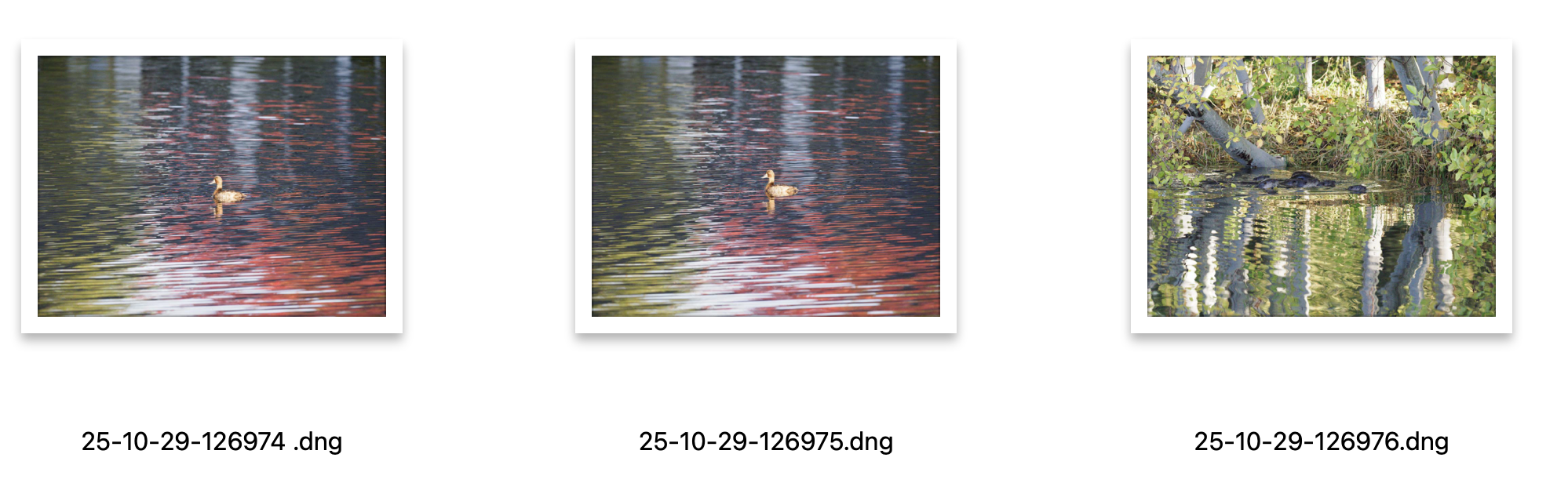
 Thanks everyone.