To all of you who have a problem with my and others crazy pixel sharp images:
Just back off from the monitor a little. At a certain distance, everything falls into place, the detail looks fine and sharp but not unnatural, no stair steps, tonal gradations look fine, the 3D feel is back.
i'm afraid that's not possible due to room size constraints at work (and the crappy 19" 1280 x 1024 monitor) and i can't reach the keyboard if i do that with my (reasonably small pixel pitch) laptop at home. the difference between how things look on the two different monitors is incredible nonetheless.
edit: not that i find your images over sharpened, blurring doesn't help the stairsteps.
Bifurcator wrote:
I mean using one of the many micro-contrast boosters in place of sharpening when doing the stepped reduction method and using "Best For Smooth Gradients" when doing the reductions. The amount that it "sharpens" the image is of course controllable but no matter how much you apply you never get halos unless they already exist (...)
Jonas B wrote:
Would it be possible for you to share the method? I would like to try something like this out. Step by step instructions even?
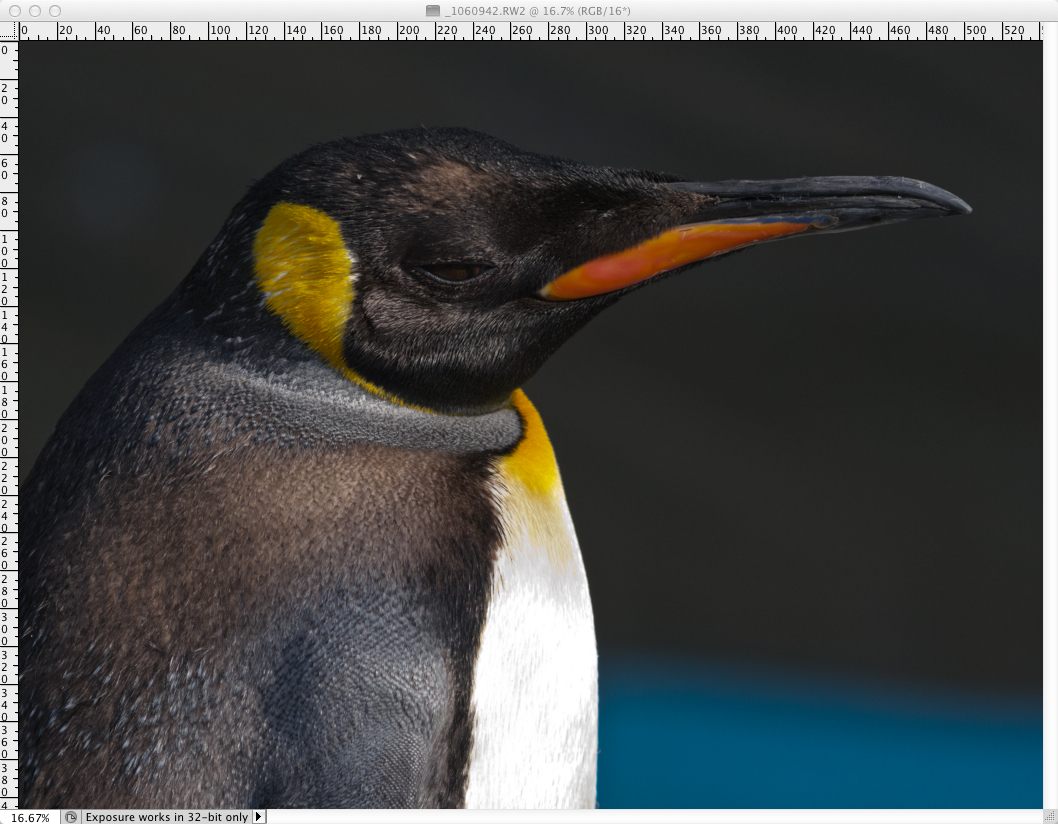
OK, here it is on another image. I normally wouldn't apply this much sharpening but in the interest of seeing halo-less sharpening I took things to the extreme.
Where some halos do actually exist I portend they to be derived accentuations from the original photograph. If you look at the top part of his beak you'll see none at all - yet the sharpening method was applied uniformly to the entire image. The gained up halos there could also be due to an early application of NR prior to the sharpening steps that followed rather than in the original photo - I dunno. This much sharpening using USM or SS would of course result in massive black and/or white halos all around the subject - as you all probably already know.
These are my two micro-contrast boost settings. I currently use Topaz Detail 2 but there are several micro contrast boosters out there which do essentially the same thing.
I use the Fade tool in between just about every operation I perform. If I don't like the results at all I can just set it to zero for example. No matter what it is I find I rarely if ever like the results of any Filter or Adjustment tool at 100% (i.e.. without the use of Fade). So the steps here are three size reduction iterations and 6 total Micro Contrast Boosts like so:
I usually don't do a third iteration (the one between the lines in the list above) but I thought I would add one extra just for this example. I also usually apply two sets of Auto-Curves with a fade for each one. The first is a Fade with the Blending Mode set to Color and the second one is applied Normally. My full (Micro-Contrast-Boost) script usually results in something more like:
Before
After (and still a little on the extreme side...)
So that's it. I have several scripts however just because of different processing times. The Topaz Detail plugin is a little slow taking about 15 seconds per image per execution and I don't always wanna wait that long so my most commonly used scripts are a mixture or USM, Smart Sharpening, and Topaz Detail - of course all with Fades for each of them.
Feel free to ask any questions. I'm not sure I'll have the answers but I'll certainly try.
Bifurcator wrote:
OK, here it is on another image. I normally wouldn't apply this much sharpening but in the interest of seeing halo-less sharpening I took things to the extreme.
Halo-less? The halos are glowing and very obvious.
Seriously tho. There are just about no halos from sharpening which would be like tight high-contrast outlines. In the first image the same head-shaped (50-pixel or 150 pixel) glow already exists in the original RAW (top) - it's just been gained up in the edited one is all. Follow it to his lower back where it didn't exist in the original and you'll see it's not in the processed one either.
Or look at the second example set. The tools being used don't do anything on such a large radius like that so it's not "a halo" as sharpening would produce.
Seriously tho. There are just about no halos from sharpening which would be like tight high-contrast outlines. In the first image the same head-shaped (50-pixel or 150 pixel) glow already exists in the original RAW (top) - it's just been gained up in the edited one is all. Follow it to his lower back where it didn't exist in the original and you'll see it's not in the processed one either.
Or look at the second example set. The tools being used don't do anything on such a large radius like that so it's not "a halo" as sharpening would produce.
The first one, a 2-3 pixel wide halo around his head and back. A sharp, 1 pixel wide halo around his beak. The feather detail above his beak, where you can see it against the background is filled with white in between.
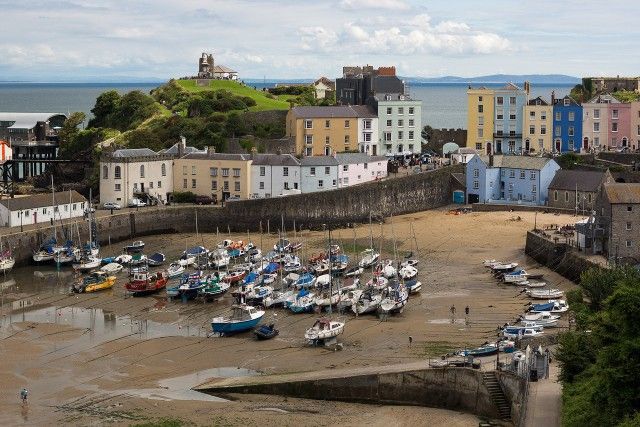
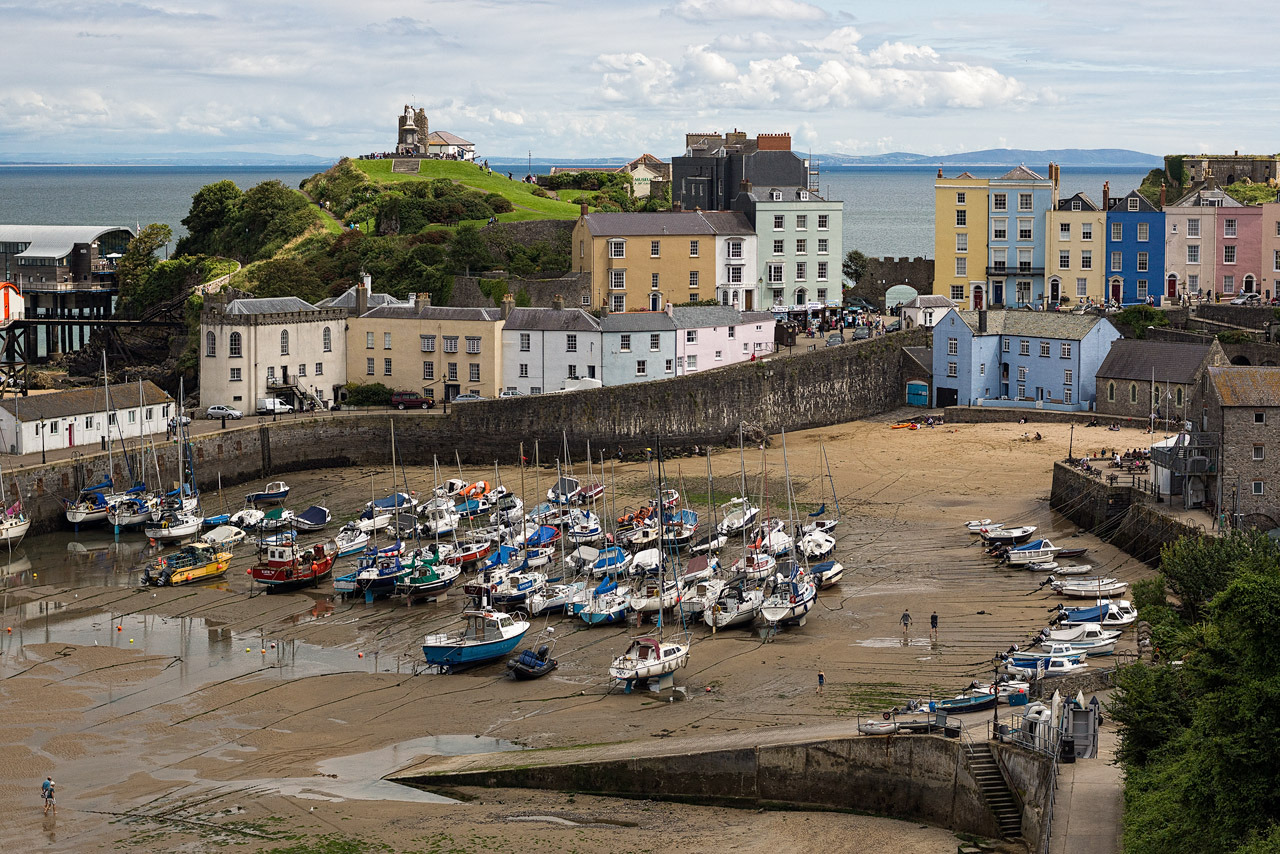
Here is my take on your beautiful scenery image.
Although I think properly resizing and sharpening for the web can best be done for a specific screen where it will be viewed.
And as with color perception it is to a high degree dependent on personal taste and subject.
I resized the image in 3 steps of plain bicubic. The first step to 5120 pixels, then 50 % and 50 %.
As last step I used a Pixel Genius script of output sharpening for the web, SuperFineEdge Sharpen reduced to 80%.
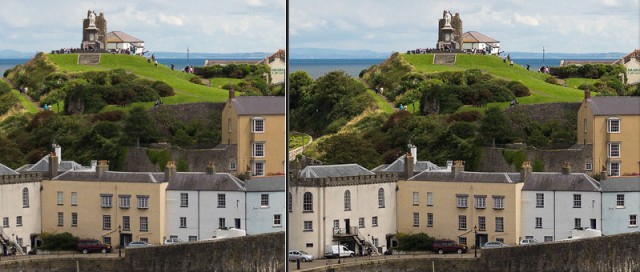
One additional image with even a touch more sharpness.
Herb
1.Phillip's scenery
2.Phillips's scenery #2, additional sharpening
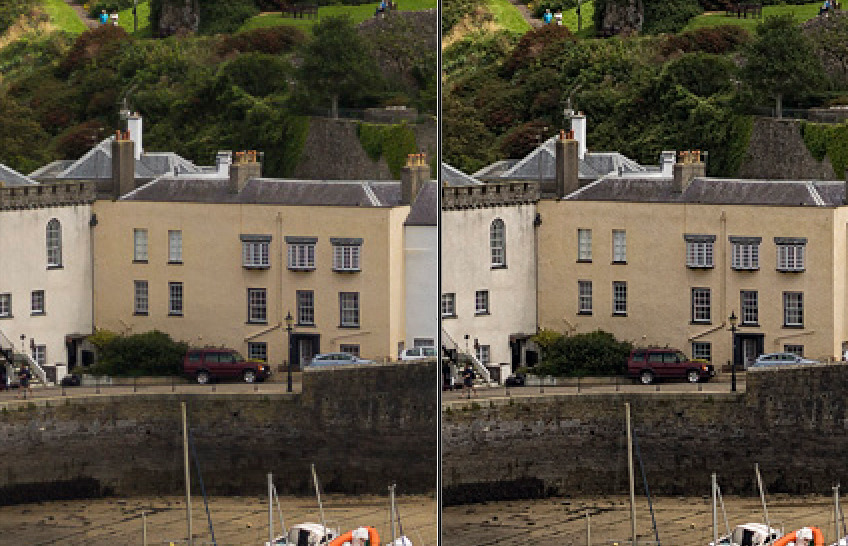
left one pass standard screen sharpened Lightroom output, right #2. image as above
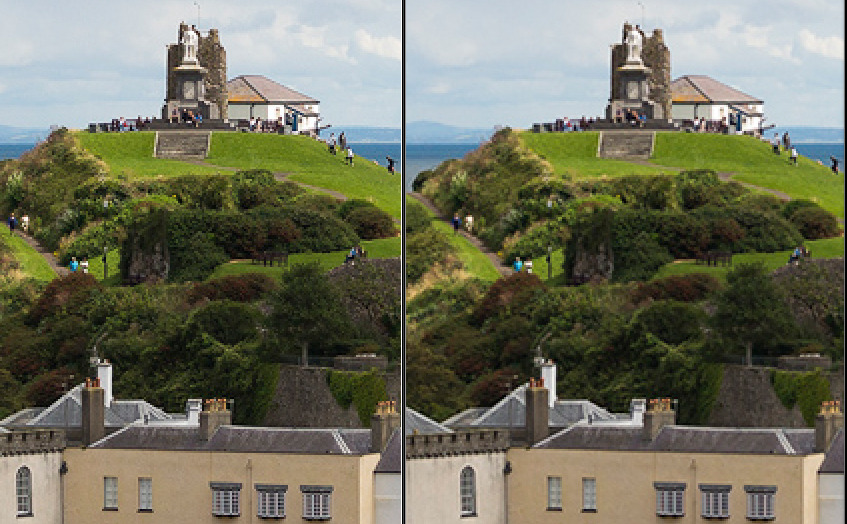
Three steps down with plain bicubic in CS6, first to 5120 pix, then 50% and 50%.
After step one: Topaz feature enhancement setting, fade to 50%.
After step two: Topaz micro detail enhancement, fade to 50%.
After step three: Photokit Sharpener for the web for finest detail at 50%.
Now I will test the 10 million other possibilities
Further experiments showed that when bringing down the fade to around 30% will preserve
a more natural image while maintaining high detail and sharpness.
Now maybe we see less halos, but aliasing can be even worse for some images.
In practice we want to prevent both in order to preserve a natural looking image.
When we push less for detail and sharpness we will find the standard Lightroom output
not so bad after all. But it was an interesting experiment.
Herb
Down in size with Topaz
left Lightroom standard sharpened web output, right three step with Topaz and PK
- multi-step downsizing should not be necessary with proper tools
- sharpening before downsampling is a no-go area
- an image free of artifacts is necessarily soft when viewed at the pixel level.
That said, some apparent sharpness at the pixel level is desirable for web viewing, so we have to find a balance between sharpness and artifacts. The method that I have been using for the past half year or so is
- downsample with lanczos3 (single step)
- edge detection with a Laplace kernel
- apply sharpening with preferential undershoot.
The total processing time from the 24 Mpx original to the end result is 0.3 s. I don't say it's better or worse than other methods, but so far I am not unhappy.