I downloaded the trial version of this software to use with LR Classic on my Windows 11 desktop with 16GB memory and 6-core CPU. But I've been unable to launch it from LR. According to Task Manager Denoise becomes unresponsive.
I am able to launch Denoise as a stand-alone app, but it's slow and my understanding is that exporting from it results in the loss of a lot of critical meta-data. I like it's noise reducing capabilities (much better than LR), but it's turning to be a PITA to use. Is there a trick to making it behave properly?
I use Topaz Denoise with LR and PS without any difficulty. It is not in the Plugin extras menu. I access it by selecting a files or files and then right click and use "Edit in". There is some delay while the file(s) are converted as per your file setup (Edit > Preferences > External Editing) and DeNoise is opened. Maybe you need to allow more time?
The Topaz apps make heavy use of the GPU, so having a good GPU makes a lot of difference in how quickly it operates. Regardless, they are compute intensive apps and take some time.
dclark wrote:
I use Topaz Denoise with LR and PS without any difficulty. It is not in the Plugin extras menu. I access it by selecting a files or files and then right click and use "Edit in". There is some delay while the file(s) are converted as per your file setup (Edit > Preferences > External Editing) and DeNoise is opened. Maybe you need to allow more time?
The Topaz apps make heavy use of the GPU, so having a good GPU makes a lot of difference in how quickly it operates. Regardless, they are compute intensive apps and take some time.
I think it might be my graphics card that's the problem. It's an old card with not much memory or capabilities. It's been sufficient to power a couple of monitors & edit photos in LR, but I suppose Denoise needs more power.
My understanding is that if you edit photos in standalone Denoise it doesn't save the meta-data. At least that's what I read somewhere.
bvphotos wrote:
I think it might be my graphics card that's the problem. It's an old card with not much memory or capabilities. It's been sufficient to power a couple of monitors & edit photos in LR, but I suppose Denoise needs more power.
My understanding is that if you edit photos in standalone Denoise it doesn't save the meta-data. At least that's what I read somewhere.
I have no problems running the AI Denoise without a discrete video card in an ultra-light laptop, but it is slower than with a RTX 30 series card of course.
Hmmm, then I'm back to square one. I literally wait for over a minute for the Denoise window to render itself when I launch it from LR by selecting a photo and clicking on "Edit In". Then I get tired of it and kill it using the Window's task manager. When I launch the stand-alone app, it's a lot faster. Since @dclark confirms that he doesn't see any loss of meta-data, perhaps that's the workflow I need to use. Open a RAW file in Denoise stand-alone app, make my noise related changes. Save it and then open it in LR for further adjustments.
bvphotos wrote:
I downloaded the trial version of this software to use with LR Classic on my Windows 11 desktop with 16GB memory and 6-core CPU. But I've been unable to launch it from LR. According to Task Manager Denoise becomes unresponsive.
I am able to launch Denoise as a stand-alone app, but it's slow and my understanding is that exporting from it results in the loss of a lot of critical meta-data. I like it's noise reducing capabilities (much better than LR), but it's turning to be a PITA to use. Is there a trick to making it behave properly?
Do you have a separate GPU or is in a motherboard version?
bvphotos wrote:
Hmmm, then I'm back to square one. I literally wait for over a minute for the Denoise window to render itself when I launch it from LR by selecting a photo and clicking on "Edit In". Then I get tired of it and kill it using the Window's task manager. When I launch the stand-alone app, it's a lot faster. Since @dclark@ confirms that he doesn't see any loss of meta-data, perhaps that's the workflow I need to use. Open a RAW file in Denoise stand-alone app, make my noise related changes. Save it and then open it in LR for further adjustments....Show more →
Once you verify the setup, test it using a single RAW file (make sure only a single file is selected).
Once you click Edit In and select DeNoise, you should see a Input window to select to edit a copy of the file including LR edits, edit a copy, or to edit the original. Make the selection (I always edit a copy with the LR adjustments) and then click the Edit button. After that you will see a status monitor open just above the left hand panel that shows the status of processing the file to open in DeNoise. On my computer it takes a second or two to complete the processing and open DeNoise.
Starting Denoise is a bit slow but it should not take longer than a minute on even the slowest computer.
Once you verify the setup, test it using a single RAW file (make sure only a single file is selected).
Once you click Edit In and select DeNoise, you should see a Input window to select to edit a copy of the file including LR edits, edit a copy, or to edit the original. Make the selection (I always edit a copy with the LR adjustments) and then click the Edit button. After that you will see a status monitor open just above the left hand panel that shows the status of processing the file to open in DeNoise. On my computer it takes a second or two to complete the processing and open DeNoise.
Starting Denoise is a bit slow but it should not take longer than a minute on even the slowest computer. ...Show more →
Sorry for the delay in responding. I tried exactly what you suggested. Still no luck. Tried with Sony ARW and Fuji RAF files. The farthest I get when I invoke Denoise via the "Edit In..." function in LR is get that rotating circle (when the file is being opened and processed). The windows task manager continues to show Denoise as not responding. I wait for 2-3 minutes and kill the app. Works just fine when opening the same file directly in Denoise. What I did observe is that it takes nearly 30-60 seconds to save the file in Denoise after removing the noise. As much as I love the output it produces, it's simply way too slow and inconvenient for me to use. I'll contact Topaz's support. If they're not able to improve the situation, this gets filed under "Worthwhile experiments that failed".
bvphotos wrote:
Sorry for the delay in responding. I tried exactly what you suggested. Still no luck. Tried with Sony ARW and Fuji RAF files. The farthest I get when I invoke Denoise via the "Edit In..." function in LR is get that rotating circle (when the file is being opened and processed). The windows task manager continues to show Denoise as not responding. I wait for 2-3 minutes and kill the app. Works just fine when opening the same file directly in Denoise. What I did observe is that it takes nearly 30-60 seconds to save the file in Denoise after removing the noise. As much as I love the output it produces, it's simply way too slow and inconvenient for me to use. I'll contact Topaz's support. If they're not able to improve the situation, this gets filed under "Worthwhile experiments that failed". ...Show more →
Did you see the selection for "Edit a copy with Lightroom adjustments", etc?
Did you see the status bar in the upper left? If so, does it show any progress?
Okay, I sent a message to Topaz about why Denoise won't work for me. In the meantime, following the Zenon's pointer, I downloaded Photo AI. That works in all 3 modes: as a stand-alone app, invoking it using "Edit In' using a TIFF version, and invoking the app via the File->PlugIn->Process in Topaz Photo AI (which processes the RAW file).
I haven't tried many different kinds of files, but from what I've seen, I really like what Topaz's products can do. Clean, sharp output. My understanding is that Photo AI is a reworking & integration of their individual products, and clearly it's a more efficient/optimized product than the originals. Having said that, it does take time to process both RAW & TIFF files. I think that's because my graphics card is anemic, especially in the memory department (I think mine has 2GB). More than any other resource, it's the graphics card & its memory that will have the biggest impact. Which is not surprising given that mathematical calculations on image files (especially matrix geometry) can be memory intensive. So, off to getting a new card. I'll post an update after I install it.
bvphotos wrote:
Okay, I sent a message to Topaz about why Denoise won't work for me. In the meantime, following the Zenon's pointer, I downloaded Photo AI. That works in all 3 modes: as a stand-alone app, invoking it using "Edit In' using a TIFF version, and invoking the app via the File->PlugIn->Process in Topaz Photo AI (which processes the RAW file).
I haven't tried many different kinds of files, but from what I've seen, I really like what Topaz's products can do. Clean, sharp output. My understanding is that Photo AI is a reworking & integration of their individual products, and clearly it's a more efficient/optimized product than the originals. Having said that, it does take time to process both RAW & TIFF files. I think that's because my graphics card is anemic, especially in the memory department (I think mine has 2GB). More than any other resource, it's the graphics card & its memory that will have the biggest impact. Which is not surprising given that mathematical calculations on image files (especially matrix geometry) can be memory intensive. So, off to getting a new card. I'll post an update after I install it.
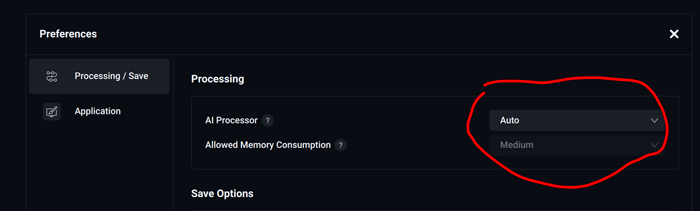
I upgraded to a Radeon 66xx series card with 8GB VRAM. Photo AI does NOT use the GPU at all, except for a few momentary spikes to 15-30% utilization, with VRAM usage of less than 900MB for a full size A7RIV RAW file. Tried all the available settings. Made no difference. It does, however, tax the CPU, with a consistent 50-60% utilization of the 6-core Ryzen processor. When it believes the photo needs both NR and sharpening, it can take upwards of 5 minutes when you go from the default zoom size to fitting the entire photo in the screen.
I went back to the stand-alone Denoise AI app. It does use the GPU, consistently using over 40% and spiking all the way up to 100% sometimes and around 4GB of VRAM for the same photo.
So a good graphics card makes a big difference to Denoise, but is useless when it comes to Photo AI. I've sent Topaz Labs a message, but don't expect a response for a while due to the holidays. I really want to like Photo AI -- its output, when it eventually produces it -- is far better than anything LrC can do, but in its current state it's unusable for me.