Register · Software · Search · Image Upload · Buy & Sell · Reviews · Hosting

Moderated by: Hendrik, guardian
Username   Password

Visit the FM Store · Image Upload · Buy & Sell
FM Actions & Plugins support
Workflow Guidelines
FM Forums | Post-processing & Printing | Join Image Upload
end
Go to previous topic Go to next topic
hvacrus
Offline
Image Upload: On
p.1 #1 · Need help w/CS3 mask


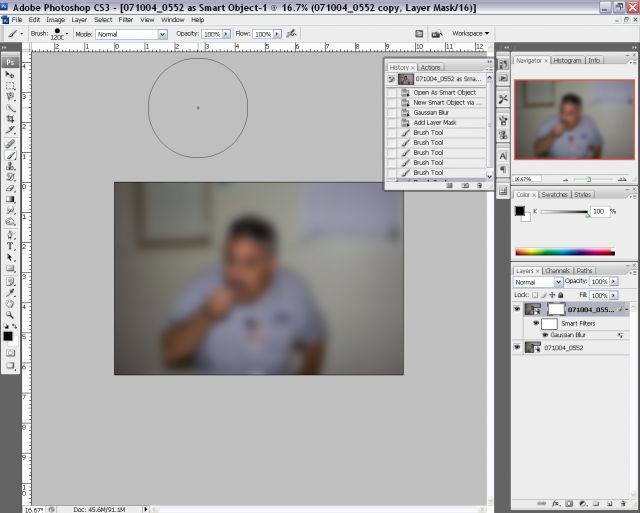
I'm trying to blur the back ground. When i try to paint on the mask nothing happens. Also tried on different photo. Same problem. Any Ideas ?
Thanks Steve


Edited on Dec 09, 2007 at 05:20 PM


Dec 08, 2007 at 08:52 PM
Kohala
Online
Image Upload: Off
p.1 #2 · Need help w/CS3 mask


Steve:
There are a variety of ways to achieve what you are looking for. One way:
1. Create a duplicate layer (control or command J);
2. Run the blur filter to taste;
3. Add a black mask to the duplicate layer (You do this by pressing down the command key while clicking on the add a layer mask icon at the bottom of the layers palette. The black mask will hide the blurring effect. With a soft white brush paint in the blurring effect where you want it.

You can also add a white mask, which will blur the entire image. Then you can use a black brush to paint out the blurring effect where you don't want it.

Once you have used one of these methods, you can use the opacity slider on the duplicate layer to reduce the blurring effect.

Aloha from the Big Island

Kohala (Dennis}

Edited on Dec 09, 2007 at 05:20 PM


Dec 08, 2007 at 09:21 PM
hvacrus
Offline
Image Upload: On
p.1 #3 · Need help w/CS3 mask


Thanks but i dont think you looked at the history on the screencapture

Edited on Dec 09, 2007 at 05:20 PM


Dec 08, 2007 at 09:38 PM
Peano
Offline
Image Upload: Off
p.1 #4 · Need help w/CS3 mask


hvacrus wrote:
I'm trying to blur the back ground. When i try to paint on the mask nothing happens. Also tried on different photo. Same problem. Any Ideas ?
Thanks Steve


Even if you get the brush to work on the mask, the method you're using will not produce acceptable results. You'll get halos around the subject.

If you want to keep the subject sharp while blurring the background, you must not blur the whole image first. Rather, you first need to extract the subject and then do some cloning around the edges to prevent halos. Here's a brief tutorial that explains the technique:

http://forums.dpreview.com/forums/read.asp?forum=1006&message=23239450

Edited by Peano on Dec 08, 2007 at 06:11 PM GMT

Edited on Dec 09, 2007 at 05:20 PM


Dec 08, 2007 at 09:41 PM
ohenry
Offline
Image Upload: Off
p.1 #5 · Need help w/CS3 mask


First, there isn't a need to create a mask as you already had one created when you used gaussian blur. Simply click on that mask and paint with black to show the part you want unblurred or click on the mask, press Ctrl I to turn the mask black, then paint white to blur the areas you want.

I'm not sure why you're not able to use the mask as you have set up unless you did not activate the mask icon by clicking on it, but if that were the case, you wouldn't get the brush showing...so I'm a bit confused by that.

Edited on Dec 09, 2007 at 05:20 PM


Dec 08, 2007 at 10:06 PM
Kohala
Online
Image Upload: Off
p.1 #6 · Need help w/CS3 mask


hvacrus wrote:
Thanks but i dont think you looked at the history on the screencapture


Looking at the history is not helpful. You need to show the layers palette.

Dennis

Edited on Dec 09, 2007 at 05:20 PM


Dec 08, 2007 at 10:11 PM
hvacrus
Offline
Image Upload: On
p.1 #7 · Need help w/CS3 mask


Kohala wrote:
hvacrus wrote:
Thanks but i dont think you looked at the history on the screencapture


Looking at the history is not helpful. You need to show the layers palette.

Dennis

Sorry Dennis I thought the layers palette was just below the history to the right

Edited on Dec 09, 2007 at 05:20 PM


Dec 08, 2007 at 10:17 PM
hvacrus
Offline
Image Upload: On
p.1 #8 · Need help w/CS3 mask


ohenry wrote:
First, there isn't a need to create a mask as you already had one created when you used gaussian blur. Simply click on that mask and paint with black to show the part you want unblurred or click on the mask, press Ctrl I to turn the mask black, then paint white to blur the areas you want.

I'm not sure why you're not able to use the mask as you have set up unless you did not activate the mask icon by clicking on it, but if that were the case, you wouldn't get the brush showing...so I'm a bit confused by that.

Thanks Ohenry i'll give it a try

Edited on Dec 09, 2007 at 05:20 PM


Dec 08, 2007 at 10:19 PM
hvacrus
Offline
Image Upload: On
p.1 #9 · Need help w/CS3 mask


hvacrus wrote:
ohenry wrote:
First, there isn't a need to create a mask as you already had one created when you used gaussian blur. Simply click on that mask and paint with black to show the part you want unblurred or click on the mask, press Ctrl I to turn the mask black, then paint white to blur the areas you want.

I'm not sure why you're not able to use the mask as you have set up unless you did not activate the mask icon by clicking on it, but if that were the case, you wouldn't get the brush showing...so I'm a bit confused by that.

Thanks Ohenry i'll give it a try


No thats not working either even after changing the mask to black

Edited on Dec 09, 2007 at 05:20 PM


Dec 08, 2007 at 10:29 PM
ohenry
Offline
Image Upload: Off
p.1 #10 · Need help w/CS3 mask


I don't know, man. I've duplicated your workflow (per what I can see in your screenshot) and it works fine on my machine.

Really looking forward to finding out what is causing this.

Edited on Dec 09, 2007 at 05:20 PM


Dec 08, 2007 at 10:46 PM
hvacrus
Offline
Image Upload: On
p.1 #11 · Need help w/CS3 mask


I just tried opening a new file with plane layers no smartfilter . Still no luck. I wonder if a system restore would help?

Edited on Dec 09, 2007 at 05:20 PM


Dec 08, 2007 at 11:10 PM
ecidi
Offline
Image Upload: On
p.1 #12 · Need help w/CS3 mask


hvacrus, see if this technique will help you

In CS3, open image
In tools palette, choose "quick selection tool" and run mouse tool along the edges of the image that you want to preserve or isolate
go to Select>inverse
go to filter>blur>gaussian blur and apply blur according to your taste>click OK
go to Select>de-select
That's it!!! Good luck!!

If you still need help, email me and send me the file at ecidi@mac.com. I will blur the background for you.

effie imperio

Edited on Dec 09, 2007 at 05:20 PM


Dec 09, 2007 at 03:41 PM
ohenry
Offline
Image Upload: Off
p.1 #13 · Need help w/CS3 mask


This isn't a case of "how to do it". The approach being used should work just fine. The problem is that the program isn't doing what it's supposed to be doing.

I recommend trying a reinstall/repair of CS3.

Edited on Dec 09, 2007 at 05:20 PM


Dec 09, 2007 at 04:18 PM
jerryrock
Offline
Image Upload: On
p.1 #14 · Need help w/CS3 mask


Resetting of Photoshop preferences should always be the first step to troubleshooting the program (I got that from Jeff Schewe).

While starting Photoshop, hold down:

Control+Alt+Shift for PC
Cmd+Option+Shift for Mac

Edited on Dec 09, 2007 at 05:20 PM


Dec 09, 2007 at 04:26 PM
hvacrus
Offline
Image Upload: On
p.1 #15 · Need help w/CS3 mask


Ohenry I was thinking about uninstalling and reinstalling.
Jerry for some reason ctrl-alt-shift didnt work (probably operator error) But you gave me somthing to look for at Adobe. I did a file search found the file for Photoshop preferance and deleted. THANKS everybody for your help. Life is gooder again.
Cheers Steve

Edited on Dec 09, 2007 at 05:20 PM


Dec 09, 2007 at 05:18 PM
hvacrus
Offline
Image Upload: On
p.1 #16 · Need help w/CS3 mask


Topic
How to delete/reset Photoshop preferences

Mathias Vejerslev - 01:58am Nov 1, 2001 Pacific


Background: Sometimes Photoshop can exhibit odd/erratic/weird behaviour. This behaviour can sometimes be overcome by removing the Photoshop Preference file. The procedures outlined below are the most common methods of removing the preferences file.

Q: I am experiencing weird behaviour in Photoshop. - How do I delete / reset my preferences?

Photoshop Versions 6x and later:

A: Hold down Alt, Ctrl, and Shift keys (Mac: Command, Option, Shift) while starting Photoshop. A dialog box will appear asking if you wish to delete the preferences file.

A2: You can also simply search your hard drive for a *.psp file and delete it. It will be called something along the lines of "Adobe Photoshop X Prefs.psp".

Under Win 2k/XP the preference file will be found at:
%windir%\Documents and Settings\~username\Application Data\Adobe\Photoshop\[version #]\Adobe Photoshop [version #] Settings


Dec 09, 2007 at 05:20 PM

FM Forums | Post-processing & Printing | Join Image Upload
end
  Go to previous topic Go to next topic

You are not logged in. Login or Register

  Username   Password  
Lost password?